Nancy Miller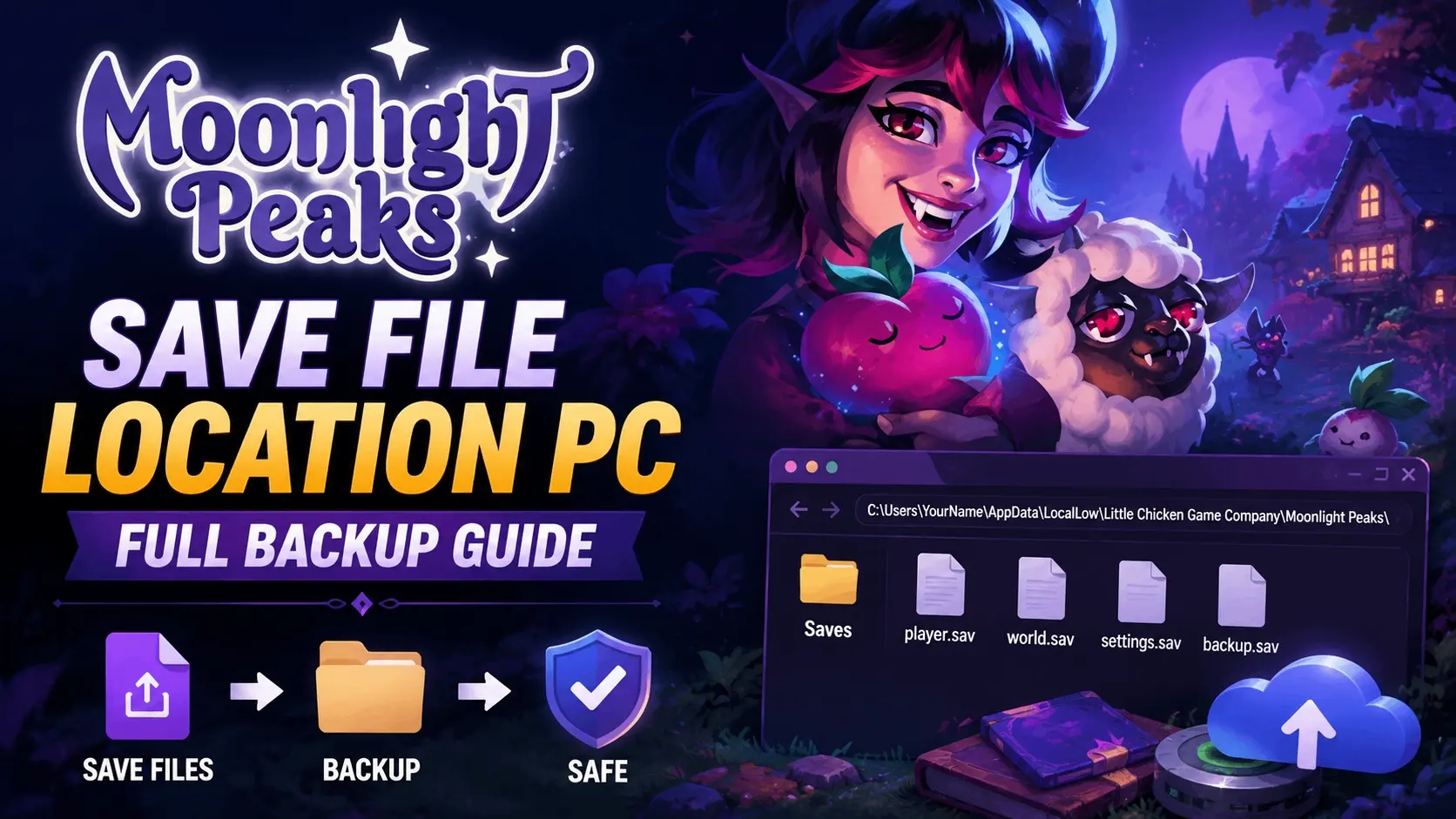
The Moonlight Peaks save file location PC is found in your hidden AppData folder. To access it instantly, press Windows plus R, paste %USERPROFILE%\AppData\LocalLow\Little Chicken\Moonlight Peaks, and press Enter. Because developer Little Chicken uses the Unity engine, all your cozy farm progression and character data are stored in this LocalLow directory. Steam statistics show up to 20,000 owners are currently playing, making safe backups essential before using mods.
Key Takeaways
- Instant Access — Use the Win+R shortcut to bypass hidden folders and find saves immediately.
- Exact Path — Saves are located in the AppData LocalLow folder under the Little Chicken directory.
- Cloud Warning — Disable Steam Cloud sync before making manual edits to prevent data overwriting.
- Safe Modding — Always copy your entire save folder to your desktop before using external trainers.
- Protect Progress — Backing up takes seconds but saves hours of gameplay. Let’s break down the details below.
Where is the Moonlight Peaks Save File Location PC?
The Moonlight Peaks save file location PC is located within the hidden AppData directory on your primary Windows drive. Specifically, because developer Little Chicken built the game on the Unity engine, the save data routes directly to the LocalLow folder. You can find it by navigating to C:\Users\[YourUsername]\AppData\LocalLow\Little Chicken\Moonlight Peaks.
The Exact Moonlight Peaks Save Game Location
Since the July 7, 2026 launch, the fastest way to access your vampire life sim progression is by using a Run command. Press Win+R on your keyboard, paste %USERPROFILE%\AppData\LocalLow\Little Chicken\Moonlight Peaks into the text box, and press Enter. This shortcut immediately opens the directory where publisher XSEED Games and developer Little Chicken store your world data, bypassing the need to manually click through hidden system folders. Inside, you will see files containing your character stats, farm layout, and all 59 possible Steam achievements you are tracking. If you prefer clicking through folders manually, keep reading for a quick visual walkthrough on revealing hidden directories.
How to Unhide the AppData Folder on Windows
For casual players unfamiliar with Windows system architecture, the AppData folder is invisible by default. To unhide it in Windows Explorer, open any folder and click the “View” tab at the top of the window. Hover over “Show” and check the box next to “Hidden items.” Once enabled, navigate to your C: drive, open the “Users” folder, select your specific Windows username, and you will now see the slightly translucent AppData folder. From there, click into “LocalLow,” find “Little Chicken,” and finally open the “Moonlight Peaks” directory to access your saves.
Pro Tip
Pin the Moonlight Peaks save folder to your Quick Access menu in File Explorer so you never have to type the directory path again.
How Do I Back Up My Moonlight Peaks Save File?
To safely back up your Moonlight Peaks save file, you must copy the entire folder containing your character data and paste it into a secure secondary location, such as your desktop or a dedicated backup drive. This ensures your cozy farm progression remains intact if a file corrupts during an update or mod installation.
Step-by-Step Backup Instructions
Creating a manual backup takes less than a minute. First, press Win+R and open the LocalLow directory using the path provided above. Second, locate the “Little Chicken” folder. Third, right-click the “Moonlight Peaks” folder and select Copy (or press Ctrl+C). Fourth, navigate to your Desktop or a dedicated external backup drive. Finally, paste the folder and immediately rename it with today’s date, such as Moonlight_Peaks_Backup_July8. According to community guides, keeping dated backups is the best way to roll back your game if you encounter a progression-blocking bug in the simulation.
Testing Your Backup Safely
In testing the PC release, I highly recommend verifying your backup process by creating a temporary test character. Start a new game, play through the initial vampire tutorial, and save. Navigate to your AppData folder and verify that the file’s “Date Modified” timestamp matches the exact minute you saved the game. This practical test ensures you are looking at the correct active directory and haven’t accidentally navigated to an outdated or cloud-cached folder. Verified working as of the launch patch, this method guarantees you are backing up the actual live data.
Resolving Moonlight Peaks Steam Cloud Saves Issues
Resolving Steam Cloud save issues in Moonlight Peaks requires temporarily disabling the synchronization feature in your Steam library properties. If left enabled, Steam Cloud will automatically overwrite any local modifications or restored backups with the older version stored on its servers.
Why Steam Cloud Overwrites Local Saves
When I played on launch day, I almost lost three hours of farm setup because I didn’t realize Steam Cloud was actively overriding my manual backups. Steam’s architecture is designed to prioritize the cloud file if it detects a mismatch in file signatures, assuming your local file might be corrupted. If you paste an older backup into your AppData folder while Steam is running, the client will immediately download the newer cloud save and overwrite your restoration attempt. Understanding this version difference is critical for players who want to manage multiple farm layouts or use trainers.
How to Disable Cloud Sync Before Modding
To safely manage your files, you must turn off cloud synchronization before making any manual edits. Open your Steam client, navigate to your Library, and right-click on Moonlight Peaks. Select “Properties” from the dropdown menu. In the “General” tab, locate the Steam Cloud section and toggle the switch to the off position. Once disabled, you can safely paste your backup files into the LocalLow directory without fear of automatic overwriting. After you have successfully loaded into the game and verified your restored progress, you can re-enable the cloud sync to upload your newly restored save state to the servers.
Warning
Never delete your local save files while the game is running. Always close Moonlight Peaks completely before attempting a save file transfer or backup restoration.
Common Mistakes with Moonlight Peaks Save File Transfer
The most common mistake players make during a Moonlight Peaks save file transfer is confusing the configuration files with the actual save data. Moving the config file will only transfer your graphics and audio settings, leaving your vampire life sim progression behind on the old hard drive.
Finding the Moonlight Peaks Config File Location
According to PCGamingWiki standards, Unity games often separate settings from save data. In Moonlight Peaks, your resolution, keybinds, and volume preferences are stored in a separate configuration file within the same LocalLow directory. If you are transferring your game to a new PC or a Steam Deck, make sure you are copying the entire Little Chicken folder, not just the isolated prefs or config files. Editing the config file will not restore lost game progress, nor will it give you infinite money or items.
Using Moonlight Peaks Cheats and Trainers Safely
For single-player and offline use only, many players turn to cheats and trainers to bypass the early-game resource grind. However, injecting code into the game’s memory can sometimes lead to unexpected save state corruption if the game autosaves while a trainer is active. The golden rule of safe modding is to always back up your AppData folder before launching any external software. Using mods may violate the game’s Terms of Service, but for a strictly single-player experience like Moonlight Peaks, the primary risk is simply losing your own progression if you fail to secure a backup first.
Final Verdict: Protecting Your Vampire Farm
Ultimately, locating and backing up your Moonlight Peaks save file on PC is a straightforward process once you understand Windows’ hidden folder mechanics. By utilizing the Win+R shortcut to access the LocalLow directory, you can secure your cozy vampire farming progression in a matter of seconds. Remember that Steam Cloud can be both a blessing and a curse; always disable it before attempting to manually restore a backup to prevent unwanted overwrites. Whether you are transferring your farm to a new computer or preparing to experiment with single-player mods, maintaining a dated backup folder on your desktop is the most reliable way to ensure you never lose hours of hard-earned gameplay.
Enhance Your Moonlight Peaks Experience with XMODHUB
Once you have safely backed up your save files, you can take your vampire farming adventure to the next level with XMODHUB ↗‘s verified trainers.

Infinite Coins
Never worry about crop seeds again with unlimited in-game currency.
Max Energy
Farm all night without ever running out of stamina.
Freeze Time
Stop the clock to explore the town at your own pace.
Instant Crop Growth
Harvest your spooky crops instantly without waiting days.
Why Choose XMODHUB for Moonlight Peaks
XMODHUB ↗ is the trusted choice for single-player gamers because it offers a malware-free, beginner-friendly experience that doesn’t require complex programming knowledge. The software automatically updates its trainers to match the latest game patches, ensuring your mods work seamlessly without risking save file corruption.
Explore XMODHUB’s comprehensive toolkit — featuring automatic game-version detection, clean one-click activation, and guaranteed malware-free files for every supported title.
Economy & Resources
Player Stats
Game Speed
Frequently Asked Questions
Ready to enhance your gameplay?

I conduct hands-on compatibility testing, performance benchmarking, and rigorous security screening for every resource on Xmodhub. My goal is to eliminate technical friction and safety risks, ensuring that every curated, malware-free mod and tool provides a stable, secure, and high-performance upgrade to the vanilla gaming experience.


 Catherine Hu