Catherine Hu
We have all been there. You have spent hours meticulously arranging your Artifacts, mastering the Parry Counters, and surviving the procedurally generated nightmares of Sephiria, only to boot up the game the next day and find your progress completely wiped out. Whether it is a sudden crash during a four-player co-op session, a corrupted file after a steam cloud sync failure, or simply wanting to experiment with a new weapon tree without risking your main run, losing your save in a demanding action roguelite is devastating.
Editor’s Note: As a top-down action roguelite that heavily relies on strategic inventory management and long-term progression across its 6 chapters, Sephiria makes every run count. During my early access testing, I lost a god-tier Rapier build right before chapter 4 due to a hard crash. Since then, I have made it a habit to manually back up my save data. This guide will show you exactly where to find those files and how to keep your brave bunny’s progress secure.
TL;DR: The Short Answer
If you are just looking for the exact folder path to locate your Sephiria save files on a Windows PC, here it is:
- Sephiria Save File Location:
- Press
Win + Rto open the Run dialog. - Paste the following path:
%USERPROFILE%\AppData\LocalLow\TEAM HORAY\Sephiria - Press Enter.
- What to backup: Copy the entire
Sephiriafolder (or specifically theSavesfolder inside it) and paste it somewhere safe, like your Desktop or a dedicated backup folder. - Steam Cloud: Ensure Steam Cloud is enabled, but do not rely on it 100%. Manual backups are the only foolproof method.
Table of Contents
- TL;DR: The Short Answer
- Understanding How Sephiria Handles Saves
- Step-by-Step: Locating Your Sephiria Save File
- How to Properly Back Up Your Progress
- Restoring a Lost or Corrupted Save
- Advanced Save Management and Cosmetics
- Decoding the Sephiria Save Data Structure
- Steam Deck Compatibility and Cross-Progression
- The Ultimate Shortcut: XMODhub
- Frequently Asked Questions
- Final Verdict: Secure Your Roguelite Run
Understanding How Sephiria Handles Saves
Sephiria is not your typical linear adventure; it is a fate-defying action roguelite designed around repeatable encounters, strategic decision-making, and build experimentation. Because the game features procedural generation, dynamic enemy placements, and over 150 Artifacts and Slates, the data tracking your progress is complex.
The game saves your meta-progression—the unlocked weapons, the specific Talents you have acquired, and the animal characters you have allied with through dialogue and trade. However, your mid-run progress is also temporarily stored. If you force-quit or experience a power outage during a fast-paced top-down combat sequence, the temporary save file might become corrupted, which can sometimes nuke your entire profile data. Understanding this distinction is crucial because when you backup your Sephiria save file location, you are backing up both your overarching meta-progression and your current active expedition.
Step-by-Step: Locating Your Sephiria Save File
Finding the hidden AppData folder is often the biggest hurdle for PC gamers. Since TEAM HORAY uses the Unity engine (or a similar architecture that defaults to LocalLow), the save files are tucked away deep in your user profile. Follow these detailed steps to find them without fail.
Method 1: The Run Command (Fastest)
This is the quickest way to jump straight into the correct directory without having to unhide any folders.
- Close Sephiria entirely. Ensure it is not running in the background.
- Press the Windows Key + R simultaneously on your keyboard to bring up the Run command window.
- In the text box, type exactly:
%USERPROFILE%\AppData\LocalLow\TEAM HORAY\Sephiria - Click OK or press Enter.
- A File Explorer window will instantly open, revealing your save data, configuration files, and player logs.
Method 2: Manual Navigation
If you prefer clicking through your file system or need to create a desktop shortcut for future access, you will first need to reveal hidden files.
- Open File Explorer.
- Click on the View tab at the top of the window.
- Check the box that says Hidden items. (On Windows 11, click View -> Show -> Hidden items).
- Navigate to your main system drive (usually
C:\). - Open the
Usersfolder. - Open the folder with your specific Windows username.
- Open the newly visible
AppDatafolder. - Go into
LocalLow. - Find the folder named
TEAM HORAY, and inside it, theSephiriafolder.
Inside this directory, you will likely see files ending in .sav, .dat, or folders specifically named Saves or Profiles. This entire directory represents your lifeblood in the game.
How to Properly Back Up Your Progress
Now that you know the Sephiria save file location, backing up your progress is straightforward, but it requires consistency. A backup is only as good as its most recent update.
Creating a Manual Backup
- Navigate to the
%USERPROFILE%\AppData\LocalLow\TEAM HORAY\Sephiriadirectory. - Right-click the
Sephiriafolder (or theSavesfolder inside it) and select Copy. - Create a new folder on your Desktop or a secondary storage drive. Name it something recognizable, like
Sephiria Backups. - Inside that new folder, create a subfolder with today’s date (e.g.,
Backup_Oct_24). - Open that dated folder, right-click, and select Paste.
Automating the Process
For hardcore players who are grinding through the 6 chapters and facing over 60 distinct enemies, doing this manually after every session gets tedious. You can use simple batch scripts or third-party backup software (like GameSave Manager) to automatically copy the contents of the Sephiria save file location to your backup drive every time you exit the game.
Restoring a Lost or Corrupted Save
If disaster strikes and your save file is corrupted (often indicated by the game forcing you to start a new game or crashing upon loading your profile), here is how to use your backup.
- Turn off Steam Cloud Synchronization: Before doing anything, right-click Sephiria in your Steam Library, select Properties, go to the General tab, and toggle off “Keep games saves in the Steam Cloud for Sephiria”. If you do not do this, Steam might immediately overwrite your restored backup with the corrupted cloud version.
- Navigate to your Sephiria save file location.
- Delete the corrupted files inside the active directory. (It is safer to move them to a temporary folder just in case).
- Open your backup folder, copy the healthy save files, and paste them into the active directory.
- Launch Sephiria. Check if your progress, weapon upgrades, and unlocked Talents are restored.
- If everything works perfectly, exit the game, turn Steam Cloud back on, and when prompted by Steam about a file conflict, choose to upload your local files to the cloud.
Advanced Save Management and Cosmetics
Managing your save files is not just about disaster recovery; it is also highly useful for cosmetic unlocks and testing builds. For instance, if you are trying to unlock specific cosmetic items but do not want to waste resources on a failed run, you can backup your save right before making a major purchase or engaging a difficult boss.
Speaking of cosmetics, customizing your brave bunny is a huge part of the fun. If you want to know how to maximize your aesthetic options without grinding endlessly, check out our comprehensive guide on Sephiria Best Rabbit Skins & How to Unlock Them Instantly. By combining smart save management with targeted unlocking strategies, you can test out different looks and revert your save if you are not satisfied with your choices.
Decoding the Sephiria Save Data Structure
When you navigate to the Sephiria save file location, you will notice multiple files. Understanding what each file does is crucial if you are trying to salvage a corrupted run without losing your entire meta-progression. Because Sephiria blends procedural generation with permanent unlocks across its narrative, the game separates your active expedition data from your overarching profile.
Here is a breakdown of the critical files you will find in your local directory:
| File/Folder Name | Function | Backup Priority |
|---|---|---|
| Profile.dat | Stores meta-progression, unlocked Artifacts, and rescued animal allies. | Critical |
| Run_Save.sav | Contains your current mid-run progress, active weapon tree, and inventory loadout. | High |
| Config.ini | Saves your custom keybinds, graphics settings, and audio preferences. | Low |
| Player.log | Diagnostic file generated by the Unity engine; useful for troubleshooting crash reports. | None |
If your game crashes during a cooperative multiplayer session, deleting just the active run save file can sometimes fix the loading screen freeze while preserving your main profile progress.
Steam Deck Compatibility and Cross-Progression
As a fast-paced top-down combat game, Sephiria plays exceptionally well on handhelds. If you are switching between a desktop PC and a Steam Deck, you might occasionally encounter cloud sync delays that threaten your progress.
The Sephiria save file location on a Steam Deck (SteamOS/Linux) is different from Windows. To manually back up or transfer your saves on a Steam Deck, switch to Desktop Mode and navigate to:
~/.steam/steam/steamapps/compatdata/[Game_ID]/pfx/drive_c/users/steamuser/AppData/LocalLow/TEAM HORAY/Sephiria/
Pro Tip: Always force a manual Steam Cloud sync on your PC before booting up the game on your Steam Deck to ensure your overarching action roguelite progress carries over flawlessly.
The Ultimate Shortcut: XMODhub
Let’s be brutally honest. Constantly navigating to the Sephiria save file location, manually copying files, and worrying about corrupted runs because of a cheap death against a dynamic boss is exhausting. You are here to enjoy the fast-paced combat and strategic inventory system, not to act as an IT administrator for your own game.
If you are stuck on a difficult chapter, tired of losing your progress to brutal roguelite mechanics, or simply want to experiment with all 150 Artifacts without the fear of a wiped save file, there is a much better way to play on your own terms: XMODhub.
XMODhub provides safe, reliable, and instantaneous modifications for Sephiria, allowing you to bypass the grind and eliminate the frustration of lost progress. Whether you need infinite health, instant weapon tree upgrades, or max resources to arrange your inventory perfectly, XMODhub has you covered.
How to Dominate Sephiria in 3 Steps:
- Download XMODhub: Install the secure, lightweight client from the official website.

- Auto-Detect Sephiria: Launch the app. XMODhub will automatically detect your Sephiria installation.
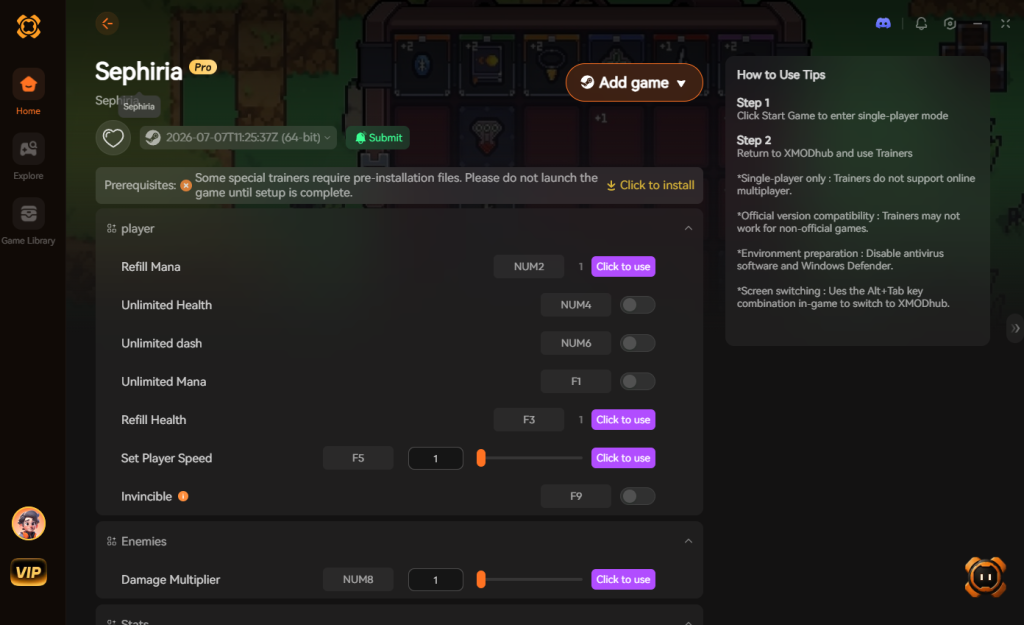
- Toggle Cheats: Activate features like God Mode, Infinite Dash, or Instant Kill with a single click.
Stop worrying about save file corruption. Play the game, your way.
Frequently Asked Questions
Does Sephiria support Steam Cloud saves?
Yes, Sephiria supports Steam Cloud saves. However, because it is an action roguelite where frequent autosaving occurs during fast-paced top-down combat, cloud sync errors can happen, especially if you crash during a four-player cooperative multiplayer session. Manual backups are highly recommended.
Will backing up my save file get me banned in multiplayer?
No. Backing up your save file is a standard practice for local file management and will not trigger any anti-cheat systems. Sephiria features a cooperative multiplayer mode, and local save backups are perfectly safe to execute.
Can I transfer my Sephiria save file from one PC to another?
Absolutely. By locating the Sephiria save file location on your first PC, copying the Sephiria folder onto a USB drive, and pasting it into the exact same directory path on your second PC, you can seamlessly continue your progress. Just ensure the game is installed and run at least once on the new PC to generate the necessary folder structures.
Why is my AppData folder missing?
The AppData folder is hidden by default in Windows to prevent accidental deletion of important system files. You must enable “Show hidden files, folders, and drives” in your File Explorer View settings to see it, or use the %USERPROFILE%\AppData Run command to bypass the hidden status completely.
Final Verdict: Secure Your Roguelite Run
Knowing the Sephiria save file location and establishing a solid backup routine is the ultimate defense against the harsh realities of roguelite gaming. Procedural generation and dynamic bosses are tough enough without the added anxiety of losing your meticulously crafted character build to a technical glitch. By navigating to %USERPROFILE%\AppData\LocalLow\TEAM HORAY\Sephiria and keeping a separate copy of your progress, you ensure that your brave bunny’s quest to save the town is never truly lost.
But if the cycle of dying, losing progress, and managing save files is draining the fun out of your experience, remember that you do not have to play by the rules. With XMODhub, you gain absolute control over your gameplay. Supporting over 5,000 single-player titles—including other intense action roguelites like Hades II or The Binding of Isaac: Repentance—XMODhub is the ultimate tool for gamers who value their time. Don’t let a corrupted save ruin your day; take control, download XMODhub, and conquer the tower on your own terms.
Stop Grinding, Start Enjoying.
Bypass the tedious resource gathering and unlock your full potential instantly.

I am a passionate gamer and writer at XMODhub, dedicated to bringing you the latest gaming news, tips, and insights.
Connect with me:
LinkedIn Profile ↗

 Nancy Miller