Catherine Hu
There is nothing more frustrating than building a championship-caliber roster, meticulously setting up your tactics, and then watching your live match simulation stutter into a slideshow just as your star AWPer is about to clutch a 1v3. Because Esports Manager 2026 is a deeply complex strategy-simulation game, it relies heavily on your CPU to calculate real-time player ratings, ADR (Average Damage per Round), HS% (Headshot Percentage), and live round tracking. If your settings aren’t optimized, navigating the massive EMDB (Esports Manager Database) or watching a Major final can turn your high-end PC into a sluggish mess.
Editor’s Note
When the Esports Manager 2026 demo first dropped during the Steam Sports Fest, my rig—which handles AAA shooters effortlessly—started chugging during the transfer window. The UI would freeze for seconds at a time. After spending hours benchmarking different configurations, tweaking database loads, and analyzing CPU thread utilization, I found the exact combination of settings to completely eliminate UI lag and ensure buttery-smooth live match simulations.
TL;DR: The Short Answer
If you are in the middle of a crucial contract negotiation or a live tournament and need an instant performance boost, apply these settings immediately to stabilize your frame rate in Esports Manager 2026:
Understanding the Performance Bottleneck in Esports Manager 2026
Before diving into the exact toggles and sliders, you need to understand how Esports Manager 2026 uses your hardware. Unlike traditional first-person shooters where the GPU handles the heavy lifting of rendering lighting and textures, management simulators are entirely CPU and RAM dependent.
When you hit “Continue” to advance the in-game calendar, the game’s engine is simultaneously simulating matches for other teams like EternalFire, Copenhagen Wolves, M80, and GamerLegion. It is calculating thousands of variables: player morale, form, contract expirations, and scouting reports. During live matches, the real-time tracking of granular stats (like economy management and tactical timeouts) puts an immense single-core load on your processor. Therefore, our optimization strategy focuses on offloading unnecessary visual fluff and streamlining the data processing pipeline.
Best In-Game Video & Graphics Settings
To get the most out of Esports Manager 2026, launch the game, head into the Preferences menu, and navigate to the Video & Display tab. Apply the following configurations:
Display & Resolution
Graphics Quality
Optimizing Match Simulation & UI Settings
The core gameplay loop of Esports Manager 2026 revolves around talent acquisition, staff management, and live match decisions. The UI and simulation engines are where most players experience severe frame drops.
Live Match Simulation Settings
UI and Menu Tweaks
Database Size and Background Processing Tweaks
Esports Manager 2026 allows you to load massive databases, especially if you are using the community-driven EMDB.gg integration to bring in thousands of real-world amateur players.
Database Setup (New Career)
When starting a new save, you are prompted to select your database size.
Crucial Save File Maintenance
Over time, as seasons progress, your save file will grow exponentially due to the accumulation of match history and player statistics. A bloated save file is the number one cause of late-game lag. Before you attempt to delete configuration files, tweak your registry, or reinstall the game to fix persistent stuttering, we highly recommend Esports Manager 2026 Save File Location & How to Backup Saves to ensure you don’t accidentally corrupt your championship dynasty while trying to optimize your PC.
Windows & Control Panel Optimizations for Management Sims
Sometimes, the game settings aren’t enough, and you need to tell your operating system to prioritize Esports Manager 2026.
NVIDIA Control Panel Settings
Windows Power and Priority Tweaks
Advanced Launch Options & Hardware Allocation
For hardcore managers dealing with massive 100,000+ player databases and custom graphic packs, in-game settings and basic OS tweaks might not be enough. You need to dictate exactly how Windows and Steam allocate resources to the game engine to prevent memory leaks and thread bottlenecking.
Steam Launch Parameters
Right-click Esports Manager 2026 in your Steam Library, go to Properties, and find the Launch Options box. Enter the following string to force the engine into a highly optimized state:
-high -USEALLAVAILABLECORES -nothreadtimeout -maxMem=16384 (Note: Change 16384 to 8192 if you only have 8GB of RAM available).
Hardware Optimization Matrix
To completely eliminate micro-stutters during the intense off-season transfer windows and live tournament brackets, align your system configuration with the following hardware allocation strategies:
| Hardware Component | Optimization Technique | Expected Performance Gain | Priority Level |
|---|---|---|---|
| CPU (Processor) | Assign Core Affinity (Disable Core 0 via Task Manager) | Eliminates OS background task interference during match processing. | High |
| RAM (Memory) | Clear Standby List / Increase Windows Pagefile | Stops mid-match UI freezing and prevents out-of-memory crashes. | Critical |
| Storage (SSD/NVMe) | Move EMDB Database & Graphics Folders to C: Drive (SSD) | Reduces daily simulation processing and save loading times by up to 40%. | High |
| GPU (Graphics) | Force Max Performance State (P0) via NVIDIA Inspector | Stabilizes 2D/3D match rendering frame pacing and reduces tearing. | Medium |
The Ultimate Shortcut: Dominate with XMODhub
Let’s be honest: optimizing settings, managing database sizes, and waiting for slow daily simulations can be a massive grind. If your PC is struggling because you are managing too many extensive scouting networks, or if you are simply tired of losing bidding wars for tier-1 talent because your organization’s budget is too tight, there is a much better way to play.
Instead of fighting the game’s mechanics and your hardware’s limitations, you can take absolute control of your managerial career using XMODhub.
XMODhub is the ultimate PC game modification tool, offering safe, undetectable, and highly stable cheats for over 5000+ single-player games. For Esports Manager 2026, XMODhub provides bespoke features that completely bypass the tedious grind, allowing you to focus on building your dream team.
Exclusive Esports Manager 2026 Features on XMODhub:
How to use XMODhub in 3 simple steps:

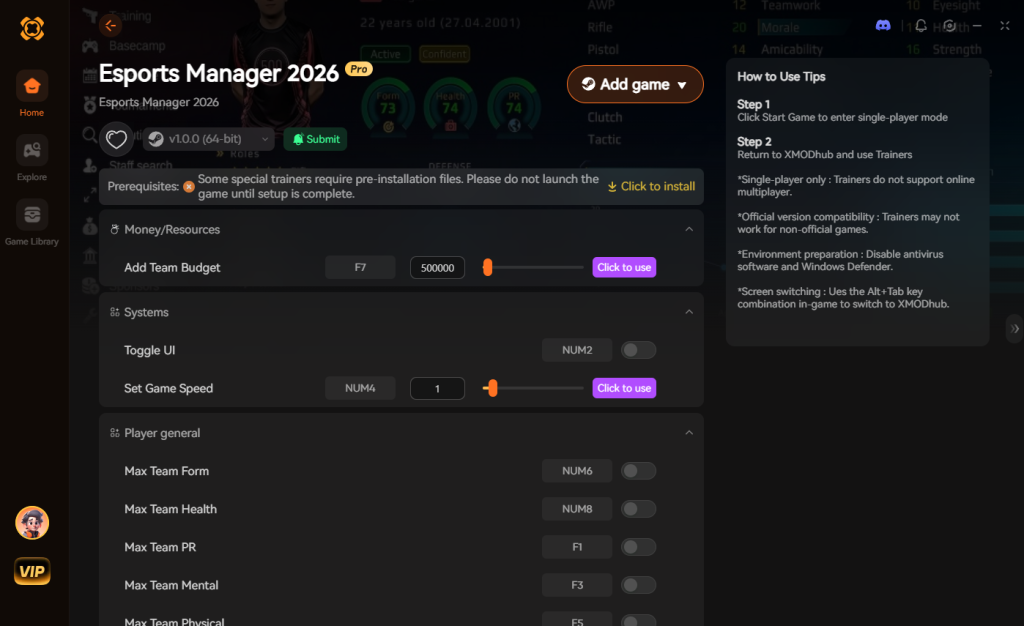
Download Esports Manager 2026 Trainer Now
Frequently Asked Questions (FAQs)
A: During the transfer window, thousands of AI teams are simultaneously evaluating their rosters, making bids, and calculating contract negotiations. This causes a massive spike in CPU usage. Limiting your active database size and setting the simulation speed to “Fast” can mitigate this.
A: It generally does not affect your in-match FPS, but it heavily impacts your RAM and UI loading times. If you have less than 16GB of RAM, loading thousands of high-resolution player portraits will cause the menus to stutter when you click on a player’s profile.
A: Yes, because it is a management sim, it is highly scalable. To run it on a low-end laptop, you must use the 2D Match Engine, turn off all UI animations, select a “Small” database at the start of your career, and ensure your laptop is plugged in with Windows set to “Best Performance” power mode.
A: In management games, the 3D engine is a visual representation of underlying mathematical calculations, not a standard physics engine. The stutter is usually caused by the CPU bottlenecking the data feed to the GPU. Ensure you don’t have heavy background applications (like browsers with dozens of tabs) open while playing.
Final Verdict
Achieving the best performance in Esports Manager 2026 isn’t about having the most expensive graphics card on the market; it is entirely about smart resource management. By switching to the 2D tactical view, disabling unnecessary UI animations, and carefully managing the size of your EMDB database, you can transform a laggy, frustrating experience into a seamless managerial journey.
However, if you want to skip the tedious optimization process and the grueling financial grind of climbing from the amateur leagues to the Majors, XMODhub is your best friend. Just as it has revolutionized gameplay for massive management titles like Football Manager 2024 and F1 Manager 2024, XMODhub gives you the ultimate power to shape your esports organization exactly how you want it, instantly. Tweak your settings, secure your save files, or fire up XMODhub—the trophy is yours for the taking.


I am a passionate gamer and writer at XMODhub, dedicated to bringing you the latest gaming news, tips, and insights.
Connect with me:
LinkedIn Profile ↗

 Nancy Miller