Catherine Hu
Quick Answer: Fix Esports Manager 2026 Crashing on Startup
If you want to get into the game right now without reading the technical breakdown, follow this rapid-fire checklist to fix Esports Manager 2026 crashing on startup:
-windowed -noborder to your Steam Launch Options to bypass resolution mismatch crashes.Editor’s Note
Having extensively tested the Esports Manager 2026 demo, I’ve encountered the exact same instant CTD (Crash to Desktop) and freezing issues. Because the game relies heavily on a massive, real-time community database (EMDB.gg) and complex background simulations, initialization errors are incredibly common. Below is the definitive, battle-tested troubleshooting sequence that got my game running flawlessly.
Ready to build a legendary roster in the Esports Manager 2026 demo, only to be met with a sudden crash to the desktop? When you’re eager to dive into live match simulations and talent acquisition, staring at a black screen is the ultimate buzzkill.
Identifying the Root Cause of the Crash
Before you start deleting files and changing settings, it is crucial to understand why Esports Manager 2026 is failing to launch. Unlike traditional action games, management simulators are incredibly CPU and RAM intensive. Esports Manager 2026 simulates an entire global ecosystem: real teams (like Copenhagen Wolves, M80, and GamerLegion), staff contracts, player morale, and live round tracking with ADR and HS% calculations.
When the game boots, it has to load the entire community-driven database (EMDB.gg) into your system’s memory. If there is a slight hiccup in your network connection during the database sync, or if your system’s paging file is too small to handle the sudden influx of data, the game’s engine will panic and shut down to prevent memory corruption. Understanding this helps us target the fixes directly at the database and memory management systems.
Phase 1: Core System & Steam Fixes
Verify Integrity of Game Files
During the Steam Sports Fest or regular updates, servers are under massive load. It is highly likely that a critical .dll file or a specific roster configuration file was dropped during the download process.
Run as Administrator and Disable Fullscreen Optimizations
Windows sometimes restricts read/write permissions for games installed in the default Program Files directory. Since Esports Manager 2026 needs to constantly write to its database files, restricting these permissions causes an instant crash.
Phase 2: Resolving EMDB Custom Database Conflicts
One of the most robust features of Esports Manager 2026 is its integration with EMDB.gg, allowing you to edit teams, players, and rosters to perfectly match the real-world scene. However, this is also the number one culprit for startup crashes. If you have imported a custom database or if the default database corrupted during initialization, the game will hard-crash before the main menu.
Clearing the Corrupted Cache
You need to force the game to generate a fresh database configuration file.
%localappdata% and press Enter.Edge Case: Mod and Roster Conflicts
If you have manually downloaded community rosters, an incompatible formatting error (like a missing comma in a JSON file) will break the game. Always ensure that any custom roster files you download are explicitly updated for the current version of Esports Manager 2026.
Once you finally resolve these startup crashes and get the game running smoothly, your next immediate hurdle will be building your championship roster. Navigating the brutal transfer market requires absolute finesse, so be sure to check out our comprehensive guide on Esports Manager 2026 Save File Location & How to Backup Saves to dominate the competitive scene.
Phase 3: Display and Graphics Optimization
While it is a management sim, the real-time match overview and live round tracking utilize modern rendering techniques. Display resolution mismatches often cause the game to crash right after the developer splash screen.
Forcing Windowed Mode
If your monitor’s refresh rate or resolution conflicts with the game’s default configuration, forcing it into windowed mode can bypass the crash.
-windowed -noborderUpdating GPU Drivers and Shader Caches
Outdated NVIDIA or AMD drivers can struggle to compile the shaders required for the game’s UI and live match simulation. Open GeForce Experience or AMD Adrenalin, download the latest Game Ready Driver, and perform a “Clean Installation” to wipe any corrupted shader caches.
Phase 4: Advanced Windows Tweaks for Simulation Games
Increasing Virtual Memory (Paging File)
Because Esports Manager 2026 loads thousands of player statistics, staff attributes, and historical match data into RAM, systems with 8GB or even 16GB of RAM might experience memory leaks during startup. Increasing your Windows Virtual Memory provides a safety net.
Windows Defender Exclusions
Sometimes, overly aggressive antivirus software flags the game’s database writing process as a threat, silently killing the application. Add the entire Esports Manager 2026 installation folder to your Windows Defender exclusions list to prevent this background interference.
Deciphering Esports Manager 2026 Crash Error Codes
When the game crashes, it occasionally leaves behind a breadcrumb trail in the form of specific error codes in your Windows Event Viewer or a pop-up dialog. Recognizing these codes can save you hours of blind troubleshooting. Here is a breakdown of the most common launch errors and their direct solutions:
-windowed mode via Steam and perform a clean driver install. (Severity: Medium)Fixing EMDB Live Sync and Network Initialization Crashes
Because Esports Manager 2026 is deeply intertwined with live data, the initial boot sequence sends a handshake request to the game’s master servers to verify roster updates. If this network request is interrupted, the game will freeze on the splash screen and eventually crash to the desktop.
Flushing Your DNS Cache
Stale network routing data can prevent the game from reaching the EMDB servers. Clearing this cache takes seconds and resolves most timeout crashes.
ipconfig /flushdns and hit Enter.netsh winsock reset and hit Enter.Allowing the Game Through Windows Firewall
If flushing the DNS does not work, your firewall might be silently blocking the game’s executable from downloading the necessary JSON database files.
The Ultimate Shortcut: Bypass the Grind with XMODhub
Let’s be brutally honest: spending hours troubleshooting .ini files, tweaking virtual memory, and fighting with database caches is not why you bought a management simulator. You want to scout talent, negotiate massive contracts, and win Majors. What if you could not only stabilize your game instantly but also bypass the grueling early-game grind entirely?
Enter XMODhub, the ultimate optimization and enhancement tool for PC single-player games.
Instead of dealing with crashes and a painfully tight starting budget, XMODhub injects directly into the game engine safely, offering unparalleled stability and elite management features. Want to sign the best players in the world on day one? Need to instantly max out your team’s morale before a crucial match? XMODhub makes it happen with a single click.
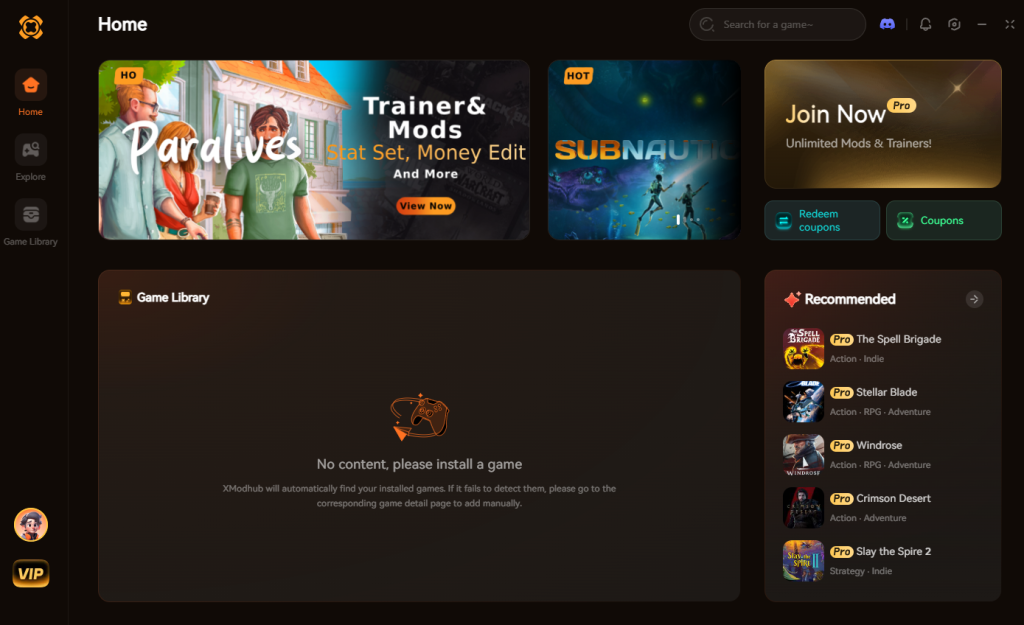
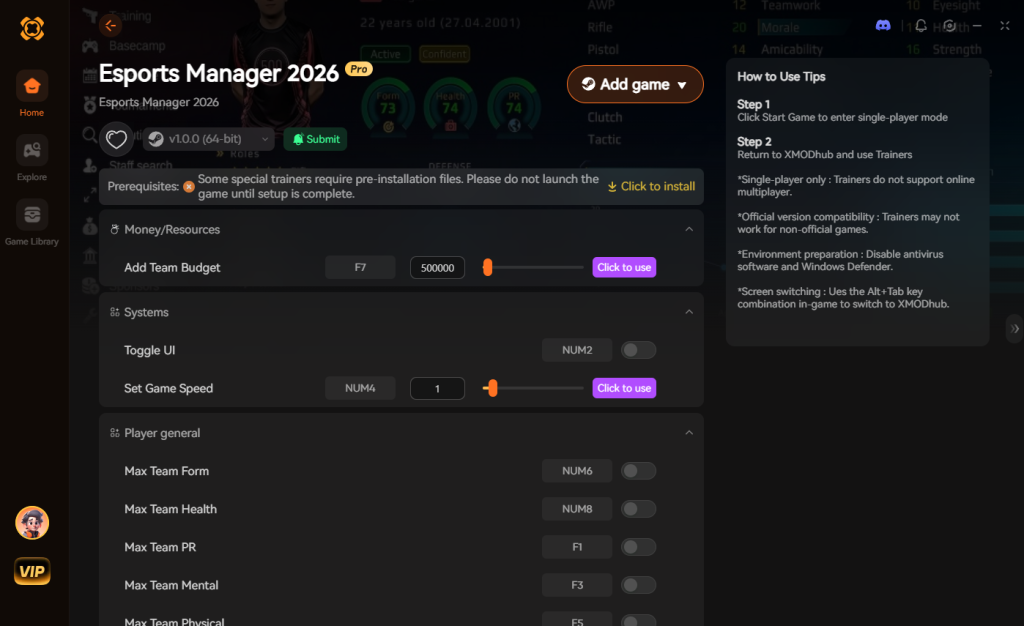
Stop fighting the game engine and start building your esports dynasty today.
Download Esports Manager 2026 Trainer Now
Frequently Asked Questions
A: Freezing on the loading screen is almost always tied to the EMDB.gg database synchronization. The game is trying to parse thousands of lines of player data. If your hard drive is slow (HDD instead of SSD) or if the cache is corrupted, it will hang indefinitely. Clearing the AppData cache and moving the game to an NVMe SSD usually resolves this.
A: Yes, the developers have stated that demo progress should carry over. However, if Esports Manager 2026 crashes exactly while saving a simulated in-game month, the save file will corrupt. Always utilize rolling autosaves and keep a manual backup of your Documents/EsportsManager2026/Saves folder.
A: While 8GB is the bare minimum, it is not recommended for deep simulation games. The game tracks massive amounts of background data. With 8GB, you will likely experience stuttering during live match simulations and potential startup crashes. Expanding your Windows paging file (as detailed above) is mandatory if you cannot upgrade your physical RAM.
A: This error means your antivirus or Windows Defender has falsely identified the game’s .exe file as malware and quarantined it. You need to open your antivirus protection history, restore the file, and add the Steam game folder to your exclusion list before verifying the game files again.
Final Verdict
Dealing with Esports Manager 2026 crashing on startup is a frustrating roadblock, but it is rarely unfixable. Because the game is a deep, data-heavy simulation relying on complex rosters and live match calculations, the engine is highly sensitive to corrupted database caches, missing Steam files, and background software conflicts. By systematically verifying your files, clearing the EMDB cache, and optimizing your system’s virtual memory, you can permanently eliminate these launch errors.
However, if you are tired of playing tech support and just want to experience the thrill of managing a world-class esports organization, XMODhub is your ultimate solution. Supporting over 5,000 single-player titles—including heavy-hitting simulation giants like Football Manager 2024 and F1 Manager 2024—XMODhub guarantees a stable, customizable, and endlessly fun gaming experience. Download XMODhub today, inject infinite transfer budgets, and build the esports roster of your dreams without the headache.


I am a passionate gamer and writer at XMODhub, dedicated to bringing you the latest gaming news, tips, and insights.
Connect with me:
LinkedIn Profile ↗

 Nancy Miller