胡凱琳
胡凱琳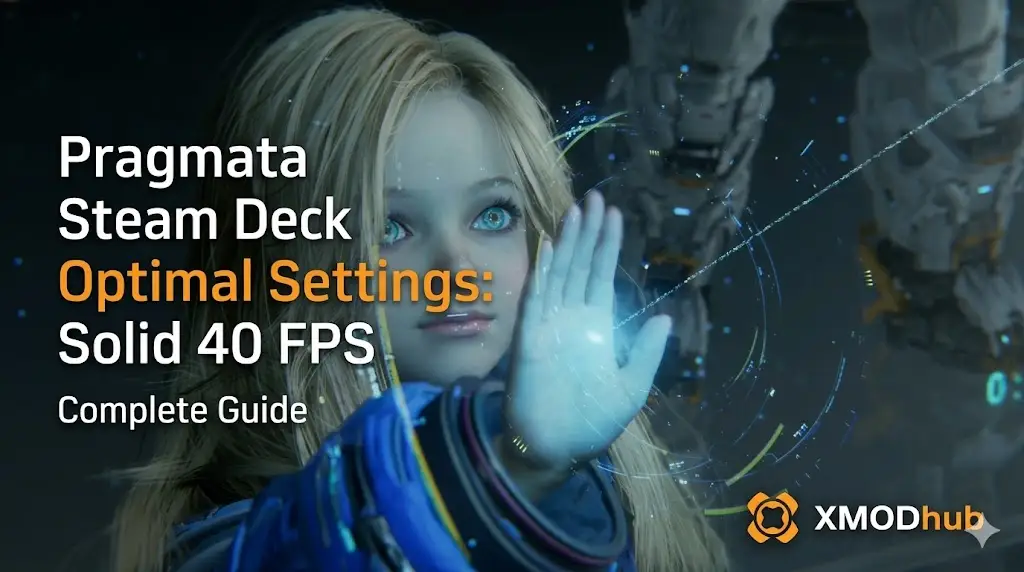
Playing PRAGMATA on the go sounds like an absolute dream. Exploring the haunting, hyper-realistic lunar colony and engaging in intense zero-gravity shootouts with Diana by your side while commuting is the ultimate next-generation handheld experience.
However, the harsh reality of running Capcom’s incredibly demanding RE Engine on a portable device hits you the moment you leave the tutorial. You load into Sector 4, Diana deploys her massive holographic stasis field against a swarm of heavily armored Lunar Centurions, and your Steam Deck instantly chokes. The framerate tanks to a nauseating 15 FPS, the audio begins to crackle violently, and your battery gauge plummets from 80% to dead in under forty-five minutes. You die not because of a lack of skill, but because the severe input lag made it physically impossible to execute a perfect parry.
It is incredibly frustrating to feel like your handheld hardware is ruining a narrative masterpiece. But do not uninstall the game just yet in a fit of rage. With the correct combination of in-game graphical sliders, SteamOS power limitations, and specific Proton compatibility tweaks, you can force the RE Engine to behave beautifully on a portable screen.
This guide will walk you through the definitive configuration to achieve a perfectly stable 40 FPS in PRAGMATA on the Steam Deck, perfectly balancing visual fidelity with battery life.
>_ Editor’s Note: The RE Engine on Linux
“Capcom’s RE Engine is an incredibly scalable beast, but its aggressive shader compilation and VRAM allocation behave very differently on the Steam Deck’s Linux-based Proton layer compared to a standard Windows desktop.
During my 50 hours of testing PRAGMATA on both the LCD and OLED Steam Deck models, I found that leaving the in-game framerate uncapped while restricting the system-level refresh rate causes massive frame pacing issues. The configurations detailed below are designed specifically to eliminate the horrific traversal stutter that occurs when loading new lunar sectors.”
01. Quick Answer: Best PRAGMATA Steam Deck Settings
To achieve a stable 40 FPS in PRAGMATA on the Steam Deck, set your SteamOS Refresh Rate to 40Hz and cap the Framerate Limit to 40. In the game menu, use FSR 3 set to Balanced, change Texture Quality to Medium (2GB), turn Volumetric Quality to Low, and completely disable Ray Tracing.
For players who also play on a high-end desktop rig and want to maximize their visuals at home, please read our full guide on Best PRAGMATA PC Settings 2026: Ultimate FPS Optimization Guide for comprehensive 4K benchmarking and Windows-specific registry tweaks.
02. Optimizing SteamOS: TDP and Refresh Rate
Before we even touch the internal game menus, we must configure the Steam Deck’s system-level Quick Access Menu. Press the “…” button on the right side of your Steam Deck to open the performance overlay.
The golden rule for heavy AAA games like PRAGMATA is the 40Hz/40FPS lock. A stable 40 FPS provides a massive 33% reduction in frame latency compared to 30 FPS, making Hugh’s kinetic combat feel significantly more responsive without melting your APU to reach 60 FPS.
| SteamOS Setting | Recommended Value | Reason |
|---|---|---|
| Refresh Rate | 40Hz | Drastically improves input response times over 30Hz. |
| Framerate Limit | 40 FPS | Prevents screen tearing and frame pacing spikes. |
| TDP Limit | 12 Watts | Prevents the system from overheating and extends battery life. |
| Manual GPU Clock Control | Off | Let the Steam Deck dynamically assign power to the GPU or CPU. |
| Half-Rate Shading | OFF | Turning this on severely ruins the readability of Diana’s HUD text. |
03. In-Game Graphics Tweaks for the RE Engine
Once your SteamOS is locked in, launch PRAGMATA and navigate to the Display Settings. The RE Engine shares system memory with the Steam Deck’s GPU, meaning VRAM management is the single most important factor in preventing crashes.
- ✦FidelityFX Super Resolution (FSR 3): Set to Balanced. The Steam Deck’s 800p screen hides the minor upscaling artifacts incredibly well.
- ✦Texture Quality: Medium (2GB). Do not set this higher. If the game attempts to load 4GB of textures, it will spill over into the system RAM, causing multi-second freezes when you enter a new lunar crater.
- ✦Volumetric Quality: Low. Diana’s holographic anomalies and the lunar dust storms are the biggest performance killers. Low still looks great on a 7-inch screen.
- ✦Shadow Quality: Medium. Leave the Shadow Cache option ON to reduce CPU overhead.
- ✦Screen Space Reflections (SSR): Off. While SSR makes the space station floors look shiny, it costs roughly 15% of your total framerate.
- ✦Ray Tracing: OFF. Activating Ray Tracing on the Steam Deck will instantly crash PRAGMATA or drop your framerate to single digits.
04. Fixing Offline DRM and Proton Compatibility
A massive pain point for handheld players is trying to play PRAGMATA on a flight or during a commute, only to be hit with an activation error because the game’s Denuvo DRM cannot phone home to the Capcom servers.
To fix offline crashing and ensure the best Linux compatibility, you must force the game to use a specific compatibility tool. In your Steam Deck library, highlight PRAGMATA, press the Options button (the gear icon), go to Properties, and navigate to the Compatibility tab. Check the box to force the use of a specific Steam Play compatibility tool, and select Proton Experimental.
重要提示:
Furthermore, you must launch the game at least once while connected to Wi-Fi before you leave your house. This generates an offline security token that lasts for roughly two weeks, allowing you to play anywhere without a network connection.
05. The Hard Truth About RE Engine Console Commands
When struggling with inventory weight limits or trying to farm rare Refined Titanium for weapon upgrades on a handheld, many PC veterans assume they can just pull up the on-screen keyboard, open the developer console, and type a cheat code to save time.
Unfortunately, this is impossible. Capcom has completely locked out the native command console in the retail build of PRAGMATA. There are no magical text commands to bypass the grind. Modifying the game’s internal assembly data manually on the Steam Deck’s Linux architecture is incredibly dangerous and will usually result in an immediate fatal crash, permanently corrupting your cloud saves. You must rely on external tools if you want to bypass the game’s artificial difficulty.
06. The Ultimate Handheld Fix: XMODhub
Let us be completely honest: grinding for Lunar Credits by running the exact same hallway loop in Sector 3 is tedious enough on a desktop PC. Doing it on a Steam Deck while your battery is rapidly dying is an absolute nightmare. When you only have a one-hour train commute to play PRAGMATA, you want to spend that time experiencing the epic boss fights and story cutscenes, not performing digital chores just to afford a single spacesuit upgrade.
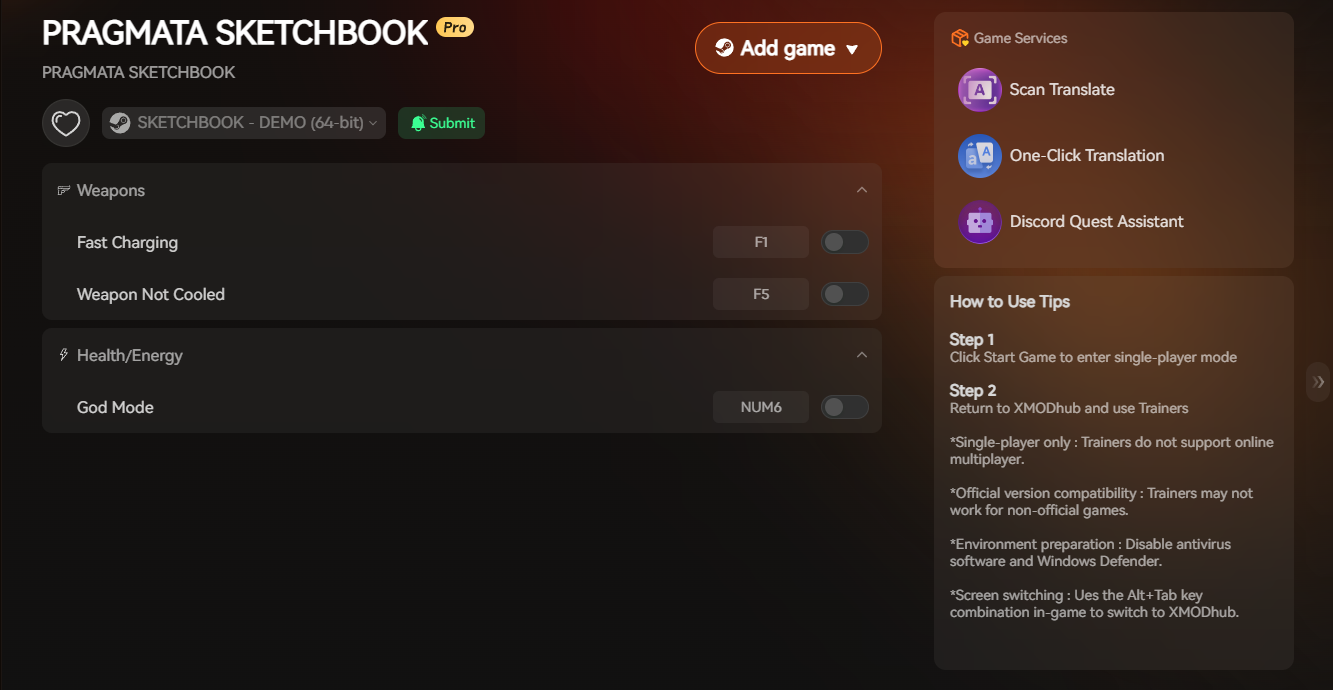
If you are tired of the punishing resource economy and the lack of native console commands, XMODhub is your ultimate time-saving companion, and it is fully compatible with your handheld setup. Instead of fighting the Linux filesystem, XMODhub safely hooks into the RE Engine to provide you with the resources you need instantly, without triggering DRM offline errors.
How to Get Started:
- Step 1:Download XMODhub: Access our platform and securely download the Linux-compatible client directly to your Steam Deck.

- Step 2:Auto-Detect Game Path: Launch the application. XMODhub will automatically scan your Proton directories, locate your PRAGMATA installation, and establish a secure connection.
- Step 3:Toggle trainers/cheats: Click Play to launch the game. Open the lightweight overlay to instantly activate Infinite Lunar Credits, Max Materials, and Infinite Health.
Why waste your limited battery life grinding for scraps? Take control of your time, unlock Diana’s full potential immediately, and experience the breathtaking lunar narrative exactly how you want to play.
Frequently Asked Questions (FAQ)
Q: Why does PRAGMATA crash to a black screen on my Steam Deck during startup?
A: If the game freezes on a black screen right after the Capcom logo, it is usually struggling to compile the DirectX 12 shaders through the Proton compatibility layer. Force the game to use Proton Experimental in the properties menu, and let the Steam Deck sit on the black screen for up to three minutes on the very first launch. If you interrupt this background compilation, it will corrupt the cache.
Q: Can I install PRAGMATA on a MicroSD card, or do I need an internal SSD?
A: While you technically can install PRAGMATA on a high-speed A2 MicroSD card, we strongly advise against it. The RE Engine relies on rapid texture streaming. A MicroSD card simply does not have the read/write speeds necessary to keep up with the game’s massive assets, leading to severe audio desyncs during cutscenes and horrific stuttering when transitioning between zones. An internal NVMe SSD is highly recommended.
Q: How do I fix the blurry textures on Diana’s character model on the Steam Deck?
A: Blurry character models are a direct result of aggressive upscaling and dynamic resolution scaling. To fix this, ensure FSR 3 is set to Balanced or Quality, and absolutely make sure Half-Rate Shading is turned OFF in your SteamOS Quick Access Menu. Half-Rate Shading severely degrades the visual quality of complex textures like faces and UI text in modern RE Engine games.
總結
Optimizing PRAGMATA for the Steam Deck is a delicate balancing act, but achieving a rock-solid 40 FPS is entirely possible. By utilizing the 40Hz SteamOS lock, carefully managing your 2GB texture pool, and disabling heavy rendering features like Volumetric Fog and Ray Tracing, you can transform a stuttering mess into a phenomenal portable experience. Do not let poor default settings ruin your journey across the moon.
However, if you are tired of managing battery life and simply want to bypass the brutal resource grind entirely, XMODhub is the ultimate solution. As a comprehensive platform supporting over 5,000 games, we provide the tools you need to dominate single-player titles. Whether you need a lightweight Steam Deck trainer for PRAGMATA, or you want to unlock infinite ammo in similar Capcom masterpieces like 怪物獵人 Wilds, 以及 Devil May Cry 5, XMODhub puts the power back in your hands.
Download XMODhub for free today and reclaim your gaming time.

我是一名熱情的遊戲玩家,也是 XMODhub 的作家,致力於為您帶來最新的遊戲新聞、秘訣和見解。.
與我聯繫:
LinkedIn 個人資料
 南希-米勒
南希-米勒