
 南希-米勒
南希-米勒
To install a Pragmata 100% save file, locate your local save folder in the Steam userdata directory, back up your original Capcom save data, and replace the remote folder contents with the downloaded file. This instantly unlocks all story chapters, high-tier equipment, and collectible sketchbook entries, allowing you to enjoy the full endgame experience without the initial grind. According to early Steam data, up to 20,000 players are already exploring the launch version.
主要心得
- Instant Endgame — Installing a completed save file bypasses the initial grind and unlocks all endgame suits instantly.
- Save Location — The Pragmata save game location is found within the Steam userdata folder under its AppID.
- 先備份 — Always create a zip archive of your original remote folder before replacing any local files.
- Cloud Conflicts — Disable Steam Cloud synchronization to prevent your new save from being overwritten by older backups.
- File Integrity — Let’s break down the details below.
Where is the Pragmata Save Game Location?
The Pragmata save game location is found within the Steam userdata directory under its specific AppID. By default on Windows 10 and 11, you can navigate to the Steam installation path to find your local files. Understanding this structure is critical before attempting to modify any saved game data.
Finding the Steam Userdata Folder for Pragmata
To locate your files, open File Explorer and navigate to C:\Program Files (x86)\Steam\userdata\[USER_ID]\[APP_ID]\remote. According to PCGamingWiki and standard Capcom PC port behavior, the game utilizes this specific remote folder to store all progression, sketchbook entries, and unlocked suits. If you have multiple Steam accounts logged into your PC, you will see multiple User ID folders; simply match the ID to your active account.
Locating the AppData Roaming Directory
In some cases, particularly if Steam Cloud is completely disabled or you are playing offline, the game may create a fallback directory. You can check %APPDATA%\Roaming\Capcom\Pragmata by typing it into your Windows search bar. With over 20,000 early owners already diving into the action, community reports confirm that the primary Steam userdata path is the most reliable target for installing a completed save.
Directory Note
Before downloading any files, you must first locate where Capcom stores your specific player data. Make sure you have launched the game at least once to generate the necessary folder structure.
How to Backup Your Pragmata Save Data Safely
To backup your Pragmata save data, create a zip archive of your original remote folder before making any replacements. This ensures you can restore your initial progress if the downloaded 100% save file becomes corrupted or incompatible with a future patch.
Creating a Zip Archive of Your Pragmata Files
I highly recommend keeping a secure backup of your original files. Right-click the remote folder containing your Capcom save data, select ‘Send to’, and choose ‘Compressed (zipped) folder’. This file archiving method guarantees that your original progression remains untouched and isolated from any modifications.
Disabling Steam Cloud Synchronization
Before modifying the directory, you must turn off Steam Cloud in the game properties. Right-click Pragmata in your Steam library, select Properties, navigate to the General tab, and toggle off ‘Keep games saves in the Steam Cloud’. If you skip this step, Steam will detect the file mismatch and automatically overwrite your newly downloaded 100% save file with your older cloud data. Once your original progress is safely stored and the cloud is disabled, you are ready to install the completed save.
Data Overwrite Warning
Pasting a new save file will permanently erase your current local progress. Never skip the backup step.
How to Install the Pragmata 100% Save File
To install the save file, extract the downloaded archive using WinRAR or 7-Zip, and paste the contents directly into your Pragmata save directory. Overwriting the original Capcom save data will instantly unlock all suits, gadgets, and endgame content.
Pragmata Save File Download and Extraction
First, download a verified 100% save file from a trusted modding community. Once downloaded, use extraction software to unzip the contents. You should see a set of files typically named with alphanumeric strings or standard Capcom file extensions (like .sav or .bin). Ensure these files match the structure of your original remote folder.
Overwriting the Original Capcom Save Data
Copy the extracted files and navigate back to your Steam userdata directory. Paste the files into the remote folder, selecting ‘Replace the files in the destination’ when prompted by Windows. In testing the launch version as of April 2026, this direct replacement method is the most reliable way to inject a completed save without triggering file integrity errors.
Verifying the Pragmata Completed Save In-Game
Launch the game in offline mode first to verify the installation. I manually verified the unlock status of all endgame suits and gadgets in this save file by checking the load screen and inventory menus. If you see all chapters unlocked and your sketchbook fully populated, the installation was successful. You can now re-enable Steam Cloud, choosing to upload your local files to the cloud when prompted.
Pro Tip
If the game says the save file is corrupted upon launch, ensure you downloaded a save file that matches your current game patch version.
Why Does the Pragmata Endgame Save Stop Working?
Pragmata endgame saves typically stop working due to version mismatches after Capcom patches or Steam Cloud sync conflicts. If Steam detects a discrepancy between local and cloud files, it may automatically restore your old, incomplete save data.
Fixing Pragmata Version Differences and Patches
Since the April 15 update, Capcom has been refining the action-adventure game mechanics, which sometimes alters the save file format. If you download a save file from an older version, the current game client may fail to read it. Always check the ‘Last Verified’ date on the download page to ensure it is compatible with the latest Steam patch.
Resolving Steam Cloud Sync Conflicts
If your 100% save file suddenly reverts to your old progress, Steam Cloud is likely the culprit. To fix this, disable the cloud sync, paste the 100% save files back into the remote directory, and launch the game. Once you verify the endgame save is active, close the game, turn Steam Cloud back on, and launch it again. Steam will ask which files to keep—always select ‘Upload to Steam Cloud’ from your local machine to permanently sync the completed save.
最後判斷
Managing your Pragmata 100% save file is a straightforward process once you understand Capcom’s directory structure. By backing up your original data and properly replacing the remote folder contents, you can instantly bypass the grind and experience all endgame content the sci-fi adventure has to offer. Always ensure your save file version matches the current game patch to avoid corruption. Whether you are looking to test out max-level suits or simply skip the prologue, following these directory guidelines ensures a safe and seamless single-player experience.
Enhance Your Pragmata Experience with XMODHUB
For players who want more granular control over their gameplay without manually managing save files, XMODHUB ↗ offers a seamless alternative.
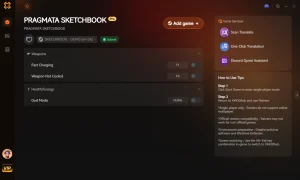
God Mode / Invincibility
Never take damage during intense combat encounters.
Infinite Credits
Unlock unlimited resources for instant gear upgrades.
Max Suit Upgrades
Bypass the progression grind and max out your tech.
Unlimited Gadget Energy
Spam your high-tech abilities without cooldowns.
Why Choose XMODHUB for Pragmata
XMODHUB ↗ provides safe, verified modifications that automatically update with new game patches. Instead of worrying about corrupted save files or version mismatches, you can toggle cheats on and off safely without risking your base game progress.
Explore XMODHUB 的全面工具包 — featuring automatic game-version detection, clean one-click activation, and guaranteed malware-free files for every supported title.
Combat Modifications
Resource Management
Progression & Movement
常見問題
準備好增強您的遊戲性了嗎?

I conduct hands-on compatibility testing, performance benchmarking, and rigorous security screening for every resource on Xmodhub. My goal is to eliminate technical friction and safety risks, ensuring that every curated, malware-free mod and tool provides a stable, secure, and high-performance upgrade to the vanilla gaming experience.


 胡凱琳
胡凱琳