
 Catherine Hu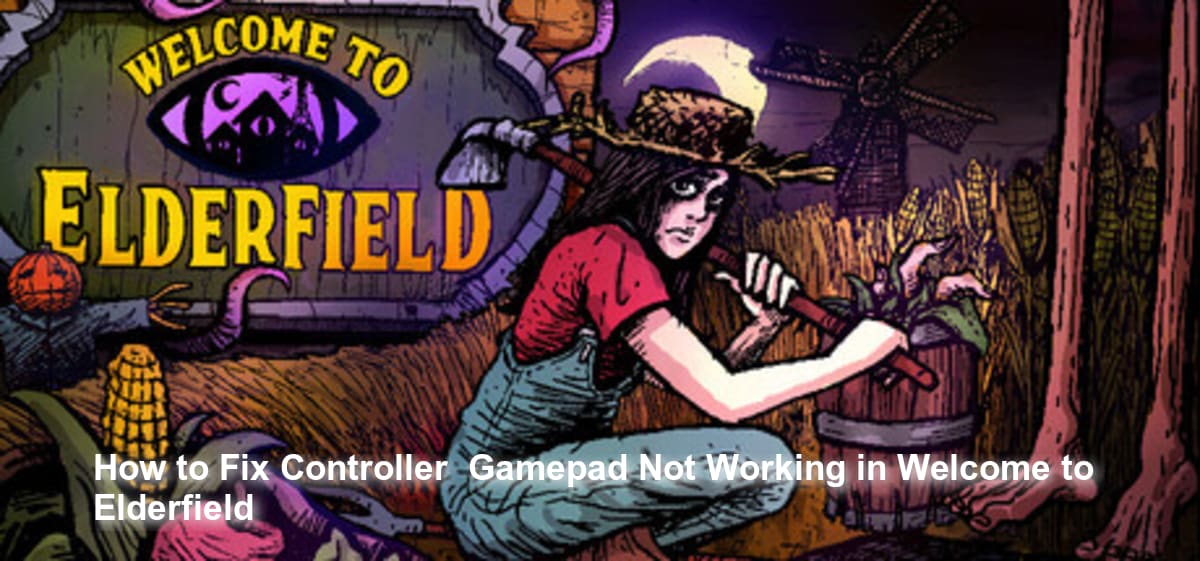
There is nothing quite as frustrating as trying to survive a cursed farm infested with ghost tentacles, only for your controller to suddenly die on you [1]. Welcome to Elderfield heavily relies on precise decision-making and a notoriously unforgiving dice-roll mechanic inspired by the Fear & Hunger series [1]. When your gamepad stops working mid-game, a simple action like mining ores or talking to farm animals can result in a failed dice roll, instantly stacking rage-quit-inducing curses on your character [1]. If you are desperately plugging and unplugging your Xbox or PlayStation controller trying to get the game to recognize your inputs while eldritch creatures chase you, you are not alone.
In my own playthrough, losing controller functionality right before a crucial combat action resulted in multiple permanent attribute reductions. While checking community forums and performance reviews, it became clear that no official fix has been confirmed yet by developer Chris Cote or publisher Kwalee regarding native gamepad recognition bugs. However, based on community reports and general Steam troubleshooting, tweaking your Steam Input and Steam Deck settings is the most reliable workaround.
TL;DR: The Short Answer
If your controller or gamepad is not working in Welcome to Elderfield, here are the immediate steps you need to take based on general community reports:
- No Official Fix: Be aware that no official fix has been confirmed yet by the developers for specific gamepad bugs.
- Enable Steam Input: Right-click Welcome to Elderfield in your Steam Library > Properties > Controller > Override for Welcome to Elderfield > Select “Enable Steam Input”.
- Steam Deck Users: Ensure your Proton Version is set to “No Forced Compatibility” [2].
- Disconnect Extra Peripherals: Unplug any steering wheels, HOTAS flight sticks, or secondary USB keyboards that might be overriding the primary player one slot.
- Use Wired Connection: Temporarily connect your Bluetooth controller via a direct USB-C cable to rule out wireless interference.
Table of Contents
Deep Dive: Step-by-Step Troubleshooting for Gamepads
Because Welcome to Elderfield is a unique blend of farming simulation, horror, and RPG elements, navigating its menus, inventory, and combat systems requires reliable inputs [1]. When standard plug-and-play fails, you must dig into the backend settings of your platform.
Step 1: Force Enabling Steam Input
For many indie titles, native controller APIs (like XInput or DirectInput) can sometimes fail to hook into the game engine properly. This is especially true for players using PlayStation DualSense or Nintendo Switch Pro controllers on PC. Since no official fix has been confirmed yet for Welcome to Elderfield, the Steam Input wrapper is your best defense.
- Open your Steam Client and navigate to your Library.
- Locate Welcome to Elderfield in your games list.
- Right-click the game and select Properties.
- Navigate to the Controller tab on the left-hand menu.
- Look for the dropdown menu labeled Override for Welcome to Elderfield.
- Change this setting from “Use default settings” to Enable Steam Input.
By doing this, Steam translates your controller’s physical button presses into standard inputs that the game is forced to recognize. If you are still experiencing issues, try launching Steam in Big Picture Mode before booting the game, as this mode prioritizes gamepad navigation and can sometimes force stubborn games to recognize your device.
Step 2: Optimizing Steam Deck Controller Performance
Welcome to Elderfield is highly playable on the Steam Deck, but incorrect system settings can lead to input lag or complete controller unresponsiveness. According to recent performance reviews from SDHQ, there are specific settings you should use to ensure smooth gameplay and reliable controls [2].
If your built-in Steam Deck controls or external Bluetooth controllers are failing, verify these SDHQ Recommended Settings:
- Proton Version: Ensure this is set to No Forced Compatibility [2]. Forcing an older or experimental version of Proton can break controller mapping.
- Framerate & Refresh Rate: Set your FPS Limit to 50 and the Refresh Rate to 50 [2]. A stable framerate prevents input drops during visually intensive moments, like when eldritch creatures are chasing you [1].
- Scaling Filter: Set this to Linear [2].
- GPU Clock: Keep this Disabled [2].
- TDP Limit: Keep this disabled (or expect around 10-13W battery usage and temps around 56-60C) [2].
If your external controller is drifting or not recognized while the Steam Deck is docked, go to the Quick Access Menu (the “…” button), navigate to the Controller icon, and click “Reorder Controllers.” Ensure your external gamepad is set to Slot 1.
Step 3: Navigating the Cursed Farm Without a Controller
If you simply cannot get your gamepad to work and must resort to a mouse and keyboard, you need to be extremely careful. Welcome to Elderfield is a game where mundane actions like looking into garbage bins or talking to farm animals require dice rolls [1].
Playing on a clunky keyboard setup if you are not used to it can lead to misclicks. A bad dice roll in this game is not a minor inconvenience; it can permanently reduce your attributes or stack multiple curses [1]. The game forces you to take a shower to remove these curses, but doing so removes your accumulated buffs and respawns every normal mob you have killed [1]. Therefore, if your controller dies, it might be safer to pause the game or switch to Cosy Mode—a feature that allows you to experience the dark themes, build relationships, and explore the sewers without combat constantly trying to ruin your day [1].
System Instability and Crashes
Sometimes, a controller disconnecting is not just an input error; it is a symptom of a larger system freeze. If plugging in your gamepad causes the game to stutter, drop frames, or close completely to the desktop, you are dealing with a software conflict or a severe memory leak.
If your game completely locks up or crashes when attempting to use a controller, you will need to address the root stability of the application first. For a comprehensive guide on resolving these severe engine-level lockups, read our dedicated troubleshooting steps to how to Fix Welcome to Elderfield Crashing on Startup & Freezing . Resolving the core crashes often inadvertently fixes peripheral recognition issues.
Advanced Controller Compatibility & Third-Party Tools
If you are still struggling with your gamepad not working after tweaking Steam settings, the issue might stem from how the game’s engine processes different hardware APIs. Indie titles like Welcome to Elderfield typically default to XInput, an API that heavily favors Microsoft hardware.
Supported Controllers & Connection Types
To help you quickly identify if your specific hardware is the bottleneck, here is a breakdown of the most common gamepads and their compatibility with the game’s unforgiving dice-roll mechanic:
| Controller Model | Native Support (XInput) | Steam Input Required | Recommended Connection |
|---|---|---|---|
| Xbox Wireless / Elite Series 2 | Yes | Optional | Bluetooth / USB-C |
| PlayStation 5 DualSense | No | Yes | Wired USB-C (Prevents latency) |
| Nintendo Switch Pro | No | Yes | Bluetooth |
| Generic / DirectInput Gamepads | Varies | Yes | Wired USB-A / USB-C |
Using Third-Party Emulators (DS4Windows)
If you are playing a non-Steam version of the game or Steam Input is failing to hook into the application, PlayStation users should utilize DS4Windows. This lightweight, open-source tool tricks Windows into recognizing your DualSense or DualShock 4 as a native Xbox controller. By forcing XInput compatibility at the system level, you can ensure that a sudden input drop won’t result in a failed farming action or an unwanted curse being stacked on your character while exploring the farm.
The Ultimate Shortcut: XMODhub
Let’s be honest: Welcome to Elderfield is brutally difficult. It is essentially Stardew Valley if farming was unsettling, combined with the punishing mechanics of World of Horror [1]. You can get an achievement for having five curses inflicted on you on day one alone [1]. If your controller is acting up and causing you to fail dice rolls, lose stats, and get swarmed by ghost tentacles, you do not have to suffer through the grind.
Don’t want to deal with the frustrating dice-roll mechanic or clunky controls? Bypass the struggle entirely with XMODhub.
XMODhub offers safe, undetected modifications for Welcome to Elderfield, allowing you to tailor the horror experience to your liking. You can enable guaranteed successful dice rolls, infinite health, or instant curse removal, entirely negating the penalty of a disconnected controller.
How to dominate Welcome to Elderfield in 3 steps:
- Download XMODhub: Install the lightweight, secure client on your PC.

- Auto-Detect Welcome to Elderfield: Launch the game, and XMODhub will automatically hook into your session.
- Toggle Cheats: Use your keyboard or phone to activate “Always Win Dice Rolls” or “Infinite Stamina” and enjoy the dark lore stress-free.
Download Welcome to Elderfield Trainer Now
Frequently Asked Questions
Is there an official fix for gamepads not working in Welcome to Elderfield?
As of right now, no official fix has been confirmed yet by developer Chris Cote. Players must rely on enabling Steam Input or adjusting their Steam Deck compatibility settings to ensure their controllers are properly mapped.
Can I play Welcome to Elderfield comfortably on the Steam Deck?
Yes. According to SDHQ, the game runs well on the Steam Deck with an estimated 4 hours of battery life at 10-13W usage [2]. It is recommended to cap the framerate at 50 FPS and leave the Proton compatibility on default (No Forced Compatibility) for the best controller response [2].
Why is playing without a controller so punishing in this game?
Welcome to Elderfield utilizes a strict dice-roll mechanic for combat, events, and important decisions [1]. If poor controls cause you to make a mistake, you can stack curses that permanently reduce your stats [1]. Because removing curses requires taking a shower—which respawns all enemies and wipes your buffs—precision is absolutely vital [1].
What should I do if my Bluetooth controller keeps disconnecting?
If your wireless controller keeps dropping out, resulting in failed mining or farming actions, switch to a wired USB-C connection. Additionally, ensure that no other USB peripherals (like steering wheels or drawing tablets) are plugged in, as they can confuse the game’s input priority.
Final Verdict: Surviving Welcome to Elderfield
Fixing a controller or gamepad that is not working in Welcome to Elderfield currently requires a bit of manual intervention. Because no official fix has been confirmed yet, relying on Steam’s built-in controller override and ensuring your Steam Deck is utilizing the correct Proton settings (No Forced Compatibility) is your absolute best path forward.
If the cursed mines, eldritch creatures, and the giant skeleton farmer friend prove too punishing to deal with while wrestling with your hardware, remember that you have options. You can switch the game to Cosy Mode to avoid combat, or you can take complete control over your experience with XMODhub.
Supporting over 5,000+ single-player PC games, XMODhub is the ultimate tool for gamers who want to respect their own time. Whether you are rolling the dice in Welcome to Elderfield, managing your farm in Stardew Valley, XMODhub gives you the power to play exactly how you want. Download XMODhub today and never let a broken controller ruin your playthrough again.
Stop Grinding, Start Enjoying.
Bypass the tedious resource gathering and unlock your full potential instantly.

I am a passionate gamer and writer at XMODhub, dedicated to bringing you the latest gaming news, tips, and insights.
Connect with me:
LinkedIn Profile ↗
 Nancy Miller