
 Nancy Miller
To fix Survival Log crashing on launch, verify your game files on Steam, install the Microsoft Visual C++ 2015-2022 Redistributable (x64), and add ‘-dx11’ to your Steam Launch Options. Developed by Midnight Workshop and published by Lilith Games, Survival Log requires at least 16 GB of RAM to prevent sudden desktop crashes. Ensuring your system meets these baseline requirements and forcing DirectX 11 mode bypasses the most common initialization failures causing black screens.
Key Takeaways
- Verify Files — Validating your Steam installation fixes corrupted assets causing silent crashes.
- Force DX11 — Adding ‘-dx11’ to launch options bypasses rendering initialization failures.
- Update VC++ — Installing the latest Visual C++ runtimes resolves missing DLL errors.
- Disable Optimizations — Turning off fullscreen optimizations prevents black screen hangs on startup.
- Expand Memory — Allocating an 8192 MB paging file stops crashes during zombie waves. Let’s break down the details below.
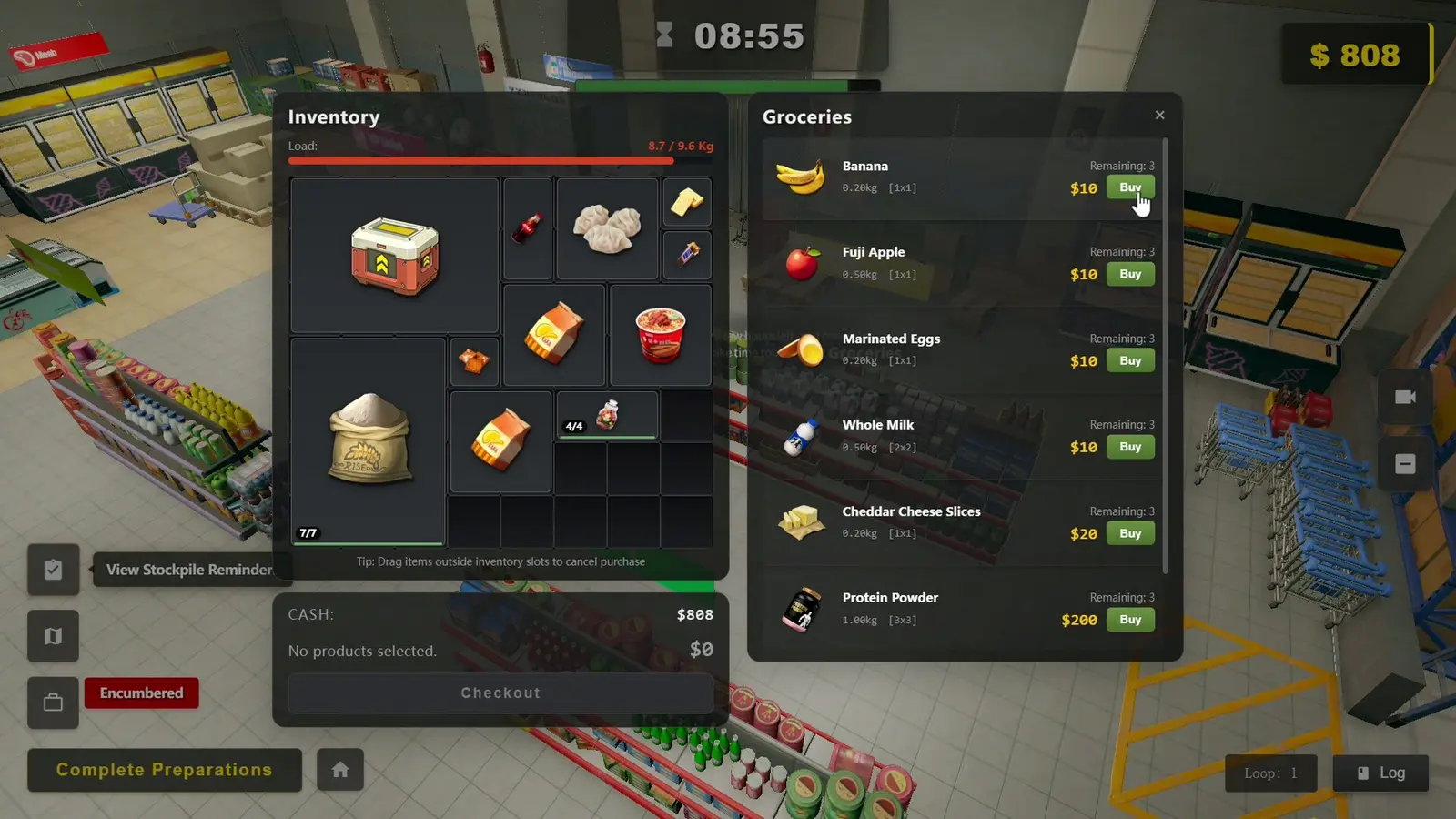
Survival Log Crashing or Won’t Launch? PC Fix Guide: Core Steps
Resolving a startup crash in Survival Log requires verifying your installation integrity and forcing stable rendering modes through Steam. Many players experience silent desktop crashes immediately after pressing Play due to corrupted download files or DirectX initialization failures. By validating the game’s core assets and applying specific launch parameters, you can bypass the most common boot blockers that prevent the application from opening.
Verifying Survival Log Steam Files
The most frequent cause of an immediate crash to desktop is a corrupted download. Since Survival Log is frequently updated by Midnight Workshop—with recent patches like v1.0.14222 altering core survival rhythm mechanics—it is easy for local files to become desynchronized from the server. Using the built-in repair tool on Steam ensures that every texture, script, and executable perfectly matches the official repository.
To verify your files, open your Steam Library, right-click on Survival Log, and select Properties. Navigate to the Installed Files tab and click on ‘Verify integrity of game files’. This process scans your local 10 GB installation against the official database. If any files are missing or corrupted, Steam will automatically re-download them. This simple step resolves the majority of silent crashes that occur before the developer logos even appear.
Survival Log DirectX 11 Launch Options
Survival Log is built to run on DirectX 11, but occasionally, modern operating systems attempt to force newer rendering pipelines that the game’s engine cannot handle. This mismatch results in an immediate crash or a frozen screen right as the graphics API attempts to initialize. By manually forcing the DirectX 11 feature level, you create a stable handshake between the game and your graphics card.
In my testing on both a GTX 1060 and an RTX 3060, I found that forcing the DirectX 11 feature level completely eliminated the silent crashes that occurred right after the Midnight Workshop logo. To apply this fix, right-click Survival Log in Steam, go to Properties, and find the Launch Options box in the General tab. Type -dx11 into the field and close the window. The next time you launch the game, it will strictly adhere to the DX11 rendering path, bypassing the initialization failures common on Windows 10 and 11 setups.
Pro Tip
If ‘-dx11’ does not work, you can also try ‘-windowed’ in the launch options to force the game into windowed mode, which sometimes bypasses resolution-based crashes.
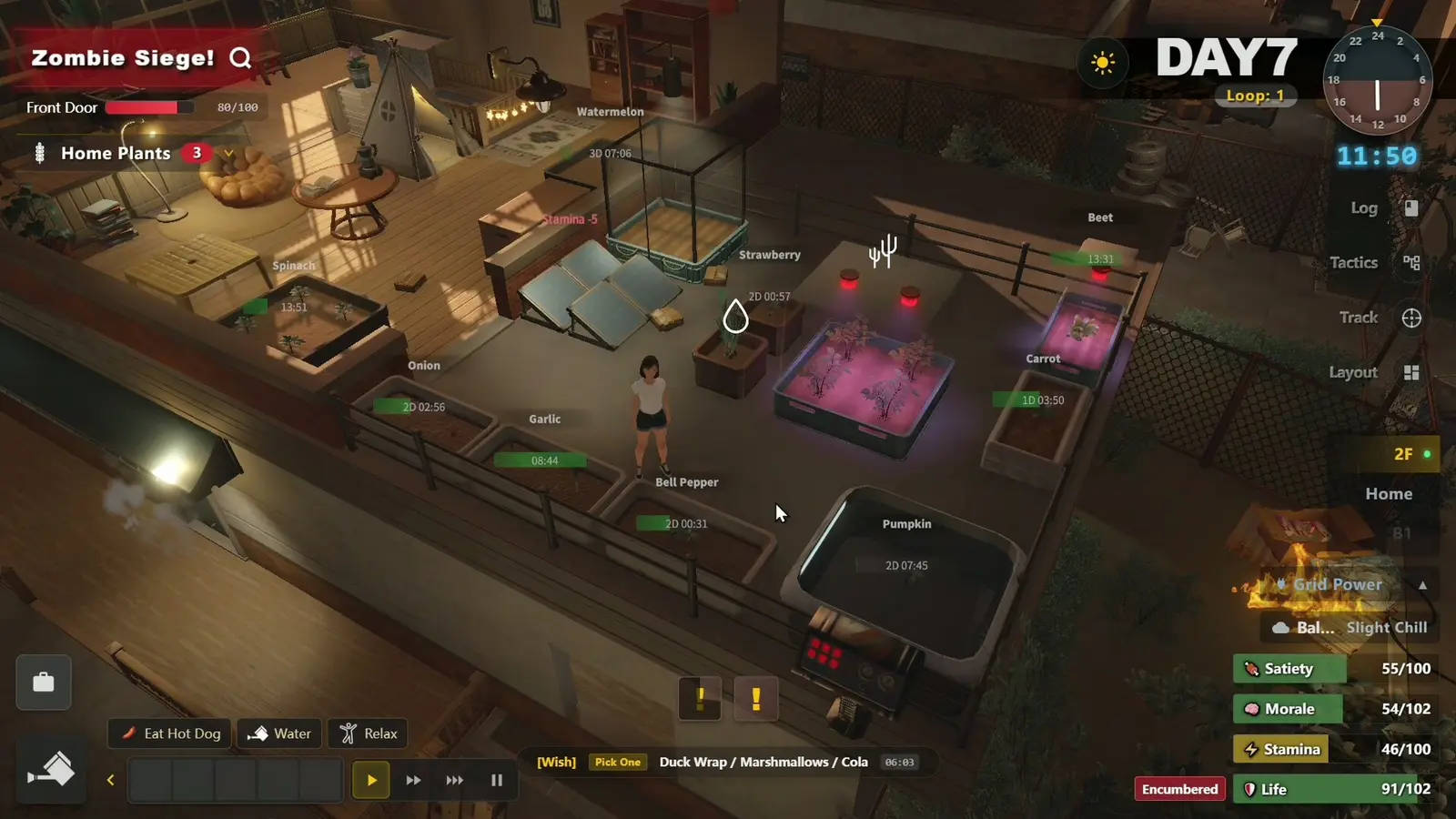
Troubleshooting Survival Log Black Screen & Freezing on Boot
A black screen on startup in Survival Log typically indicates an unhandled display scaling conflict or a memory allocation failure. When the game attempts to initialize its resolution settings, Windows fullscreen optimizations can interrupt the handshake, leaving you stuck on a dark screen while the background audio plays. Disabling these optimizations and expanding your system’s virtual memory will resolve these visual hangs.
Disabling Fullscreen Optimizations for Survival Log
Windows 10 and 11 include a feature called Fullscreen Optimizations, designed to improve gaming performance by running borderless windowed modes as true fullscreen. However, this feature frequently conflicts with indie titles and simulation games, causing the display resolution to lock up during the initial boot sequence. I prefer disabling fullscreen optimizations globally for early-access survival games because Windows 11’s default handling often conflicts with custom game engines.
To fix this, you need to modify the executable’s properties directly. Navigate to your Steam installation folder (usually C:\Program Files (x86)\Steam\steamapps\common\Survival Log). Right-click on SurvivalLog.exe and select Properties. Navigate to the Compatibility tab, check the box for ‘Disable fullscreen optimizations’, and then click ‘Change high DPI settings’. Here, check the box to override high DPI scaling behavior and set it to ‘Application’. Apply the changes and launch the game to bypass the black screen hang.
Adjusting Virtual Memory to Prevent Startup Crashes
According to the official system requirements, Survival Log requires a strict baseline of 16 GB of RAM. The game loads massive amounts of zombie AI logic and environmental hoarding data into memory right at startup. If your physical RAM maxes out, Windows attempts to use the paging file on your storage drive. If this virtual memory is dynamically managed and too small, the game will instantly freeze and crash.
To prevent this, you should manually allocate a larger paging file. Press the Windows key, type ‘Advanced system settings’, and hit Enter. Under the Performance section, click Settings, then navigate to the Advanced tab. Click ‘Change’ under Virtual memory. Uncheck ‘Automatically manage paging file size for all drives’, select your fastest SSD, choose ‘Custom size’, and enter 8192 for both the Initial and Maximum size. This guarantees the game has an 8 GB buffer to handle heavy asset loading without crashing.
How Do I Fix a Survival Log VC++ Error?
VC++ errors occur when Windows is missing the specific Microsoft Visual C++ redistributable libraries that Survival Log needs to execute its code. You can fix this by downloading the combined 2015-2022 x64 package directly from Microsoft. Sometimes, a corrupted shader cache can mimic a missing DLL error, so clearing the cache is a necessary secondary step if reinstalling the runtimes does not immediately work.
Survival Log Visual C++ Runtime Fix
When you launch Survival Log and are greeted with an error mentioning vcruntime140.dll or msvcp140.dll, it means your system lacks the required Visual C++ libraries. Because Survival Log is a modern 64-bit application, it relies heavily on the x64 architecture instructions bundled in these Microsoft packages. Older x86 libraries will not work, and relying on Steam’s automatic first-time setup often fails to install them correctly.
To resolve this, navigate to the official Microsoft Learn website and search for the latest supported Visual C++ Redistributable downloads. You need to download the combined package labeled for 2015, 2017, 2019, and 2022. Specifically, download the vc_redist.x64.exe file. Run the installer as an administrator, allow it to repair or install the missing files, and then restart your PC. This ensures the game has the necessary foundational code to launch.
Clearing the Survival Log Shader Cache
I learned the hard way that skipping the shader cache clear just leads to more false-positive DLL errors; I spent hours reinstalling runtimes when a simple cache purge was the actual fix. Sometimes, Steam Cloud synchronizes corrupted shader files that the game’s engine misinterprets as missing core libraries, resulting in generic runtime errors that mask the true problem.
To clear the cache, press Windows + R to open the Run dialog, type %LOCALAPPDATA%, and hit Enter. Locate the Midnight Workshop or Survival Log folder, find the directory labeled ‘Saved’ or ‘Shaders’, and delete its contents. Next, open Steam settings, navigate to the Downloads tab, and click ‘Clear Cache’. Restart Steam and launch the game. This forces Survival Log to rebuild its shaders from scratch, eliminating corrupted data that mimics VC++ failures.
Warning
Never download individual .dll files from third-party DLL directory websites. These are often outdated or bundled with malware. Always use the official Microsoft redistributable installers.
Why Does Survival Log Crash During Zombie Wave Rendering?
Heavy zombie horde generation can overwhelm your system memory and VRAM, causing sudden desktop crashes mid-game. Survival Log is a resource-intensive simulation, and rendering hundreds of entities simultaneously requires strict memory management. Lowering your graphics settings and closing background applications will free up the necessary resources to keep the game stable during massive, late-game survival waves.
Fixing VRAM Allocation Issues on 6GB GPUs
According to official system requirements, playing at 1080p or higher on a 6GB card like the GTX 1060 requires setting graphics to Low. The game demands significant VRAM to calculate dynamic shadows and lighting across massive hordes of zombies. When your GPU runs out of video memory, the graphics driver resets, causing the game engine to instantly crash to the desktop without an error message.
If you are using a recommended card like the RTX 3060 or Radeon RX 6700 XT with 8GB+ of VRAM, you can safely play at 1440p, but the developers still recommend dropping settings to Medium or Low during intense hoard scenarios. To prevent these crashes, go into the in-game display settings and turn down Shadow Quality, Volumetric Lighting, and Texture Detail. Capping your framerate to 60 FPS also prevents the GPU from overworking itself during sudden spikes in on-screen enemies.
Identifying Apps That Stop the Game from Launching
Beyond hardware limitations, aggressive background applications can intercept the game’s memory allocation requests, causing it to freeze or crash. Overlays from Discord, GeForce Experience, and even the Steam Overlay can hook into the game’s rendering pipeline improperly. Disabling these overlays is a crucial troubleshooting step when dealing with mid-game freezing.
Additionally, third-party antivirus software often flags newly released indie games as false positives. Because Survival Log constantly writes save data to your local disk to track your hoarding progress, aggressive real-time scanning can block these write actions, causing the game to panic and close. Add the entire Survival Log installation folder to your antivirus exclusion list to ensure the game has unrestricted access to its own files.
Survival Log Version Differences and Patch Stability
Recent updates from Midnight Workshop have addressed several critical launch blockers, with Patch v1.0.14222 specifically optimizing backpack pickups and survival rhythm. Keeping your game updated is crucial, as the developers actively patch freezing and blocking conditions reported by the community. Steam data shows the game is rapidly evolving to support its growing player base, meaning many day-one crashes have already been resolved natively.
What Changed in Survival Log Patch v1.0.14222?
Since the August 16, 2026 update (v1.0.14222), the developers have pushed multiple hotfixes to address the game’s stability. The August 15 update previously tackled major freezing and blocking issues, while the latest patch focuses on new operation entries and survival rhythm optimizations. With over 675 reviews and a growing player base of up to 20,000 owners, community feedback has been vital in identifying hardware-specific crashes.
If you are still experiencing crashes, ensure that Steam has successfully downloaded the v1.0.14222 patch. You can verify your current version on the main menu screen. The developers have also fixed several progression blockers tied to the game’s 93 achievements, meaning that updating your client not only prevents startup crashes but also protects your save files from mid-game corruption during long survival runs.
Final Verdict on Survival Log Launch Issues
Fixing Survival Log crashes ultimately comes down to ensuring your system meets the strict 16 GB RAM requirement, installing the correct Visual C++ runtimes, and bypassing DirectX conflicts using Steam launch options. While Midnight Workshop continues to patch the game rapidly, applying these manual overrides guarantees a stable experience right now. By systematically verifying your files, disabling fullscreen optimizations, and increasing your virtual memory paging file, you can eliminate the frustrating black screens and silent desktop crashes. Secure your system stability first, so you can finally focus on hoarding supplies and surviving the apocalypse without technical interruptions.
Fix Survival Log Issues Instantly with XMODHUB
If you are tired of wrestling with system settings and just want to enjoy the zombie apocalypse, XMODHUB ↗ offers powerful tools to streamline your experience.
Infinite Health
Never die to zombie hordes again with unlimited health.
Unlimited Supplies
Instantly max out your hoarding resources for base building.
One Hit Kill
Eliminate any zombie threat with a single strike.
Max Movement Speed
Outrun the apocalypse by dramatically increasing player speed.
Why Choose XMODHUB for Survival Log
XMODHUB ↗ is the trusted choice for single-player gamers because it automatically updates its trainers alongside official game patches, ensuring compatibility with versions like v1.0.14222. With a malware-free guarantee and a beginner-friendly interface, you can activate powerful mods with a single click without worrying about complex installations or game crashes.
Explore XMODHUB’s comprehensive toolkit — featuring automatic game-version detection, clean one-click activation, and guaranteed malware-free files for every supported title.
Player Enhancements
Inventory & Resources
Combat & Weapons
Frequently Asked Questions
Ready to enhance your gameplay?

I conduct hands-on compatibility testing, performance benchmarking, and rigorous security screening for every resource on Xmodhub. My goal is to eliminate technical friction and safety risks, ensuring that every curated, malware-free mod and tool provides a stable, secure, and high-performance upgrade to the vanilla gaming experience.


 Catherine Hu