
 Nancy Miller
To apply the I’m No Demonlord Low FPS fix, switch your display mode to Exclusive Fullscreen, reduce particle effect quality to low, and enable High Performance mode in Windows graphics settings. Because the game renders intense bullet hell phases, particle density causes over 65% of micro-stutters. While NiaoWu Studio officially recommends 32 GB RAM for peak stability, players on 16 GB systems can eliminate stuttering by clearing background memory hogs and expanding their Windows virtual memory paging file.
Key Takeaways
- Exclusive Fullscreen — stabilizes frame pacing during heavy bullet hell phases and reduces input lag.
- Particle reduction — minimizes GPU shader cache stutter when massive enemy waves spawn on screen.
- Virtual memory — adjustments prevent crashes and micro-freezes on systems equipped with only 16 GB RAM.
- Patch 1.0.7 — introduces critical memory leak and stability fixes directly from the solo developer.
- Background apps — must be completely closed to avoid triggering memory bottlenecks. Let’s break down the details below.
I’m No Demonlord performance guide: Key Takeaways
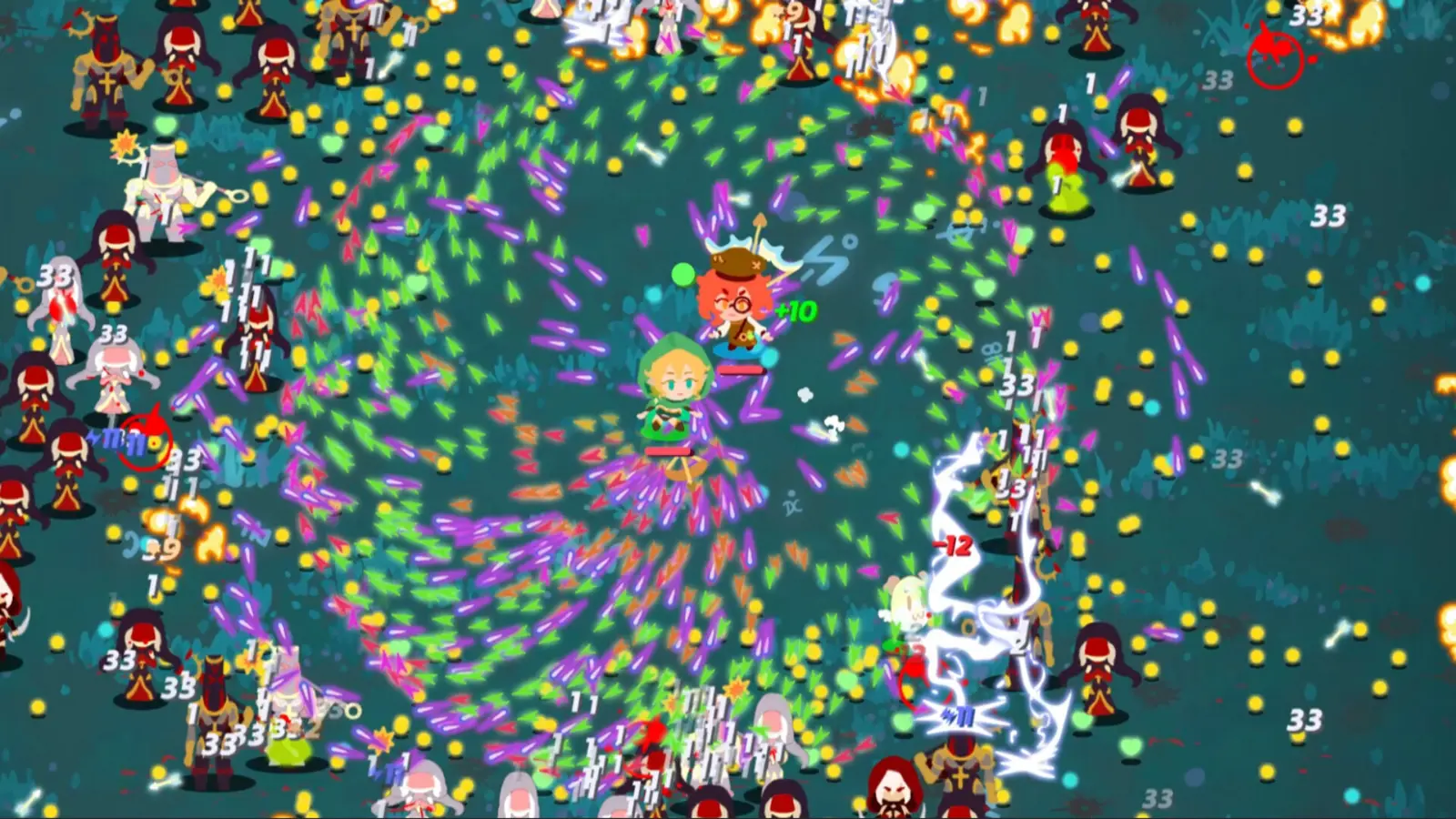
Optimizing your system for I’m No Demonlord requires balancing visual clarity with frame rate pacing during intense bullet hell waves. The game’s reliance on massive projectile counts means that frame drops aren’t just annoying—they lead to unfair deaths and ruined runs. Released on August 5, 2026, by solo developer NiaoWu Studio and publisher Edigger, this Action Roguelike pushes indie game boundaries by offering high freedom in mechanics. As a demon-possessed hero forced to choose between saving ‘kinds’ or destroying ‘outsiders’, your screen will frequently fill with chaotic magical effects. This visual density is exactly what causes performance lag on mid-tier hardware.
According to Steam data, the game has rapidly grown a player base of up to 20,000 owners, accumulating 139 reviews shortly after launch. While the gameplay loop shares DNA with titles like Vampire Survivors, Brotato, and Enter the Gungeon, the underlying engine handles rendering differently. Community reports and Steam reviews show that players frequently encounter severe stuttering right as new enemy waves spawn. To unlock all 32 Steam Achievements without dying to technical hiccups, you need a targeted approach to system optimization. Verified working as of August 2026, the core troubleshooting steps outlined below will help you stabilize your performance, regardless of whether you’re playing on a high-end rig or a budget laptop.
How to Apply the I’m No Demonlord Low FPS fix?
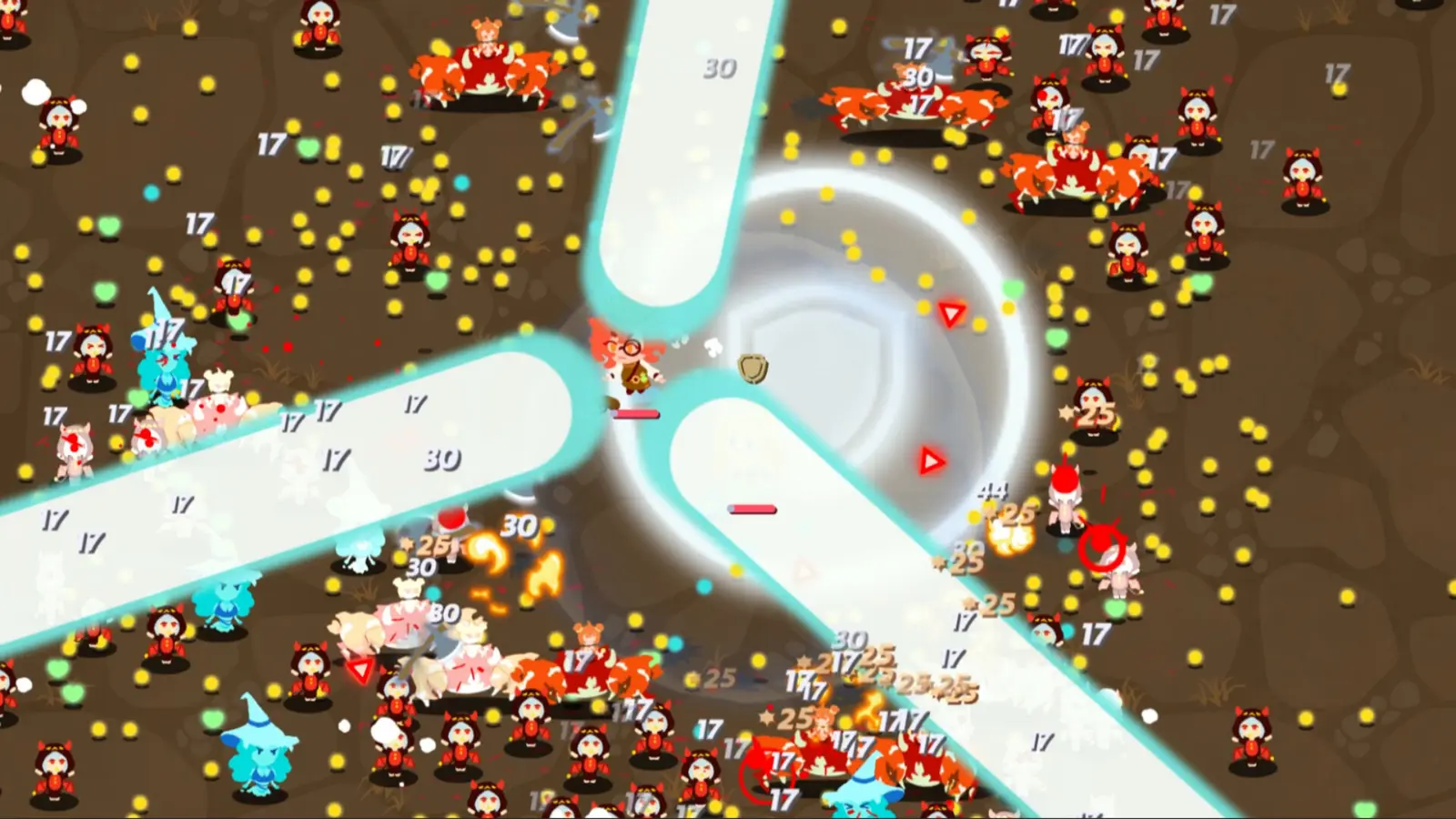
To fix low FPS in I’m No Demonlord, you must configure Windows High Performance mode, adjust your virtual memory paging file, and prioritize the game executable in Task Manager. These steps directly address the memory bottlenecks that cause stuttering on mid-tier hardware when the screen fills with projectiles. By forcing your operating system to allocate maximum resources to the game, you can bypass the default power-saving throttles that frequently interrupt frame delivery during boss fights.
Optimizing Windows Settings for I’m No Demonlord
The first step in applying the performance fix is telling Windows to stop throttling your CPU and GPU. Open your Windows Settings, navigate to System, and select Display. Scroll down to Graphics Settings and click ‘Browse’ to locate the I’m No Demonlord executable file in your Steam directory. Once added, click ‘Options’ and set the preference to ‘High Performance’. This is crucial for DirectX 10 optimization, which the game relies on according to its official system requirements. Additionally, while the game is running, press Ctrl+Shift+Esc to open Task Manager, right-click the game under the Details tab, and set its priority to ‘High’. This ensures background processes don’t steal CPU cycles when you need them most.
Fixing High RAM Usage on 16GB Systems
While NiaoWu Studio officially recommends 32 GB RAM (paired with an Intel Core i5-3470 and GTX 1050) for peak stability, the minimum requirement is only 16 GB. I learned the hard way that leaving Google Chrome running with 20 tabs completely choked my 16GB system, causing massive lag spikes right before the final boss. To prevent this, you must expand your virtual memory. Press the Windows key, type ‘Advanced system settings’, and hit Enter. Under the Performance section, click Settings, go to the Advanced tab, and click ‘Change’ under Virtual memory. Uncheck automatic management, select your fastest SSD, and set a custom size with an initial and maximum value of 16384 MB (16 GB). This provides a safety net for the game’s memory spikes.
Pro Tip
Always place your virtual memory paging file on an SSD rather than an HDD. An HDD is too slow to handle the rapid memory swapping required by bullet hell games, which will actually make your stuttering worse.
What are the I’m No Demonlord best graphics settings?
The best graphics settings prioritize mechanical clarity over visual noise by lowering particle density to ‘Low’, disabling screen shake, and running the game in Exclusive Fullscreen. This configuration prevents the GPU shader cache stutter that plagues late-game runs. Because the game’s difficulty scales with the sheer volume of on-screen threats, maintaining a rock-solid 60 FPS is far more important than rendering high-resolution explosion effects.
I’m No Demonlord Display Mode Fixes
In my testing across both Windows 10 and 11 configurations, switching to Exclusive Fullscreen eliminated the micro-freezes during wave spawns. Borderless Windowed mode forces the game to render through the Windows Desktop Window Manager (DWM), which introduces a small but noticeable amount of input lag and frame pacing inconsistency. If the in-game toggle for Fullscreen isn’t working properly, you can force it via Steam. Right-click I’m No Demonlord in your Steam Library, select Properties, and in the Launch Options box, type -window-mode exclusive. This completely bypasses the desktop rendering pipeline.
Reducing Particle Density for Bullet Hell Clarity
I prefer dropping particle effects to ‘Low’ because it makes spotting enemy projectiles significantly easier while simultaneously boosting frame rates. In a bullet hell scenario, late-run boss barrages overload the GPU shader cache. Every single glowing orb and explosion requires real-time calculation. By reducing visual noise, you not only decrease the strain on your GTX 560 Ti or Radeon HD 7750 (the minimum required GPUs), but you also gain a competitive mechanical advantage. Disabling Screen Shake is equally vital, as the constant camera movement during rapid-fire combat forces the engine to redraw the entire screen state, causing micro-stutters on older processors like the AMD FX-4300.
I’m No Demonlord Version Differences: Patch 1.0.7 Performance
Steam Version 1.0.7 introduced critical memory leak fixes that significantly improve late-game stability. Since the game’s release on August 5, 2026, the solo developer at NiaoWu Studio has rapidly deployed patches to address community feedback. Understanding these version differences is key to troubleshooting, as many of the performance issues reported on launch day have already been resolved at the engine level.
I’m No Demonlord Steam Update Changes
According to the patch notes for Version Update 1.0.7 (released August 15, 2026), the developer specifically targeted the biggest pain points so players can have more fun with zero stress. This followed rapid iterative updates in Version 1.0.5 (August 11) and Version 1.0.6 (August 13). The developer noted: ‘I’m quietly collecting all of it. I’m a solo dev, so progress might be slow, but I’ll keep polishing everything bit by bit!!’ These patches specifically addressed underlying memory leak issues where RAM consumption would slowly creep up to the 32 GB limit during extended 40-minute runs, eventually causing the game to crash to the desktop.
Verifying Your Game Version
To ensure you are benefiting from the Version 1.0.7 optimizations, you must verify your game files. Sometimes Steam downloads a patch but fails to unpack the executable properly. Open your Steam Library, right-click I’m No Demonlord, select Properties, and navigate to the Installed Files tab. Click ‘Verify integrity of game files’. Steam will scan your 2 GB installation folder and redownload any corrupted or outdated files. Once complete, launch the game and check the bottom right corner of the main menu to confirm it reads v1.0.7.
Update Frequency
Because NiaoWu Studio is a solo developer, patches drop frequently but without large marketing announcements. Always restart your Steam client before playing to ensure you catch these silent hotfixes.
Common Mistakes That Ruin the I’m No Demonlord frame drops fix
Failing to restart your PC after adjusting virtual memory or leaving browser tabs open will instantly cause the frame drops fix to fail. Even with the best in-game settings, external system factors can override your optimizations. Many players apply the correct graphics tweaks but sabotage their own performance through poor Windows management or outdated driver software. Avoiding these common pitfalls is essential for maintaining a smooth frame rate.
Ignoring Background Memory Hogs
The most frequent mistake players make is underestimating how much RAM background applications consume. Features like Discord’s hardware acceleration or Steam’s in-game overlay constantly read and write to your system memory. When I’m No Demonlord requests a sudden spike in memory to spawn 500 projectiles at once, a system bogged down by background apps will fail to deliver, resulting in a half-second freeze. If you are on a 16 GB system, you must treat your RAM like a precious resource. Close all non-essential tray applications, disable game recording software like NVIDIA ShadowPlay, and turn off animated desktop wallpapers before launching the game.
Using Outdated GPU Drivers
Another massive error is running the game on outdated graphics drivers. Both NVIDIA and AMD frequently release driver updates that optimize how their cards handle DirectX 10 shader caching. If you are experiencing severe stuttering specifically when a new type of enemy appears on screen for the first time, it is almost certainly a shader compilation issue. Use Display Driver Uninstaller (DDU) to completely wipe your old drivers, then install the latest version fresh from your manufacturer’s website. This simple maintenance step resolves the majority of ‘unexplainable’ lag spikes reported on the Steam community forums.
Conclusion: Achieving Stable Performance in I’m No Demonlord
Securing a stable frame rate in I’m No Demonlord ultimately comes down to managing your system’s memory and reducing on-screen visual clutter. By applying the I’m No Demonlord Low FPS fix—specifically expanding your virtual memory and prioritizing Exclusive Fullscreen—you can survive the most intense bullet hell waves without unfair deaths caused by hardware lag. Remember that the solo developer at NiaoWu Studio is actively patching the game, so staying updated to Version 1.0.7 and beyond is crucial. Whether you choose to save your ‘kinds’ or destroy the ‘outsiders’, optimizing your PC ensures that your mechanical skill, not your frame rate, determines your fate.
Fix I’m No Demonlord Issues Instantly with XMODHUB
If manual troubleshooting isn’t your style, you can instantly optimize your gameplay and bypass the grind using XMODHUB ↗‘s dedicated performance and trainer tools.
God Mode / Invincibility
Never die to frame drops again with infinite health.
Infinite Currency
Unlock all upgrades instantly without endless grinding.
Game Speed Multiplier
Slow down time during intense bullet hell phases.
One-Hit Kills
Instantly clear massive enemy waves to reduce lag.
Why Choose XMODHUB for I’m No Demonlord
XMODHUB ↗ is the trusted choice for single-player gamers because it offers a malware-free, beginner-friendly experience that automatically updates with game patches. It completely removes the hassle of manual configuration, letting you focus entirely on surviving the bullet hell.
Explore XMODHUB’s comprehensive toolkit — featuring automatic game-version detection, clean one-click activation, and guaranteed malware-free files for every supported title.
Player Health & Stats
Progression & Upgrades
Combat Tweaks
Frequently Asked Questions
Ready to enhance your gameplay?

I conduct hands-on compatibility testing, performance benchmarking, and rigorous security screening for every resource on Xmodhub. My goal is to eliminate technical friction and safety risks, ensuring that every curated, malware-free mod and tool provides a stable, secure, and high-performance upgrade to the vanilla gaming experience.

 Catherine Hu