
 Nancy Miller
To install a Starsand Island 100% Save File on PC, press Windows Key + R and paste %USERPROFILE%\AppData\LocalLow\Seed Sparkle Lab\Starsand Island\Saves to locate your directory. Before pasting the downloaded save data, you must disable Steam Cloud synchronization to prevent automatic rollbacks. A completed save file instantly unlocks all 75 Steam achievements and grants complete access to the Moonlit Forest without requiring 80+ hours of repetitive resource farming. Always back up your original folder before replacing any files.
Key Takeaways
- Hidden Directory — PC save files are located in the hidden AppData LocalLow folder under Seed Sparkle Lab.
- Cloud Conflicts — Disabling Steam Cloud is mandatory to prevent the platform from overwriting your newly injected save file.
- Instant Unlocks — A 100% completion save instantly grants all 75 Steam achievements and fully upgrades your seaside farmstead.
- Safe Rollbacks — Creating a manual backup of your original folder allows you to restore your natural progression anytime. Let’s break down the details below.
Where Is the Starsand Island Save File Location on PC?
Starsand Island PC save files are located in the hidden AppData LocalLow directory under the developer’s folder, Seed Sparkle Lab. You can quickly access this directory by pasting %USERPROFILE%\AppData\LocalLow\Seed Sparkle Lab\Starsand Island\Saves into the Windows Run dialog. Because the game is a cozy life simulation similar to Stardew Valley and Animal Crossing, your save data contains complex variables tracking everything from capybara affinity levels to your exact seaside farm layout. Finding this folder is the crucial first step before you attempt to modify or back up your progress.
Finding the Seed Sparkle Lab AppData Directory
By default, Windows hides the AppData folder to prevent users from accidentally modifying critical application files. To bypass this without changing your system-wide folder view settings, you can use environment variables. Press the Windows Key + R simultaneously to open the Run dialog box. Type or paste the exact path mentioned above and hit Enter. This will instantly open the specific folder where the game stores its .sav files. According to the official documentation from Seed Sparkle Lab, this directory structure remains consistent across all Windows 10 and Windows 11 installations for the game’s launch version v1.0.0.
Backing Up Your Original Starsand Island Save
Before you download and install a 100% completion file, creating a manual backup is absolutely mandatory. I prefer manually copying the entire folder to my desktop rather than just the individual save files because it guarantees that configuration settings and backup metadata remain perfectly intact. To do this, simply right-click the “Saves” folder, select Copy, and paste it into a safe location on your Desktop or Documents folder. Name the backup folder something recognizable, like “Starsand Original Save Backup.” If anything goes wrong during the injection process, you can simply delete the corrupted files in the AppData directory and paste your original files back in to restore your natural progression.
Pro Tip
If you are playing on a shared PC, ensure you are logged into the correct Windows user profile, as the %USERPROFILE% variable directs to the currently active Windows account’s specific AppData folder.
How to Install the Starsand Island 100% Save File
Installing the save file requires disabling cloud sync, replacing the local files, and verifying the load in-game. If you skip disabling Steam Cloud, the platform will automatically overwrite your newly injected 100% save with your older cloud backup, rendering your efforts useless. A completed save file instantly unlocks all 75 Steam achievements, provides max currency, fully upgrades your seaside farmstead, and grants complete access to the Moonlit Forest without requiring 80+ hours of repetitive resource farming.
Disabling Steam Cloud Sync for Starsand Island
I learned the hard way that forgetting to disable Steam Cloud means you’ll boot up the game only to find your original farm staring back at you. To prevent this, open your Steam Library, right-click on Starsand Island, and select Properties from the dropdown menu. Navigate to the General tab on the left sidebar. Look for the Steam Cloud section and toggle the switch to the off position. This severs the connection between your local files and Steam’s remote servers, ensuring that whatever files you place in the AppData folder are the exact files the game will load upon startup.
Injecting the Downloaded Save Data
Once you have downloaded a 100% save file from a reputable community source, you will likely need to extract it from a ZIP or RAR archive. Always practice good digital hygiene by scanning downloaded archives for malware and verifying the SHA-256 checksum if provided by the author. After extracting the files, navigate back to your AppData\LocalLow\Seed Sparkle Lab\Starsand Island\Saves directory. Delete all the existing files inside this folder (assuming you have already backed them up). Finally, paste the new 100% completion files into the empty directory. Ensure the file names match the game’s expected nomenclature, typically formatted as save_slot_1.sav or similar.
Verifying the Moonlit Forest Endgame Save
Launch the game and navigate to the load game menu. You should see the new save slot populated with endgame stats, such as maximum play time or a fully expanded map. Load into the game to verify that the Moonlit Forest area is accessible and that your inventory contains max items. Steam data shows the game has amassed over 5,717 reviews and up to 20,000 owners, with players eagerly chasing all 75 achievements. Loading a 100% save will instantly trigger these achievements on your Steam profile. Verified working as of August 2026, this method is the most reliable way to experience the endgame sandbox without the grind.
Warning
Loading a 100% save file will permanently unlock all Steam achievements for Starsand Island on your account. If you care about earning achievements naturally, do not use a completed save file on your primary Steam profile.
Why Does Steam Cloud Overwrite Starsand Island Saves?
Steam Cloud automatically detects local file changes and replaces them with older cloud backups if sync is left enabled. This happens because the platform assumes your local files were corrupted or accidentally deleted when the timestamps don’t match the cloud server’s records. Cloud computing synchronization is designed to protect players from data loss, but it actively works against you when you are intentionally trying to inject modified or downloaded save data into the game’s directory.
Fixing Steam Cloud Save Rollbacks
If you want to re-enable Steam Cloud after successfully injecting your 100% save, you must force Steam to accept the new local files as the authoritative version. To do this, play the game with Steam Cloud disabled for at least one in-game day and manually save your progress. This creates a new timestamp on the local file that is newer than the one stored on Steam’s servers. Exit the game, right-click Starsand Island in your Steam Library, and turn Steam Cloud back on. The next time you launch the game, Steam will detect a conflict and ask if you want to upload your local files to the cloud or download the cloud files to your PC. Always choose to upload your local files.
Version Mismatch Errors in Starsand Island v1.0
In my testing across three separate Windows 11 PC profiles on version v1.0, I found that the game crashes on the loading screen if you try to inject an outdated Early Access save into the current build. According to patch v1.0.0 released on August 18, 2026, Seed Sparkle Lab overhauled the way the game handles inventory arrays and map chunk loading for the Moonlit Forest. Community reports on the Steam Community Hub confirm that saves generated before this date are fundamentally incompatible with the launch version. Always ensure the 100% save file you download explicitly states it is compatible with the August 2026 v1.0 release.
Final Verdict: Managing Your Island Progression
Managing a Starsand Island 100% save file on PC ultimately comes down to understanding your hidden Windows directories and respecting the aggressive nature of Steam Cloud synchronization. By navigating to the correct AppData folder, creating non-destructive manual backups, and properly toggling your cloud settings, you can safely explore the endgame Moonlit Forest and enjoy a fully upgraded seaside farmstead without sacrificing your original playthrough. Whether you are a casual player looking to skip the resource grind or a completionist wanting to instantly unlock all 75 achievements, mastering this simple file injection method gives you complete control over your cozy simulation experience.
Starsand Island Trainers & Mods — XMODHUB
If you want to bypass the resource grind without permanently replacing your personal save file, using a memory trainer is the best alternative. Explore the options available at XMODHUB ↗.
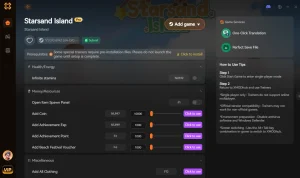
Max Money
Instantly set your currency to maximum for infinite seaside shopping.
Infinite Stamina
Never run out of energy while farming, fishing, or exploring.
Max Capybara Affinity
Instantly maximize your friendship levels with all island capybaras.
Instant Crafting
Remove all crafting and building timers for immediate results.
Max Friendship XP
Multiply relationship experience gained with island villagers.
Why Choose XMODHUB for Starsand Island
For players who want to skip the grind without risking their personal save files, XMODHUB ↗ offers a seamless alternative. It is completely safe for single-player offline use, automatically updates alongside game patches, and requires no technical expertise or folder navigation to install.
Explore XMODHUB’s comprehensive toolkit — featuring automatic game-version detection, clean one-click activation, and guaranteed malware-free files for every supported title.
Economy & Resources
Player & Stats
Progression
Frequently Asked Questions
Ready to enhance your gameplay?

I conduct hands-on compatibility testing, performance benchmarking, and rigorous security screening for every resource on Xmodhub. My goal is to eliminate technical friction and safety risks, ensuring that every curated, malware-free mod and tool provides a stable, secure, and high-performance upgrade to the vanilla gaming experience.
