Catherine Hu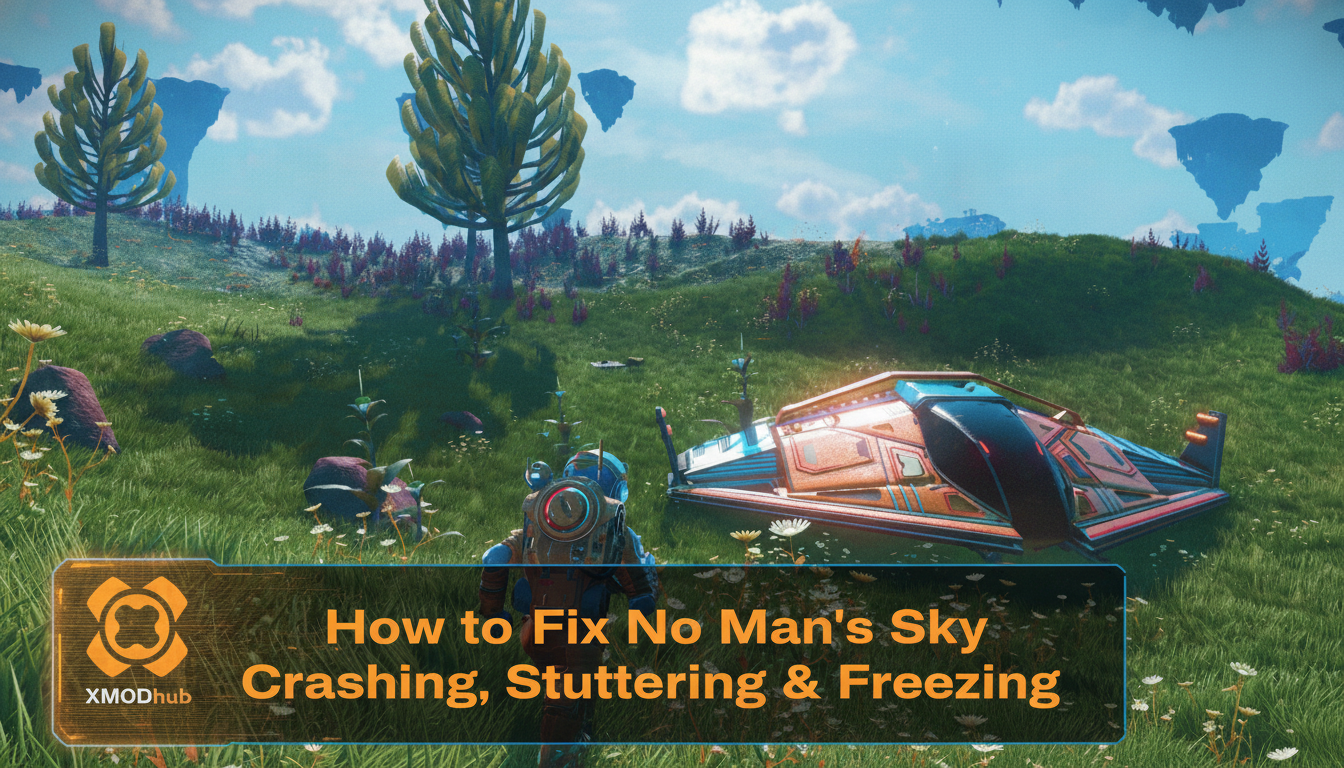
You are about to land on a lush, undiscovered planet after hours of warping across the galaxy, only for the screen to violently freeze, the audio to loop indefinitely, and your desktop to suddenly appear. Dealing with No Man’s Sky crashing, stuttering, and freezing is a massive buzzkill, especially when you lose unsaved progress in this infinite, procedurally generated universe [1]. Because this game heavily relies on real-time generation of planets, creatures, and environments, it taxes your hardware in unique and often frustrating ways.
Over my hundreds of hours exploring the cosmos, I have lost count of how many times a hard crash wiped out a massive base-building session or a lucrative trading run. After testing dozens of configurations, I discovered that the root cause usually lies in how the game handles shader caching and background network syncing. By applying a specific sequence of system and in-game tweaks, I managed to completely eliminate the stuttering and stabilize my framerate.
TL;DR: The Short Answer
No official fix has been confirmed yet for every single hardware combination, but based on extensive community reports, you can resolve most performance issues by following these immediate steps:
- Delete the Shader Cache: Clear out old compiled shaders that conflict with new game updates.
- Lower Volumetric Effects: Drop this specific setting to “Standard” or “Enhanced” to relieve massive GPU strain on planetary surfaces.
- Disable Multiplayer: Turn off network features temporarily to prevent desync freezes when entering the Space Anomaly.
- Verify Game Files: Use Steam to check for corrupted installation files [1].
- Update GPU Drivers: Ensure you are on the latest Nvidia, AMD, or Intel drivers optimized for the latest No Man’s Sky expeditions.
Table of Contents
- TL;DR: The Short Answer
- Understanding the Engine: Why No Man’s Sky Struggles
- Step 1: The Shader Cache Wipe (Fixing Micro-Stutters)
- Step 2: Optimizing In-Game Graphics Settings
- Step 3: Steam and Windows System Tweaks
- Step 4: Network and Multiplayer Desync Fixes
- The Ultimate Shortcut: Using XMODhub
- Advanced Engine Tweaks: Editing TKGRAPHICSSETTINGS.MXML
- Frequently Asked Questions
- Final Verdict: Reclaiming Your Universe
Understanding the Engine: Why No Man’s Sky Struggles
Before diving into the fixes, it is crucial to understand what your PC is actually doing when you play this game. No Man’s Sky is a science-fiction exploration game built on a custom engine designed to render a procedurally generated universe [1][2]. Unlike traditional games where maps are pre-baked and loaded from your SSD, No Man’s Sky uses complex mathematical algorithms to generate terrain, flora, fauna, and weather systems on the fly as you fly your ship toward a planet [3].
This sandbox mechanic means your CPU is constantly crunching math, while your GPU is desperately trying to draw the results in real-time. When you experience No Man’s Sky stuttering, it is usually because your CPU cannot feed data to your GPU fast enough, or your RAM is bottlenecking the procedural generation process. Freezing and crashing often occur when the game engine requests a texture or a shader that is corrupted or takes too long to load.
Step 1: The Shader Cache Wipe (Fixing Micro-Stutters)
Based on community reports, the number one cause of severe stuttering—especially after a major game update—is a corrupted shader cache. Every time you encounter a new biome, the game compiles shaders. If old data conflicts with new data, the game engine trips over itself.
How to Clear the Cache on Steam
- Open your Windows File Explorer.
- Navigate to your Steam installation folder (usually
C:\Program Files (x86)\Steam\steamapps\common\No Man's Sky\GAMEDATA\SHADERCACHE). - Delete all the files inside this folder. Do not delete the folder itself, just the contents.
- Next, clear your GPU’s specific shader cache. For Nvidia users, this is found in
%localappdata%\NVIDIA\DXCacheandGLCache. Delete the contents of these folders. - Restart your PC and launch the game.
Warning: The first time you load into the game after doing this, No Man’s Sky will stutter heavily for about 5 to 10 minutes. This is normal! The game is rebuilding a fresh, uncorrupted cache. Let it run, and the performance will smooth out beautifully.
Step 2: Optimizing In-Game Graphics Settings
Not all graphics settings are created equal. Because No Man’s Sky emphasizes player freedom and discovery [1], you will seamlessly transition from the cold vacuum of space (low resource cost) to dense, stormy jungle planets (extreme resource cost). You need settings that can handle both extremes without freezing.
The Problematic Settings
- Volumetric Effects: This controls the rendering of clouds, fog, and atmospheric scattering. It is notoriously poorly optimized. Lowering this from “Ultra” to “Standard” can instantly yield a 15-20 FPS boost and stop sudden crashes when entering a planet’s atmosphere.
- Base Complexity: If your game freezes specifically when approaching your base, this is the culprit. Set this to “Standard.” Rendering thousands of player-placed building pieces strains the engine’s memory limits.
- Planet Quality: This dictates the density of the procedurally generated terrain [2]. If you are experiencing heavy CPU bottlenecks (stuttering while running on foot), lower this setting.
Once your game is running smoothly and your framerate is stable, you will want to ensure your exploration gear is top-notch. Surviving extreme hazard planets requires excellent equipment, so be sure to check out our comprehensive guide on the Best Multi-Tool Upgrades & Locations in No Man’s Skyto maximize your mining and combat efficiency without worrying about the game crashing mid-fight.
Step 3: Steam and Windows System Tweaks
Sometimes, the issue isn’t the game itself, but how Windows is prioritizing it. Sandbox games without specific goals [1] can run for hours, leading to memory leaks if your system isn’t optimized.
Verify Integrity of Game Files
Always start here. Steam updates can sometimes drop packets, resulting in corrupted files that cause hard crashes to the desktop.
- Right-click No Man’s Sky in your Steam Library.
- Select Properties > Installed Files.
- Click Verify integrity of game files. Let Steam scan and redownload any missing data.
Disable Background Overlays
Overlays from Steam, Discord, and Nvidia GeForce Experience hook into the game’s rendering pipeline. Based on community reports, these hooks can cause No Man’s Sky to freeze, especially when receiving a notification. Disable all overlays in their respective settings menus.
Windows High-Performance Mode
Ensure Windows isn’t throttling your hardware. Go to Windows Settings > System > Display > Graphics. Browse for the NMS.exe file, add it to the list, and explicitly set it to High Performance so it utilizes your dedicated GPU to its maximum potential.
Step 4: Network and Multiplayer Desync Fixes
No Man’s Sky combines elements of survival, trading, and space travel [1], and it allows you to do this alongside other players. However, the multiplayer implementation can be incredibly unstable.
When you summon the Space Anomaly (the multiplayer hub), your game suddenly has to load the customized character models, ships, and pets of up to 32 other players. This massive data spike is a prime trigger for freezing.
The Fix: If you are playing solo or doing a permadeath run, go to the in-game Network Settings and disable Multiplayer. This stops the game from constantly pinging matchmaking servers and trying to sync other players’ coordinates in your procedurally generated universe. You can still upload your discoveries to the server while multiplayer is disabled.
The Ultimate Shortcut: Using XMODhub
Let’s be brutally honest: spending hours tweaking configuration files, updating drivers, and restarting your PC just to make a game playable is exhausting. When No Man’s Sky crashes right after you’ve spent two hours mining activated copper, the loss of progress can make you want to uninstall the game entirely.
If you are tired of the grind and want to bypass the frustrations of lost progress caused by engine instability, it is time to use XMODhub.
XMODhub is the premier tool for taking absolute control over your single-player experience. Instead of worrying about dying to a random game freeze during a Sentinel dogfight, you can instantly give yourself the resources you lost, enable god mode, or skip the tedious grinds altogether.
How to reclaim your time in 3 simple steps:
- Download XMODhub: Install the lightweight, secure client from the official website.

- Auto-Detect No Man’s Sky: Launch the app; it will automatically locate your Steam installation and verify the game version.
- Toggle Cheats: Activate features like Infinite Health, Unlimited Jetpack, Free Crafting, or Instant Warp with a single click or hotkey.
Don’t let a random desktop crash ruin your sandbox experience. Use XMODhub to restore your lost inventory and get back to exploring the infinite universe on your own terms.
Download No Man’s Sky Trainer Now
Advanced Engine Tweaks: Editing TKGRAPHICSSETTINGS.MXML
If you are still experiencing No Man’s Sky stuttering after exhausting basic in-game adjustments, the core issue likely stems from how the engine allocates CPU threads. By default, the game often miscalculates your processor’s logical cores, leading to severe bottlenecks when loading massive procedurally generated terrain or entering a dense Space Station.
To manually override this and force the game to utilize your CPU properly, you must edit the core configuration file.
- Navigate to your local settings folder:
\Steam\steamapps\common\No Man's Sky\Binaries\SETTINGS. - Open the file named
TKGRAPHICSSETTINGS.MXMLusing Notepad or any basic text editor. - Press
Ctrl + Fand search forand. - Adjust the
value=numbers based on your specific CPU architecture.
Use the following community-tested data table to find the optimal thread allocation for your rig:
| CPU Core & Thread Count | NumHighThreads Value |
NumLowThreads Value |
|---|---|---|
| 4 Cores / 8 Threads | 4 | 4 |
| 6 Cores / 12 Threads | 6 | 4 |
| 8 Cores / 16 Threads | 8 | 6 |
| 12+ Cores (e.g., Intel P/E Cores) | 8 | 0 |
Note: Save the file and restart the game. Setting NumLowThreads to 0 on high-end processors forces the engine to stop offloading critical physics and rendering tasks to slower efficiency cores, which is a massive fix for late-game freezing.
Optimizing Upscaling: DLSS vs. FSR
Running out of VRAM during a Hyperdrive jump is a guaranteed way to crash to the desktop. To relieve memory pressure, you must utilize modern upscaling. If you own an RTX graphics card, navigate to the Anti-Aliasing settings and enable Nvidia DLSS, setting it to “Quality” or “Balanced”. If you are on an AMD GPU, older Nvidia card, or Steam Deck, enable AMD FSR 2.0. These technologies render the game at a lower base resolution and upscale it, drastically reducing the VRAM footprint while keeping the visuals crisp.
Frequently Asked Questions
Why does No Man’s Sky crash every time I use the hyperdrive to warp?
Warping forces the game engine to dump its current memory cache and instantly generate an entirely new solar system based on procedural algorithms. If your RAM or VRAM is maxed out, the game will crash. Lowering texture resolutions and closing background applications (like Chrome browsers) can free up the necessary memory to complete the warp.
Does the procedurally generated universe cause the stuttering?
Yes. Because the game does not use pre-rendered maps, your CPU has to calculate the placement of every rock, tree, and creature in real-time as you move [2]. If you move faster than your CPU can calculate (such as using the melee-boost trick), you will experience stuttering or “pop-in” as the engine struggles to catch up.
Will reinstalling No Man’s Sky fix the freezing issues?
It can, but it should be a last resort. Often, verifying the integrity of the game files via Steam achieves the same result in a fraction of the time. If you do reinstall, ensure you manually delete the No Man’s Sky folder in your Steam directory after uninstalling to remove any lingering corrupted configuration files.
Is 16GB of RAM enough to play No Man’s Sky without crashing?
16GB is generally considered the sweet spot for modern gaming, but No Man’s Sky is incredibly memory-hungry due to its sandbox mechanics [1]. If you have 16GB, ensure you have XMP enabled in your motherboard’s BIOS so your RAM runs at its advertised speed, and increase your Windows Pagefile size to give the game extra virtual memory overhead.
Final Verdict: Reclaiming Your Universe
Fixing No Man’s Sky crashing, stuttering, and freezing requires a multi-faceted approach. Because no official fix has been confirmed yet that covers every single hardware anomaly, you must rely on these community-tested methods. By wiping your shader cache, managing your volumetric and base complexity settings, and temporarily disabling multiplayer, you can drastically reduce the strain on your PC.
The beauty of No Man’s Sky lies in its infinite, procedurally generated universe [1]—a space where player freedom is paramount. Don’t let technical hiccups steal that freedom from you.
And remember, if the technical troubleshooting fails or the fear of losing progress to a random crash is ruining your fun, XMODhub is your ultimate safety net. With support for over 5,000+ single-player PC games, XMODhub isn’t just for No Man’s Sky. Whether you are exploring the massive galaxies of Starfield or surviving the harsh environments of Subnautica, XMODhub gives you the power to skip the grind, bypass the bugs, and play exactly how you want. Download it today and take back control of your gaming experience.
Stop Grinding, Start Enjoying.
Bypass the tedious resource gathering and unlock your full potential instantly.

I am a passionate gamer and writer at XMODhub, dedicated to bringing you the latest gaming news, tips, and insights.
Connect with me:
LinkedIn Profile ↗
 Nancy Miller