Catherine Hu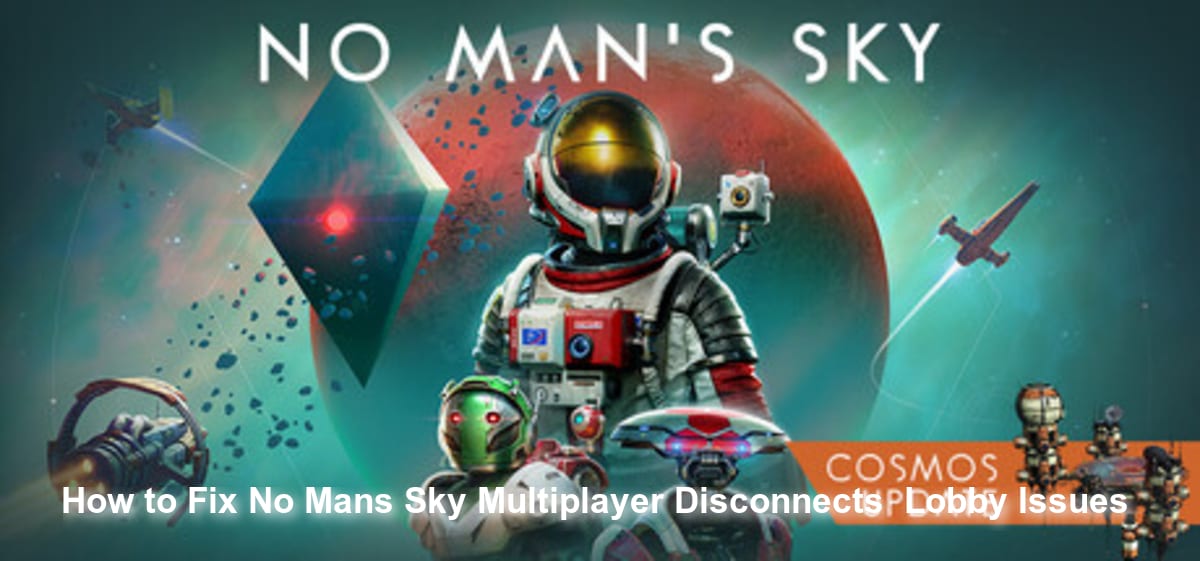
After spending hours trying to link up with my squad on PC via Steam [1], I realized that the networking infrastructure in this procedurally generated universe can be highly unstable. While troubleshooting, I discovered that no official fix has been confirmed yet by the developers for these persistent server-side lobby drops. However, based on community reports, there are several highly effective network adjustments you can make to stabilize your multiplayer sessions.
TL;DR: The Short Answer
Since no official fix has been confirmed yet for the root cause of these multiplayer drops, you must rely on general network troubleshooting. Based on community reports, here is the fastest way to stabilize your No Man’s Sky multiplayer experience:
- Disable Cross-Platform Play: If your entire group is playing on PC via Steam [1], disable crossplay in the in-game network settings to prevent platform-handshake timeouts.
- Synchronize Windows Clock: A desynchronized system clock will cause the game’s discovery servers to reject your lobby connection. Force a manual time sync in Windows settings.
- Bypass The Space Anomaly: If you are disconnecting frequently, avoid grouping up inside the Space Anomaly, as high player density overloads peer-to-peer instancing.
- Verify Steam Integrity: Corrupted multiplayer config files can cause instant disconnects. Verify your game files through Steam.
- Check NAT Type: Ensure your network is not on a Strict NAT, which prevents peer-to-peer lobby hosting.
Table of Contents
- TL;DR: The Short Answer
- The Architecture of Multiplayer in a Procedurally Generated Universe
- Step-by-Step Fixes for No Man’s Sky Multiplayer Disconnects
- Planning Your Multiplayer Journey
- The Ultimate Shortcut: Bypass the Grind with XMODhub
- Deciphering Common No Man’s Sky Network Error Codes
- Frequently Asked Questions
- Final Verdict: Mastering the Infinite Sandbox
The Architecture of Multiplayer in a Procedurally Generated Universe
To understand why No Man’s Sky multiplayer disconnects happen, you have to understand how the game is built. No Man’s Sky is not hosted on traditional, centralized MMO servers. Instead, it relies on a hybrid system. The central “Discovery Servers” track who discovered which planets, creatures, and mysteries [2], while the actual moment-to-moment multiplayer gameplay relies heavily on peer-to-peer (P2P) connections.
When you join a friend’s lobby, your PC is constantly sending and receiving data about procedurally generated terrain edits, AI creature pathing, and spaceship coordinates. Because it is a sandbox without a specific goal [1], players often scatter across a solar system, forcing the host connection to render and sync massive amounts of distinct data. If there is even a momentary packet loss or a slight desync in data verification between your PC and the host, the game’s safety mechanism kicks in and drops the connection to prevent save file corruption.
Step-by-Step Fixes for No Man’s Sky Multiplayer Disconnects
While we wait for permanent server-side stability, you can implement these technical adjustments based on community reports.
Step 1: The System Clock Synchronization Method
One of the most obscure but effective fixes for No Man’s Sky multiplayer disconnects involves your PC’s internal clock. The game’s matchmaking servers use strict time-stamps to verify client-server handshakes. If your Windows clock is even a few seconds out of sync with the global Network Time Protocol (NTP), the server assumes your connection is invalid and drops you from the lobby.
How to execute this fix:
- Press the Windows Key and type “Date & Time settings”.
- Open the settings menu and locate the “Synchronize your clock” section.
- Click the “Sync Now” button.
- Ensure that “Set time automatically” and “Set time zone automatically” are both toggled to the ON position.
- Restart your PC and launch No Man’s Sky via Steam [1].
Step 2: Isolating the Network via Crossplay Settings
No Man’s Sky allows players across PC, PlayStation, and Xbox to explore the universe together. However, translating network packets between different console ecosystems and PC storefronts introduces significant latency. Based on community reports, crossplay is a massive trigger for lobby disconnects.
If you and your friends are all playing on the same platform (e.g., PC via Steam), you should completely disable cross-platform connectivity.
- Launch No Man’s Sky and load into your save file.
- Open the Options menu and navigate to the “Network” tab.
- Find the “Cross-Platform” setting and change it to “Disabled”.
- Have every member of your lobby do the same before attempting to group up.
Step 3: Resolving Strict NAT and Steam Networking Issues
Because No Man’s Sky relies on peer-to-peer networking for its cooperative survival and trading mechanics [1], your router’s Network Address Translation (NAT) type plays a critical role. A “Strict” NAT type will block incoming connection requests, meaning you might be able to see your friend’s lobby, but you will disconnect the moment you try to join.
To resolve this, you need to ensure your router allows Steam’s multiplayer ports. While port forwarding specific UDP/TCP ports can be complex, a simpler method based on community reports is to utilize a reliable DNS server and flush your DNS cache.
- Open the Windows Command Prompt as an Administrator.
- Type
ipconfig /flushdnsand press Enter. - Type
netsh winsock resetand press Enter. - Restart your computer. This clears out old network routing tables that might be interfering with Steam’s P2P matchmaking.
Step 4: The Space Anomaly Workaround
The Space Anomaly serves as the central multiplayer hub in No Man’s Sky. It is the one place where player freedom and discovery [1] funnel into a single, high-density instance. Unfortunately, loading dozens of custom spaceships, character models, and capes in one confined area causes massive memory spikes and network timeouts.
If you are trying to play with a specific group of friends, do not group up inside the Space Anomaly. Instead, follow this edge-case workaround:
- Have the host warp to an empty, uninhabited star system.
- Ensure the host is standing on a barren planet with low environmental complexity.
- Have the joining players connect to the lobby directly from the game’s main menu, rather than trying to fly into the host’s system from the Anomaly.
Planning Your Multiplayer Journey
Once you have applied these network fixes and stabilized your lobby, the real fun begins. The galaxy is vast, and finding a permanent home for your multiplayer group can be daunting. You will want a planet with calm weather, abundant resources, and beautiful scenery to build your communal base. If you want to skip the endless warping and scanning, check out our comprehensive guide on How to Find the Perfect Earth-Like Planet in NMS to secure the ultimate real estate for your squad.
The Ultimate Shortcut: Bypass the Grind with XMODhub
Let’s face it: dealing with No Man’s Sky multiplayer disconnects is exhausting. Even when the network is stable, the game’s survival and trading elements [1] demand a massive time investment. Mining Ferrite Dust, managing hazard protection, and grinding for Units can feel like a second job. If you are tired of the tedious resource grind and just want to focus on building massive bases and exploring the stars, XMODhub is your ultimate solution.
Why spend 40 hours shooting rocks with a mining beam when you can unlock everything instantly? XMODhub provides top-tier, undetected modifications for No Man’s Sky, allowing you to bypass the artificial grind entirely.
How to dominate the galaxy in 3 simple steps:
- Download XMODhub: Install the lightweight, secure client directly to your PC.

- Auto-Detect No Man’s Sky: Launch the app, and XMODhub will instantly recognize your Steam installation.
- Toggle Cheats: Activate powerful features like Infinite Units, Unlimited Jetpack, God Mode (infinite hazard protection), and One-Hit Mining.
Stop letting the grind dictate your playtime. Take absolute control of your procedurally generated universe with XMODhub today.
Download No Man’s Sky Trainer Now
Deciphering Common No Man’s Sky Network Error Codes
When troubleshooting No Man’s Sky multiplayer disconnects, identifying the exact symptom can save you hours of menu-diving. The game does not always provide a clear error code, but the behavior of the disconnect usually points to a specific backend failure. Below is a diagnostic table of the most common lobby issues and their direct solutions:
| Error Symptom / Prompt | Root Cause Analysis | Recommended Quick Fix |
|---|---|---|
| “Lobby Not Found” | The host has exited the game, or their Network Privacy settings are restricting incoming connections. | Ensure the host sets their Multiplayer privacy to “Friends Only” or “Anyone”. |
| “Version Mismatch” | A desynchronization between Steam and Console updates, or conflicting community mods. | Force a Steam Update, verify game files, and disable all active mods. |
| “Connection Lost to Host” | High packet loss, strict NAT type, or aggressive firewall blocking the P2P handshake. | Flush DNS, disable active VPNs, and ensure Windows Defender Firewall allows the game executable. |
| Infinite Loading Screen | Corrupted shader cache conflicting with incoming multiplayer procedural generation data. | Delete the SHADERCACHE folder in your game directory and restart the client. |
Advanced Network Tweaks: Port Forwarding for Steam
If you are consistently experiencing the “Connection Lost to Host” error despite trying the fixes above, your router might be aggressively blocking the specific ports Steam uses for peer-to-peer matchmaking. To guarantee an Open NAT status for No Man’s Sky, you can manually forward the following ports in your router’s admin panel:
- TCP Ports: 27015, 27036
- UDP Ports: 27015, 27031-27036
By opening these network pathways, you ensure that the massive amounts of procedural data—like dynamic weather shifts and Terrain Manipulator edits—can flow seamlessly between you and your squad without bottlenecking at your router’s firewall.
Frequently Asked Questions
Why does my game crash when entering the Space Anomaly?
High player density in the Space Anomaly overloads the game’s peer-to-peer network protocols and your system’s RAM. Based on community reports, turning off multiplayer before entering the Anomaly prevents these crashes.
Did the developers release a patch for the lobby disconnects?
No official fix has been confirmed yet. While the developers frequently update the game with new content, the core peer-to-peer networking architecture remains highly sensitive to latency and packet loss.
Can mods cause No Man’s Sky multiplayer disconnects?
Yes. If you are using visual or gameplay mods and your friends are not, the version mismatch will cause the discovery servers to reject the handshake, resulting in an immediate lobby disconnect. Ensure all players have identical mod loadouts or disable them entirely for vanilla multiplayer.
Does my internet speed matter for this game?
While raw download speed is less important, your connection’s stability (ping and packet loss) is critical. Because No Man’s Sky constantly syncs procedural generation data, a jittery connection will trigger the game’s anti-corruption safety net and kick you from the lobby.
Final Verdict: Mastering the Infinite Sandbox
Fixing No Man’s Sky multiplayer disconnects and lobby issues ultimately comes down to minimizing network interference. Because the game relies on syncing an infinite, procedurally-generated universe [1] across peer-to-peer connections, every ounce of stability matters. By syncing your Windows clock, disabling crossplay, and avoiding high-density areas like the Space Anomaly, you can drastically reduce the frequency of lobby drops.
However, if the technical hurdles and the sheer grind of survival mechanics are burning you out, remember that gaming is about having fun on your own terms. XMODhub is the ultimate tool for players who value their time. With support for over 5,000+ single-player and cooperative PC titles—including massive sci-fi gaming experiences like Starfield and Subnautica [2]—XMODhub ensures you never have to suffer through tedious grinding again. Download XMODhub, toggle your infinite resources, and get back to discovering the mysteries of the cosmos.
Stop Grinding, Start Enjoying.
Bypass the tedious resource gathering and unlock your full potential instantly.

I am a passionate gamer and writer at XMODhub, dedicated to bringing you the latest gaming news, tips, and insights.
Connect with me:
LinkedIn Profile ↗
 Nancy Miller