Catherine Hu
Editor’s Note: I have spent hundreds of hours engineering massive Suspension vehicles in Scrap Mechanic, and I have faced my fair share of corrupted world saves and memory leaks. The solutions compiled in this guide are battle-tested fixes that have personally saved my 100-hour Survival world from being permanently unplayable.
TL;DR: The Short Answer
If you are looking for an immediate resolution to the most common Scrap Mechanic crash fix errors, follow these quick diagnostic steps:
- Verify Game Files: Right-click Scrap Mechanic in Steam > Properties > Installed Files > Verify integrity of game files.
- Update GPU Drivers: Ensure your NVIDIA or AMD drivers are completely up to date to prevent rendering crashes.
- Run as Administrator: Locate the game’s executable (
ScrapMechanic.exe), right-click > Properties > Compatibility > check “Run this program as an administrator”. - Delete the Cache: Navigate to
%appdata%\Axolot Games\Scrap Mechanic\Userand delete thecachefolder to clear corrupted temporary data. - Disable Steam Overlay: Go to Steam Settings > In Game > Toggle off “Enable the Steam Overlay while in-game”.
Table of Contents
- TL;DR: The Short Answer
- Understanding Why Scrap Mechanic Crashes
- Step-by-Step Fixes for Common Crash Errors
- How to Recover a Corrupted Save File
- Advanced Game File Tweaks
- Managing Workshop Blueprints and Lift Crashes
- Identifying Common BugSplat Error Triggers
- The Ultimate Shortcut: Skip the Grind with XMODhub
- Frequently Asked Questions
- Final Verdict: Stabilizing Your Engineering Sandbox
Understanding Why Scrap Mechanic Crashes
Scrap Mechanic is a remarkably complex sandbox game running on a custom engine built by Axolot Games. Every single Bearing, Suspension piece, Piston, and Logic Gate you place requires real-time physics calculations. When you build massive, sprawling vehicles or chaotic automated farming systems, the game engine has to process an enormous amount of collision data.
Most Scrap Mechanic crash fix errors stem from three main categories: physics engine overloads (too many loose parts or complex Bearing interactions), corrupted user data (faulty cache files or broken Blueprint files), and system resource exhaustion (memory leaks during extended gameplay sessions). Understanding that the game is still actively being developed—even years after its initial Early Access release—helps frame why these errors occur. The physics engine is powerful, but pushing it to its absolute limits will eventually cause instability.
Step-by-Step Fixes for Common Crash Errors
To effectively troubleshoot your game, we need to categorize the crashes based on when and how they happen. Follow the steps below based on your specific scenario.
Fixing the Startup Crash (Black Screen)
One of the most frequent issues players face is the game refusing to launch entirely. You click “Play” on Steam, the screen goes black, and it immediately closes.
- Delete the Display Settings File: Sometimes, the game attempts to launch in a resolution or refresh rate your monitor does not support.
- Press
Win + R, type%appdata%, and hit Enter. - Navigate to
Axolot Games\Scrap Mechanic\User\User_[YourSteamID]. - Locate the
settings.jsonfile and delete it. The game will generate a fresh one with default settings upon your next launch.
- Install Missing VCRedist Packages: Scrap Mechanic relies on Visual C++ Redistributables. If these are corrupted or missing, the game cannot launch. Navigate to your Steam folder:
Steam\steamapps\common\Scrap Mechanic\_CommonRedist\vcredist. Run both thex64andx86installers and select “Repair”. - Whitelist in Antivirus: Overzealous antivirus software (particularly Windows Defender or third-party suites like Avast) can mistakenly flag the game’s executable. Add the entire Scrap Mechanic installation folder to your antivirus exclusion list.
Resolving In-Game Memory Leaks and Freezes
If you can load into your world but experience crashes after 30 to 60 minutes of gameplay, you are likely dealing with a memory leak or a physics overload.
- Lower Physics Quality: While having realistic physics is the core appeal of the game, setting the physics quality to “Advanced” places a massive strain on your CPU. Go to the in-game Options menu and lower the Physics slider to a simpler setting.
- Clean Up Loose Items: The game renders every single item dropped on the ground. If you have been chopping down trees with your Sledgehammer or destroying Farmbots without picking up the scrap wood and metal, those hundreds of loose entities will eventually crash the game. Consistently clean up your work area.
- Welding Complex Creations: If you have vehicles with too many un-welded parts rubbing against each other, the collision detection goes into overdrive. Always try to use the Weld Tool to fuse static parts of your base or vehicles together to reduce the physics calculations required.
Curing the Multiplayer Desync Crash
Playing Scrap Mechanic with friends is incredible, but the host’s PC handles all the physics calculations for every player.
- Host PC Requirements: Ensure the player with the most powerful CPU and the strongest internet connection is hosting the game.
- Limit Creation Size in Multiplayer: When multiple players spawn complex Steam Workshop Blueprints simultaneously, the data transfer between the host and clients can bottleneck, leading to a crash. Agree to spawn large creations one at a time.
- Sync Framerates: Have all players lock their framerates (e.g., at 60 FPS) via their GPU control panel. Massive FPS disparities between the host and clients can sometimes trigger desync errors that result in a hard crash.
How to Recover a Corrupted Save File
There is nothing more heartbreaking than loading up your 200-hour Survival mode world only to be met with a fatal crash error during the loading screen. This usually means the save file has become corrupted, often due to the game crashing while auto-saving.
- Locate the Save Folder: Press
Win + R, type%appdata%, and navigate toAxolot Games\Scrap Mechanic\User\User_[YourSteamID]\Save. - Identify the Backup: The game usually keeps a
.dbfile (your main save) and occasionally generates temporary files or older backups. - Rollback Strategy: If you do not have a manual backup, your options are limited. However, you can try opening the
.dbfile using a SQLite database browser. Advanced users can manually delete the exact grid chunk where a physics explosion occurred (the likely cause of the crash). If this sounds too complex, it is highly recommended to start creating manual copies of your.dbsave files after every major building session.
Advanced Game File Tweaks
For those who are not afraid to dig into the game files, you can modify certain parameters to improve stability. If you want to bypass some of the game’s restrictive grinds while you are tweaking files, you might also be interested in our Scrap Mechanic Best Builds: Ultimate Engineering Guide 2026 which dives into memory editing for unlimited resources.
However, purely for stability, you can edit the game’s launch parameters:
- Right-click Scrap Mechanic in Steam, select Properties.
- In the Launch Options box, type
-highto force Windows to prioritize the game’s CPU usage. - You can also try
-USEALLAVAILABLECORESto ensure the game is utilizing your multi-core processor effectively, which can significantly reduce physics calculation lag.
Managing Workshop Blueprints and Lift Crashes
A highly specific but incredibly common trigger for Scrap Mechanic crash fix errors occurs when interacting with the Lift. Spawning a massive creation downloaded from the Steam Workshop forces the engine to calculate hundreds of Bearings, Controllers, and Suspension joints in a fraction of a second.
To prevent your game from crashing when loading a Blueprint:
- Always spawn on a flat surface: Attempting to spawn a massive vehicle on uneven terrain causes immediate collision clipping, which results in a fatal physics error.
- Check Mod Dependencies: Many complex Blueprints require specific mod packs (like the Modpack by Durf). If you attempt to place a creation on your Lift without having the required custom blocks installed, the game will instantly crash to desktop.
- Use the Weld Tool strategically: If you are building a mega-base, build it in modular chunks. Spawning a 10,000-block creation at once is a guaranteed way to trigger a BugSplat.
Identifying Common BugSplat Error Triggers
To quickly diagnose your specific issue, we have compiled a matrix of the most frequent crash triggers encountered by the Scrap Mechanic community, along with their immediate solutions.
| Crash Trigger | Identifying Symptoms | Immediate Solution |
|---|---|---|
| Physics Engine Overload | Game freezes instantly after connecting a Logic Gate to a high-speed Controller or Bearing. | Reload save, place the creation on a Lift before altering logic connections to freeze physics. |
| Corrupted Tile/World Chunk | Game crashes consistently when driving your vehicle into a specific grid area in Survival mode. | Lower render distance and physics quality before entering the chunk, or use SQLite to delete the corrupted tile. |
| Entity Memory Leak | FPS drops steadily over an hour, culminating in a crash when firing the Spud Gun. | Pick up loose cardboard, metal scrap, and dropped items. Restart the game client every 2 hours. |
| Outdated Mod Conflict | Immediate BugSplat upon reaching the main menu after a game update. | Unsubscribe from all Workshop mods, verify game files, and re-enable mods one by one. |
The Ultimate Shortcut: Skip the Grind with XMODhub
Let’s be honest: spending hours troubleshooting Scrap Mechanic crash fix errors, only to load back into a Survival mode world where you have lost your hard-earned Spud Gun and vehicle to a horde of Tapebots, is completely demoralizing. You just want to build incredible machines and test them without being bottlenecked by tedious resource gathering or brutal enemy encounters. If you are tired of playing by the slow rules and want absolute freedom instantly, XMODhub is the ultimate solution.
XMODhub provides safe, undetected, and incredibly powerful cheat functionalities that let you bypass the frustration. Need infinite Component Kits? Want God Mode so Farmbots cannot touch you? XMODhub has it all, beautifully integrated.
Here is how you can take control of your sandbox instantly:
- Download XMODhub: Head over to the official site and install the lightweight client.

- Auto-Detect Scrap Mechanic: Launch XMODhub and let it instantly recognize your game directory.
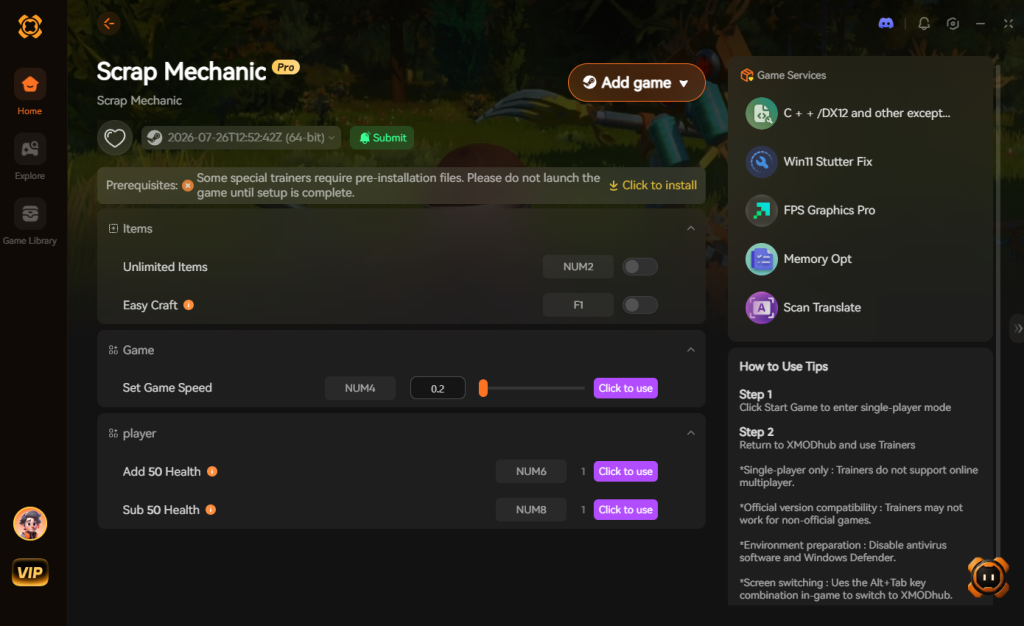
- Toggle Cheats: Use the sleek overlay to activate God Mode, Infinite Inventory, One-Hit Kills, or No Physics Lag modes, and completely dominate your world.
Download Scrap Mechanic Trainer Now
Frequently Asked Questions
**Why does Scrap Mechanic crash when I place a bearing?**
Placing a Bearing calculates new physics parameters for whatever is attached to it. If you attach it to a massive, complex structure that is already clipping into the ground, the sudden physics spike will crash the game. Lift your creation on a Lift before adding Bearings or using the Connect Tool.
**What is the BugSplat error in Scrap Mechanic?**
BugSplat is the crash reporting software integrated into the game’s engine. It simply means the game encountered a fatal error it could not recover from—usually a memory leak or an infinite physics loop. Submitting the report helps developers, but verifying game files is your immediate fix.
Can Steam Workshop mods cause crash errors?
Absolutely. If a mod is outdated or conflicts with the current version of the game (especially after major updates like the Survival mode overhaul), it will crash your game on startup. Disable all mods and re-enable them one by one to find the culprit.
Will reinstalling the game delete my worlds?
No, reinstalling Scrap Mechanic via Steam will not delete your save files, as they are stored in the %appdata% folder, not the Steam directory. However, backing them up first is always the safest practice.
Final Verdict: Stabilizing Your Engineering Sandbox
Dealing with Scrap Mechanic crash fix errors is a rite of passage for anyone pushing the boundaries of Axolot Games’ ambitious physics engine. By systematically verifying your files, managing your in-game physics loads, and keeping your PC drivers updated, you can eliminate the vast majority of these frustrating interruptions. Always remember to manage your complex Bearing systems and keep your world free of loose scrap to maintain a healthy save file.
If the technical troubleshooting and the brutal survival grind are wearing you down, remember that you don’t have to suffer through it. Tools like XMODhub offer the perfect escape, giving you absolute control over your game. With support for over 5,000 single-player titles—meaning you can take the same ultimate power into similar crafting heavyweights like Space Engineers or House Party —XMODhub ensures your time is spent creating, not crying over lost progress. Take back your sandbox today.
Stop Grinding, Start Enjoying.
Bypass the tedious resource gathering and unlock your full potential instantly.

I am a passionate gamer and writer at XMODhub, dedicated to bringing you the latest gaming news, tips, and insights.
Connect with me:
LinkedIn Profile ↗

 Nancy Miller