Catherine Hu
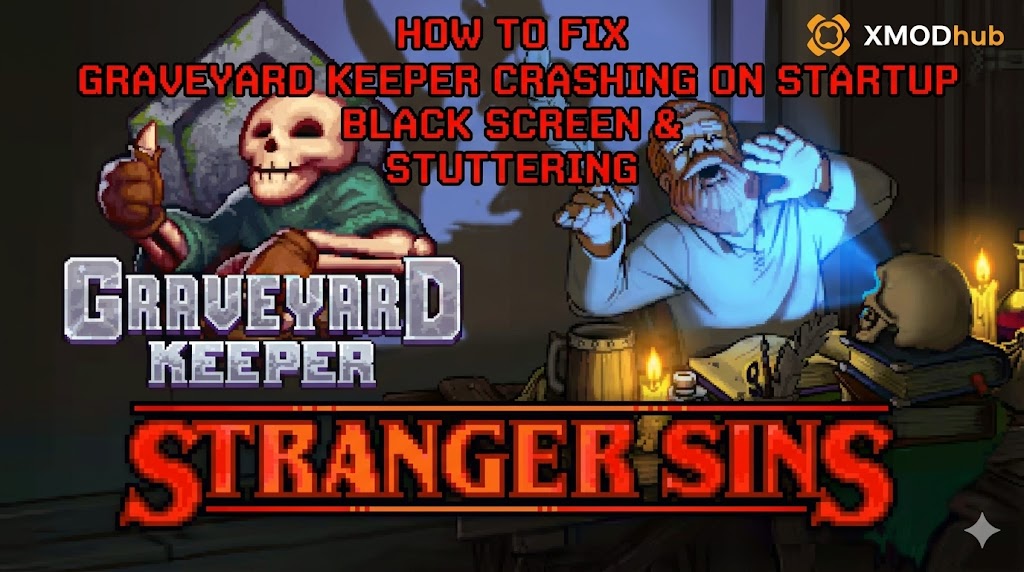 You have waited all week to dive back into your medieval cemetery, ready to harvest some perfect white skulls and expand your church. You click “Play,” and… nothing. Or worse, a cryptic Unity “Fatal Error” pops up. Launch issues are incredibly frustrating, especially when you are in the middle of the Inquisitor’s questline, but they are rarely unfixable.
Whether you are facing a black screen after the Lazy Bear Games logo, random crashes to desktop (CTD) while exploring the deeper Dungeon levels, missing DLL files, or unplayable frame rates during rainstorms, this guide covers the most effective solutions to get you back to the autopsy table.
Das könnte Ihnen auch gefallen: The Ultimate Graveyard Keeper Cheat Engine Guide (And A Much Easier Alternative)
>_ Editor’s View: The Unity Engine Quirks
“I remember trying to launch Graveyard Keeper after installing the Better Save Soul DLC. It crashed to the desktop every time the Dead Horse tavern logo appeared. I almost gave up on my 100-hour save.
Before you uninstall the game, realize that 90% of these crashes are caused by three simple things: corrupted Unity engine files, missing C++ libraries, or broken, outdated BepInEx mods conflicting with the modern 64-bit client. I have tested the methods below on my own rig, and Method 2 combined with a clean wipe of my mod folder was the one that finally solved it for me.”
Check First: Graveyard Keeper System Requirements
Before debugging your memory files, ensure your PC can actually handle the game’s engine. Trying to run Graveyard Keeper on a system that cannot process its background simulation logic is the most common cause of “silent crashes” (where the game closes without an error box).
| Hardware | Mindestanforderungen | Empfohlene Anforderungen |
|---|---|---|
| OS | Windows 7 (SP1+) 64-bit | Windows 10 / 11 64-bit |
| Prozessor | Intel Core i5, 1.5 GHz | Intel Core i7 or AMD equivalent |
| Speicher | 4 GB RAM | 8 GB RAM |
| Grafiken | 1 GB dedicated video card | 2 GB dedicated video card |
| DirectX | Version 10 | Version 11 |
| Lagerung | 1 GB available space | 2 GB available space (SSD) |
Method 1: Verify Game Files (Steam/Epic)
Corrupted installation files or broken BepInEx mod injections are the #1 cause of Graveyard Keeper crashing on startup.
Für Steam-Benutzer:
- ✦ Right-click Graveyard Keeper in your Library.
- ✦ Select Properties > Installed Files.
- ✦ Click “Verify integrity of game files”.
- ✦ Wait for the process to finish (it will automatically purge bad scripts and re-download missing assets).
For Epic Games Users:
- ✦ Go to Library, click the three dots (…) on the game card.
- ✦ Select Manage > Verify.
Method 2: Update Drivers & Visual C++ Redistributables
Graveyard Keeper runs on the Unity Engine, which strictly requires updated software environments to process its C# scripts without crashing.
- ▹ GPU Drivers: Update your NVIDIA (Game Ready Driver) or AMD (Adrenalin) drivers to the latest version to prevent texture loading crashes in the Village.
- ▹ Visual C++ All-in-One: If you get pop-up errors like
MSVCP140.dll missingoderVCRUNTIME140.dll not found, you need to reinstall the Microsoft Visual C++ Redistributables (install both the x86 and x64 versions). - ▹ DirectX: Ensure DirectX is fully updated via your standard Windows Update panel.
Method 3: Fix Black Screen & Overlay Issues
If you hear the morbid background music but see a black screen, or the game closes instantly upon waking up in your bedroom, it is likely a conflict with background apps.
- 1. Disable Overlays: Turn off the Steam Overlay, Discord Overlay, and NVIDIA ShadowPlay/Overlay. Unity games are notoriously sensitive to screen-hooking software.
- 2. Fullscreen Optimization:
- Right-click the Graveyard Keeper.exe file > Properties.
- Go to the Compatibility tab.
- Check “Disable fullscreen optimizations”.
- Check “Run this program as an administrator”.
Method 4: Common Error Codes & Fixes (DLL / Unity)
Here are specific solutions for the most common error messages Graveyard Keeper players are reporting:
Error 0xc0000005 (Access Violation):
Usually caused by strict antivirus blocking Unity memory access. Whitelist the Graveyard Keeper installation folder in Windows Defender, or ensure you are running the game as an Administrator.
UnityPlayer.dll Caused an Access Violation:
This is almost always caused by outdated 32-bit mods running on the newer 64-bit game client. Remove all files inside your BepInEx/plugins folder and verify file integrity.
“Out of Video Memory” Error:
Your GPU VRAM is full. Try forcing the game to launch in windowed mode by right-clicking the game in Steam > Properties > Launch Options and typing -window-mode windowed.
Checking the Player.log:
If your game closes silently, navigate to %USERPROFILE%\AppData\LocalLow\Lazy Bear Games\Graveyard Keeper\ and open the Player.log text file to identify exactly which asset triggered the shutdown.
Method 5: Fix Low FPS & Stuttering
Is Graveyard Keeper running like a slideshow when you walk through the wheat fields or when your automated zombies are working at the quarry?
- ✓ Lower Background Processing: Heavy automated farms consume a lot of CPU power. Try pausing your zombie workstations if you experience massive drops.
- ✓ Disable V-Sync: Navigate to your in-game graphical settings and toggle off V-Sync to prevent forced frame-pacing lag.
- ✓ Set High Priority: Open Task Manager > Details > Right-click Graveyard Keeper.exe > Set Priority > High.
The Workaround: Skip Laggy Areas with XMODhub
Sometimes, Graveyard Keeper crashes not because of your PC, but because of unoptimized code, pathing glitches with your zombie workers, or heavy script loads during Bishop sermon days.
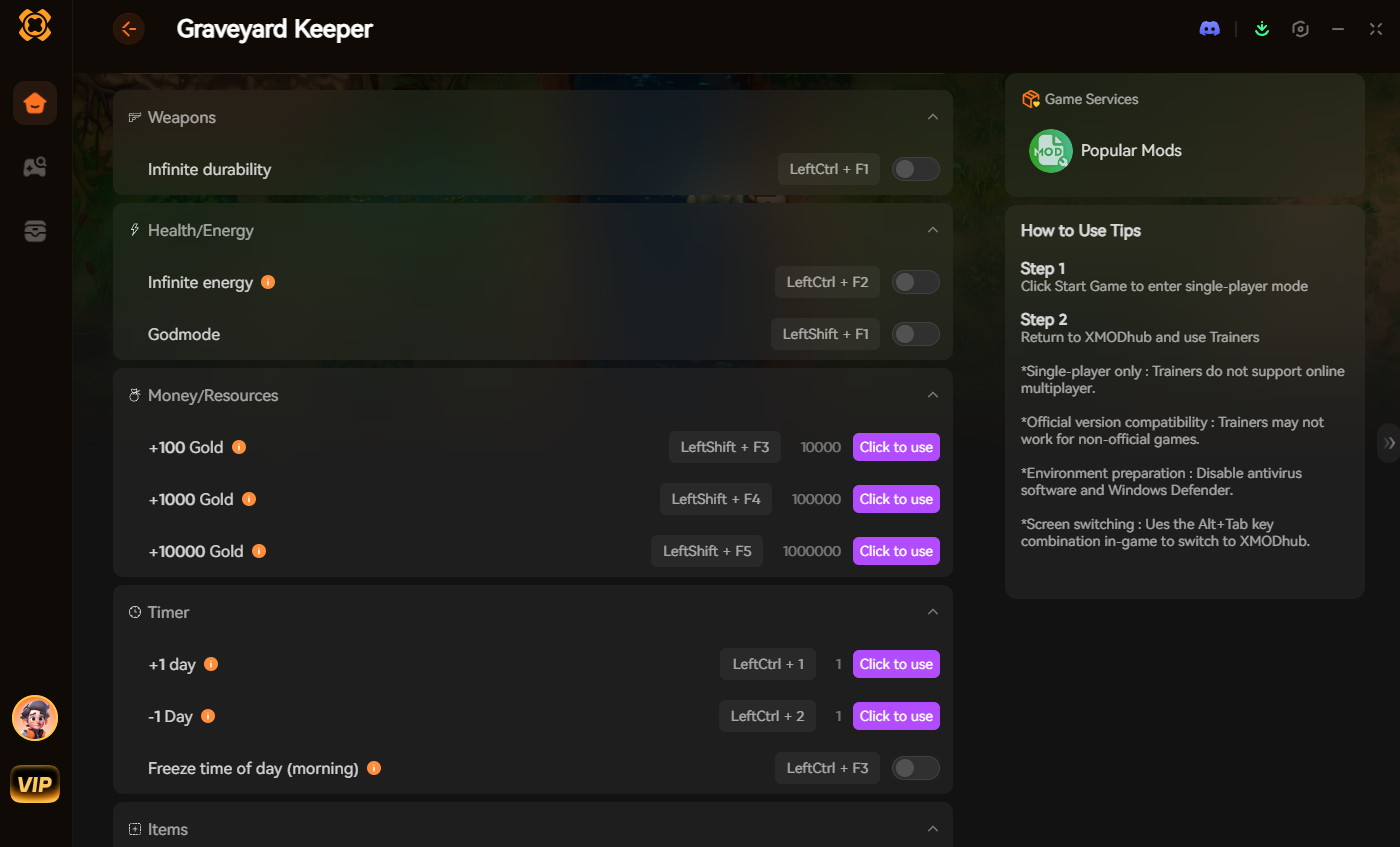
XMODhub offers unique, safe tools to help bypass these technical hurdles without relying on unstable third-party scripts:
- ✦ Speedhack: Use the trainer engine to speed up the game (2.0x or higher) during slow, laggy cutscenes or long treks to the swamp. Alternatively, slow down the engine to 0.5x speed during heavy asset-loading sequences to prevent GPU spikes and crashes.
- ✦ Resource Management: If the Quarry area drops your framerate to unplayable levels, skip the area entirely by instantly granting yourself the Stone Blocks and Iron Ore you need via the trainer.
- ✦ Save Manager: Automatically backup your local save files before triggering major DLC cutscenes, so you never lose your perfect graveyard layout due to a random crash.
How to Get Started with XMODhub
- Download & Install: Get the latest version of the XMODhub-Klient from the official site.

- Auto-Detect: Launch the app. It will automatically scan your PC and locate Graveyard Keeper in seconds.
- Select Your Tools: Choose the Speedhack tool or enable resource Trainers to customize your gameplay.
- Launch & Play: Start the game directly from XMODhub to apply all changes seamlessly.
FAQ
Q: Does Graveyard Keeper support Windows 11?
Yes, but ensure you are on Windows 11 version 22H2 or newer. Older builds may cause compatibility errors with the game’s updated 64-bit Unity client.
Q: Will reinstalling fix the crash?
Reinstalling should be your last resort. Try “Verifying Integrity” (Method 1) first, as it does the exact same thing but much faster and saves your bandwidth.
Q: Where are my crash logs stored?
You can find the raw Unity engine crash logs at %USERPROFILE%\AppData\LocalLow\Lazy Bear Games\Graveyard Keeper\Player.log.
Schlussfolgerung
Launch issues are painful, but they are temporary. By verifying your files, clearing out outdated BepInEx plugins, updating your C++ libraries, and optimizing your drivers, you should be able to fix the Graveyard Keeper crash on startup error.
If the game is still suffering from poor frame pacing in heavily built areas, XMODhub can help bridge the gap. Use Game Speed adjustments to breeze through sluggish sections, manipulate resources to avoid broken zones, and utilize Auto-Backups to secure your progress.
XMODhub is more than just a tool for one game—it is a comprehensive gaming platform supporting over 5,000+ titles. Whether you are mastering Graveyard Keeper or exploring similar management hits like Stardew Valley, Core Keeper, und My Time at Portia, XMODhub ensures you always have the ultimate toolkit (Trainers, Mods, and Tools) ready at your fingertips.
Don’t let engine bugs stop you from building the ultimate graveyard. Play smarter.

Ich bin ein leidenschaftlicher Gamer und Autor bei XMODhub, der sich der Aufgabe verschrieben hat, euch die neuesten Gaming-News, Tipps und Einblicke zu geben.
Verbinden Sie sich mit mir:
LinkedIn-Profil
 Nancy Miller