
 Catherine Hu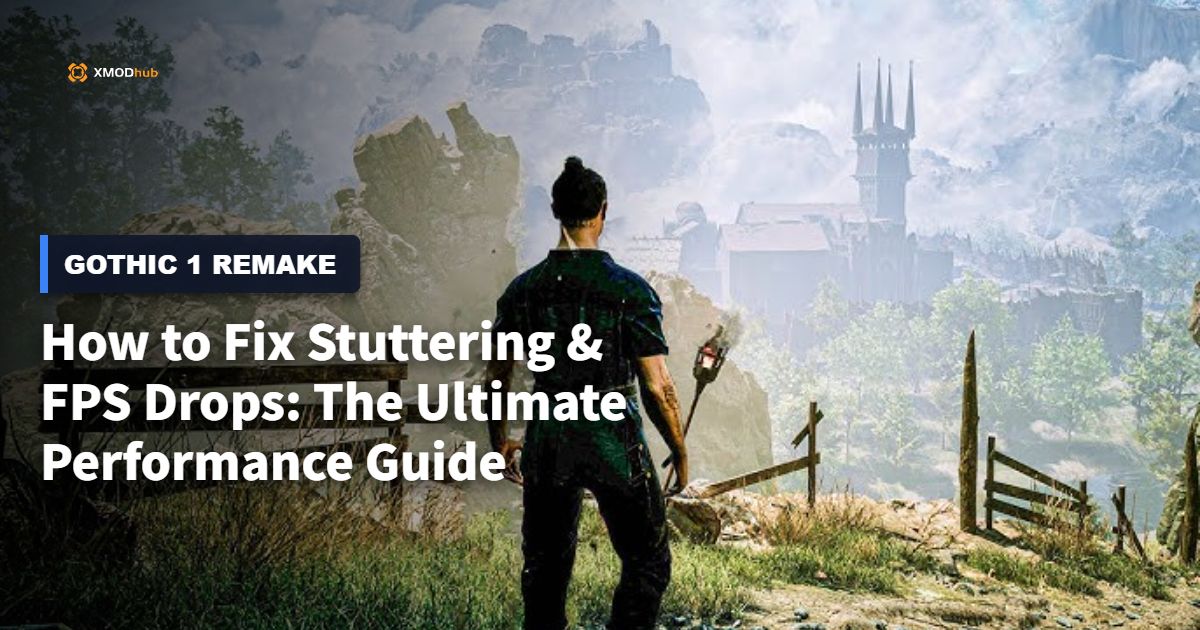
You just survived a brutal, skin-of-your-teeth encounter with a pack of vicious Scavengers, you pan the camera to look toward the towering gates of the Old Camp, and suddenly your screen freezes for two agonizing seconds. By the time your frame rate finally recovers, a stray goblin has already clubbed the Nameless Hero to death. Nothing ruins the dark, gritty, and deeply immersive atmosphere of the Valley of Mines faster than unoptimized performance and erratic frame pacing.
Editor’s Note
Having spent over 100 hours dissecting Unreal Engine 5 titles and pushing PC hardware to its absolute limits, I know exactly what tanks the frame rate in modern RPGs. This isn’t just a generic list telling you to “update your graphics drivers.” We are digging deep into engine configuration files, shader compilation issues, and hidden Windows settings to permanently eliminate those micro-stutters in Gothic 1 Remake.
Quick Answer: TL;DR: The Short Answer
If you want to quickly know how to fix stuttering & FPS drops in Gothic 1 Remake, apply these immediate adjustments:
Understanding the Root Cause of Stuttering in Gothic 1 Remake
Before we start changing values and tweaking files, it is crucial to understand why Gothic 1 Remake stutters. Built on Unreal Engine 5, the game utilizes highly advanced rendering technologies like Nanite (virtualized geometry) and Lumen (fully dynamic global illumination). While these technologies make the Valley of Mines look breathtaking, they are incredibly taxing on your CPU and memory bandwidth.
There are primarily two types of stutters you will experience in Gothic 1 Remake:
Common Mistakes Players Make When Optimizing
When trying to figure out how to fix stuttering & FPS drops in Gothic 1 Remake, many PC gamers shoot themselves in the foot by making a few critical errors.
Mistake 1: Relying on Auto-Detect Settings Never trust the “Auto-Detect” graphics button. It often overestimates your GPU’s VRAM capacity, pushing texture settings to “Epic” which immediately causes VRAM spilling. When VRAM spills over into your system RAM, your frame rate will plummet into the single digits.
Mistake 2: Ignoring Background CPU Hogs Gothic 1 Remake is heavily CPU-bound, especially in crowded areas like the Swamp Camp or the New Camp where complex NPC AI routines are constantly running. Having hardware acceleration enabled on Discord, Google Chrome, or running RGB lighting software in the background steals precious CPU cycles away from the game.
Mistake 3: Testing Performance in Hostile Zones Unprepared Performance testing often requires running back and forth through highly populated, demanding areas like the Old Camp. During these test runs, sudden frame drops might cause you to accidentally click your mouse, attack a heavily armed guard, and turn the entire camp against you. If you find yourself in this frustrating situation, you must read our comprehensive guide on How to Reset NPC Aggro & Hostility in Gothic 1 Remake so you don’t lose hours of precious progress just because you were trying to test your frame rate.
Step-by-Step Guide: In-Game Settings Optimization
To achieve a stable 60 FPS or higher, you need to balance visual fidelity with performance. Here is the optimal breakdown for the in-game graphics menu in Gothic 1 Remake.
1. Global Illumination and Reflections (Lumen)
Lumen is beautiful but devastating to performance.
Recommendation: Set both Global Illumination and Reflections to “High.”
Why: The visual difference between “High” and “Epic” is barely noticeable during actual gameplay, but the performance cost of “Epic” can be up to a 25% reduction in overall FPS. If you are still stuttering, drop Reflections to “Medium” or switch to Screen Space Reflections (SSR) if the option is available.
2. Shadows and Post-Processing
Volumetric clouds and high-resolution shadow maps consume a massive amount of VRAM.
Recommendation: Set Shadows to “Medium” or “High.” Set Volumetric Clouds to “Medium.”
Why: Gothic 1 Remake features dense forests. High shadow settings mean the engine is calculating shadows for every single leaf. Lowering this slightly provides a massive boost to 1% low frame rates, directly reducing micro-stutters.
3. Shadows and Post-Processing
You absolutely must use upscaling in modern UE5 titles.
Recommendation: Enable DLSS (NVIDIA) or FSR (AMD). Set the preset to “Quality” for 1080p/1440p monitors, or “Balanced” for 4K monitors.
Why: Rendering the game natively is extremely inefficient. Upscaling renders the game at a lower internal resolution and uses AI to reconstruct the image, granting you a “free” 30-40% FPS boost.
Advanced Fixes: Windows and Control Panel Tweaks
If the in-game settings did not completely solve the problem, we need to address how Windows and your GPU drivers handle Gothic 1 Remake.
Adjusting NVIDIA Shader Cache Size
By default, the NVIDIA driver limits the amount of space allocated for shader caches. If the cache fills up, it deletes old shaders, forcing Gothic 1 Remake to recompile them later, which causes stuttering.
Disabling Control Flow Guard (CFG)
Control Flow Guard is a Windows security feature that can severely interfere with DirectX 12 games, causing massive traversal stuts.
Alternative Methods: Modifying the Engine.ini File
If you are an advanced user and are still wondering how to fix stuttering & FPS drops in Gothic 1 Remake, you can force the Unreal Engine to prioritize asset streaming by modifying the hidden configuration files.
%localappdata%, and hit Enter.\Gothic1Remake\Saved\Config\WindowsNoEditor\.[SystemSettings]r.Streaming.PoolSize=0r.Streaming.LimitPoolSizeToVRAM=1r.bForceCompilationAtStartup=1What this does: Setting the PoolSize to 0 allows Gothic 1 Remake to dynamically utilize all available VRAM on your graphics card, preventing texture streaming bottlenecks. The forced compilation command attempts to compile more shaders during the initial loading screen rather than during active gameplay, drastically reducing traversal hitches.
High-Level PC Tweaks: ISLC and Process Lasso
For hardcore gamers aiming for absolute perfection, background memory management is the final frontier.
Intelligent Standby List Cleaner (ISLC)
Windows 10 and 11 have a known bug where the standby memory list does not clear itself properly. When Gothic 1 Remake demands more RAM, Windows hesitates, causing a massive stutter.
Solution: Download ISLC (created by the developer of DDU). Set it to automatically purge the standby list when your free memory drops below 1024MB. This ensures Gothic 1 Remake always has immediate access to physical RAM.
Process Lasso
Windows CPU scheduling can sometimes assign Gothic 1 Remake to your CPU’s slower efficiency cores (if you are using modern Intel processors) or constantly bounce the game threads between different cores, causing latency.
Solution: Download Process Lasso. Find the Gothic 1 Remake executable in the active processes list, right-click it, and set CPU Priority to “High.” More importantly, use the CPU Affinity setting to restrict the game to your physical performance cores, disabling hyper-threading/SMT specifically for the game. This can drastically improve 1% low frame rates.
The Ultimate QoL Solution: Testing Performance with XMODhub
Let’s face reality: properly testing how to fix stuttering & FPS drops in Gothic 1 Remake takes time. You have to repeatedly run through the most demanding areas—like the Ore Mound in the New Camp or the dense forests full of Shadowbeasts. If your frame rate drops and you get killed during a test run, you have to reload a save, which ruins your testing methodology and wastes your precious gaming time.
When the grind of performance testing becomes too tedious, XMODhub is the ultimate quality-of-life solution. XMODhub is a safe, premium game modification tool that allows you to bypass the frustrating parts of the game so you can focus on what matters.
By using XMODhub, you can enable God Mode (Infinite Health) or Invisibility. This allows you to sprint through the entire Valley of Mines, aggroing dozens of enemies to stress-test your CPU and frame rate, without ever worrying about dying and having to sit through another loading screen.
Here is how you can instantly streamline your Gothic 1 Remake experience:

Hardware Bottlenecks: Identifying Your Stutter Source
Before haphazardly changing settings to figure out how to fix stuttering & FPS drops in Gothic 1 Remake, you must diagnose your specific hardware bottleneck. Unreal Engine 5 taxes different PC components depending on the on-screen action. Using overlay software like MSI Afterburner or the native Xbox Game Bar performance widget can help you monitor these metrics in real-time.
Graphics Settings Performance Impact Matrix
To help you systematically optimize the game, we have compiled a definitive matrix detailing how specific Unreal Engine 5 subsystems impact your hardware in the Valley of Mines. Adjust these settings based on your identified bottlenecks.
| Setting Category | Specific In-Game Option | Performance Impact | Recommended Tweaks |
|---|---|---|---|
| Lighting Systems | Global Illumination (Lumen) | Massive GPU & CPU load. Major cause of traversal hitches in dense forests. | High or Medium |
| Virtual Geometry | Nanite Object Quality | Heavy VRAM usage. Can cause micro-stutters if texture memory spills over. | High (Do not set to Epic on 8GB GPUs) |
| Atmospherics | Volumetric Clouds & Fog | High GPU drain, specifically noticeable in the Swamp Camp and high altitudes. | Medium |
| Asset Streaming | Texture Resolution | Direct VRAM correlation. Exceeding VRAM causes single-digit FPS drops. | Match strictly to your GPU VRAM limits |
Frequently Asked Questions
A: Yes. Because it utilizes UE5, Gothic 1 Remake is prone to traversal stutters when moving between large “chunks” of the open world. Installing the game on a high-speed Gen 4 NVMe SSD and disabling Control Flow Guard (CFG) in Windows are the most effective ways to minimize this engine-level flaw.
A: You must use DirectX 12. Unreal Engine 5’s core features, specifically Nanite and Lumen, are designed exclusively for DX12. Forcing the game to run in DX11 via launch options will break lighting systems, cause severe graphical glitches, and actually result in worse overall performance.
A: The Old Camp is extremely dense. It features dozens of NPCs with complex daily routines (AI pathfinding), hundreds of light sources (torches, campfires), and dense geometry. This creates a massive CPU bottleneck. Lowering shadow quality and NPC density (if available in the settings) will help alleviate the strain on your processor.
A: Absolutely. Unreal Engine 5 is incredibly sensitive to memory bandwidth. If you have fast DDR4 or DDR5 RAM but forgot to enable XMP (Extreme Memory Profile) or EXPO in your motherboard’s BIOS, your RAM is running at base speeds. Enabling XMP can improve your 1% low frame rates by up to 15%, making the game feel significantly smoother.
Final Verdict
Figuring out how to fix stuttering & FPS drops in Gothic 1 Remake requires a multi-layered approach. Because the game is built on the demanding architecture of Unreal Engine 5, simply lowering the resolution is no longer enough. By correctly managing your shader cache, optimizing Lumen and shadow settings, leveraging upscaling technologies like DLSS, and utilizing advanced tools like ISLC, you can force the Valley of Mines to run with buttery smoothness. Do not let poor frame pacing ruin your nostalgic return to the colony.
Furthermore, if the brutal difficulty of the game or the tedious nature of performance testing is holding you back, remember that you have complete control over your single-player experience. With XMODhub, you gain access to powerful, easy-to-use modifications not just for Gothic 1 Remake, but for a massive library of over 5,000 supported titles. Whether you want to skip the grind in The Witcher 3: Wild Hunt, or simply test your FPS in Gothic 1 Remake without the fear of death, XMODhub provides the ultimate, hassle-free gaming enhancement. Optimize your system, boot up the game, and prepare to conquer the Sleeper without a single dropped frame.

I am a passionate gamer and writer at XMODhub, dedicated to bringing you the latest gaming news, tips, and insights.
Connect with me:
LinkedIn Profile ↗




 Nancy Miller