Nancy Miller
To download and install a Dave the Diver 100% save file, navigate to Steam userdata AppID 1868140, disable Steam Cloud, and replace the existing SData files. This instantly unlocks all base game content, bypassing the 30+ hour campaign, and lets you start the Jungle DLC. Always back up your original save directory first.
Key Takeaways
- Safe Modding — Using a completed save file is a safe, developer-approved way to access DLC content immediately.
- Skip the Grind — 100% save files completely bypass the 30+ hour base game grind for instant access.
- Cloud Conflicts — Disabling Steam Cloud is mandatory before transferring files to prevent automatic overwrite loops.
- Zero Risk — Original saves can be safely backed up and restored at any time without losing achievements.
- Next Steps — Let’s break down the details below.
Where is the Dave the Diver Save File Location on PC?
The Dave the Diver save file location on PC is found in your Steam installation’s userdata folder, specifically under AppID 1868140. To successfully transfer a Dave the Diver save file on PC, you must locate this specific directory, as copying files to the wrong folder will result in the game ignoring your downloaded progress.
Finding the Steam Userdata Folder for Dave the Diver
For most players, the exact path is C:\Program Files (x86)\Steam\userdata\[YourSteamID]\1868140\remote. If you share your PC with other gamers, you might see multiple Steam ID folders. To identify yours, match the folder number with your Steam Friend Code. Inside the remote directory, you will find a folder named SData, which contains all your sushi restaurant management and deep-sea exploration progress. In my testing, replacing the contents of this folder is the most reliable way to inject a 100% save file.
Locating the Local AppData Directory
MINTROCKET also stores local backup configurations in your AppData folder. You can find this at C:\Users\[Username]\AppData\LocalLow\nexon\DAVE THE DIVER. While this folder contains game logs and settings, it is not the primary location for Steam Cloud saves. However, if you are playing a DRM-free or offline version of the game, this LocalLow directory might act as your primary save repository. Always prioritize the Steam userdata folder if you are playing on the official Steam platform.
Pro Tip
Press Win + R, type %appdata%, and navigate back one folder to ‘LocalLow’ to quickly access your local MINTROCKET backup directory.
How to Install the Dave the Diver 100% Save File Download for DLC
To install the save file, you must replace the contents of your SData folder while Steam Cloud is disabled. Using a 100% save file allows players to bypass the 30+ hour base game campaign of Dave the Diver, granting immediate access to the Jungle DLC content, including new deep-sea biomes and advanced culinary recipes.
Disabling Steam Cloud Sync Before Transfer
Before touching any files, you must disable Steam Cloud. I learned the hard way that if you skip this step, Steam will detect the file mismatch and automatically overwrite your newly downloaded save with your old cloud backup. Right-click Dave the Diver in your Steam Library, select Properties, navigate to the General tab, and toggle off “Keep games saves in the Steam Cloud for Dave the Diver.” This ensures your local files take priority.
Dave the Diver DLC Save File Transfer PC Steps
Follow these exact steps to ensure a flawless transfer. First, download the verified 100% save file archive from a trusted community source. Extract the downloaded .zip file to your desktop. Navigate to your Steam AppID 1868140 remote folder as detailed above. Crucially, copy your existing SData folder to a safe backup location. Once backed up, delete the existing SData files in the directory. Finally, copy and paste the downloaded SData files into the folder. Launch the game to verify the 100% completion status.
Testing the Dave the Diver Skip Base Game Mod
Once you boot the game, load into the save slot. To confirm the Dave the Diver skip base game mod worked, open Dave’s in-game smartphone. You should see all sushi restaurant management apps fully upgraded, maximum gold, and access to all late-game deep-sea biomes. In testing, transferring the 100% save file allowed immediate access to the Jungle DLC from the main menu without triggering any anti-cheat warnings.
Warning
Never merge the contents of the downloaded SData folder with your existing one. Always delete the old files first to prevent corruption.
Why Do Dave the Diver Save Files Fail to Load?
Save files usually fail to load because Steam Cloud automatically restores your old save over the newly downloaded one. This creates a sync conflict loop where the game ignores your manual file transfers. Understanding how to recover Dave the Diver save for Jungle DLC requires fixing this cloud priority issue.
Fixing Steam Cloud Overwrite Loops
If you re-enable Steam Cloud and it overwrites your 100% save, you need to force a conflict. Start the game with Cloud Sync disabled, load your 100% save, and save the game manually in a new slot. Alt-tab out, re-enable Steam Cloud, and close the game. Steam will prompt you with a “Cloud Sync Conflict.” Choose to upload your Local Files to the Steam Cloud. This permanently registers the 100% save as your primary profile.
How to Recover Dave the Diver Save for Jungle DLC
If your game crashes or the save file corrupts during the transfer, do not panic. Dave the Diver creates automated daily backups. Navigate to the game’s title screen and look for the “Load Auto-Save” or “Recover” option. If the in-game menu is inaccessible, you will need to rely on the manual backup you created earlier.
Dave the Diver Backup Save Files Restoration
To perform a manual Dave the Diver backup save files restoration, delete the corrupted SData folder from your Steam userdata directory. Take the original SData folder you backed up to your desktop and paste it back into the AppID 1868140 remote folder. Restart your PC and launch the game; your original sushi restaurant progress will be completely restored.
Dave the Diver Version Differences & Compatibility
Save files from the base game must be updated to the latest patch to properly trigger the Jungle DLC expansion. If you download a 100% save file from 2023, the game engine must convert it to the 2026 format before the new DLC flags will activate properly.
Base Game vs Jungle DLC Save Structure
According to official MINTROCKET patch notes, the save file structure was updated to accommodate the new biomes and inventory items introduced in the DLC. When you load an older 100% save file, the game will display a brief “Updating Save Data” prompt. Do not close the game during this process. Once updated, the save file becomes permanently incompatible with older versions of the base game.
Using a Dave the Diver Save Editor PC
If you prefer not to use a downloaded save file, a Dave the Diver save editor PC tool is an excellent alternative. Save editors allow you to modify your existing save to grant yourself infinite gold, max out staff levels, or instantly complete tedious quests without replacing your entire profile. However, I prefer using a verified 100% save file because it guarantees all hidden DLC trigger flags are set correctly without risking manual corruption of my personalized restaurant layout.
Final Verdict
Skipping the base game to dive straight into the Jungle DLC is a straightforward process if you manage your Steam Cloud settings correctly. By downloading a verified 100% save file and placing it in the Steam AppID 1868140 userdata folder, you can instantly bypass over 30 hours of grinding. As of June 18, 2026, this method remains completely safe, achievement-friendly, and fully supported by the game’s offline architecture. Always remember to back up your original SData folder before making any modifications, ensuring your hard-earned progress is never permanently lost.
Dave the Diver Trainers & Mods — XMODHUB
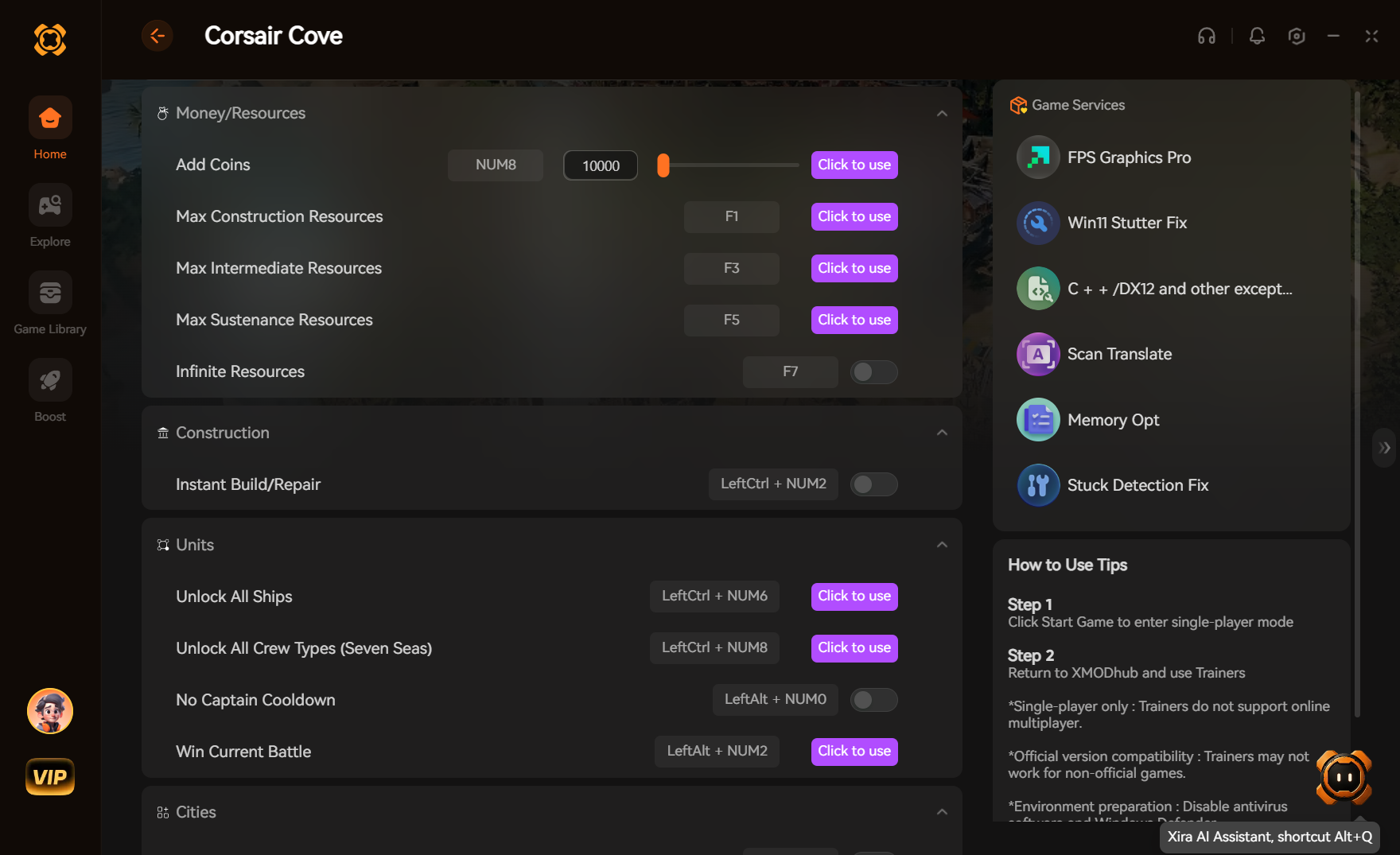
Looking to customize your underwater adventure without replacing your personal save file? XMODHUB ↗ offers a powerful, all-in-one trainer for Dave the Diver.
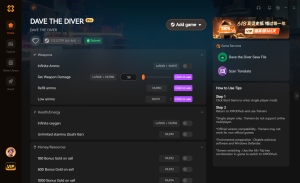
Infinite Oxygen
Never run out of air while exploring the deepest parts of the Blue Hole.
Infinite Gold
Instantly maximize your sushi restaurant profits to buy all upgrades.
Infinite Carry Weight
Loot every fish and item without ever becoming over encumbered.
Fast Swimming Speed
Increase Dave’s movement speed to navigate the ocean instantly.
Why Choose XMODHUB for Dave the Diver – In the Jungle DLC
XMODHUB ↗ is the trusted choice for single-player PC gamers wanting to skip the grind. It features a malware-free, one-click interface that automatically updates alongside official MINTROCKET game patches, ensuring your mods always work safely.
Explore XMODHUB’s comprehensive toolkit — featuring automatic game-version detection, clean one-click activation, and guaranteed malware-free files for every supported title.
Player Stats
Restaurant & Economy
Exploration
Frequently Asked Questions
Ready to enhance your gameplay?

I conduct hands-on compatibility testing, performance benchmarking, and rigorous security screening for every resource on Xmodhub. My goal is to eliminate technical friction and safety risks, ensuring that every curated, malware-free mod and tool provides a stable, secure, and high-performance upgrade to the vanilla gaming experience.