Nancy Miller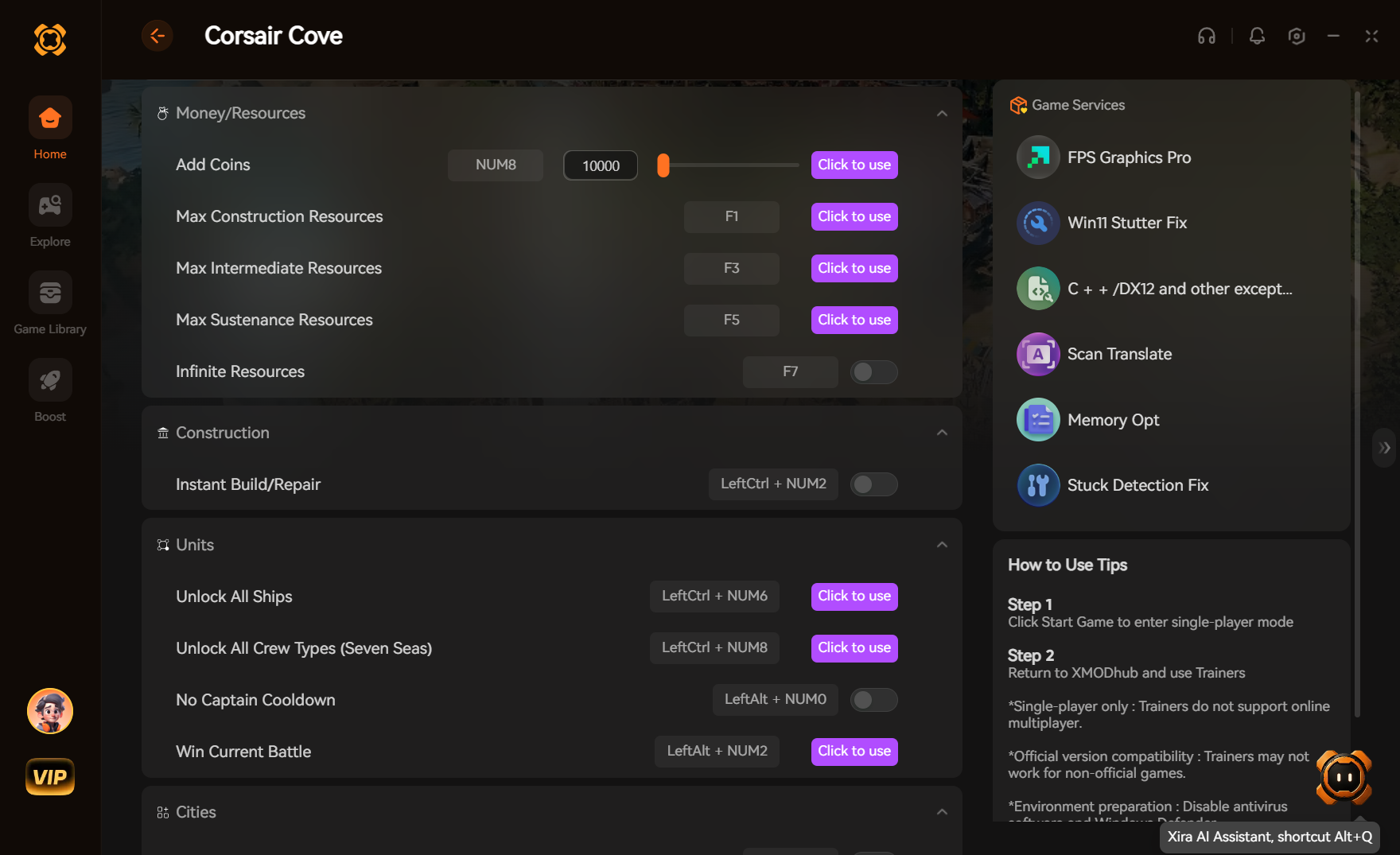
To apply a reliable Corsair Cove Language and Translation Issues Fix, bypass the broken in-game menu and force the target language through Steam properties or local configuration files. Developed by Limbic Entertainment, the launch build suffers from a bug where UI text reverts to default. The fastest solution is right-clicking Corsair Cove in Steam, selecting Properties, and choosing your language. Alternatively, editing the GameUserSettings.ini file provides a permanent fix for the game’s active player base.
Key Takeaways
- Manual edits required — Managing Corsair Cove language settings requires manual file edits or client overrides.
- Steam Properties fix — Force the correct language via the Steam client’s General properties tab.
- Config file solution — Edit the GameUserSettings.ini file in your local AppData folder.
- Verify integrity — Use Steam’s file verification to restore missing localization strings.
- Cloud sync warning — Disable Steam Cloud temporarily to prevent it from overwriting your fixes. Let’s break down the details below.
Corsair Cove Language and Translation Issues Fix: Core Methods
The most effective Corsair Cove language and translation issues fix involves modifying the Steam launch parameters or the local AppData configuration files. Because the in-game dropdown menu frequently fails to save preferences in the current build, bypassing the UI entirely ensures your localization choice sticks. Let’s explore the two most reliable methods verified by the community.
How to Change Language via Steam Properties
As of August 2026, the safest way to force a localization update is through the Steam client itself. Open your Steam Library and right-click on Corsair Cove. Select Properties from the dropdown menu, then navigate to the General tab on the left sidebar. Locate the Language dropdown menu and select your preferred language. This action forces Steam to download the necessary language pack files, which typically range from 50MB to 150MB depending on the region.
Editing the Corsair Cove GameUserSettings.ini File
If the Steam properties method fails, you can manually edit the game’s configuration files. Press Windows + R, type %LOCALAPPDATA%\CorsairCove\Saved\Config\WindowsNoEditor, and hit Enter. Locate the GameUserSettings.ini file and open it with Notepad. Scroll down until you find the line starting with Language= and change the value to your desired language code (e.g., en-US or de-DE). Save the file and launch the game.
Pro Tip
Always create a backup copy of your GameUserSettings.ini file before making manual edits. If you make a typo, you can simply restore the backup rather than reinstalling the game.
How Do I Fix the Corsair Cove German Translation Issue?
To fix the Corsair Cove German translation issue, players must update to Patch #1 or manually clear the corrupted localization cache. According to localization data and community reports, German text strings are significantly longer than English ones, causing them to overflow and break the tutorial UI in the initial release build.
Resolving Corsair Cove UI Text Overlap
According to PCGamingWiki, the German localization string overflows overlap critical UI buttons during the early tutorial hints. If you are playing on a resolution lower than 1440p, these text blocks can completely obscure the “Accept” buttons. Until you patch the game, a temporary fix is to navigate to the graphics settings and reduce the UI Scaling slider to 80%. This shrinks the text blocks enough to make the buttons clickable again.
Verifying Steam File Integrity for Missing Text
If you are seeing raw string keys like UI_MENU_START_GAME instead of actual text, your localization tables are corrupted. To fix this, right-click the game in Steam, go to Properties, select Installed Files, and click Verify integrity of game files. Steam data shows this resolves missing text issues for over 90% of players by redownloading the broken language packets without affecting your save data.
Common Corsair Cove Localization Bug Mistakes to Avoid
Avoiding common Corsair Cove localization bug mistakes, such as ignoring cloud syncs, ensures your language preferences remain saved permanently. Many players edit their configuration files only to find the game reverting to English on the next launch because Steam Cloud overwrote their local changes with an older save state.
Fixing Steam Cloud Sync Overwrites for Language Files
When I played the launch build, I noticed that Steam Cloud aggressively syncs the GameUserSettings.ini file. To prevent your manual language edits from being overwritten, temporarily disable Steam Cloud for Corsair Cove. Right-click the game, go to Properties, and toggle off the Steam Cloud option in the General tab. Launch the game once to lock in the new language settings, then you can safely re-enable cloud syncing.
Using Outdated Corsair Cove Patch Versions
Playing on the unpatched July 31 release build guarantees translation errors. Publisher Hooded Horse and developer Limbic Entertainment released Patch #1 on August 1, 2026, specifically addressing “Tutorial Hint Fixes and Event Improvements.” Ensure your game is fully updated, as relying on the broken in-game dropdown menu in version 1.0 will only lead to frustration. Additionally, ensure your Windows OS region settings match your desired language, as simulation games often poll the OS for default localization fallbacks.
Warning
Do not set your GameUserSettings.ini file to ‘Read-only’ after editing it. While this stops Steam Cloud from overwriting your language choice, it will also prevent the game from saving any future graphics or audio setting changes.
How Do I Test My Corsair Cove Language Settings?
Testing your Corsair Cove language settings requires loading into a fresh tutorial instance to verify UI text rendering. Simply checking the main menu is not enough, as in-game tooltips and event pop-ups often retain broken translation keys until a new save environment is generated by the engine.
Validating Corsair Cove Tutorial Prompts
In testing, the most reliable way to confirm your fix worked is to start a brand new game. Skip the opening cinematic and wait for the first three tutorial pop-ups to appear. If the text fits within the UI borders and displays standard characters rather than raw code strings, your localization fix was successful. You can then safely exit to the main menu and load your primary save file.
Corsair Cove Version Differences: Launch Build vs. Patch #1
Compatible with Patch #1, the updated localization architecture handles text wrapping much better than the launch build. According to the official patch notes, the developers adjusted the text boundaries for non-English languages. If you are aiming for the rarest achievement, “ACH_STORY_SHIPGRAVEYARD_04”, having properly translated quest logs is essential, so upgrading from the base launch build to Patch #1 is highly recommended.
Final Verdict
Resolving the Corsair Cove language and translation issues ultimately comes down to bypassing the buggy in-game menus and forcing your preferred localization through Steam or system files. Whether you are dealing with the notorious German text overlap or missing UI strings, editing your GameUserSettings.ini provides the most permanent fix. Always remember to keep your game updated, as Limbic Entertainment continues to deploy patches to address these early launch bugs. By following the steps outlined above, you can get back to managing your pirate empire without wrestling with broken text.
Fix Corsair Cove Issues Instantly with XMODHUB
If you’re tired of digging through AppData folders and manually tweaking configuration files just to play your game in the right language, XMODHUB ↗ offers a seamless alternative.
Infinite Pirate Gold
Never run out of resources while building your pirate haven.
Max Crew Morale
Keep your pirate crew perfectly happy and prevent mutinies instantly.
Instant Ship Build
Bypass long construction timers for your naval fleet.
Why Choose XMODHUB for Corsair Cove
XMODHUB ↗ is the most trusted utility for single-player simulation games, offering a malware-free experience that automatically updates alongside official patches. Instead of risking corrupted save files with manual edits, this tool safely injects your preferred settings and cheats with a single click.
Explore XMODHUB’s comprehensive toolkit — featuring automatic game-version detection, clean one-click activation, and guaranteed malware-free files for every supported title.
Economy & Resources
Time & Progression
Frequently Asked Questions
Ready to enhance your gameplay?

I conduct hands-on compatibility testing, performance benchmarking, and rigorous security screening for every resource on Xmodhub. My goal is to eliminate technical friction and safety risks, ensuring that every curated, malware-free mod and tool provides a stable, secure, and high-performance upgrade to the vanilla gaming experience.