
 Catherine Hu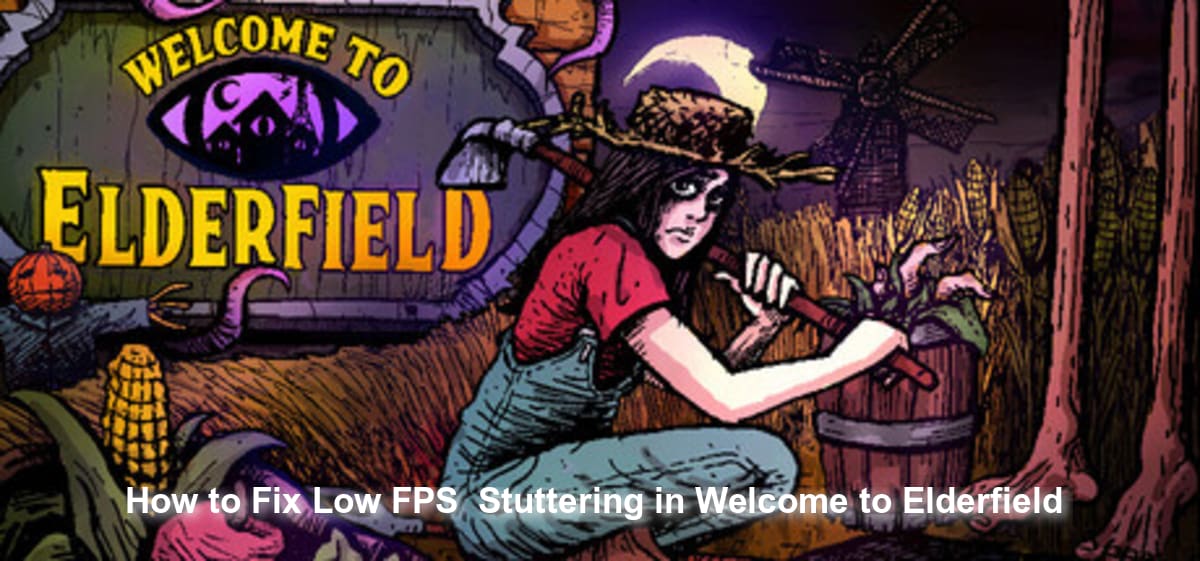
There is nothing more frustrating than trying to survive a cursed farm, only for your frame rate to tank right when an eldritch creature starts chasing you. Welcome to Elderfield brilliantly blends the cozy vibes of Stardew Valley with the unforgiving, rage-inducing mechanics of the Fear & Hunger series [1]. Because so many critical combat actions and events are tied to a background dice-roll mechanic, even a micro-stutter can cause you to misclick, fail a roll, and permanently lose your attributes to a curse.
Based on community reports and recent performance profiling, Welcome to Elderfield presents a unique optimization challenge: there are currently “no applicable settings to tweak” within the game’s default graphics menu [2]. This means fixing performance drops requires system-level adjustments, Steam Deck profile tuning, and an understanding of how in-game mechanics (like mob respawns) impact your CPU.
If you are tired of losing your hard-earned crops and sanity to screen tearing and lag spikes, this comprehensive guide will walk you through the most effective ways to stabilize your game.
TL;DR: The Short Answer
If you are looking for immediate relief from frame drops in Welcome to Elderfield, here are the fastest, most effective workarounds based on current player data:
- Steam Deck Users: Lock your Refresh Rate and FPS Limit to 50 in SteamOS, and ensure Proton is set to “No Forced Compatibility” [2].
- PC Users (System-Level): Since there are no in-game graphical settings to lower [2], you must force VSync, cap your frame rate, and set your Power Management Mode to “Prefer Maximum Performance” directly through the NVIDIA Control Panel or AMD Adrenalin.
- The “Shower” Lag Spike: Be warned that using the shower to remove curses instantly respawns every normal mob you’ve killed [1]. This causes a massive, sudden CPU load. Expect a temporary frame drop here and avoid showering if your system is already overheating.
- Cosy Mode: If combat stutters make the game unplayable, switch to “Cosy Mode” to remove aggressive enemy AI processing, which significantly reduces CPU overhead [1].
- Official Patches: No official fix has been confirmed yet for deep engine-level stutters on PC.
Table of Contents
- TL;DR: The Short Answer
- Understanding Why Welcome to Elderfield Stutters
- Optimizing Steam Deck Performance (Verified Settings)
- PC Workarounds: Forcing GPU Optimization
- In-Game Mechanics That Cause Lag Spikes
- When Stuttering Leads to Complete Game Failure
- Optimizing Windows OS and Background Processes
- The Ultimate Shortcut: Bypass Frustration with XMODhub
- Frequently Asked Questions
- Final Verdict: Surviving the Farm
Understanding Why Welcome to Elderfield Stutters
To fix the lag, you first need to understand what is happening under the hood. Developed by Chris Cote and published by Kwalee, Welcome to Elderfield is not your standard lightweight farming simulator [3].
The game is heavily influenced by titles like World of Horror and Fear & Hunger [1]. The engine is constantly calculating complex variables in the background. Every time you mine an ore, talk to farm animals, or look into a garbage bin, the game rolls a virtual die to determine if you receive a buff or a debilitating curse [1]. Furthermore, the environment is dynamic—ghost tentacles infest the farm, and complex AI pathing is required for eldritch creatures and your giant skeleton friend’s personal chef [1].
Because the developer has not yet implemented a robust in-game graphics settings menu [2], your graphics card and processor are forced to render these complex, overlapping systems at maximum capacity at all times, leading to thermal throttling and stuttering.
Optimizing Steam Deck Performance (Verified Settings)
Welcome to Elderfield is highly popular on handhelds, but leaving the Steam Deck on its default hardware profile will result in erratic frame pacing and unnecessary battery drain. Based on dedicated Steam Deck performance testing, you can achieve a highly stable experience with projected battery usage of around 10-13W and temperatures hovering at a safe 56-60°C [2].
Here is the step-by-step configuration for SteamOS:
1. Adjust the Quick Access Menu (QAM)
Press the ... button on your Steam Deck to open the right-side menu, navigate to the Battery icon (Performance tab), and apply the following parameters:
- Frame Rate Limit: Set to 50 FPS [2].
- Refresh Rate: Set to 50 Hz [2].
- Half Rate Shading (HRS): Ensure this is turned Off (No) [2].
- TDP Limit: Leave this Off (No) [2]. The game dynamically scales its power needs, and artificially choking the APU will cause stuttering during dice-roll events.
- Scaling Filter: Set to Linear [2].
- GPU Clock: Keep this Disabled [2].
2. Proton Compatibility Settings
Do not force a specific Proton version. Under the game’s properties in your Steam Library, ensure that the compatibility tool is set to No Forced Compatibility [2]. The default Linux runtime handles the game’s rendering pipeline much more smoothly than forced older Proton layers.
PC Workarounds: Forcing GPU Optimization
If you are playing on a Windows PC, you will quickly notice a glaring issue: there are no applicable settings to tweak in the game’s options menu [2]. You cannot lower shadow resolution, disable anti-aliasing, or turn down texture quality in-game. Therefore, based on general community reports for locked-setting indie games, you must force your GPU to optimize the game externally.
NVIDIA Control Panel Tweaks
If you have an NVIDIA graphics card, you can manually override the game’s unoptimized rendering:
- Right-click your desktop and open the NVIDIA Control Panel.
- Navigate to Manage 3D Settings > Program Settings.
- Select Welcome to Elderfield from the dropdown list (or click “Add” to find the executable).
- Max Frame Rate: Cap this to 60 FPS. Letting the game render at uncapped frame rates causes severe stuttering when the engine transitions between cozy farming and horror combat.
- Power Management Mode: Change this to Prefer Maximum Performance.
- Vertical Sync: Force this to On to prevent screen tearing during fast-paced chases with eldritch creatures.
AMD Adrenalin Adjustments
For AMD users, open your Adrenalin software:
- Go to the Gaming tab and select Welcome to Elderfield.
- Enable Radeon Anti-Lag to help mitigate the input delay caused by the game’s heavy dice-roll calculations.
- Enable Radeon Chill and set both the Min and Max FPS to 60.
Note: Because the game is relatively new, no official fix has been confirmed yet regarding a dedicated PC optimization patch. Rely on these driver-level tweaks for now.
In-Game Mechanics That Cause Lag Spikes
Sometimes, the stuttering is not a hardware issue, but a direct result of the game’s brutal mechanics.
The “Shower” Entity Respawn Spike
In Welcome to Elderfield, getting cursed is incredibly common. You can easily stack five curses on day one just by doing mundane tasks [1]. The only way to cleanse these curses is to take a shower. However, taking a shower triggers a massive engine event: it removes your accumulated buffs and respawns every normal mob you’ve killed across the map [1].
When the engine suddenly has to spawn dozens of entities and calculate their AI pathing simultaneously, it causes a massive CPU bottleneck.
Warning: Expect a heavy 2-to-3 second stutter immediately after taking a shower. Do not attempt to engage in combat or perform critical dice rolls immediately after washing off a curse.
Cosy Mode as a Performance Tool
If your PC simply cannot handle the AI calculations of eldritch creatures chasing you through the farm, consider starting a save file in Cosy Mode [1]. This mode retains the dark themes and lore but removes the constant, aggressive combat. Fewer enemies on screen means significantly less CPU strain, resulting in a much smoother frame rate.
When Stuttering Leads to Complete Game Failure
A minor stutter is annoying, but if your frame rate drops to zero and the game completely locks up during a critical sewer exploration or magical ritual, you have a much bigger problem on your hands. Memory leaks and severe unoptimized asset loading can cause the engine to halt entirely.
If your frame drops are consistently leading to a hard lockup or a crash to the desktop, you might be dealing with deeper OS-level instability or corrupted game files. We highly recommend checking out our comprehensive guide on how to Fix Welcome to Elderfield Crashing on Startup & Freezing to ensure your base installation is completely stable before tweaking frame rates.
Optimizing Windows OS and Background Processes
Since Welcome to Elderfield heavily relies on constant background calculations for its dice-roll mechanic and dynamic enemy AI pathing, freeing up CPU cycles is just as important as GPU tweaks. If your system is starved for processing power, you will inevitably experience micro-stutters right before a crucial combat encounter.
1. Storage Type Matters: SSD vs. HDD
The game dynamically streams assets, especially when transitioning from the cozy farm areas to high-intensity combat zones, or when the massive Shower respawn event triggers. Installing the game on a standard mechanical HDD will cause severe asset-streaming stutters. Always ensure the game directory is located on an NVMe M.2 SSD or a standard SATA SSD to eliminate read-time bottlenecks.
2. Disable Hardware Acceleration in Background Apps
Applications like Discord, Google Chrome, and Spotify use hardware acceleration by default, reserving a portion of your GPU VRAM and CPU cycles. Disabling this feature in your background apps ensures that 100% of your hardware’s rendering power is dedicated to surviving the eldritch horrors.
3. Windows Game Mode and CPU Priority
Ensure Windows Game Mode is turned on in your system settings to prevent background updates from hogging resources. Additionally, you can force Windows to prioritize the game’s engine:
- Open Task Manager (
Ctrl + Shift + Esc) while the game is running. - Go to the Details tab and locate the game’s
.exefile. - Right-click it, select Set Priority, and change it to High.
Expected Performance Impact (System Tweaks)
To help you understand where to focus your troubleshooting efforts, here is a breakdown of how different system-level adjustments impact your frame rate and stuttering in Welcome to Elderfield:
| Optimization Tweak | Target Component | Expected Stutter Reduction | Priority Level |
|---|---|---|---|
| Moving from HDD to NVMe SSD | Storage / Asset Streaming | High (Eliminates loading stutters) | Critical |
| Setting CPU Priority to High | CPU / Dice-Roll Calculations | Medium (Stabilizes 1% low FPS drops) | High |
| Disabling Discord Hardware Accel. | GPU / VRAM Allocation | Low to Medium | Medium |
| Enabling Windows Game Mode | OS Resource Management | Low (Prevents background spikes) | Medium |
The Ultimate Shortcut: Bypass Frustration with XMODhub
Let’s be honest: Welcome to Elderfield is a punishing game. Between the rage-quit-inducing penalties of bad dice rolls, the permanent reduction of your attributes, and the performance stutters that happen right when a ghost tentacle attacks you, the game can feel unfair [1]. If you are tired of losing hours of progress because a lag spike caused you to fail a crucial combat roll, there is a better way to play.
You can completely bypass the grind and the hardware-induced unfairness by using XMODhub.
XMODhub allows you to inject custom parameters into your single-player experience safely. Sick of the shower mechanic causing lag by respawning mobs? Use XMODhub to instantly cleanse curses without showering. Tired of the Fear & Hunger style RNG? Toggle the “Always Roll Perfect” feature.
Here is how to take back control in three simple steps:
- Download XMODhub: Install the lightweight, secure client from the official website.

- Auto-Detect Welcome to Elderfield: Launch the game, and XMODhub will automatically hook into the process.
- Toggle Cheats: Use your smartphone or a second monitor to instantly toggle Infinite Health, Perfect Dice Rolls, or Instant Curse Removal—no complex modding required.
Download Welcome to Elderfield Trainer Now
Frequently Asked Questions
1. Are there any in-game settings I can change to fix low FPS?
No. Based on current player data and Steam Deck testing, Welcome to Elderfield currently features “Default Settings (No applicable settings to tweak)” [2]. You must rely on system-level GPU control panels to optimize the game.
2. Why does my game freeze for a few seconds after I take a shower?
Taking a shower in the game cleanses your curses, but it also instantly respawns every normal mob you have killed in the world [1]. This massive, sudden influx of AI entities overloads the CPU temporarily, causing a heavy lag spike.
3. Is there an official performance patch coming for PC?
At this time, no official fix has been confirmed yet regarding a dedicated performance patch. The developer, Chris Cote, is actively monitoring community feedback, but players should use driver-level frame caps in the meantime.
4. Can I reduce lag by turning off the enemies?
Yes. If you select “Cosy Mode” when starting a new game, you can experience the dark themes, farming, and relationship-building without the aggressive combat [1]. Removing enemy AI from the map significantly improves overall frame pacing on lower-end systems.
Final Verdict: Surviving the Farm
Fixing low FPS and stuttering in Welcome to Elderfield requires a bit of outside-the-box thinking due to the game’s lack of internal graphical settings. By locking your Steam Deck to 50 FPS [2], forcing VSync and maximum performance via your PC’s GPU control panel, and understanding how in-game mechanics like mob respawns tax your CPU, you can tame this cursed farming simulator.
If the brutal combination of unoptimized performance and rage-inducing dice rolls is ruining your experience, don’t hesitate to level the playing field with XMODhub. Supporting over 5,000 single-player titles—including similar punishing masterpieces likePath of Exile 2 and Last Epoch —XMODhub ensures that you get to enjoy the game on your own terms, without letting hardware stutters dictate your survival. Gather your giant skeleton friend, ignore the ghost tentacles, and take back your farm today.
Stop Grinding, Start Enjoying.
Bypass the tedious resource gathering and unlock your full potential instantly.

I am a passionate gamer and writer at XMODhub, dedicated to bringing you the latest gaming news, tips, and insights.
Connect with me:
LinkedIn Profile ↗
 Nancy Miller