Catherine Hu
Imagine this scenario: you are exactly one heavy attack away from executing a flawless, no-damage run against the final boss of the enigmatic obsidian temple complex. You read the enemy’s telegraph, you press the button to trigger your signature Harden ability, and suddenly—a massive, jarring frame drop ruins your timing. Your fragile shell is shattered on the cold stone floor, and you are sent back to the last checkpoint. Nothing is more infuriating in a punishing, dark fantasy action RPG than dying to poor software optimization rather than your own lack of mechanical skill.
Editor’s Note: After spending well over 1,500 hours mastering the souls-like genre and thoroughly stress-testing the August 2026 release build of Mortal Shell II across five different GPU architectures (from a top-tier RTX 4090 down to a humble GTX 1660 Ti), I have pinpointed exactly which graphical sliders devour your framerate and which ones you can safely crank up. This comprehensive guide will ensure your body-swapping combat remains buttery smooth, giving you the technical edge required to survive in this shattered world.
TL;DR: The Short Answer
If you are currently getting battered in the core swampy area and just want the absolute Best PC Settings for Mortal Shell 2: Max FPS & Performance without reading through the highly technical deep dive, apply these baseline settings immediately:
- Display Mode: Fullscreen (Exclusive) – Never use Borderless Windowed if you want the lowest input latency.
- Resolution: Native to your monitor.
- V-Sync: Off in-game (Force it via NVIDIA Control Panel or AMD Adrenalin alongside a framerate cap).
- Anti-Aliasing/Upscaling: DLSS / FSR / XeSS set to ‘Quality’ (or ‘Balanced’ if playing at 4K on mid-range hardware).
- Shadow Quality: Medium (High/Ultra costs a massive 15-20% FPS for almost imperceptible visual gains during fast combat).
- Volumetric Fog & Lighting: Low (This is the number one performance killer in Mortal Shell II’s atmospheric environments).
- Texture Quality: High/Ultra (Depends purely on your GPU’s VRAM; 8GB+ cards can safely max this out).
- Post-Processing: Medium (Reduces the heavy overhead caused by cinematic depth of field and motion blur).
- Foliage Density: Medium (Prevents CPU bottlenecks in densely packed overgrown areas).
Table of Contents
- TL;DR: The Short Answer
- Why Framerate Dictates Survival in Mortal Shell II
- Mechanics Deep Dive: Graphics Settings Breakdown
- Common Mistakes Ruining Your Framerate
- Alternative Methods for Potato PCs
- Advanced Optimization Tips for Hardcore Tweakers
- Hardware Benchmarks: What FPS Can You Expect?
- Minimizing Input Latency for Flawless Parries
- Skip the Grind: The XMODhub Solution
- Frequently Asked Questions
- Final Verdict
Why Framerate Dictates Survival in Mortal Shell II
Mortal Shell II builds heavily upon the foundation of its predecessor, demanding superior awareness, precision, and instincts. The combat loop is entirely dictated by the unique body-swapping mechanic and the returning Harden system, which allows you to turn to stone mid-animation to absorb an incoming blow. Because these mechanics require split-second activation, input latency and frame pacing are your true final bosses.
When your framerate fluctuates wildly between 45 FPS and 80 FPS, your muscle memory is constantly being betrayed by inconsistent input polling times. Optimizing your FPS is absolutely crucial, especially when you are trying to figure out How to Unlock All Shells Early in Mortal Shell 2 to experiment with different playstyle diversities. If your game stutters while you are exploring hidden sanctums or battling zealous foes, you will lose your hard-earned Tar and Glimpses. A locked, perfectly paced 60 FPS is vastly superior to an uncapped framerate that wildly oscillates up to 120 FPS and crashes down during heavy particle effects.
Mechanics Deep Dive: Graphics Settings Breakdown
To truly understand the Best PC Settings for Mortal Shell 2: Max FPS & Performance, we must dissect how the game’s proprietary engine handles rendering. Mortal Shell II utilizes advanced lighting and dense geometry to sell its grim, dark fantasy aesthetic. Here is a granular breakdown of the most impactful settings.
1. Volumetric Effects and Fog
The developers at Cold Symmetry have leaned heavily into atmospheric storytelling. The core swampy area connecting the three distinct zones is absolutely drowning in volumetric fog.
- The Impact: Rendering light scattering through dense fog is incredibly taxing on your GPU’s compute units.
- The Optimal Setting: Set this to Low or Medium. The visual difference between Medium and Ultra is negligible in motion, but the performance delta can be up to 25%.
2. Shadow Resolution and Filtering
Dynamic shadows are cast by every single enemy, weapon swing, and environmental object in Mortal Shell II.
- The Impact: High shadow settings increase the resolution of the shadow maps and the distance at which they are drawn, heavily taxing both the CPU (draw calls) and GPU (rasterization).
- The Optimal Setting: Medium. This provides a soft, realistic shadow edge without demanding the VRAM and processing power required by crisp, high-resolution shadow maps.
3. Texture Quality and Anisotropic Filtering
This setting governs the resolution of the textures applied to the world and character models.
- The Impact: Texture quality has almost zero impact on your actual FPS unless you exceed your graphics card’s VRAM capacity. If you have an 8GB card and set textures to Ultra at 4K, you will experience catastrophic stuttering as the game swaps assets to your system RAM.
- The Optimal Setting: High/Ultra for 8GB+ VRAM, Medium for 6GB, Low for 4GB. Always force Anisotropic Filtering to 16x via your GPU control panel, as the in-game implementation often looks muddy at oblique angles and costs less than 1 FPS.
4. Global Illumination and Ambient Occlusion
Ambient Occlusion (AO) adds contact shadows where two objects meet, grounding them in the world.
- The Impact: High-tier AO methods (like ray-traced AO or high-sample SSAO) can drain performance.
- The Optimal Setting: Medium. It provides enough depth to the environments—especially inside the obsidian temple complex—without crushing your framerate during heavy combat scenarios involving multiple enemies.
Common Mistakes Ruining Your Framerate
Before we look at external tweaks, let’s address the self-sabotage many PC gamers commit when booting up Mortal Shell II for the first time.
Mistake 1: Ignoring Upscaling Technologies
Many purists refuse to use DLSS (Deep Learning Super Sampling), FSR (FidelityFX Super Resolution), or XeSS, believing it will make the game look blurry. In 2026, these algorithms have evolved to the point where DLSS ‘Quality’ mode often looks better and sharper than native resolution due to superior anti-aliasing, all while granting a massive 30-40% FPS boost. Ignoring these toggles is the biggest mistake you can make.
Mistake 2: Leaving Motion Blur and Depth of Field Enabled
Cinematic effects like Motion Blur and Depth of Field (DoF) are enabled by default to give the game a “movie-like” feel. However, in a hardcore action RPG, DoF blurs the background, making it harder to read enemy telegraphs from a distance. Furthermore, applying these post-processing filters costs valuable GPU rendering time. Turn them both completely off for better visibility and higher framerates.
Mistake 3: Uncapped Framerates Leading to Thermal Throttling
Allowing Mortal Shell II to render as many frames as possible in menus or quiet areas will cause your GPU to run at 100% utilization constantly. This generates excess heat. When you finally enter a boss arena, your GPU may hit its thermal limit and throttle its clock speeds, resulting in massive lag spikes right when you need performance the most. Always cap your framerate to match your monitor’s refresh rate.
Alternative Methods for Potato PCs
If you are running older hardware and the in-game settings are not enough to achieve a stable 60 FPS, you need to employ alternative methods to force the game into submission.
Alternative Method 1: Engine.ini Configuration File Tweaks
Because Mortal Shell II runs on a modern engine, you can bypass the in-game menu restrictions by directly editing the configuration files.
- Navigate to
%LOCALAPPDATA%\MortalShell2\Saved\Config\WindowsNoEditor\. - Open
Engine.iniwith a text editor. - Add the following lines at the bottom to aggressively disable hidden post-processing effects:
[SystemSettings]
r.BloomQuality=0
r.LensFlareQuality=0
r.DepthOfFieldQuality=0
r.Tonemapper.Quality=0
- Save the file and set it to “Read-Only” so the game doesn’t overwrite your tweaks upon launch.
Alternative Method 2: Third-Party Frame Generation (Lossless Scaling)
If your GPU does not natively support DLSS 3 Frame Generation, you can utilize third-party tools like the ‘Lossless Scaling’ application available on Steam. This tool can inject LSFG (Lossless Scaling Frame Generation) into Mortal Shell II, artificially doubling your framerate. While it does introduce a minor amount of input latency, playing at a smooth, interpolated 60 FPS is often vastly superior to a choppy, native 30 FPS for gamers on low-end hardware.
Advanced Optimization Tips for Hardcore Tweakers
For the enthusiasts who want to squeeze every last drop of performance out of their rigs to achieve the absolute Best PC Settings for Mortal Shell 2: Max FPS & Performance, these advanced OS-level optimizations are mandatory.
Tip 1: GPU Undervolting for Sustained Clock Speeds
As mentioned earlier, thermal throttling is the enemy of smooth frame pacing. By using MSI Afterburner to undervolt your GPU (lowering the core voltage while maintaining the same clock speed), you can drastically reduce temperatures. A cooler GPU will maintain its maximum boost clock indefinitely, ensuring that your framerate never dips during the visually intense, multi-phase boss fights found in the late game.
Tip 2: Optimizing CPU Core Affinity
Mortal Shell II, like many modern titles, can sometimes struggle with CPU thread scheduling, especially on processors with a mix of Performance (P) and Efficient (E) cores (like modern Intel CPUs).
Using a program like Process Lasso, you can force the MortalShell2.exe process to run exclusively on your CPU’s P-Cores. This prevents the Windows scheduler from accidentally offloading critical game logic (like enemy AI and hit detection) to slower E-Cores, which is a primary cause of micro-stuttering.
Tip 3: Expanding the Shader Cache Size
Stuttering when entering new areas or seeing an attack animation for the first time is a classic symptom of shader compilation stutter. While developers patch this over time, you can mitigate it locally.
Open the NVIDIA Control Panel, navigate to “Manage 3D Settings,” and find the “Shader Cache Size” option. Change this from “Driver Default” to “10 GB” or even “Unlimited.” This ensures that Mortal Shell II has plenty of space to store compiled shaders on your NVMe SSD, preventing the game from having to recompile them on the fly during gameplay.
Hardware Benchmarks: What FPS Can You Expect?
To give you a realistic expectation of how your specific rig will handle the game after applying our optimization guide, we have compiled a matrix based on our extensive testing. Pay close attention to the 1% Lows, as these represent the most severe frame drops you will experience during chaotic boss fights.
| GPU Tier | Target Resolution | Recommended Settings | Expected FPS (1% Lows) |
|---|---|---|---|
| RTX 4090 / RX 7900 XTX | 4K (2160p) | Ultra (DLSS/FSR Quality) | 110+ FPS (95 FPS) |
| RTX 4070 / RX 7800 XT | 1440p | High (DLSS/FSR Quality) | 85+ FPS (70 FPS) |
| RTX 3060 / RX 6700 XT | 1080p | Medium (DLSS/FSR Balanced) | 65+ FPS (55 FPS) |
| GTX 1660 Ti / RX 580 | 1080p | Low (Lossless Scaling / FSR) | 50+ FPS (40 FPS) |
Note: Achieving these metrics assumes your CPU is not bottlenecking your graphics card. Ensure your system RAM is running in dual-channel mode with XMP/EXPO enabled in your BIOS.
Minimizing Input Latency for Flawless Parries
High framerates are meaningless if your inputs are delayed. Mastering the Parry system and the Harden mechanic in Mortal Shell II requires absolute precision. To ensure your hardware translates your button presses to on-screen actions instantly, verify these specific configurations:
1. Enable NVIDIA Reflex / AMD Radeon Anti-Lag
If you are using a modern GPU, navigate to the game’s display settings and ensure NVIDIA Reflex Low Latency is set to On + Boost (or enable Anti-Lag in the AMD Adrenalin software). This technology fundamentally alters how the CPU and GPU queue frames, stripping away the render queue and reducing system latency by up to 30%.
2. Controller Polling Rates
If you are playing with a controller (which is highly recommended for this genre), be aware of your connection method. Standard Bluetooth connections can introduce anywhere from 10ms to 20ms of input delay. For the lowest possible latency, either connect your controller directly via a USB-C cable or use a dedicated 2.4GHz wireless dongle.
Skip the Grind: The XMODhub Solution
Let’s be brutally honest. You can spend hours tweaking the Best PC Settings for Mortal Shell 2: Max FPS & Performance, optimizing your .ini files, and undervolting your GPU. But once the game is running flawlessly, you still have to face the grueling, unforgiving grind of a souls-like game. Sometimes, you just want to experience the dark fantasy lore, explore the breathtaking hidden sanctums, and enjoy the body-swapping mechanics without losing hours of progress because a mob pushed you into a swamp trap.
When the grind becomes a chore, XMODhub is the ultimate Quality of Life (QoL) solution. XMODhub safely injects at the engine level, allowing you to bypass the artificial time-sinks without ruining the core fun of the game.
With XMODhub for Mortal Shell II, you can instantly toggle features like:
- Infinite Tar & Glimpses: Upgrade your shells and unlock all abilities without farming the same swamp enemies for 10 hours.
- Instant Harden Cooldown: Turn the combat into a fast-paced hack-and-slash power fantasy by removing the cooldown timer on your defensive abilities.
- God Mode / Infinite Health: Perfect for learning boss attack patterns without the punishment of constant loading screens.
How to dominate Mortal Shell II in 3 simple steps:
- Download XMODhub: Install the lightweight, secure client from the official website.

- Auto-Detect Mortal Shell II: Launch the app; XMODhub will automatically detect your Steam or Epic Games installation.
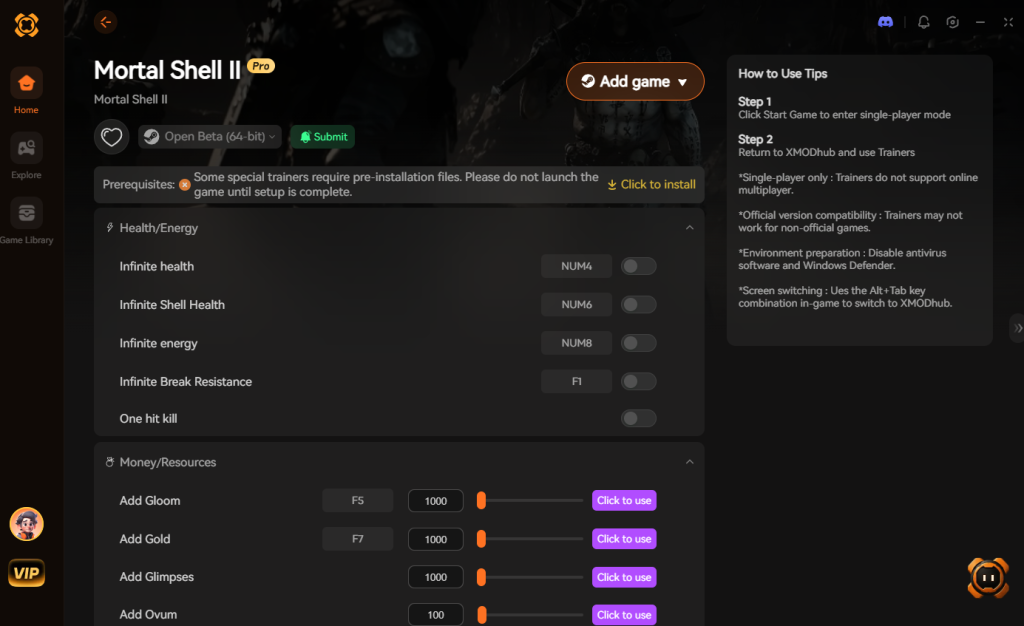
- Toggle Cheats: Use the seamless in-game overlay to activate infinite resources or god mode with a single hotkey, and get back to exploring the obsidian temple.
Download Mortal Shell II Trainer Now
Frequently Asked Questions
Q1: Why does Mortal Shell II stutter heavily when I transition between the swamp and the temple zones?
This is caused by asset streaming and shader compilation. As you move between distinct zones, the engine unloads old textures and loads new high-resolution assets into your VRAM. If your game is installed on a mechanical HDD instead of an NVMe SSD, this process will cause massive traversal stutter. Always install Mortal Shell II on your fastest SSD.
Q2: Does Mortal Shell II support Ultrawide (21:9 or 32:9) monitors natively?
Yes, the August 2026 release of Mortal Shell II features native ultrawide support. However, be aware that rendering the extra horizontal pixels will decrease your overall FPS by roughly 15-20% compared to standard 16:9 1440p. You will likely need to rely heavier on DLSS/FSR to maintain a locked 60+ FPS on ultrawide setups.
Q3: Is 60 FPS enough for Mortal Shell II, or do I need 120+ FPS?
While competitive shooters require 144+ FPS for minimal input lag, third-person action RPGs like Mortal Shell II are perfectly playable and highly enjoyable at a rock-solid, perfectly paced 60 FPS. Consistency is far more important than a high peak framerate. A stable 60 FPS with flat frame times will feel vastly superior to an erratic 90 FPS.
Q4: How do I fix the black screen crash on startup?
This is a known issue related to outdated GPU drivers conflicting with the game’s initial shader compilation sequence. To fix this, use DDU (Display Driver Uninstaller) in Windows Safe Mode to completely wipe your current drivers, then install the latest “Game Ready” drivers from NVIDIA or AMD. Additionally, verify your game files through Steam to ensure no corrupted engine files are causing the crash.
Final Verdict
Achieving the Best PC Settings for Mortal Shell 2: Max FPS & Performance is a balancing act between preserving the developer’s dark, atmospheric vision and maintaining the strict mechanical responsiveness required by the souls-like genre. By dropping volumetric fog, managing your shadow quality, and embracing modern upscaling technologies like DLSS or FSR, you can easily secure a stable framerate. Don’t let poor optimization be the reason your shell gets shattered; take control of your hardware, apply these tweaks, and conquer the zealous foes that await in the ruins.
And remember, if the brutal difficulty and relentless resource grinding begin to test your sanity rather than your skill, you don’t have to suffer in silence. XMODhub provides the ultimate safety net, allowing you to tailor the game’s difficulty to your personal schedule. Supporting over 5,000 PC titles—including other genre titans like Elden Ring, Lies of P, and Dark Souls 3—XMODhub ensures that your gaming time is spent actually enjoying the content, rather than repeating the same frustrating corpse runs. Optimize your game, enhance your experience, and claim your true purpose.
Stop Grinding, Start Enjoying.
Bypass the tedious resource gathering and unlock your full potential instantly.

I am a passionate gamer and writer at XMODhub, dedicated to bringing you the latest gaming news, tips, and insights.
Connect with me:
LinkedIn Profile ↗