Catherine Hu
Losing hours of grueling, teeth-grinding progression in Mortal Shell II is a specific kind of agony. You finally mastered that intricate body-swapping mechanic, conquered a notoriously brutal obsidian temple boss, and then—poof—a random crash or corrupted cloud sync wipes it all out. If you are scrambling to find your save data to create a manual backup before your sanity shatters along with your save file, you are in the right place. Relying purely on Steam Cloud for a punishing action RPG is a massive gamble.
Editor’s Note: After dedicating 40 hours to exploring the dark fantasy ruins of Mortal Shell II, a sudden power outage corrupted my primary save right before the final encounter. Fortunately, I had manually backed up my directory the night before. Trust me, finding the Mortal Shell II save file location and securing your progress is mandatory if you value your time and your keyboard’s structural integrity.
TL;DR: The Short Answer
If you just need the exact directory path to backup your Mortal Shell II progress on Windows PC, copy and paste the following path into your File Explorer address bar:
- Steam Version:
%USERPROFILE%\AppData\Local\MortalShell2\Saved\SaveGames\ - Epic Games Store Version (If applicable):
%USERPROFILE%\AppData\Local\MortalShell2\Saved\SaveGames\ - What to backup: Copy the entire
SaveGamesfolder to a secure location (like a separate drive or cloud storage).
(Note: Ensure you have “Hidden items” checked in the View tab of Windows File Explorer to see the AppData folder if you navigate manually).
Table of Contents
- TL;DR: The Short Answer
- Why You Must Manually Backup Your Mortal Shell II Save
- How to Navigate to the Save File Location (Step-by-Step)
- Understanding the Save Directory Structure
- How to Restore a Backed-Up Save File
- Common Save File Issues and Edge Cases
- Optimizing Your PC for Stable Gameplay
- The Ultimate Shortcut: XMODhub
- Mortal Shell II Save Data Architecture & Cloud Limits
- Frequently Asked Questions
- Final Verdict: Secure Your Shells
Why You Must Manually Backup Your Mortal Shell II Save
Mortal Shell II is an unforgiving action RPG that demands precision and punishes mistakes heavily. The body-swapping mechanic requires you to hunt down hidden sanctums to unlock new shells, each possessing distinct playstyles, weapons, and upgrade trees. Progress is hard-earned.
While modern platforms like Steam offer Cloud Saving, it is not infallible. Here is exactly why relying solely on automated systems is a critical error:
- Cloud Sync Conflicts: If you play offline or if Steam experiences connectivity issues while closing the game, the local and cloud saves can fall out of sync. When Steam prompts you to choose between the local or cloud save next time you launch, picking the wrong one instantly overwrites your progress with an older file.
- Game Crashes and Corruption: Mortal Shell II pushes system hardware hard. A crash to desktop during an autosave sequence—like right after defeating a boss or transitioning between the connecting swampy areas and the distinct zones—will almost certainly corrupt the
SaveGamesfile. Steam Cloud will then happily upload this corrupted file, ruining your backup. - Modding and Experimentation: If you plan on experimenting with community mods or making risky decisions regarding shell upgrades, having a hard copy of your save allows you to roll back without consequence.
- Multiple Playthroughs Management: The game often limits how many characters you can have. Manual backups allow you to archive completed runs and start fresh without permanently deleting your veteran shells.
How to Navigate to the Save File Location (Step-by-Step)
If the quick copy-paste method in the TL;DR didn’t work, or if you prefer to understand exactly where your files reside, follow these precise steps to locate your Mortal Shell II save data.
Step 1: Open the Run Dialog Box
Press the Windows Key + R simultaneously on your keyboard. This will open the Run command window in the bottom left corner of your screen.
Step 2: Access the Local AppData Folder
Type %localappdata% into the Run text box and press Enter (or click OK). This variable automatically routes you to C:\Users\[YourUsername]\AppData\Local, bypassing the need to manually unhide folders.
Step 3: Locate the MortalShell2 Directory
Scroll through the alphabetical list of folders until you find MortalShell2. Double-click to open it.
Step 4: Navigate to SaveGames
Inside the MortalShell2 folder, proceed through the following path: Saved -> SaveGames.
Step 5: Secure the Backup
You are now in the correct directory. You will see several .sav files. Do not alter individual files. Instead, copy the entire SaveGames folder and paste it somewhere safe—your Desktop, an external hard drive, or a personal Google Drive/Dropbox folder. Consider renaming the backup folder with the date (e.g., SaveGames_Backup_Oct24) for easy organization.
Understanding the Save Directory Structure
When you open the SaveGames folder, you aren’t just looking at one monolithic file. Understanding what these files do can help you troubleshoot issues.
- Slot[X].sav: These are your actual character saves. Slot1 represents your first playthrough, Slot2 your second, and so on. This stores your current shell, unlocked abilities, inventory, and location.
- ProfileSettings.sav (or similar): This file stores your global account data, including unlocked achievements (locally), keybinds, audio preferences, and graphics settings.
- Backup or Temp files: Sometimes, Unreal Engine games generate temporary
.bakfiles during the saving process. If a primary.savfile is corrupted, removing the.savextension from a recent.bakfile and using it as a replacement can sometimes salvage your run.
How to Restore a Backed-Up Save File
Knowing where the Mortal Shell II save file location is only solves half the problem; you must also know how to deploy your backup correctly when disaster strikes.
- Close the Game Fully: Ensure Mortal Shell II is completely shut down. Check your Task Manager to guarantee no background processes are running.
- Disable Cloud Saves (Temporarily): Open Steam, right-click Mortal Shell II in your library, select
Properties, navigate to theGeneraltab, and toggle offKeep games saves in the Steam Cloud for Mortal Shell II. This prevents Steam from immediately overwriting your manual restoration with the corrupted cloud data. - Navigate to the Directory: Go back to
%USERPROFILE%\AppData\Local\MortalShell2\Saved\. - Delete the Corrupted Folder: Delete the existing
SaveGamesfolder completely. - Paste Your Backup: Move or copy your backed-up
SaveGamesfolder into theSaveddirectory. - Launch and Verify: Boot up Mortal Shell II. Check if your progression has been restored correctly.
- Re-enable Cloud Saves: Once you confirm the save works, exit the game, turn Steam Cloud back on. When you launch the game again, Steam will detect a conflict. Choose to upload local files to the Steam Cloud to establish your restored save as the new master file.
Common Save File Issues and Edge Cases
The “Failed to Load Save Data” Error
If you boot up the game and receive a “Failed to Load Save Data” prompt, your local .sav file is likely corrupted. Before panicking, check if a .bak file exists in the directory. If not, this is the exact scenario where your manual backup saves the day. Delete the corrupted files and follow the restoration steps above.
Steam Deck and Linux Locations
If you are playing Mortal Shell II on a Steam Deck or via Proton on Linux, the Windows path does not apply directly. You must navigate through the compatdata folder. The path will look something like this:
~/.local/share/Steam/steamapps/compatdata/[AppID]/pfx/drive_c/users/steamuser/AppData/Local/MortalShell2/Saved/SaveGames/
(Note: The AppID for Mortal Shell II will be a unique string of numbers designated by Steam upon release).
Transitioning Between PCs
If you are moving from a desktop to a laptop for a trip, do not trust Steam Cloud to handle the transfer perfectly for the first time. Manually copy the SaveGames folder via a USB drive and paste it into the exact same local AppData directory on your new machine to guarantee a seamless transition.
Optimizing Your PC for Stable Gameplay
Many save corruptions in UE-based action RPGs are caused by system instability, hardware crashes, or out-of-memory errors during crucial autosave moments. If your game is stuttering right as a boss dies, your save file is at immense risk.
To prevent these crashes and ensure your system isn’t buckling under the dark fantasy visuals, you need to configure your system correctly. Make sure you check out our comprehensive guide on the Best PC Settings for Mortal Shell 2: Max FPS & Performance. Dialing in your graphical settings not only makes the challenging combat smoother but drastically reduces the chances of a hard crash corrupting your hard-earned progress.
The Ultimate Shortcut: XMODhub
Let’s be brutally honest. You are digging through your AppData folders because Mortal Shell II is punishing, and losing progress is devastating. But what if you are tired of the grind entirely? What if you lost your save, have zero backups, and absolutely refuse to spend another 20 hours grinding back through the swamp zones just to face the obsidian temple boss again?
You don’t have to suffer through the tedious grind. If you want to bypass the frustration, reclaim your lost time, or simply dominate the game without the stress of losing your shells, XMODhub is the definitive solution.
XMODhub provides safe, undetectable, and highly customizable modifications for Mortal Shell II, allowing you to tailor the difficulty exactly to your liking. Lost your fully upgraded shell? Give yourself infinite resources to buy it back instantly. Getting stun-locked by zealous foes? Toggle God Mode and walk right through them.
How to dominate Mortal Shell II in 3 steps:
- Download XMODhub: Install the lightweight, secure client directly from the official site.

- Auto-Detect Mortal Shell II: Launch the app; XMODhub will automatically locate your game directory and install the necessary hooks safely.
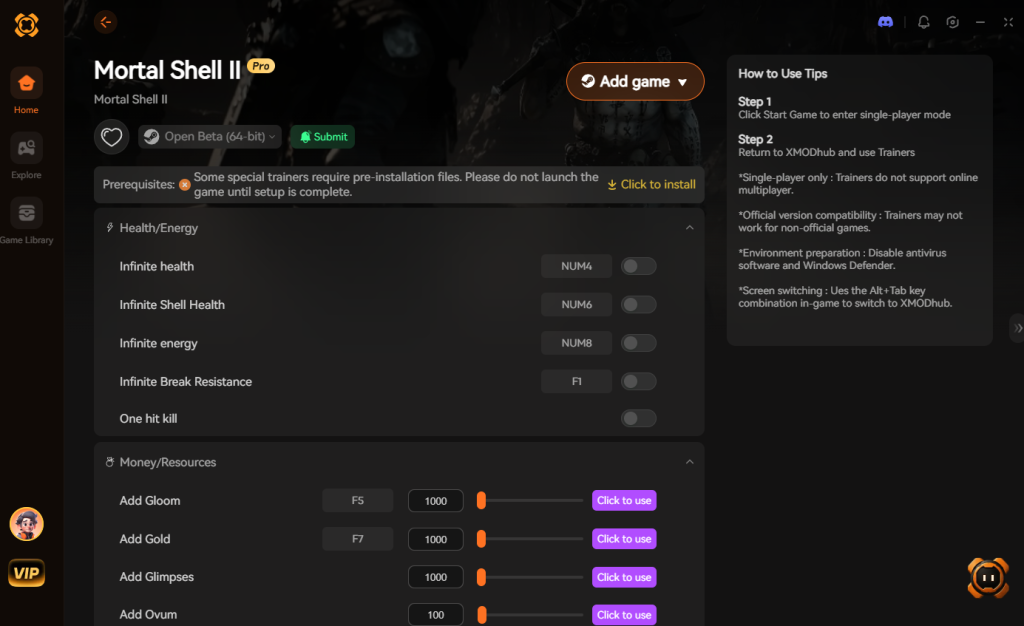
- Toggle Cheats: Use the in-game overlay to activate Infinite Health, One-Hit Kills, Infinite Stamina, or Instant Shell Upgrades.
Stop stressing over corrupted .sav files. Take control of your time and your gameplay experience with XMODhub.
Download Mortal Shell II Trainer Now
Mortal Shell II Save Data Architecture & Cloud Limits
Understanding the exact data footprint of your save directory is crucial if you are managing multiple character builds or utilizing limited cloud storage. Mortal Shell II utilizes standard Unreal Engine serialization, meaning save files can bloat slightly over extended playthroughs as the game tracks every Glimpse collected, weapon upgrade, and enemy respawn state.
Here is the technical breakdown of what resides in your SaveGames directory:
| File Designation | Core Function | Estimated Size | Cloud Sync Priority |
|---|---|---|---|
| Slot[1-4].sav | Primary character progression, inventory, and unlocked shells. | 500 KB – 1.5 MB | High (Overwrites older local data) |
| ProfileSettings.sav | Global configurations, keybinds, and graphical presets. | ~50 KB | Medium |
| *.bak (Temp Files) | Emergency engine-level backups generated during autosaves. | Matches .sav size | Ignored (Local only) |
| steam_autocloud.vdf | Steam’s metadata file for version control. | ~1 KB | System Managed |
Transferring Saves Between PC Storefronts (Epic Games to Steam)
If you initially purchased Mortal Shell II on the Epic Games Store and later migrated to Steam to consolidate your library, your progress does not automatically transfer. You must manually port the data.
- Navigate to the Epic Games save directory (identical to the standard path:
%USERPROFILE%\AppData\Local\MortalShell2\Saved\SaveGames\). - Copy your specific Slot[X].sav files. Do not copy the
steam_autocloud.vdfor equivalent Epic metadata files. - Launch the Steam version of the game once to generate a fresh
SaveGamesfolder and establish a local footprint. - Close the game entirely. Overwrite the newly generated Steam
.savfiles with your Epic Games copies, and restart the client.
Frequently Asked Questions
Does Mortal Shell II support cross-save between PC and consoles?
Currently, there is no official support for cross-save progression between the PC version of Mortal Shell II and console ecosystems (PlayStation or Xbox). Your save files are locked to the platform you play on.
How often does Mortal Shell II autosave?
The game relies heavily on an autosave system that triggers whenever you discover a new location, defeat a boss, possess a new shell, or interact with key sanctum checkpoints. There is no traditional “manual save” button in the pause menu, making external file backups crucial.
Can I share my Mortal Shell II save file with a friend?
Yes, technically you can send your SaveGames folder to a friend. However, because ProfileSettings.sav often contains user-specific data, it is recommended to only share the Slot[X].sav files. Be aware that doing this will overwrite their current progression in that specific slot.
Will backing up my save file disable achievements?
No. Manually copying and pasting your save files directly within the Windows directory does not interfere with Steam’s achievement tracking API. Your progress and unlocks remain completely safe and legitimate.
Final Verdict: Secure Your Shells
Finding the Mortal Shell II save file location is a necessary technical chore for anyone serious about completing this brutal action RPG. By regularly backing up the %USERPROFILE%\AppData\Local\MortalShell2\Saved\SaveGames\ directory, you are building an impenetrable defense against crashes, corruption, and the unreliability of cloud syncing.
But if you are exhausted by the relentless difficulty, or if a corrupted save has already stolen your hard work, remember that you have options outside of starting from scratch. XMODhub is the ultimate equalizer, supporting over 5,000+ single-player titles. Whether you are seeking revenge in Mortal Shell II, tweaking the difficulty in Elden Ring, or exploring the grim world of Lies of P without the stress, XMODhub provides the tools to play the game exactly how you want to play it. Secure your files, or secure your victory through better tools—the choice is yours.
Stop Grinding, Start Enjoying.
Bypass the tedious resource gathering and unlock your full potential instantly.

I am a passionate gamer and writer at XMODhub, dedicated to bringing you the latest gaming news, tips, and insights.
Connect with me:
LinkedIn Profile ↗