Catherine Hu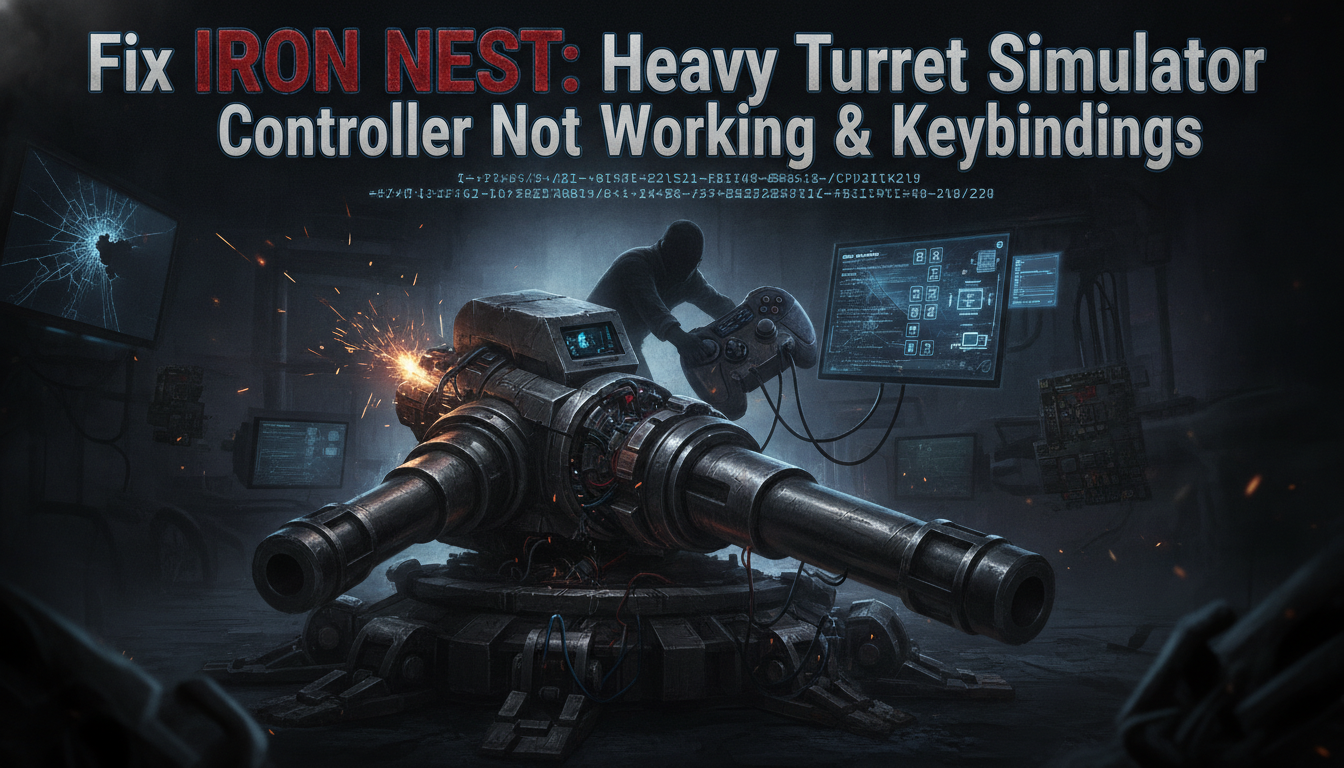
You just booted up IRON NEST: Heavy Turret Simulator. The dieselpunk atmosphere is heavy, the orders from High Command are waiting, and you are ready to unleash hell from a 5,000-ton war machine. But the moment you try to strain the hydraulics or pan the interactive tactical map, nothing happens. Your controller is dead in the water, or the default keybindings are so clunky that loading a shell feels like wrestling a bear. When milliseconds matter between intercepting spotter vectors and firing that devastating blow, fighting your own input devices is a death sentence.
Editor’s Note: After spending dozens of hours in the June 2026 demo and mapping out optimal firing solutions, I realized that the complex, multi-layered mechanisms of this heavy-artillery simulator demand absolute precision. The game heavily favors keyboard and mouse for cartography and switch-flipping, but I’ve cracked the code to making controllers and custom setups work seamlessly so you can focus on the frontline crumbling under the weight of your steel.
TL;DR: The Short Answer
If your controller isn’t responding in IRON NEST: Heavy Turret Simulator, follow these rapid fixes and optimal keybinding strategies:
- Disable Steam Input (If using Xbox): Right-click the game in Steam > Properties > Controller > Override > Disable Steam Input.
- Enable Steam Input (If using PlayStation/Generic): Set Override to “Enable Steam Input.”
- Unplug Interfering Devices: Disconnect HOTAS, steering wheels, or secondary gamepads that might confuse the input hierarchy.
- The Golden Keybinding Rule: Map “Azimuth/Elevation Adjustments” to analog sticks (or WASD) and reserve the D-Pad (or Arrow Keys) for fine-tuning Minute of Angle (MOA) corrections.
- Mouse Priority: Always keep a mouse handy; the interactive tactical map and recon photo analysis are significantly faster with a cursor.
Table of Contents
- TL;DR: The Short Answer
- Understanding the Input Mechanics of IRON NEST: Heavy Turret Simulator
- Step-by-Step Fixes for Controller Not Working
- The Best Keybindings for Maximum Efficiency
- Advanced Control Schemes: HOTAS and Custom Panels
- Optimizing Controller Sensitivity & Deadzones
- Skip the Setup: Dominating with XMODhub
- Frequently Asked Questions
- Final Verdict: Command with Precision
Understanding the Input Mechanics of IRON NEST: Heavy Turret Simulator
Before diving into the fixes, it is vital to understand what IRON NEST: Heavy Turret Simulator expects from you. This is not a twitch-shooter; it is a meticulous, hands-on simulator of massive mechanisms. The gameplay loop requires you to switch rapidly between two distinct modes: the macro-level cartography (drawing long vectors from spotter locations, analyzing recon photos) and the micro-level mechanical operations (gunlaying cannons, adjusting hydraulics, and firing).
Because of these procedurally generated objectives and complex systems, the game inherently favors a mouse and keyboard. The precision required to pinpoint where two spotter vectors intersect on the big board is difficult to replicate with an analog stick. However, manipulating the massive turret itself feels incredibly satisfying with the analog triggers and sticks of a controller. This duality is often why input conflicts occur. The game engine tries to prioritize the mouse for the tactical map while listening for controller inputs to fire star shells or adjust elevation, leading to a “lockup” where neither works optimally.
Step-by-Step Fixes for Controller Not Working
When your colossal war machine refuses to budge, the issue is almost always a conflict within Steam’s controller API or a peripheral hierarchy error. Let’s break down the exact troubleshooting steps.
1. Tame Steam Input based on your Controller Type
The Steam Input system is both a blessing and a curse for niche simulators. The way it interacts with IRON NEST: Heavy Turret Simulator depends entirely on what you have plugged in.
For Xbox Controllers (Native Support):
The game engine generally understands Xbox inputs natively. If it’s not working, Steam Input might be double-mapping the buttons, causing a freeze.
- Open your Steam Library.
- Right-click on IRON NEST: Heavy Turret Simulator and select Properties.
- Navigate to the Controller tab.
- Under the “Override for IRON NEST…” dropdown, select Disable Steam Input.
- Restart the game.
For DualSense, DualShock 4, or Generic Gamepads:
The dieselpunk interface doesn’t natively speak PlayStation. You must rely on Steam to translate.
- Follow the same path: Properties > Controller.
- Change the dropdown to Enable Steam Input.
- Ensure you load the “Official Configuration for IRON NEST” or the highest-rated community layout from the Steam Controller configuration menu.
2. The Peripheral Conflict (The HOTAS Trap)
Many players drawn to a “Heavy-Artillery Simulator” also play flight sims and have a HOTAS (Hands On Throttle-And-Stick) plugged in. IRON NEST: Heavy Turret Simulator will aggressively detect the axes on a throttle quadrant and prioritize them over your standard gamepad or even your mouse.
If your screen is constantly spinning or you cannot click anything on the interactive tactical map, unplug every single USB peripheral except your primary mouse, keyboard, and the specific controller you intend to use.
3. Verify Integrity of Game Files
If the demo (or the full August 2026 release) crashed previously, it might have corrupted the input configuration file (.ini or .json typically found in the AppData folder).
- Right-click the game in Steam > Properties > Installed Files > Verify integrity of game files.
The Best Keybindings for Maximum Efficiency
Operating a 5,000-ton turret requires treating your keyboard or controller like an actual operator’s panel. The default bindings can feel disjointed when trying to calculate vectors and simultaneously manage hydraulics.
Optimal Keyboard and Mouse Setup
To dominate the battlefield, you must separate your tactical thinking from your mechanical execution.
- Movement (Walking the Turret Deck): WASD
- Interact / Flip Switch: Left Mouse Button (LMB)
- Aim / Free Look Mode: Right Mouse Button (Hold RMB)
- Macro Adjustments (Fast Traverse/Elevation): Mouse Movement (while locked onto the gunner’s seat)
- Micro Adjustments (Minute of Angle Fine-Tuning): Arrow Keys (This is crucial! When High Command corrects you with “Target is roughly here, fire a shell and update,” you need precise, single-tick adjustments to apply those scrollings. Using the mouse for this is too erratic.)
- Interactive Tactical Map / Big Board: M
- Call Airplane / Recon: R
- Fire Main Cannon / Star Shell: Spacebar (Assigning this to a heavy key prevents accidental misfires while clicking around the cabin).
By keeping the mouse focused on interaction and broad movements, and relegating precise, mathematical adjustments to the Arrow Keys, you drastically reduce the time it takes to test and adjust your artillery fire. If you are struggling with the math behind this process, you must master the cartography first. For a deep dive into reading the big board, check out our guide on How to Calculate Coordinates & Map Ranging in Iron Nest.
Optimal Controller Mapping
If you insist on playing from the couch, you must utilize modifier buttons to fit the complex mechanics onto a limited layout.
- Left Stick: Move Character / Fast Traverse (Azimuth)
- Right Stick: Look / Fast Elevation
- D-Pad: Minute of Angle (MOA) Fine-Tuning (Up/Down for elevation ticks, Left/Right for azimuth ticks)
- Right Trigger (RT): Fire Shell
- Left Trigger (LT): Hold for “Tactical Modifier”
- A / Cross: Interact (Flip switches, grab recon photos)
- X / Square: Reload / Cycle Shell Type (Standard vs. Star Shell)
- View/Select Button: Open Tactical Map
Warning: The interactive tactical map is notoriously clunky with an analog stick. When placing spotters and drawing long vectors to find intersection points, the cursor speed on a controller might feel agonizingly slow. We highly recommend keeping a wireless mouse nearby solely for map work.
Advanced Control Schemes: HOTAS and Custom Panels
While we mentioned unplugging a HOTAS to fix basic conflicts, advanced players in the dieselpunk community actively map their throttle quadrants to the hydraulics of the colossal war machine. This requires third-party software like Joystick Gremlin to map analog axes to the keyboard inputs recognized by IRON NEST: Heavy Turret Simulator.
Pushing a heavy throttle forward to manually strain the hydraulics before gunlaying the cannons adds an unparalleled level of immersion. However, this is an extreme edge case and requires extensive manual binding via the game’s configuration files, as the UI currently lacks native support for multiple simultaneous analog controllers.
Optimizing Controller Sensitivity & Deadzones
Even after fixing a completely unresponsive gamepad, you might find that aiming the main cannon feels sluggish or overly twitchy. The default deadzones in IRON NEST: Heavy Turret Simulator are configured to be quite large to prevent stick drift, which unfortunately ruins the micro-adjustments needed for precise Minute of Angle (MOA) aiming.
To achieve true artillery supremacy, you need to manually tweak your analog settings within the Steam Input overlay to match the heavy physics of the turret.
| Controller Type | Recommended Azimuth Deadzone | Recommended Elevation Deadzone | Steam Input Sensitivity Scaling |
|---|---|---|---|
| Xbox Series X/S | 0.05 | 0.05 | 120% |
| PlayStation DualSense | 0.03 | 0.04 | 100% |
| Generic / Older Gamepads | 0.08 – 0.10 | 0.10 | 85% |
Fixing the Disappearing UI Cursor Bug
A highly reported issue is the UI cursor completely vanishing when swapping from the interactive tactical map back to the gunner seat while using a gamepad. The engine occasionally locks the cursor to mouse input during this transition. If your controller is not working on the map screen, simply press the View/Select Button twice to reset the UI focus, or give your physical mouse a slight nudge to force the engine to redraw the cursor.
Skip the Setup: Dominating with XMODhub
Let’s face it. Sometimes you don’t want to spend twenty minutes drawing vectors, calculating minute of angle drop-offs, and fighting with controller mappings just to blow something up. When High Command’s procedurally generated objectives become too brutal, or when the sheer complexity of manual 5,000-ton turret control feels more like a chore than a game, you need a shortcut.
If you just want to feel the turret recoil and watch the frontline crumble without doing advanced trigonometry, XMODhub is your ultimate tactical advantage. XMODhub offers powerful, memory-safe modifications that bypass the tedious mechanics so you can focus on the destruction.
Why struggle when you can dominate?
- Auto-Calculate Coordinates: Instantly reveal the exact intersection of spotter vectors directly on the interactive tactical map.
- Perfect Accuracy (No Drop-off): Ignore windage and drop-off mechanics; shells land exactly where the crosshair points.
- Instant Hydraulics & Reload: Bypass the sluggish manual cranking and straining of the machinery.
How to unleash hell in 3 simple steps:
- Download XMODhub: Install the lightweight, secure client from the official site.
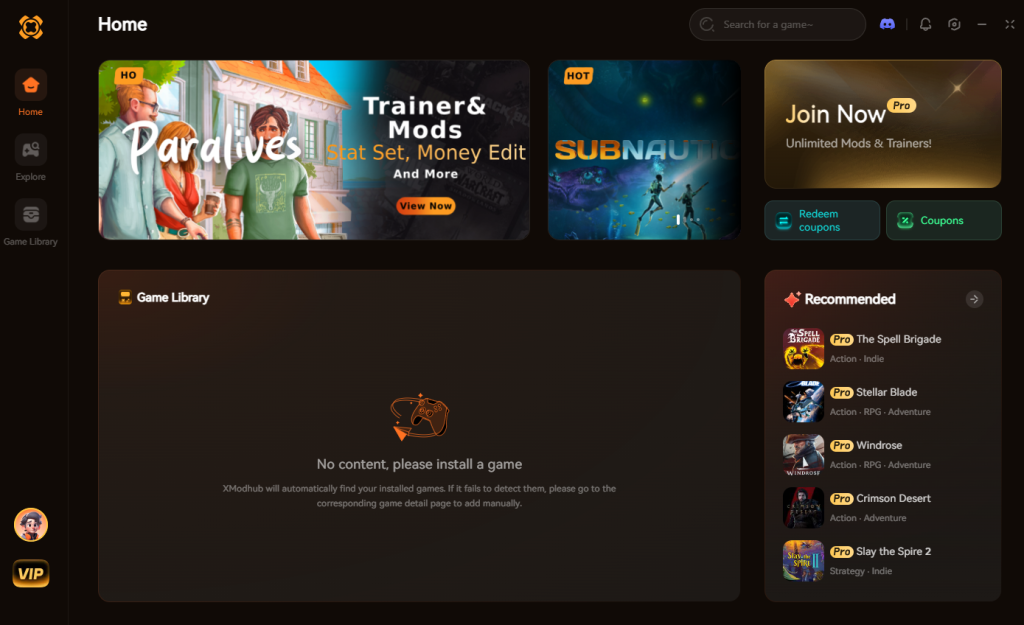
- Auto-Detect IRON NEST: Heavy Turret Simulator: Launch the game; XMODhub will instantly recognize the heavy-artillery engine.
- Toggle Cheats: Use your phone or second monitor to activate Auto-Coordinates and Instant Reload, and watch the battlefield turn to dust.
Download IRON NEST: Heavy Turret Simulator Trainer Now
Frequently Asked Questions
Can I play IRON NEST: Heavy Turret Simulator entirely with a controller?
Yes, it is possible, but not optimal. The procedural objectives and tactical map measurements (like drawing long vectors from spotters) are significantly slower using an analog stick compared to a mouse.
Why does my camera keep spinning in the gunner seat?
This is a classic peripheral conflict. The game is likely picking up a deadzone issue from a plugged-in flight stick, steering wheel, or vJoy virtual driver. Unplug all unnecessary USB devices.
Will the August 2026 full release have better controller support?
Based on the June 15 demo feedback, the developers are aware of the deviancy in controller input, especially concerning minute of angle adjustments. However, given its nature as a heavy-artillery simulator, mouse and keyboard will likely remain the intended way to play.
How do I switch shell types quickly?
If you are using our recommended keybinds, ensure you map a specific hotkey (like ‘X’ on a gamepad or a dedicated mouse button) to cycle between standard high-explosive and star shells, which is crucial for nighttime recon missions.
Final Verdict: Command with Precision
IRON NEST: Heavy Turret Simulator is a brutal, unapologetic experience that demands your full attention. Fixing your controller issues by managing Steam Input and utilizing our optimal keybindings—separating macro movements from micro MOA adjustments—will drastically reduce your frustration. The moment those new orders arrive, you need your machinery to answer your call flawlessly.
However, if the complex war-machine management and dieselpunk mathematics are keeping you from enjoying the sheer spectacle of artillery fire, remember that you don’t have to play by High Command’s rules. With XMODhub, you can bypass the tedious mechanics and focus on total destruction. XMODhub supports over 5,000 single-player PC games, meaning once you conquer this colossal war machine, you can carry your tactical advantage over to similar methodical simulation masterpieces like Frostpunk or They Are Billions. Stop fighting your controls, and start dominating the frontline today.
Stop Grinding, Start Enjoying.
Bypass the tedious resource gathering and unlock your full potential instantly.

I am a passionate gamer and writer at XMODhub, dedicated to bringing you the latest gaming news, tips, and insights.
Connect with me:
LinkedIn Profile ↗