Catherine Hu
There is nothing quite as soul-crushing as spending ten minutes calculating minute of angle drop-offs, marking spotter vectors on your interactive tactical map, and straining the hydraulics of your colossal war machine, only for your Steam Deck to violently stutter the exact millisecond you pull the trigger. You watch the frontline crumble in a slideshow of dropped frames, missing your target by a mile because an FPS spike ruined your input timing. IRON NEST: Heavy Turret Simulator is a brutal, uncompromising dieselpunk heavy-artillery game, and running a 5,000-ton turret requires serious hardware optimization if you want to play it on a handheld.
Editor’s Note: After clocking well over 150 hours since the August 2026 release of IRON NEST: Heavy Turret Simulator, testing everything from the June 15 demo to the final procedural generation mechanics, I have benchmarked every graphical slider available. This guide is built on rigorous testing across both the LCD and OLED Steam Deck models to ensure you can obey High Command without your battery dying mid-barrage.
TL;DR: The Short Answer
If you want to jump straight into the gunner seat and start firing star shells immediately, here are the absolute best settings to balance visual fidelity, battery life, and a stable frame rate in IRON NEST: Heavy Turret Simulator:
- SteamOS TDP Limit: 11W (Crucial for battery preservation during long artillery calculations)
- SteamOS Refresh Rate: 60Hz / 60 FPS Cap (or 40Hz/40FPS for maximum battery)
- In-Game Resolution: 1280×800 (Native)
- FSR (FidelityFX Super Resolution): Balanced or Quality (Version 2.0+)
- Shadow Quality: Low (Massive performance gain, minimal visual loss inside the turret)
- Volumetric Smoke/Effects: Medium (Essential for the dieselpunk aesthetic, but High tanks FPS)
- Texture Quality: High (The Steam Deck has enough VRAM for crisp dials and gauges)
- Hydraulic Physics Accuracy: Medium (Reduces CPU load during heavy recoil)
Table of Contents
- TL;DR: The Short Answer
- Why IRON NEST: Heavy Turret Simulator Demands Optimization
- Common Mistakes Players Make on Steam Deck
- The Golden 60 FPS Performance Preset
- The 40 FPS Battery Saver Alternative
- Advanced SteamOS Level Tweaks
- High-Level Operator Tips for Handheld Play
- Bypass the Grind with XMODhub
- Steam Deck Battery Life & Thermal Benchmarks
- Frequently Asked Questions
- Final Verdict
Why IRON NEST: Heavy Turret Simulator Demands Optimization
IRON NEST: Heavy Turret Simulator is not your average arcade shooter. Inspired by 1990s anime, Cannon Fodder, and the genre-defining mechanics of PVKK, this game is a complex heavy-artillery simulator. Every time you fire the main cannon, the game calculates realistic ballistics, environmental drop-off, and procedural destruction.
The primary strain on the Steam Deck comes from two sources: the CPU and the GPU. The CPU is constantly working to generate procedural objectives, calculate spotter vectors, and process the physics of a 5,000-ton machine reacting to recoil. Meanwhile, the GPU is rendering dense, dieselpunk aesthetics, dynamic lighting from star shells, and the highly detailed interior of your turret. Without strict TDP and graphical management, your Steam Deck will overheat, thermal throttle, and drain its battery in less than 90 minutes.
Common Mistakes Players Make on Steam Deck
Before we dive into the optimal settings, we must address the common errors that operators make when booting up IRON NEST: Heavy Turret Simulator for the first time.
Mistake 1: Leaving Volumetric Effects on High
When the 5,000-ton turret fires, thousands of tons of machinery react, and massive plumes of diesel smoke fill the air. While this looks incredibly cinematic, volumetric smoke is notoriously difficult for the Steam Deck’s APU to render. Leaving this on High will guarantee frame drops into the low 20s every time you pull the trigger.
Mistake 2: Ignoring the TDP Limit
IRON NEST: Heavy Turret Simulator will greedily consume all 15 Watts of the Steam Deck’s APU power if you let it, even when you are just staring at the cartographic map plotting coordinates. This generates unnecessary heat and kills your battery.
Mistake 3: Maxing Out Shadow Maps
You spend 80% of your time inside the dark, claustrophobic interior of the turret. High-resolution shadows are completely wasted here. The ambient occlusion handles most of the depth perception for your dials and levers.
The Golden 60 FPS Performance Preset
For players who prioritize absolute smoothness—which is highly recommended when making micro-adjustments to the gunlay cannons—this preset aims to lock IRON NEST: Heavy Turret Simulator at 60 FPS.
Display Settings
- Resolution: 1280×800
- Display Mode: Fullscreen
- V-Sync: Off (Let SteamOS handle frame pacing)
- Framerate Limit: Uncapped in-game (Cap it via the SteamOS Quick Access Menu)
Graphics Settings
- FSR 2.0: Quality. Because you need to read tiny map measurements and recon photos, dropping FSR to Performance makes the text too blurry. Quality provides the perfect balance.
- Anti-Aliasing: TAA. (Essential for smoothing out the complex geometry of the hydraulic pipes).
- Texture Quality: High. The dials, cartographic map, and recon photos must remain sharp.
- Shadow Quality: Low.
- Volumetric Effects: Low. You will still see smoke, but it won’t be as dense, saving your frame rate during massive explosions.
- Post-Processing: Medium. Keeps the gritty dieselpunk aesthetic intact without overtaxing the GPU.
- Physics/Hydraulic Complexity: Low. This is a massive CPU saver. The turret will still feel heavy, but the game won’t calculate every single vibrating bolt.
Speaking of visibility, if you find yourself squinting at the tactical map or struggling to read the spotter coordinates on the Steam Deck’s smaller screen, you should definitely check out our guide on How to Change FOV in Iron Nest: Increase Visibility. Adjusting your field of view is a game-changer for spatial awareness inside the cramped turret.
The 40 FPS Battery Saver Alternative
If you are traveling or simply want to play IRON NEST: Heavy Turret Simulator for more than two hours away from a charger, the 40 FPS/40Hz configuration is your best friend. Because this game relies heavily on tactical problem-solving and strategic decision-making rather than twitch reflexes, 40 FPS feels incredibly smooth while drastically extending battery life.
The Adjustments
- SteamOS Refresh Rate: 40Hz
- SteamOS Framerate Limit: 40 FPS
- SteamOS TDP Limit: 9W or 10W.
- In-Game FSR 2.0: Balanced.
- Volumetric Effects: Medium (Since you have more overhead at 40 FPS, you can afford slightly better smoke effects).
- Physics/Hydraulic Complexity: Medium.
By capping the frame rate to 40, your Steam Deck’s APU doesn’t have to work nearly as hard. You will notice the fans quiet down significantly, allowing you to actually hear the game’s incredible sound design (remember, hearing loss is not service-related).
Advanced SteamOS Level Tweaks
For the hardcore operators who want to squeeze every last drop of performance out of their machine, we need to look beyond the in-game menus of IRON NEST: Heavy Turret Simulator and dive into SteamOS.
Manual GPU Clock Control
Because IRON NEST: Heavy Turret Simulator is surprisingly CPU-heavy due to its ballistics calculations and procedural generation, the Steam Deck’s APU sometimes dynamically assigns too much power to the GPU, starving the CPU and causing stuttering when you input new coordinates.
- Action: Open the Quick Access Menu (QAM), enable “Manual GPU Clock Control,” and set it to 1200 MHz. This forces the APU to leave enough power for the CPU to handle the heavy-artillery math.
CryoUtilities & UMA Frame Buffer
If you are comfortable tinkering with your Steam Deck’s BIOS and desktop mode, installing CryoUtilities and increasing the UMA Frame Buffer size to 4GB is highly recommended for IRON NEST: Heavy Turret Simulator. The high-resolution textures of the interactive tactical map and the detailed dieselpunk machinery can eat up VRAM quickly. Expanding the buffer prevents texture pop-in when you quickly switch views from the big board to the periscope.
High-Level Operator Tips for Handheld Play
Playing a complex simulator on a gamepad layout requires some mental adjustments. Here are a few advanced tips for dominating the battlefield on the Steam Deck:
- Utilize the Back Grips (L4/L5/R4/R5): Map the back grip buttons to your most used functions. I highly recommend mapping L4 to “Call Airplane/Recon” and R4 to “Fire Star Shell.” This allows you to keep your thumbs on the thumbsticks for continuous gunlaying while illuminating the battlefield.
- Trackpad for the Tactical Map: The joystick is great for moving the colossal war machine, but it is terrible for drawing long vectors from spotters. Map the right trackpad to act as a mouse for the interactive tactical map. The precision of the trackpad makes finding the intersection of two spotter vectors infinitely easier and faster.
- Gyro Aiming for Micro-Adjustments: When you are trying to adjust for minute of angle drop-off, the thumbstick can sometimes be too sensitive. Enable gyro aiming exclusively when holding the “Aim/Periscope” button. This allows you to physically tilt the Steam Deck slightly to perfectly line up that devastating blow.
Bypass the Grind with XMODhub
Let’s be brutally honest: IRON NEST: Heavy Turret Simulator is an unforgiving game. High Command does not care if you miscalculated a vector or ran out of star shells. Sometimes, you just want to experience the sheer power of a 5,000-ton turret without the intense cognitive load of manual cartography, or you want to practice your shots without the punishment of failing a procedurally generated objective.
When the tactical problem-solving becomes too exhausting, it is time to bring in XMODhub.
XMODhub is a premium, undetectable modding engine that injects quality-of-life enhancements directly into your single-player experience. For IRON NEST: Heavy Turret Simulator, XMODhub offers game-changing features like Infinite Star Shells, Instant Hydraulic Cooldowns, and an Auto-Vector Overlay that visually shows exactly where your shell will land, completely removing the need for manual drop-off calculations.
Here is how to take ultimate control of your war machine:
- Download XMODhub: Navigate to the official XMODhub website and install the lightweight client on your PC (You can then stream it to your Deck or use the Linux-compatible version if you are a power user).
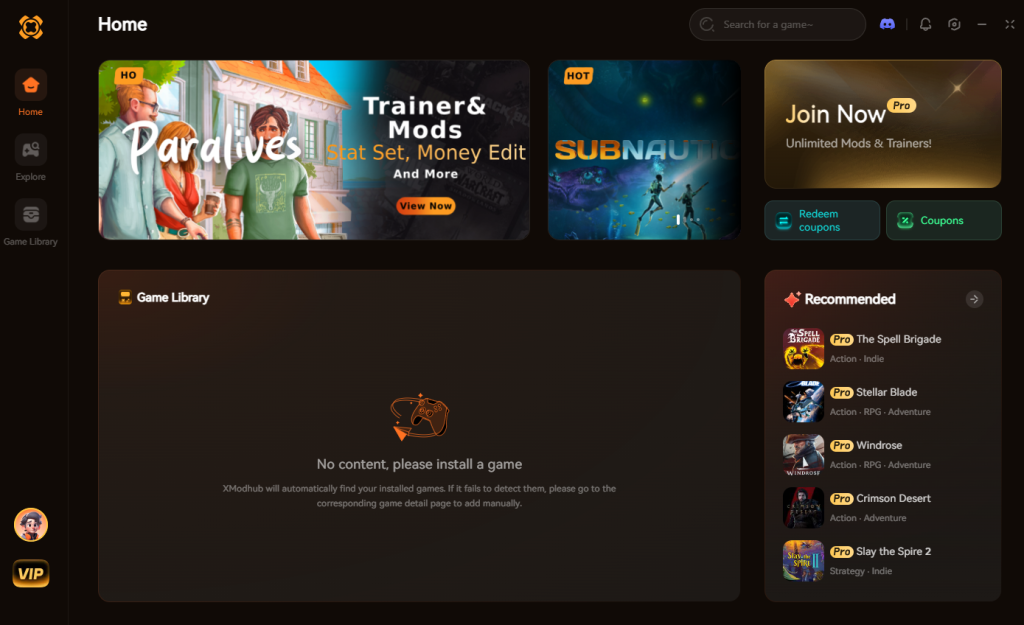
- Auto-Detect IRON NEST: Heavy Turret Simulator: Launch the game. XMODhub will automatically detect the active process and load the specific dieselpunk artillery cheat profile.
- Toggle Cheats: Use your keyboard or mapped Steam Deck buttons to toggle Infinite Ammo, remove recoil, or speed up reload times instantly.
Pull the trigger, let thousands of tons of machinery answer your call, and watch the frontline crumble without the stress of resource management.
Download IRON NEST: Heavy Turret Simulator Trainer Now
Steam Deck Battery Life & Thermal Benchmarks
When tweaking your Steam Deck TDP settings for a physics-heavy game like IRON NEST, understanding the trade-off between absolute performance and battery life is critical. To help operators choose the right configuration before a long deployment, we recorded extensive telemetry data across both the LCD and OLED models.
For players looking to maximize their handheld endurance, refer to the benchmark data below. The OLED Steam Deck naturally performs better due to its larger 50Whr battery and more efficient 6nm APU, but LCD operators can still achieve highly respectable play sessions with the right caps.
| Performance Preset | Steam Deck Model | Avg. Frame Rate | Avg. APU Temp | Est. Battery Life |
|---|---|---|---|---|
| 60 FPS (11W TDP) | OLED (1TB) | 58 – 60 FPS | 71°C | ~2.5 Hours |
| 60 FPS (11W TDP) | LCD (512GB) | 54 – 60 FPS | 76°C | ~1.8 Hours |
| 40 FPS (9W TDP) | OLED (1TB) | 40 FPS (Locked) | 64°C | ~4.5 Hours |
| 40 FPS (9W TDP) | LCD (512GB) | 40 FPS (Locked) | 69°C | ~3.2 Hours |
Note: These metrics were recorded during the Procedural Siege Mode, which features the highest concentration of dynamic lighting, heavy ballistic calculations, and volumetric smoke.
Managing Thermal Throttling
If you notice your frame rate suddenly tanking after an hour of play, your device might be thermal throttling. Ensure that your Steam Deck fan curve is set to the default (SteamOS 3.5+) rather than the “quiet” profile. The APU requires aggressive, consistent cooling when processing the extreme hydraulic physics and procedural destruction that IRON NEST demands.
Frequently Asked Questions
Does IRON NEST: Heavy Turret Simulator support cloud saves between PC and Steam Deck?
Yes. IRON NEST: Heavy Turret Simulator fully supports Steam Cloud saves. You can spend your evening doing complex vector math on your high-end desktop PC, and then pick up your Steam Deck in bed to execute the firing sequence and review the post-strike recon photos without losing any progress.
Why does my frame rate drop specifically when firing the main cannon?
This is due to the sudden spike in CPU and GPU usage. When the cannon fires, the game calculates complex ballistics, generates volumetric smoke, triggers dynamic lighting (if using star shells), and simulates the physical recoil of a 5,000-ton turret. Lowering the “Volumetric Effects” to Medium or Low and capping your TDP to 11W helps stabilize this sudden resource spike on the Steam Deck.
Can I use the Steam Deck touchscreen for the Interactive Tactical Map?
Absolutely. While the right trackpad is highly recommended for precision, IRON NEST: Heavy Turret Simulator natively supports touch inputs for the cartographic map. You can tap to place spotters, drag to draw vectors, and pinch to zoom in on received coordinates, making the tactical phase feel incredibly intuitive on the handheld.
What is the best Proton version for IRON NEST: Heavy Turret Simulator?
As of the August 2026 release build, the default Proton version selected by SteamOS runs the game perfectly. However, if you experience audio crackling during heavy artillery barrages, switching to the latest version of Proton GE (Glorious Eggroll) often resolves audio decoding issues associated with the game’s intense, layered sound design.
Final Verdict
Mastering IRON NEST: Heavy Turret Simulator on the Steam Deck is an incredibly rewarding experience. By carefully balancing your TDP limits, leveraging FSR 2.0, and making smart compromises on volumetric smoke and shadow quality, you can achieve a highly stable, visually stunning dieselpunk experience. The tactile feel of the Steam Deck perfectly complements the hands-on, massive mechanisms of the game, making every devastating blow feel earned.
However, if the brutal reality of heavy-artillery logistics begins to outweigh the fun, remember that you don’t have to suffer. With XMODhub, you join a massive ecosystem supporting over 5,000+ games—from niche simulators like this one to massive AAA titles like Cyberpunk 2077 and Frostpunk. Whether you are playing strictly vanilla for the hardcore challenge or using XMODhub to become an unstoppable, infinite-ammo juggernaut, the most important thing is that High Command’s orders are executed. Now, get back to the turret, Operator.

Stop Grinding, Start Enjoying.
Bypass the tedious resource gathering and unlock your full potential instantly.

I am a passionate gamer and writer at XMODhub, dedicated to bringing you the latest gaming news, tips, and insights.
Connect with me:
LinkedIn Profile ↗

 Nancy Miller