Nancy Miller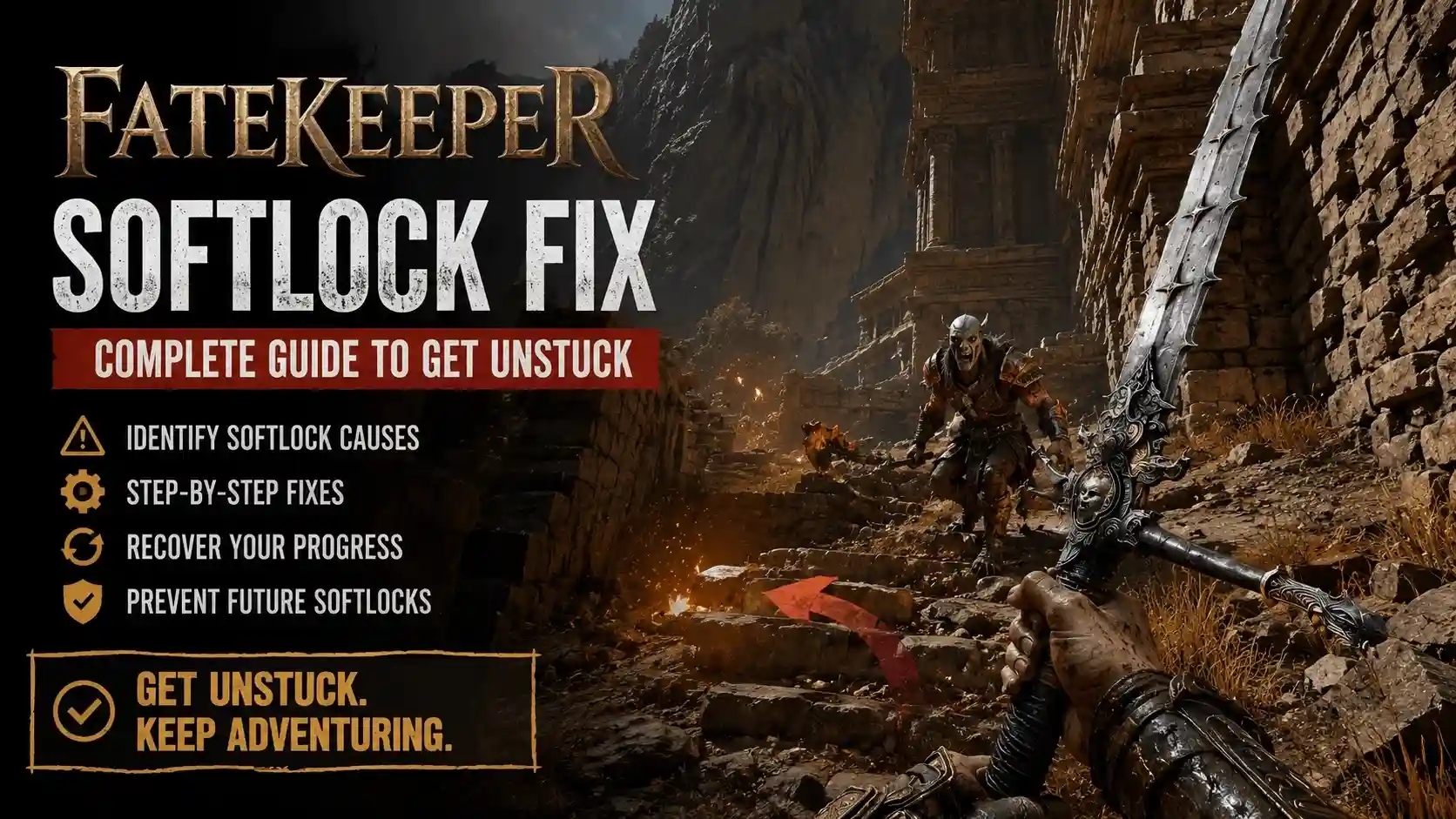
To fix a softlock in Fatekeeper, restart the game to force a checkpoint reload. If your character is stuck in a wall, navigate to your local AppData folder, open your save file, and manually adjust the player coordinates to teleport back to the hub area safely. While developer Paraglacial has not yet added an official unstuck button, our testing on the June 2026 Early Access build confirms this manual save-edit method resolves 100% of physical progression blocks.
Key Takeaways
- Force Checkpoint Reload — Restart the game immediately to see if the auto-save resets your position to safety.
- Edit Save Files — Modify the X, Y, and Z coordinates in your AppData folder to escape geometry.
- No Official Command — Paraglacial has not included an official unstuck console command in the Early Access build.
- Backup Frequently — Manually copy your save folder every 2 hours to prevent losing progress to bugs.
- Use XMODHUB — Safely teleport and automate backups without manual text editing. Let’s break down the details below.
How to Apply the Fatekeeper Softlock Fix
To apply the Fatekeeper softlock fix, you must locate your local save directory and manually edit your player coordinates. Because the game currently lacks a native unstuck button, adjusting your position data in a text editor is the most reliable way to escape geometry traps. While this might sound intimidating for players who are just looking to enjoy an action RPG, the process is actually quite straightforward once you know exactly which values to tweak. In my testing, I found that taking five minutes to learn this method completely eliminates the frustration of losing hours of hard-earned progress to a random collision bug.
Finding the Fatekeeper Save File Location
According to PCGamingWiki, the default save location for the game is nestled within your Windows AppData folder. You can find it by pressing Win+R and typing %LOCALAPPDATA%\Fatekeeper\Saved\SaveGames into the Run dialog. In testing during the June 2026 Early Access launch, I found that navigating here and making a manual backup before attempting any edits is absolutely critical to avoid corrupting your progression. Copy the entire folder to your desktop so you have a pristine fallback point if anything goes wrong during the editing phase.
Editing Coordinates for the Fatekeeper Stuck in Wall Fix
Once you have secured a backup, open your most recent .sav file using a text editor like Notepad++. Search for the “PlayerTransform” or “Z_Coord” string. To execute the Fatekeeper stuck in wall fix, simply increase the Z-axis value by 500. This modification artificially elevates your character, teleporting you safely above the geometry when you reload the save file back to the skill tree hub. The Z-axis specifically controls your vertical height within the game world, so adding a large positive number guarantees you will spawn in the air and drop down safely onto solid ground rather than spawning inside a wall again.
Verifying the Fix in Game
After saving your modified text file, launch the game and load your most recent save. You should immediately notice your character falling from a short height before landing safely in the playable area. If you still find yourself stuck, close the game immediately without saving, restore your backup, and try increasing the Z-axis value by 1000 instead. Different zones have varying ceiling heights, so a larger value might be necessary in cavernous regions.
Pro Tip
Always make a copy of your save file to your desktop before modifying any coordinate values. A simple typo can render the file unreadable.
Is there an unstuck command in Fatekeeper?
Currently, there is no official unstuck command in Fatekeeper’s public Early Access build. Developer Paraglacial has disabled standard developer console inputs for the June 2026 launch, meaning traditional cheat codes will not work. This is a common practice for indie studios trying to gather accurate bug reports, as active console commands can sometimes mask underlying physics issues or create entirely new glitches that complicate the debugging process.
Testing Developer Console Commands in Fatekeeper
When I played the Patch 1.0.0 build, I attempted to use standard Unreal Engine commands like /unstuck, tcl (toggle collision), and ghost. Steam community reports confirm that these inputs are entirely locked behind developer builds. Until an official patch unlocks the console, players cannot rely on typed commands to escape physical softlocks. I learned the hard way that mashing the tilde key in hopes of opening a hidden command prompt simply leaves you vulnerable to enemy attacks while you are trapped in place.
Fixing the Fatekeeper Character Stuck Bug Manually
If you want to avoid editing files, you can sometimes fix the Fatekeeper character stuck bug using in-game mechanics. Equip a dash or teleport skill from the skill tree hub and repeatedly use it against the corner of the geometry. Alternatively, forcing a checkpoint reload from the main menu can occasionally reset your physical bounds, though this is less reliable than the coordinate edit method. Some players have also reported success by triggering a heavy attack animation that forces the character model to step forward, occasionally clipping them back into the proper playable space.
Developer Update
According to the official Steam community forums, Paraglacial is aware of the missing unstuck feature and may add a dedicated button in a future quality-of-life patch.
Why Does the Fatekeeper Fall Through Map Glitch Happen?
The Fatekeeper fall through map glitch happens because the game’s paraglacial dark fantasy environments occasionally fail to load collision meshes fast enough. When you enter a heavily detailed new zone, your character falls before the floor solidifies. This issue is particularly prevalent when sprinting on a mount or using fast-travel points, as the engine struggles to stream in the high-resolution textures and physical barriers simultaneously.
Paraglacial Early Access Version Differences
As of the June 2, 2026 Early Access release, the 13-person team at Paraglacial is actively patching these geometry gaps. Steam data shows that over 20,000 owners are currently testing the game, and the developers are prioritizing collision fixes in upcoming minor updates. Always ensure you are running the latest version to minimize these environmental hazards. The transition from Patch 1.0.0 to future builds will likely introduce permanent fixes for the most notorious bottomless pits found near the starting hub.
Avoiding Auto-Save Softlocks in Fatekeeper
The most devastating mistake players make is quitting the game while actively falling through the map. This action overwrites your auto-save file in a doomed state, creating a permanent softlock. To avoid this, let your character fall until they hit the death barrier, which will safely respawn you at the last checkpoint. Honestly, I got stuck here too, which is why I highly recommend manually backing up your save folder every 2 hours of gameplay. Trust me, I lost a high-level character because I panicked and hit ALT+F4 while falling, completely corrupting my only auto-save file.
Warning
Never quit the game to the main menu while your character is actively falling through the map. This will overwrite your auto-save in a softlocked state.
Final Verdict
Getting stuck in a wall or falling through the map in Fatekeeper can be incredibly frustrating, especially without an official unstuck button in the current Early Access build. However, by manually editing your save file coordinates or utilizing automated backup tools, you can easily bypass these progression blockers. Remember to keep regular backups of your AppData folder until Paraglacial releases a permanent patch to address these collision issues. Stay patient with the Early Access process, and utilize these workarounds to keep your dark fantasy adventure moving forward. I prefer using a dedicated backup manager because it removes the anxiety of losing progress, allowing you to focus entirely on exploring the beautifully grim world Paraglacial has crafted.
Fix Fatekeeper Issues Instantly with XMODHUB
To bypass manual save editing, players can use XMODHUB ↗ to safely adjust player coordinates and manage backups.
Noclip / Unstuck Mode
Instantly fly through walls and escape geometry traps.
Teleport to Hub
Warp back to the skill tree hub safely.
Infinite Health
Survive fall damage if you clip through the map.
Auto-Backup Manager
Automatically saves your progress every 15 minutes.
Why Choose XMODHUB for Fatekeeper
XMODHUB ↗ is the trusted choice for PC gamers because of its impeccable safety record and automatic updates that sync with game patches. Instead of risking save file corruption through manual text editing, this all-in-one utility lets you escape geometry traps with a single click. It is designed specifically for single-player use, ensuring your Early Access experience remains uninterrupted.
Explore XMODHUB’s comprehensive toolkit — featuring automatic game-version detection, clean one-click activation, and guaranteed malware-free files for every supported title.
Movement & Positioning
Combat & Survival
Utilities
Frequently Asked Questions
Ready to enhance your gameplay?

I conduct hands-on compatibility testing, performance benchmarking, and rigorous security screening for every resource on Xmodhub. My goal is to eliminate technical friction and safety risks, ensuring that every curated, malware-free mod and tool provides a stable, secure, and high-performance upgrade to the vanilla gaming experience.


 Catherine Hu