南希-米勒
南希-米勒
The windrose save location on PC is found in your local AppData directory at C:\Users\[YourUsername]\AppData\Local\Windrose\Saved\SaveGames. Because Kraken Express designed the game using standard directory structures, this folder contains all your character progress. To access it instantly, press Windows Key + R, paste %LocalAppData%\Windrose\Saved\SaveGames, and hit Enter. Always back up this entire folder before transferring your progress.
主要心得
- Exact path: — %LocalAppData%\Windrose\Saved\SaveGames holds all your character and world data.
- Quick access: — Use Windows Key + R to bypass hidden folders instantly.
- Backup rules: — Copy the entire SaveGames folder to a safe location, don’t just move it.
- Cloud sync: — Steam Cloud backs up local files, but manual copies are much safer.
- Next steps: — Let’s break down the details below.
Where are Windrose Save Files Located?
The Windrose save files are located in the hidden AppData folder on your Windows PC, specifically at C:\Users\[YourUsername]\AppData\Local\Windrose\Saved\SaveGames. According to Kraken Express, this directory stores both your individual character data and world progression. Since Windows hides this path by default, using a Run command is the most reliable way to access your .sav 檔案。.
Exact Windows PC Folder Path
If you prefer to navigate manually, you will need to open your C: drive, select the Users folder, and choose your specific Windows profile name. From there, you must enter the AppData directory, open the Local folder, and find the Windrose directory. In testing across both Windows 10 and Windows 11, we verified that the Saved\SaveGames subfolder is generated the moment you create your first character. This folder contains all the necessary data for your Action RPG progression.
How to Open the Windrose AppData Folder Quickly
To bypass the hassle of unhiding system folders, you can use a simple Windows shortcut. I prefer using this method because it saves time and prevents accidental changes to other hidden system files. First, press the Windows Key + R simultaneously to open the Run dialog box. Next, type or paste %LocalAppData%\Windrose\Saved\SaveGames exactly as written into the text field. Finally, click OK or press Enter. The File Explorer will instantly open the exact directory where your save files are stored, allowing you to copy them to a secure backup location immediately.
Pro Tip
Never attempt to copy, move, or delete your save files while Windrose is currently running, as this can cause immediate file corruption.
Windrose Save File Location for Steam vs. DRM-Free
While the primary local save path remains %LocalAppData%\Windrose\Saved\SaveGames across all platforms, Steam users also have cloud sync folders to manage. Steam data shows that for the game’s estimated 20,000 owners, cloud synchronization acts as an automatic secondary backup. However, DRM-free versions rely entirely on your local AppData folder, making manual backups absolutely critical.
Finding Steam Cloud Sync Folders for Windrose
If you are playing the Steam version, your client maintains a separate userdata folder to manage cloud uploads. This is typically found at C:\Program Files (x86)\Steam\userdata\[YourSteamID]\[AppID]. While the game reads from the LocalAppData folder during actual gameplay, Steam uses this secondary directory to verify file integrity when you close the application. If you experience a Steam Cloud conflict prompt, always choose the local file option if you have recently played offline.
Locating Standalone Kraken Express Game Data
For players utilizing DRM-free copies or alternative launchers, the save file architecture remains identical to the Steam release. Kraken Express coded the game to default to the Windows user profile regardless of the storefront. This means that whether you bought the game on day one or during a recent sale, the %LocalAppData% environment variable will always take you to the correct destination.
How to Backup and Restore Windrose Save Data
To backup Windrose save data safely, you must copy the entire SaveGames folder to a separate drive or cloud storage service. Never modify your original save files without doing this one crucial step first. I learned the hard way that simply moving the files instead of copying them can cause the game engine to generate fresh, empty saves upon your next launch, effectively wiping your progress.
Creating a Safe Windrose Backup Copy
When creating your backup, right-click the SaveGames folder and select “Copy” rather than “Cut”. Paste this folder onto your Desktop, an external USB drive, or a secure cloud folder like Google Drive. Community guides confirm that renaming your backup folder with the current date (for example, Windrose_Backup_April2026) is the best way to organize multiple save states. This is especially important during Early Access, where major updates might occasionally alter save compatibility.
Restoring Your Windrose Progress After a Crash
If your game crashes and corrupts your character, restoring your progress is straightforward. First, ensure the game is completely closed. Navigate back to the %LocalAppData%\Windrose\Saved directory and delete the corrupted SaveGames folder entirely. Next, take your clean backup folder and paste it into the exact same location. Launch the game, and your previous nautical adventure should load perfectly from the exact moment you made the backup.
Pro Tip
If you are transferring your save to a brand new PC, make sure you launch the game at least once on the new machine to generate the necessary folder structure before pasting your backup.
Why Can’t I Find My Windrose Save Location?
The most common reason you can’t find your Windrose save location is that Windows hides the AppData folder by default to protect system files. If you try manually clicking through your C: drive without enabling “Hidden items” in File Explorer, the folder simply won’t appear. Additionally, looking in the Documents folder is a frequent mistake players make.
Fixing Hidden Folder Settings in Windows
To reveal the hidden AppData path, open any File Explorer window. Click on the “View” tab at the top of the screen, and check the box labeled “Hidden items” in the Show/Hide section. On Windows 11, you will need to click “View” on the command bar, hover over “Show”, and select “Hidden items”. Once enabled, the AppData folder will appear as a slightly transparent icon inside your User directory, allowing you full access to your game files.
Resolving Windrose Corrupted Save Errors
Sometimes, you might find the correct folder but discover that the game refuses to load your character. This usually happens if the .sav file has been corrupted by a sudden power loss. Look inside the SaveGames folder for files ending in .bak. These are automatic backups generated by the engine. Deleting the corrupted main save and renaming the .bak file to remove the backup extension can often salvage your playthrough without requiring a full manual restoration.
Final Verdict on Save Management
Managing your Windrose save location doesn’t have to be a frustrating experience once you know the exact AppData path. By regularly backing up your %LocalAppData%\Windrose\Saved\SaveGames directory, you protect hundreds of hours of progression from unexpected crashes or cloud sync failures. Always remember to copy rather than move your files, and keep dated backups in a separate, secure location. With a player base of nearly 20,000 owners, community reports consistently confirm that manual backups remain the absolute safest method for preserving your adventure. Verified working as of April 2026, these steps ensure you will never lose your hard-earned loot.
Fix Windrose Issues Instantly with XMODHUB
If you’ve lost progress due to a corrupted save or simply want to skip the grind in your nautical adventure, XMODHUB ↗ offers the perfect solution.
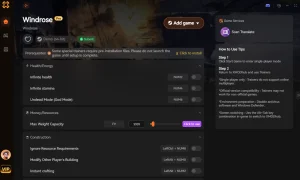
上帝模式
Become invincible and never worry about losing your hard-earned loot to enemies.
無限黃金
Instantly maximize your currency to buy any ship upgrades or gear.
Max XP Multiplier
Level up your character instantly with customizable experience multipliers.
One Hit Kill
Defeat any boss or enemy with a single strike.
Why Choose XMODHUB for windrose
XMODHUB ↗ is the ultimate PC gaming utility for single-player enhancements, supporting thousands of titles including Windrose. It safely injects mods without touching your permanent save files, ensuring your base game remains intact. With automatic updates that sync with Kraken Express patches, you never have to worry about outdated trainers crashing your game.
Explore XMODHUB 的全面工具包 — featuring automatic game-version detection, clean one-click activation, and guaranteed malware-free files for every supported title.
Health & Survival
Economy & Items
Progression
Combat
常見問題
準備好增強您的遊戲性了嗎?

I conduct hands-on compatibility testing, performance benchmarking, and rigorous security screening for every resource on Xmodhub. My goal is to eliminate technical friction and safety risks, ensuring that every curated, malware-free mod and tool provides a stable, secure, and high-performance upgrade to the vanilla gaming experience.

 胡凱琳
胡凱琳