胡凱琳
胡凱琳
You have waited years for this moment. You launch Crimson Desert, grab your controller, and watch the breathtaking opening cinematic introducing Kliff and his mercenary band. But the moment the cutscene ends and gameplay is supposed to begin, your monitor goes completely dark. You can hear the ambient wind and background music, but you are completely soft-locked on a black screen.
Launch-week technical bugs are incredibly frustrating, especially when they prevent you from even taking your first steps in the continent of Pywel. This specific bug is a known issue tied to how Pearl Abyss’s proprietary BlackSpace Engine handles the transition from pre-rendered video to live gameplay. We have compiled the definitive “Answer First” fixes to force your game to render properly, along with the ultimate fail-safe to help you recover any lost time if your auto-save gets corrupted.
Answer First: Quick Fixes for the Crimson Desert Black Screen
To force the BlackSpace Engine to render the game world and get past the intro loop, apply these three verified fixes:
- Force Windowed Mode (Alt + Enter): The moment the screen goes black, hold down the Alt key and press Enter. This forces the engine to instantly switch from Fullscreen to Windowed mode, which often kicks the renderer back into gear and displays the game. You can switch back to Fullscreen in the settings menu afterward.
- Clear the User Cache: The game might have compiled a corrupted shader during the intro. Navigate to your PC documents, locate the Crimson Desert folder, and completely delete the
UserCachefolder. The game will rebuild this cleanly on your next launch. - Install the Game on an SSD: Crimson Desert streams massive 4K assets seamlessly. If you installed the game on an older mechanical Hard Drive (HDD), the storage speed is physically too slow to load the environment after the cutscene finishes, resulting in a permanent black screen. You must move the installation folder to an NVMe or SATA SSD.
Editor’s Note: The Cost of Corrupted Saves
“There is a unique kind of heartbreak that happens when a launch-day bug ruins your hype. When the screen goes black, the game often creates a corrupted auto-save at that exact timestamp.”
“Because Crimson Desert utilizes the highly secure BlackSpace Engine, you cannot simply open a developer console and type a ‘SkipCutscene’ or ‘LoadNextLevel’ command to bypass the glitch. You will likely have to delete your save and restart the entire prologue. We know your time is valuable, which is exactly why our team integrated Speed Multipliers and Instant XP into the XMODhub PC Trainer. If a technical bug forces you to wipe your progress, you should have the tools to fast-forward through the tutorial and get right back to the real adventure.”
The BlackSpace Engine: Why the Transition Fails
When troubleshooting, many players look for generic Unreal Engine 5 fixes, completely missing the fact that Crimson Desert runs entirely on Pearl Abyss’s custom BlackSpace Engine.
The black screen bug typically occurs due to a “handshake” failure between your GPU drivers and the engine’s asset streaming system. When the high-bitrate intro video finishes, the engine attempts to instantly seamlessly place Kliff into the fully rendered open world. If there is even a millisecond of delay caused by a background application, an outdated graphics driver, or a slow hard drive, the engine misses the visual cue to fade in from black.
Furthermore, because the BlackSpace Engine is locked down, native PC commands are non-existent. Standard Universal Unreal Engine Unlockers will fail entirely here.
Recovering Lost Time: The XMODhub Fail-Safe
Fixing the black screen often requires you to force-quit the application via the Windows Task Manager. Doing this during the game’s initial auto-save sequence will usually corrupt your profile, forcing you to watch the unskippable intro and play through the slow tutorial combat sections all over again.
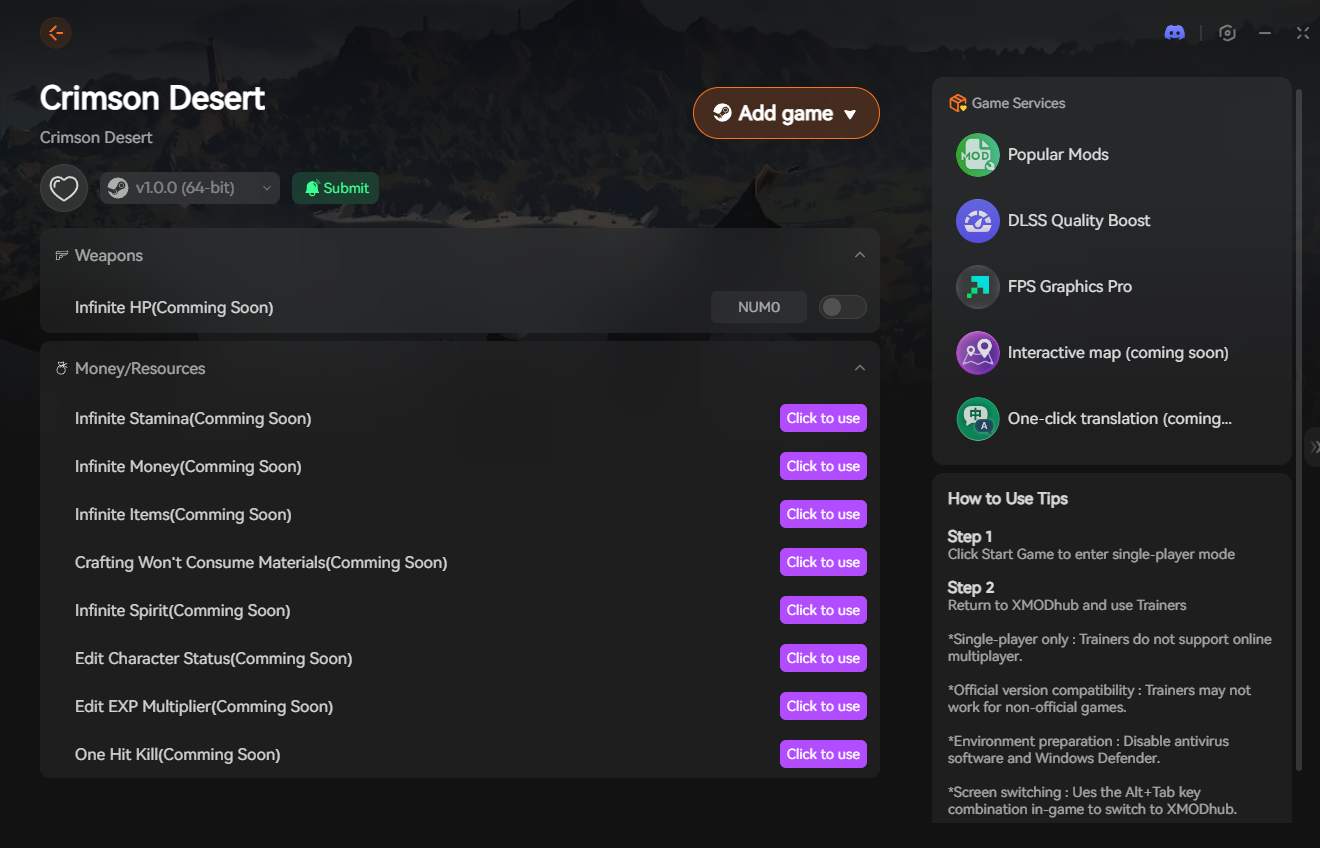
Because you cannot use native console commands to restore your lost levels or items, the XMODhub PC Trainer is your best defense against having your time wasted by technical bugs.
Speed Hack & XP Multipliers
If you are forced to make a brand-new save file, you do not have to suffer through the slow prologue pacing twice. Use the XMODhub UI overlay to increase the game speed by 2x and multiply your combat XP. You can blitz through the opening sections and reach the open-world Mercenary Camp in a fraction of the time.
God Mode for Testing
While you are tweaking your display settings and alt-tabbing to fix the black screen, your character might be taking damage from early-game enemies spawning in the dark. Toggling God Mode ensures Kliff survives while you troubleshoot your monitor settings.
Step-by-Step: Equipping Your Progression Tools
Securing your playthrough and recovering your lost time takes less than a minute. Here is how to use the trainer safely:

- Download the Client: Grab the verified, digitally signed XMODhub desktop software from our official website. It operates silently in the background without hogging your GPU memory.
- Launch & Hook: Boot up Crimson Desert first. Once you are past the main menu, open the XMODhub client and click “Play” on the game’s module.
- Inject the Overlay: Press your designated hotkey to bring up the XMODhub in-game menu. It hooks seamlessly into the BlackSpace Engine.
- Fast-Forward: Toggle on your movement speed multipliers and XP boosts to instantly recover any progress lost to the black screen crash.
PC Save File Location for Manual Deletion
If you are stuck in an infinite black screen loop every time you hit “Continue” on the main menu, your auto-save is officially corrupted. You must manually delete it to start fresh.
- •Local Game Saves: 導覽到
%USERPROFILE%\Documents\Crimson Desert\SaveGamesand delete the contents of the folder. - •User Config & UI Settings: 導覽到
%USERPROFILE%\Documents\Crimson Desert\UserCacheand delete the config files to reset your display settings.
Frequently Asked Questions (FAQ)
Q: Does Crimson Desert require an SSD on PC?
A: Yes. The BlackSpace Engine relies on ultra-fast asset streaming. If you install the game on a traditional HDD, you will experience severe texture pop-in, massive audio desync, and guaranteed black screens after major cutscenes.
Q: Why can I hear the game audio but my screen is black?
A: This is a visual desync issue. The game world has actually loaded, and your character is physically there (which is why you hear audio), but the graphics renderer failed to initialize the display. Forcing Windowed Mode (Alt + Enter) usually forces the renderer to catch up.
Q: Should I update my GPU drivers for Crimson Desert?
A: Absolutely. Both NVIDIA and AMD release “Game Ready” drivers specifically optimized for major releases. Running the game on outdated drivers is a primary cause of the intro cinematic failing to transition into gameplay.
Conclusion: Escape the Void
Staring at a black screen while the epic orchestral score of Crimson Desert plays in the background is the fastest way to ruin launch day. By ensuring your game is installed on an SSD, forcing Windowed Mode to refresh your display, and clearing your cached configuration files, you can bypass the BlackSpace Engine’s rendering hiccups.
However, a technical bug shouldn’t force you to waste your precious gaming time replaying the unskippable prologue. By running the XMODhub PC Trainer in the background, you have a guaranteed insurance policy. Toggle your speed hacks, reclaim your lost time, and get back to exploring the beautiful, brutal world of Pywel.

我是一名熱情的遊戲玩家,也是 XMODhub 的作家,致力於為您帶來最新的遊戲新聞、秘訣和見解。.
與我聯繫:
LinkedIn 個人資料
 南希-米勒
南希-米勒