Guide to Disabling Windows Defender

Windows Defender, now known as Microsoft Defender Antivirus, is an integrated security solution in Windows 10 and Windows 11. While it’s designed to protect your system from threats, there are scenarios where you might need to disable it temporarily or permanently.

Step 1: Access Windows Security Settings

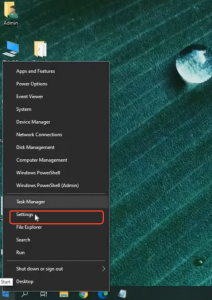
  • Click on the Start button and select the Settings icon.
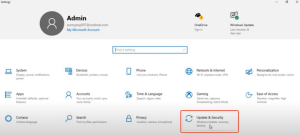
  • In the Settings window, choose Update & Security.
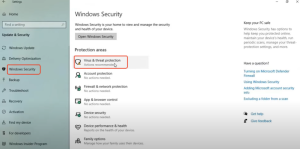
  • Navigate to Windows Security in the left-hand menu.
  • Click on Virus & threat protection.

Step 2: Turn Off Real-Time Protection

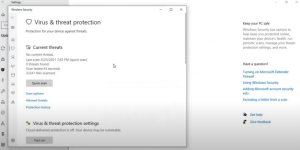
  • In the Virus & threat protection window, select Manage settings under the Virus & threat protection settings section.
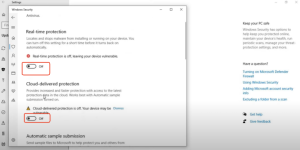
  • Locate the switches for Real-time protectionCloud-provided protection, and Automatic sample submission and toggle them to the Off position.
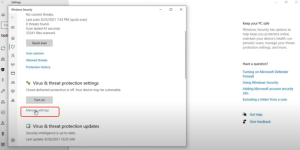
  • A warning will appear indicating that your device may be vulnerable; confirm your choice.
  • Note: Real-time protection will automatically re-enable after a short period or upon system restart.

  • Wren Niu

    I'm an avid gamer and content creator at X-Hub Play, where I focus on delivering fresh gaming updates, practical tips, and deep insights into the world of mods and interactive entertainment.

    Related Posts

    DYNASTY WARRIORS: ORIGINS Nameless Character Model Swap tutorial

    Took some digging to find out how to do this because forums rarely give direct instructions. This Cheat Engine table allows you to switch Nameless’ default character model with any character models within…

    《Escape from Duckov》Boss Real time Map Marking Mod Usage Tutorial

    Mod Description: Mark the BOSS’s location on the map in real time for easy finding and defeating the BOSS. Mod Usage: A mod option has been added, which is in the config.ini file…

    Leave a Reply

    Your email address will not be published. Required fields are marked *

    Primary Color

    Secondary Color

    Layout Mode