
 Catherine Hu
You have waited all week to command your undead army, pre-loaded the latest patch, and cleared your schedule. You click “Play,” and… nothing. Or worse, a cryptic “Fatal Error” pops up right as Venultor floats onto the screen. Launch day issues and sudden early-access bugs are frustrating, but they are rarely unfixable.
Whether you are facing a black screen on the main menu, random crashes to desktop (CTD) right before a massive flesh boss spawns, missing DLL files, or unplayable frame rates during wave 20, this guide covers the most effective solutions to get you back into the dungeon.
You may also like: How to Use Cheat Engine on Skull Horde (+ 1-Click Alternative) | 2026
🔥 Editor’s View: The “Day One” Curse
“I remember trying to launch similar massive-swarm auto-battlers like Vampire Survivors on release day. It crashed every time the damage numbers flooded the screen. I almost refunded it.
Before you give up on Skull Horde, realize that 90% of these crashes are caused by three simple things: corrupted Steam downloads, missing C++ libraries, or overlay conflicts trying to hook into the lightweight Defold engine. I’ve tested the methods below on my own rig (RTX 4070 / Win 11), and Method 5 was the one that finally solved the late-game stuttering for me.”
— Catherine Hu, Tech Support Lead at XMODhub
Check First: Skull Horde System Requirements
Before debugging, ensure your PC can actually run the game. While 2D pixel-art roguelites seem simple, calculating the pathing and collision for hundreds of skeletons and flesh monsters simultaneously demands a lot from your processor. Trying to run Skull Horde on a heavily bottlenecked CPU is the most common cause of “silent crashes” (the game closes without an error).
| Component | Minimum Requirements | Recommended Specifications |
|---|---|---|
| OS | Windows 10 (64-bit) | Windows 11 (64-bit) |
| CPU | Intel Core i3 / AMD FX-4300 (Dual Core 2.0 GHz) | Intel Core i5 / AMD Ryzen 3 (Quad Core 3.0 GHz) |
| RAM | 4 GB RAM | 8 GB RAM |
| GPU | NVIDIA GTX 750 / AMD Radeon R7 260X | NVIDIA GTX 1050 / AMD Radeon RX 560 |
| Storage | 500 MB available space | 500 MB Solid State Drive (SSD) |
Method 1: Verify Game Files (Steam)
Corrupted installation files or incomplete Lua script downloads are the #1 cause of Skull Horde crashing on startup.
For Steam Users:
1
Right-click Skull Horde in your Steam Library.
2
Select Properties > Installed Files.
3
Click “Verify integrity of game files”.
4
Wait for the process to finish (it may re-download some missing engine files).
Method 2: Update Drivers & Visual C++ Redistributables
Skull Horde runs on the Defold engine. While incredibly efficient, it strictly requires updated software environments to process its render pipeline.
🖥️
GPU Drivers:
Update your NVIDIA (Game Ready Driver) or AMD (Adrenalin) drivers to the latest version to ensure proper OpenGL support.
⚙️
Visual C++ All-in-One:
If you get errors like MSVCP140.dll missing or VCRUNTIME140.dll not found, you need to reinstall the Microsoft Visual C++ Redistributables (install both x86 and x64 versions).
🎮
DirectX/OpenGL:
Ensure your Windows Update has installed the latest display framework updates.
Method 3: Fix Black Screen & Overlay Issues
If you hear the atmospheric graveyard audio but see a black screen, or the game closes instantly, it is likely a conflict with background apps. Lightweight 2D engines often struggle when third-party overlays try to hook into them.
➤
Disable Overlays:
Turn off Steam Overlay, Discord Overlay, and NVIDIA ShadowPlay/GeForce Experience Overlay.
➤
Fullscreen Optimization:
1. Right-click the SkullHorde.exe file in your Steam directory > Properties.
2. Go to the Compatibility tab.
3. Check “Disable fullscreen optimizations”.
4. Check “Run this program as an administrator”.
Method 4: Common Error Codes & Fixes (DLL / Defold)
Here are specific solutions for the most common error messages players are reporting during their necromancy runs:
Error 0xc0000005 (Access Violation):
Usually caused by strict antivirus software blocking the game from writing to your save directory. Whitelist the Skull Horde installation folder and your %appdata%\8bitskull_skull_horde\ folder in Windows Defender or run the game as Administrator.
Memory Leak / “Out of Memory” Error:
Even in 2D games, endless auto-battlers can suffer memory leaks if you play for hours and thousands of EXP gems spawn. If the game crashes late in a run, try restarting your client every 2-3 runs to clear the cache.
“OpenGL Error / Failed to initialize graphics”:
Right-click the game in Steam > Properties > Launch Options. Type -opengl or -vulkan to force the Defold engine to use a different rendering API supported by your graphics card.
Unhandled Exception: EXCEPTION_ACCESS_VIOLATION:
This is often a RAM instability issue. Disable aggressive XMP profiles in your BIOS temporarily or close high-memory apps like Google Chrome before launching the game.
Method 5: Fix Low FPS & Stuttering
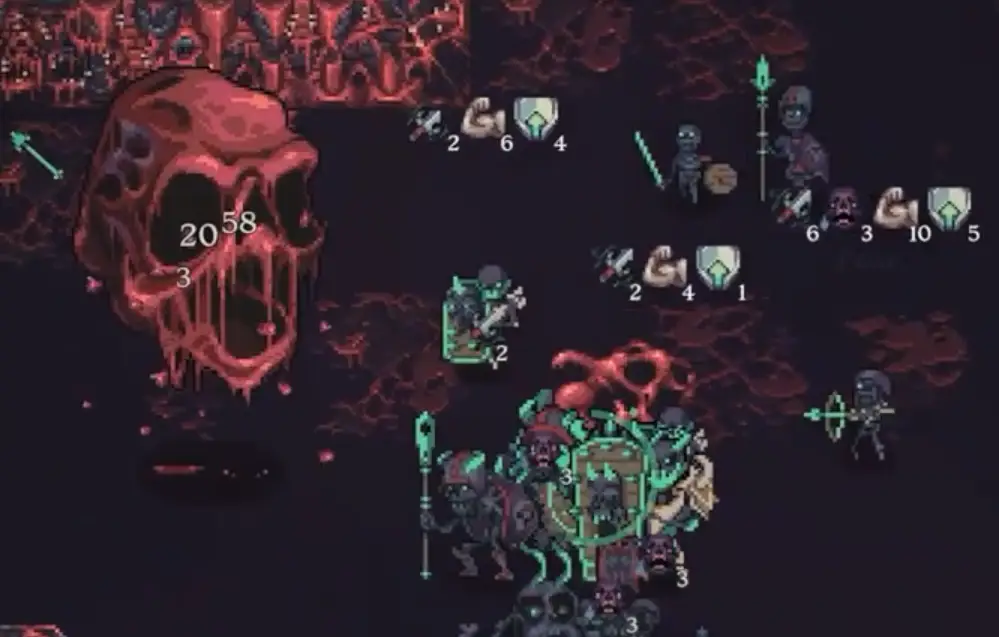
Is Skull Horde running like a slideshow when wave 15 hits and elites flood the screen?
➤
Turn Off Damage Numbers:
Rendering thousands of floating numbers every second is the biggest CPU killer. Disable damage numbers in the gameplay options.
➤
Lower Particle Effects:
If the option exists, reduce the opacity or amount of spell effects and screen shake.
➤
Set High Priority:
Open Windows Task Manager > Details > Right-click SkullHorde.exe > Set Priority > High. This forces Windows to allocate maximum CPU resources to the swarm calculations.
The Workaround: Survive Laggy Waves with XMODhub
Sometimes, Skull Horde crashes not because of your PC hardware, but because of unoptimized spawning logic when too many flesh monsters clump together in a corner. XMODhub offers unique memory-injection tools to help bypass these technical hurdles safely:
✨
Speedhack:
Use the trainer to slow down the game (0.5x speed) during massive, high-load elite waves to prevent CPU spikes and engine crashes. Alternatively, speed it up to skip boring early-game grinding.
💾
Save Manager:
Because roguelite crashes often wipe your active run, use the Auto-Backup feature to secure your %appdata% save file before you enter the final boss wave.
How to Get Started with XMODhub
Getting the ultimate toolkit for Skull Horde is simple. Just follow these steps:



Frequently Asked Questions (FAQ)
Q: Does Skull Horde support Windows 10?
A: Yes, but ensure you are on version 22H2 or newer. Older Windows builds may lack the necessary background frameworks to run modern engine updates.
Q: Will reinstalling fix the crash on startup?
A: Reinstalling should be your absolute last resort. Try “Verifying Integrity” (Method 1) first, as it does the exact same thing but much faster.
Q: Is there an optimization patch coming?
A: The developer, 8BitSkull, is highly active in the community and frequently pushes hotfixes. Check the XMODhub news section or the game’s Steam discussions for updates on the next major optimization patch.
Conclusion
Launch issues and memory leaks are painful, but they are temporary. By verifying your files, updating your Visual C++ libraries, and turning off overlapping damage UI, you should be able to fix the Skull Horde crash on startup error and get back to building your skeletal empire.
If the game is still suffering from late-game optimization limits, XMODhub can help bridge the gap. Use Game Speed adjustments to bypass sluggish screen-clearing effects and Auto-Backups to secure your hard-earned skulls until the official patch arrives.
XMODhub is more than just a tool for one game—it is a comprehensive gaming platform supporting over 5,000+ PC titles. Whether you are mastering Skull Horde or exploring similar bullet-heaven hits like Vampire Survivors, Void Scrappers, and Death Must Die, XMODhub ensures you always have the ultimate toolkit (Trainers, Save Managers, and Speedhacks) ready at your fingertips.
Don’t let engine bugs stop your necromancy. Play smarter.

I am a passionate gamer and writer at XMODhub, dedicated to bringing you the latest gaming news, tips, and insights.
Connect with me:
LinkedIn Profile ↗

 Nancy Miller