Catherine Hu
⚡ Quick Answer
To trigger the PRAGMATA skip cutscenes glitch and bypass unskippable cinematics, you must stop the RE Engine from hiding loading screens behind video files.
Open your pragmata_config.ini file, manually change Cinematic_Preload=On to Cinematic_Preload=Off, and launch the game using DirectX 11.
Introduction
You have just spent twenty minutes fighting the Corrupted Sentinel boss in Sector 6. You perfectly dodged its kinetic laser sweeps, but a slight miscalculation on your stamina bar leaves Hugh exposed, and you die instantly.
You grit your teeth and hit the respawn button, ready to try again. Instead of being dropped right back into the action, you are forced to watch the exact same four-minute, unskippable villain monologue you just sat through. You mash every single button on your keyboard and controller, but the “Skip” prompt never appears.
There is nothing more devastating to a game’s pacing than forcing a player to re-watch long cinematic sequences after a challenging death. While the narrative surrounding Diana and the lunar colony is breathtaking the first time, seeing it for the fifth time is agonizing.
Capcom intentionally locks these cinematics, creating immense frustration for hardcore PC players who just want to master the combat loop. This guide explains exactly why these cutscenes are locked and provides the technical engine bypasses you need to skip them and reclaim your time.
Why PRAGMATA Forces Unskippable Cutscenes
Before you can execute the Pragmata skip cutscenes glitch, you must understand why the developers locked them in the first place. The RE Engine is designed for seamless transitions between story and gameplay. To achieve this without traditional loading bars, the engine streams heavy environmental assets (like the massive lunar craters or the Edus AI models) directly into your VRAM while a pre-rendered or locked-camera cinematic plays.
The “Skip” button is dynamically disabled by the engine until 100% of the next sector’s assets are loaded. On mid-range PCs or systems with slower SSDs, the background loading takes longer than the cutscene itself, meaning the skip prompt will literally never appear.
If you are trying to rush through your second playthrough to see the alternate narrative choices, make sure to read our comprehensive guide on PRAGMATA True Ending Requirements: Steps You Cannot Miss so you do not accidentally skip a mandatory story trigger.
Disable Cinematic Preloading in the Configuration File
To bypass this restriction, we must manually edit the core configuration files to decouple the loading process from the cinematic playback. This forces the game to give you the skip prompt immediately, replacing the hidden loading screen with a traditional, brief loading icon.
Troubleshooting Steps:
- Close the Game: Ensure PRAGMATA is completely closed to avoid file overwrite conflicts.
- Locate Directory: Open your Windows File Explorer and navigate to your Steam installation directory.
- Open Config: Locate the initialization file named
pragmata_config.iniand right-click it to open it with Notepad. - Find Render Settings: Scroll down to the
[Render_Settings]block. - Edit the Value: Find the line that reads
Cinematic_Preload=Onand manually change it toCinematic_Preload=Off. - Save: Save the text file and exit Notepad.
Force DirectX 11 to Prevent Black Screen Crashes
When you use the configuration glitch to skip a cutscene, the DirectX 12 renderer often panics because it did not finish pre-caching the shaders, resulting in a persistent black screen where you can hear audio but see no video. We must force the game into the more stable DirectX 11 API to handle the abrupt scene transition.
Troubleshooting Steps:
- Open Library: Open your Steam Library.
- Access Properties: Right-click on PRAGMATA and select Properties.
- Find Launch Options: In the General tab, scroll to the Launch Options text box.
- Enter Command: Type
-d3d11exactly as written. - Apply & Play: Close the menu and launch the game. You can now press your interact key during any cinematic to instantly skip it without crashing.
The Reality of Native Console Commands
When forced to sit through a tedious cutscene, veteran PC gamers instinctively look for a developer console. In classic engine architectures, you could simply pull up a text box and type a command to manually end the cinematic sequence and force the player character to spawn.
Capcom entirely strips the native command console from the retail builds of PRAGMATA. There are no built-in cheat codes or configuration lines you can edit to spawn a developer menu.
Furthermore, attempting to use outdated hexadecimal memory editors to manually fast-forward the cinematic timer will instantly trigger the engine’s anti-tamper system, causing a fatal D3D crash and permanently corrupting your save file.
The Ultimate Shortcut: Skip Instantly with XMODhub
Let us be completely honest: editing initialization files and tweaking rendering APIs is an annoying technical chore. You bought PRAGMATA to experience high-octane zero-gravity combat, not to spend your evening digging through Notepad files just to skip a boring dialogue sequence.
If you are tired of artificial time-wasting and want to take total control over your game’s pacing, the XMODhub PC Client is your ultimate solution.
Instead of relying on risky config edits that might cause visual stuttering, XMODhub uses a professional, secure kernel-level memory injector. It allows you to artificially manipulate the RE Engine’s cinematic triggers safely and instantly.
How to Master Your Playthrough Instantly:
- Download XMODhub: Navigate to our official website and securely download the optimized PC desktop application.

- Auto-Detect Game Path: Launch the app. XMODhub will automatically scan your system and seamlessly hook into your PRAGMATA directory.
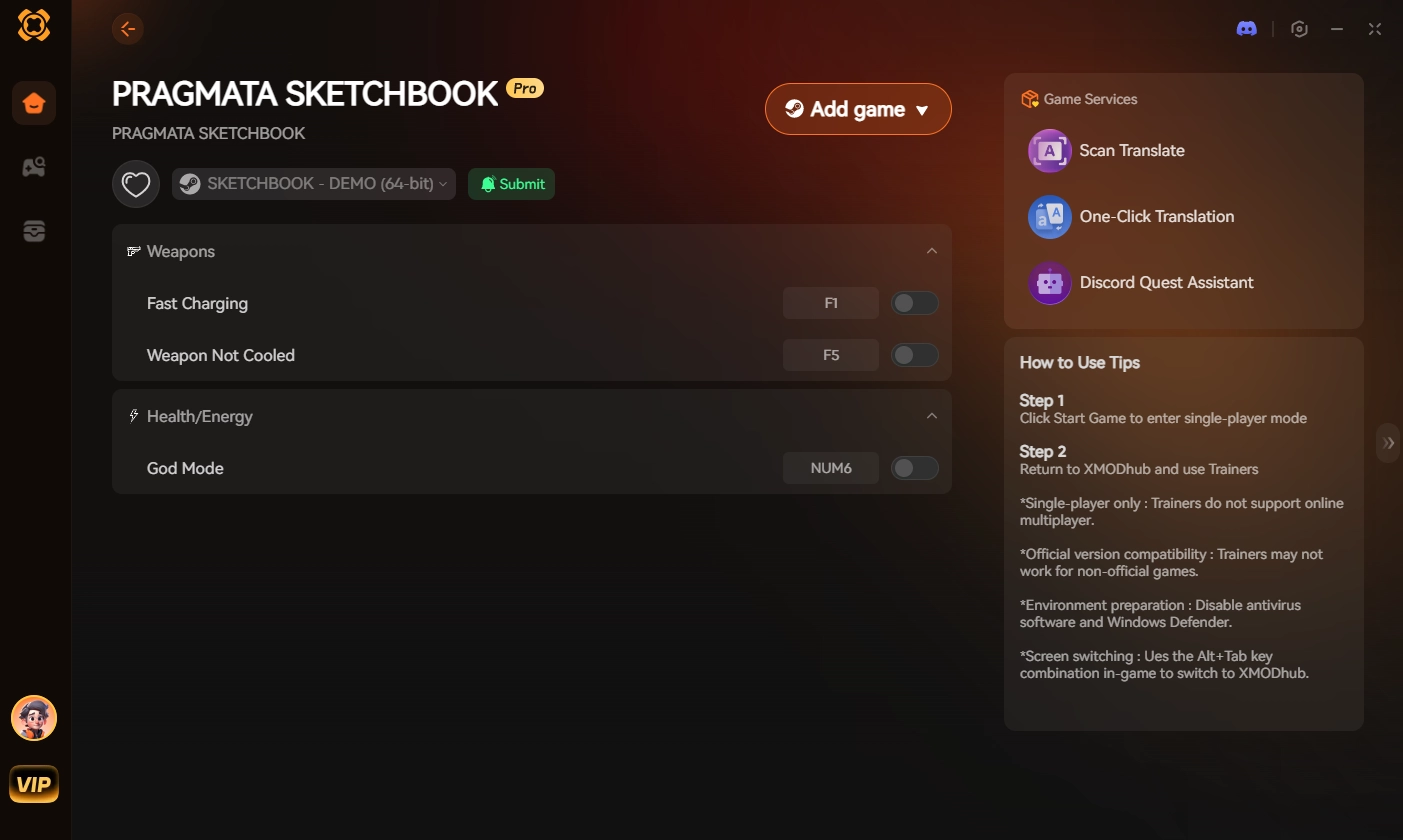
- Toggle trainers/cheats: Click Play to launch the game. Open the sleek overlay to activate the Force Cutscene Skip toggle, or use the Game Speed Multiplier to run through tedious walking sections at 3x speed.
Stop letting unskippable cutscenes dictate your free time. Take control of the narrative and dominate the lunar colony completely on your own terms.
Frequently Asked Questions (FAQ)
Q: Will using the PRAGMATA skip cutscenes glitch break my save file?
A: No, manually disabling the cinematic preload in the configuration file is perfectly safe and will not corrupt your save. It simply forces the game to use a standard black loading screen instead of a video file. However, your initial load into the next area might stutter for a few seconds.
Q: Why does the audio continue playing after I skip the cutscene?
A: This is a minor RE Engine audio desynchronization issue. The engine occasionally fails to kill the cinematic audio track when you force a skip. Simply pausing and unpausing the game will immediately clear the residual audio cache and return the game to normal sound effects.
Q: Can I skip the final ending cutscene in PRAGMATA?
A: No. The final cinematic sequence following the true ending boss fight is hardcoded into the executable file and cannot be bypassed, even with configuration edits. You must let the ending and the subsequent credits roll entirely to receive your clear data save file.
Conclusion
Overcoming the PRAGMATA skip cutscenes glitch requires you to understand how the RE Engine masks its loading screens before you can fix it. By executing our specific troubleshooting methods—disabling the cinematic preload in your config files and forcing DirectX 11 via Steam—you can completely bypass Capcom’s unskippable video files and get right back into the action.
However, if technical workarounds are draining your free time, XMODhub is the definitive answer.
As the premier PC gaming enhancement platform supporting over 5,000 titles, XMODhub provides the reliable tools you need to bypass artificial friction. Whether you want to skip cutscenes in PRAGMATA, maximize your resources in Monster Hunter Wilds, or unlock all style ranks in Devil May Cry 5, XMODhub ensures you always play your game, your way.

I am a passionate gamer and writer at XMODhub, dedicated to bringing you the latest gaming news, tips, and insights.
Connect with me:
LinkedIn Profile ↗
 Nancy Miller