
 Catherine Hu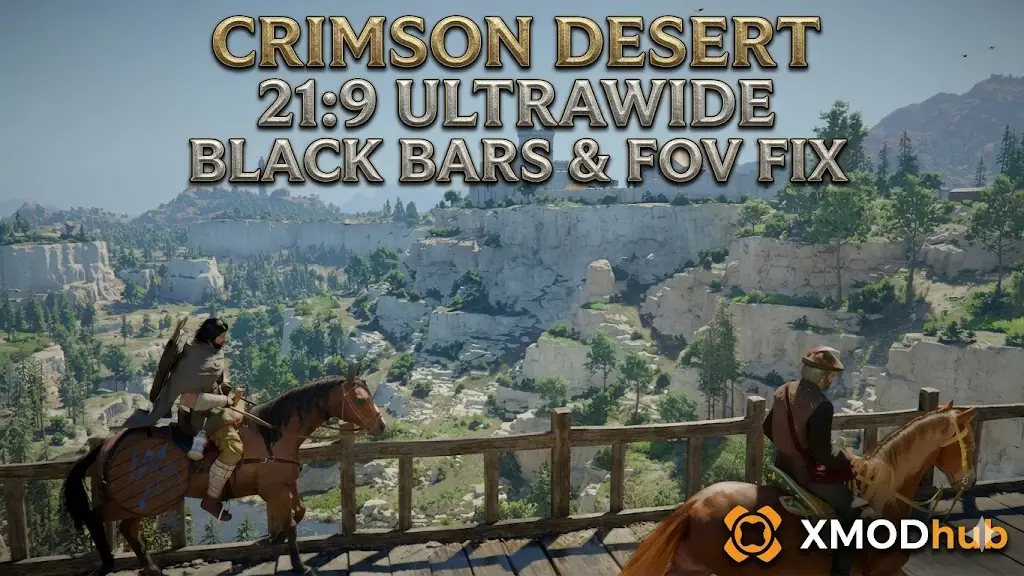
You bought a gorgeous 21:9 or 32:9 ultrawide monitor specifically to experience the sprawling, breathtaking continent of Pywel. But when you launch Crimson Desert, your excitement is immediately killed by massive black bars crushing the sides of your screen during cutscenes, or worse, a claustrophobic Field of View (FOV) that gives you motion sickness every time Kliff swings his sword.
Launch-week RPGs often struggle with native ultrawide scaling, especially during cinematic story moments or locked combat camera angles. Because Pearl Abyss built this game on their highly complex, proprietary BlackSpace Engine, standard fixes like downloading a universal Unreal Engine unlocker or typing a simple FOV command in a developer console will completely fail.
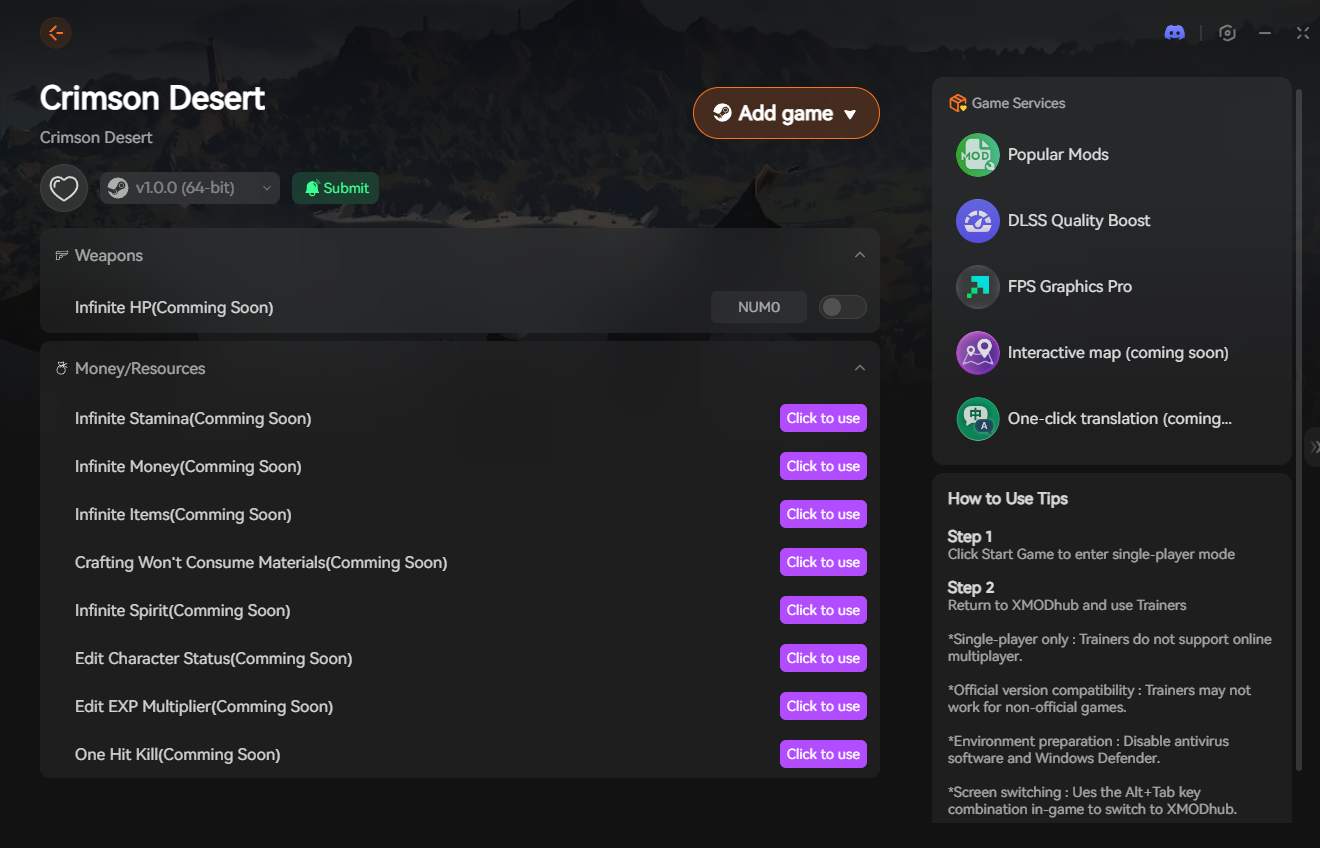
If you want to force true 21:9 scaling, remove those cinematic black bars, and protect your save file from crashing while you tweak locked engine values, running the XMODhub PC Trainer in the background is the safest and most reliable solution.
You may also like: Crimson Desert Cheat Engine Table vs. XMODhub: Best Free Trainer
Answer First: Quick Fixes for Crimson Desert Ultrawide FOV
To get rid of the tunnel vision and utilize your entire monitor immediately, try these three verified methods:
- Force 21:9 in Display Settings: Do not rely on the “Auto” detect feature. Go to Settings -> Display, and manually force the Aspect Ratio to 21:9 or 32:9, then ensure your display resolution matches your monitor’s native output (e.g., 3440x1440p).
- Max Out the In-Game FOV Slider: Navigate to the Camera settings and push the Field of View slider to its absolute maximum limit. For many PC players sitting close to a desk, the default console-optimized FOV is far too narrow.
- Edit the UserCache Config File: If the in-game slider still feels too zoomed in, you must navigate to your Windows Documents folder, open the Crimson Desert UserCache directory, and manually edit the configuration XML file to push the FOV variable beyond the game’s official UI limit.
Editor’s Note: The Reality of Motion Sickness
“There is a unique kind of physical discomfort that happens when you are forced to play a fast-paced action RPG with a locked 75 FOV. Your peripheral vision is cut off, and every camera pan feels nauseating.”
“Because Crimson Desert utilizes the highly secure BlackSpace Engine to hide off-screen asset loading, Pearl Abyss actively locked down camera modifications. You cannot simply open a developer console and type ‘SetFOV 110’. We know how frustrating it is to have premium hardware severely limited by software locks. That is exactly why our team engineered the FOV Unlocker and Black Bar Removal tools into the XMODhub PC Trainer. You should be immersed in the world of Pywel, not fighting a headache.”
The BlackSpace Engine: Why Black Bars Exist
When troubleshooting ultrawide issues, many PC gamers immediately look for hex-editing tools or Unreal Engine 5 tweaks. However, Crimson Desert runs on Pearl Abyss’s proprietary BlackSpace Engine.
This engine dynamically loads incredibly high-fidelity 4K assets just out of the player’s sightline to maintain performance. To ensure players do not see characters spawning into existence or T-posing during highly choreographed story cinematics, the engine intentionally forces a 16:9 aspect ratio, slapping black bars (pillarboxes) on the sides of ultrawide screens. Because the developer console is disabled, standard text commands to remove these letterboxes are ignored by the system.
How to Force FOV via Config Files
If the maximum FOV allowed by the in-game menu slider is still too narrow for your 21:9 setup, you can try to force the engine to accept a higher value manually.
- Close the game completely.
- Navigate to your PC’s Document folder (exact path detailed below).
- Open the UserCache folder and locate the primary graphics configuration file (typically named
GameVariables.xmlorSettings.ini). - Open it with a text editor like Notepad.
- Hit Ctrl+F and search for “FOV” or “FieldOfView”.
- Change the numerical value to your desired FOV (e.g., 100 or 110), save the file, and set the file properties to “Read-Only” so the game doesn’t overwrite your custom tweak upon launch.
The Ultimate Camera Fix: XMODhub FOV Unlocker
Editing configuration files can be risky. If you input a value the BlackSpace Engine cannot process, the game will instantly crash on startup or corrupt your UI scaling entirely. Because native engine tools are blocked, the XMODhub PC Trainer is your most reliable and user-friendly defense against poor camera optimization.
Real-Time FOV Slider
Instead of constantly restarting your game to test text file edits, simply use the XMODhub overlay. Our custom FOV slider directly hooks into the engine’s memory space, allowing you to widen or narrow your camera angle in real-time while standing in the open world, ensuring you find the perfect, nausea-free sweet spot.
Remove Cinematic Black Bars
Tired of your immersive story moments being squished into a tiny box? Toggle the “Remove Pillarboxes” feature in the XMODhub menu. This forces the engine to render the cutscene across your entire 21:9 or 32:9 display, letting you fully utilize the monitor you paid for.
Step-by-Step: Equipping Your Progression Tools
Securing your perfect camera angle takes less than a minute. Here is how to use the trainer safely in single-player:

- Download the Client: Grab the verified, digitally signed XMODhub desktop software from our official website. It operates silently in the background.
- Launch & Hook: Boot up Crimson Desert first. Once you are loaded into your save file, open the XMODhub client and click “Play” on the game’s module.
- Inject the Overlay: Press your designated hotkey to bring up the XMODhub in-game menu. It hooks seamlessly into the BlackSpace Engine’s camera data.
- Tweak the Camera: Widen your FOV to your heart’s content and toggle off the cinematic black bars to finally experience the game in true ultrawide.
PC Save File & Config Location
If you decide to manually edit your configuration files, always make a backup copy first. If your UI bugs out, simply replace the file with your backup to restore default settings.
- •User Config & UI Settings (For FOV edits):
%USERPROFILE%\Documents\Crimson Desert\UserCache\ - •Local Game Saves:
%USERPROFILE%\Documents\Crimson Desert\SaveGames\
Frequently Asked Questions (FAQ)
Q: Does Crimson Desert natively support 32:9 Super Ultrawide monitors?
A: Yes, the game does support 32:9 resolutions for general open-world gameplay. However, UI elements (like your health bar and mini-map) might be pushed to the extreme edges of the screen, and cutscenes will still default to heavily letterboxed 16:9 formats without external modification.
Q: Will increasing the FOV lower my FPS in Crimson Desert?
A: Yes. Widen your Field of View forces your graphics card to render more of the environment, NPCs, and complex physics simultaneously. If you increase your FOV significantly, you may need to lower your Volumetric Clouds or Shadow Quality to maintain a stable 60 FPS.
Q: Can changing the FOV cause visual bugs?
A: Because the BlackSpace Engine uses aggressive culling to hide unloaded assets, pushing the FOV far beyond the developer’s intended limit might result in you seeing missing textures or popping assets at the extreme left and right edges of your screen.
Conclusion: Reclaim Your Screen Real Estate
There is nothing more immersion-breaking than exploring a vast, beautiful fantasy world through a narrow, restrictive lens. While Pearl Abyss has crafted an incredible visual experience, the restrictive camera settings and cinematic black bars hold the game back on premium PC setups.
You shouldn’t have to suffer from motion sickness or deal with massive black borders on your ultrawide monitor. By equipping the XMODhub PC Trainer, you can completely bypass the BlackSpace Engine’s locked camera mechanics, fine-tune your FOV in real-time, and experience the epic story of Kliff Macduff exactly as it was meant to be seen.

I am a passionate gamer and writer at XMODhub, dedicated to bringing you the latest gaming news, tips, and insights.
Connect with me:
LinkedIn Profile ↗
 Nancy Miller