
 แคทเธอรีน ฮู
If you just launched Crimson Desert on Steam and found that Kliff refuses to move, or your camera is spinning wildly out of control, you are not the only one. Pearl Abyss designed the combat in this game to be incredibly fluid, relying heavily on split-second parries, dodges, and multi-button combos. Playing on a keyboard and mouse when you are accustomed to a gamepad can feel incredibly clunky.
When your Crimson Desert controller inputs are ignored, the issue almost always stems from a conflict between Steam’s controller wrapper and the game’s proprietary BlackSpace Engine. We have compiled the definitive “Answer First” fixes to get your DualSense, Xbox, or generic gamepad recognized immediately, plus the ultimate fail-safe to protect your progression while you troubleshoot.
Answer First: Quick Fixes for Crimson Desert Controller Issues
To get back to exploring the continent of Pywel immediately, apply these three verified fixes before doing anything else:
- Disable Steam Input (For Xbox & DualSense): The BlackSpace Engine has native support for official Xbox and PlayStation 5 controllers. If Steam Input is forcing its own wrapper over the game, it causes a double-input glitch or dead zones. Right-click the game in Steam -> Properties -> Controller -> set the drop-down to “Disable Steam Input.”
- Unplug Ghost Peripherals: Crimson Desert will automatically default to the first USB game controller it detects. If you have a racing wheel, flight stick (HOTAS), or even a specialized MMO mouse plugged in, unplug them. The engine is likely reading your throttle as a stuck joystick.
- Wired Connection for DualSense Haptics: If you are using a PS5 controller and the buttons work but the haptic feedback and adaptive triggers do not, you must plug the controller directly into your PC via a USB-C cable. Bluetooth does not transmit Sony’s advanced haptic telemetry.
Editor’s Note: The Cost of Hardware Glitches
“There is a unique kind of heartbreak that happens when you are in the middle of a massive fortress assault, your Bluetooth controller randomly disconnects, and Kliff is instantly obliterated by a mercenary captain.”
“Because Crimson Desert uses the custom BlackSpace Engine, you cannot simply open a developer console to pause the action or type a God Mode command to save yourself. While you wrestle with Steam settings and driver updates, our team integrated God Mode and Infinite Stamina into XMODhub to serve as your insurance policy. If your hardware is going to play unfair, you should have the tools to protect your time and prevent unfair deaths.”
The BlackSpace Engine: Understanding Native API Support
Unlike games built on Unreal Engine 5 which share universal controller profiles, Crimson Desert runs entirely on Pearl Abyss’s proprietary BlackSpace Engine. This engine is coded to look directly for the raw hardware IDs of Xbox Series X/S and PlayStation DualSense controllers.
When you introduce third-party software (like DS4Windows or reWASD), the BlackSpace Engine gets confused. It attempts to read both the virtual controller created by the software and the physical controller in your hands, leading to massive input delay, reversed axes, or complete unresponsiveness. The cardinal rule for this engine is to close all third-party controller mapping software before launching the game.
Steam Input: The Golden Rule for Gamepads
If you are using a generic USB gamepad, a Nintendo Switch Pro controller, or a highly customized SCUF controller, native BlackSpace API support might fail. In these specific cases, you must do the exact opposite of our Answer First rule.
Instead of disabling Steam Input, you must เปิดใช้งาน Steam Input. This forces Steam to translate your generic controller’s inputs into an XInput format (tricking the game into thinking you are holding an Xbox controller). Keep in mind, doing this will lock your on-screen UI prompts to Xbox buttons (A, B, X, Y), regardless of what controller you are actually holding.
Surviving Clunky Controls: The XMODhub Fail-Safe
Troubleshooting controller issues often means constantly restarting your game or being forced into combat encounters using an awkward mouse and keyboard setup. In a game where failing to dodge means losing significant progression, you need a backup plan.
Because native console commands are structurally blocked by the custom engine, the XMODhub PC Trainer is your best defense against unfair deaths while you fix your hardware.
God Mode & Infinite Stamina
If you are forced to test your controller fixes in the middle of a hostile mercenary camp, toggle on God Mode. You can freely adjust your Bluetooth settings, test your joystick dead zones, and fix your keybinds without worrying about an enemy NPC ending your run. If your dodge button is lagging due to wireless interference, Infinite Stamina ensures Kliff always has the resources to recover.
Instant Enemy Clear
If a bugged controller traps you in a boss arena, you don’t have to quit and lose your unsaved progress. Use the XMODhub overlay to instantly clear the threat, secure your save point, and then safely exit the game to fix your Steam configuration.
Step-by-Step: Equipping Your Progression Tools
Securing your playthrough against hardware disconnects takes less than a minute. Here is how to use the trainer safely:

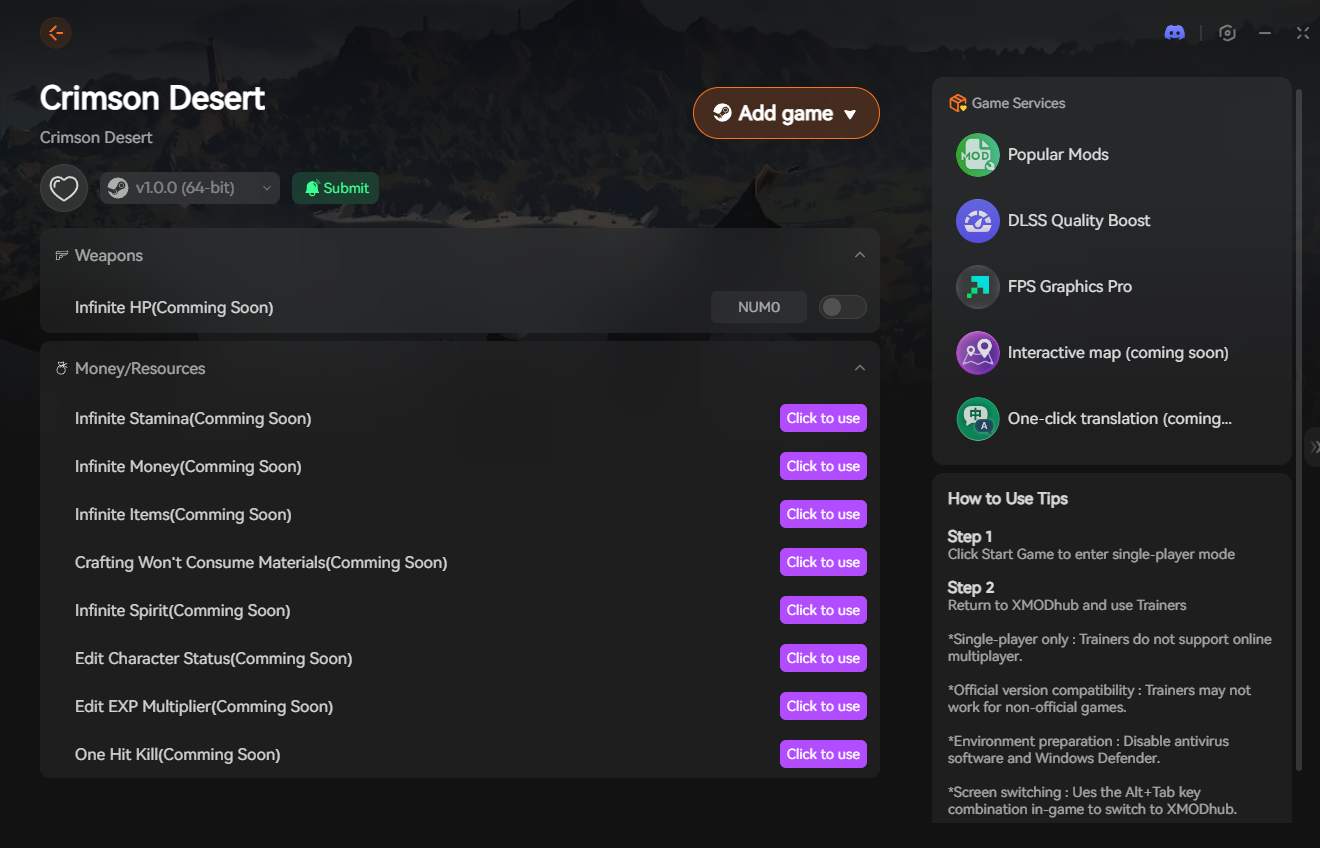
- Download the Client: Get the verified, digitally signed XMODhub desktop software from our official website. It operates silently in the background and will not conflict with your USB drivers.
- Launch & Hook: Boot up Crimson Desert first. Once you are loaded into your save file, open the XMODhub client and click “Play” on the game’s module.
- Inject the Overlay: Press your designated hotkey to bring up the XMODhub in-game menu. It hooks seamlessly into the BlackSpace Engine.
- Deploy the Failsafe: Toggle your defensive options so you can safely alt-tab and configure your Crimson Desert controller settings without fear of dying.
PC Save File Location for Manual Backups
If a disconnected controller causes you to accidentally select the wrong dialogue option or jump off a cliff right as the game auto-saves, you will want a backup.
- •Local Game Saves:
%USERPROFILE%\Documents\Crimson Desert\SaveGames\ - •User Config & UI Settings:
%USERPROFILE%\Documents\Crimson Desert\UserCache\
Frequently Asked Questions (FAQ)
Q: Does Crimson Desert support PlayStation DualSense haptic feedback on PC?
A: Yes, the BlackSpace Engine natively supports DualSense adaptive triggers and haptic feedback. However, you must connect the controller via a wired USB-C cable and completely disable Steam Input for the features to function properly.
Q: Why are Xbox button prompts showing when I am using a PlayStation controller?
A: This happens if Steam Input is enabled and forcing an XInput wrapper over your controller. To get the proper Triangle, Circle, Cross, Square UI prompts, you must disable Steam Input in the game’s properties so the engine can natively read your PlayStation gamepad.
Q: Can I rebind controller buttons natively in Crimson Desert?
A: Yes, the game features a comprehensive controller rebinding menu. If you are using native API support (Steam Input disabled), you can swap your dodge, parry, and attack buttons directly within the game’s settings menu.
Conclusion: Smooth Combat Restored
Fighting your own hardware is incredibly frustrating, especially in a game where combat precision is mandatory. By disabling overlapping wrappers like Steam Input for native gamepads, clearing out ghost USB peripherals, and utilizing wired connections for haptic feedback, you can bypass the BlackSpace Engine’s strictest controller quirks.
However, you shouldn’t be penalized with game-over screens while you test your Bluetooth connection. By running the XMODhub PC Trainer in the background, you guarantee that a dead battery or a sudden driver crash doesn’t cost you hours of exploration. Toggle your safety net, fix your gamepad, and get back to conquering the Abyss.
🚀 Download XMODhub for Crimson Desert Now
Check out more top trainers: XMODhub supports 5,000+ titles including Dragon’s Dogma 2, เดอะ วิทเชอร์ 3, และ ไซเบอร์พังก์ 2077.

ฉันเป็นเกมเมอร์และนักเขียนที่มีความหลงใหลที่ XMODhub มุ่งมั่นที่จะนำเสนอข่าวสารเกมล่าสุด เคล็ดลับ และข้อมูลเชิงลึกให้กับคุณ.
ติดต่อฉัน:
โปรไฟล์ LinkedIn ↗