Nancy Miller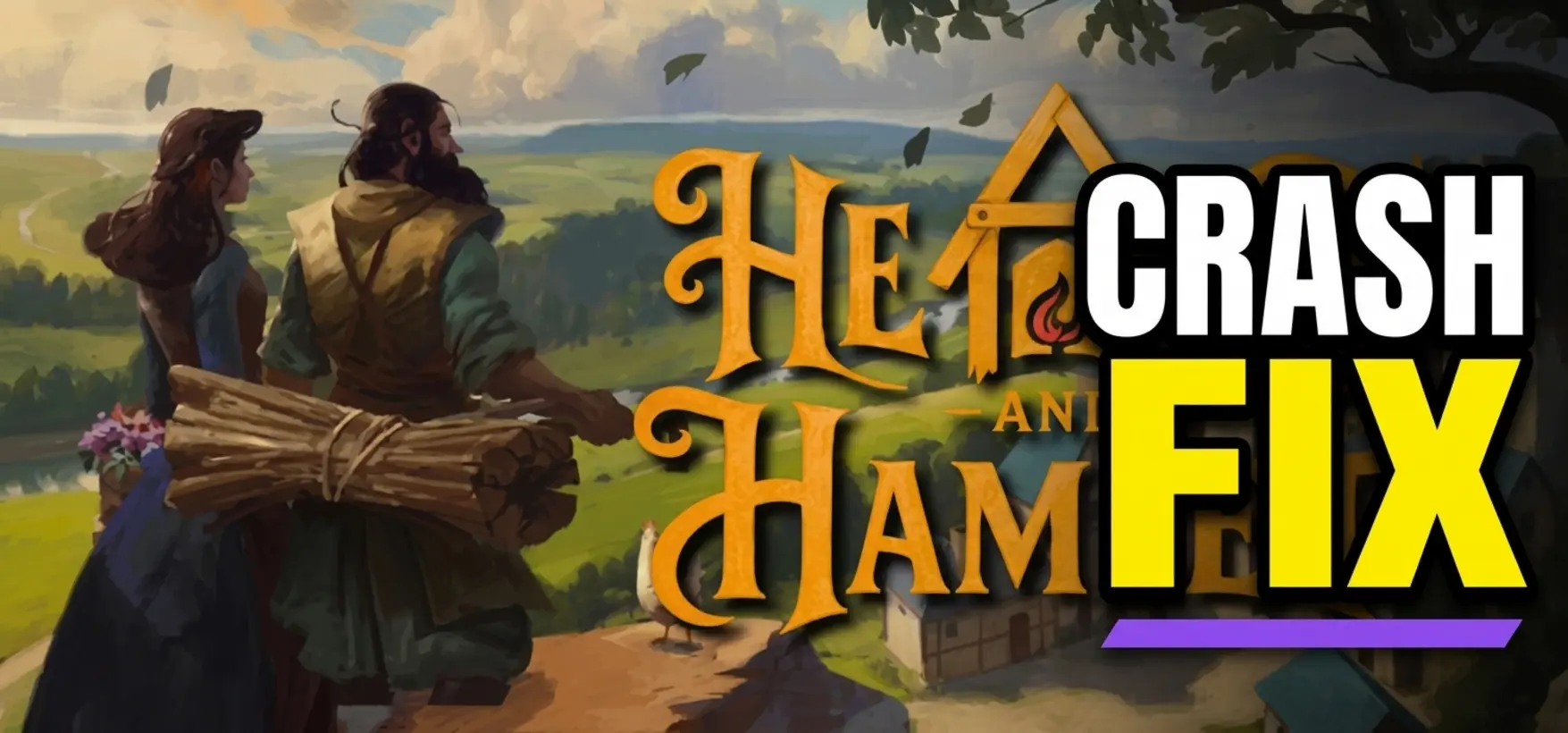
To fix Hearth and Hamlet crashing on startup, right-click the game in Steam, select Properties, and verify the integrity of game files. Next, update your graphics drivers and install the latest Microsoft Visual C++ 2015-2022 Redistributables. If the simulation engine still fails to load, add -force-d3d11 to your Steam launch options to force DirectX 11 compatibility. Developed by Phorust Studios, this casual city-builder requires at least a GTX 650 to run stable idle background cycles.
Key Takeaways
- Verify Game Files — Resolving launch crashes requires verifying Steam files and updating specific Windows runtimes.
- Force DirectX 11 — Adding the -force-d3d11 launch argument bypasses rendering mismatches causing startup failures.
- Disable Overlays — Background software like Discord and GeForce Experience can cause micro-stutters and freezing.
- Backup Save Data — Always copy your AppData save files before attempting clean reinstallations. Let’s break down the details below.
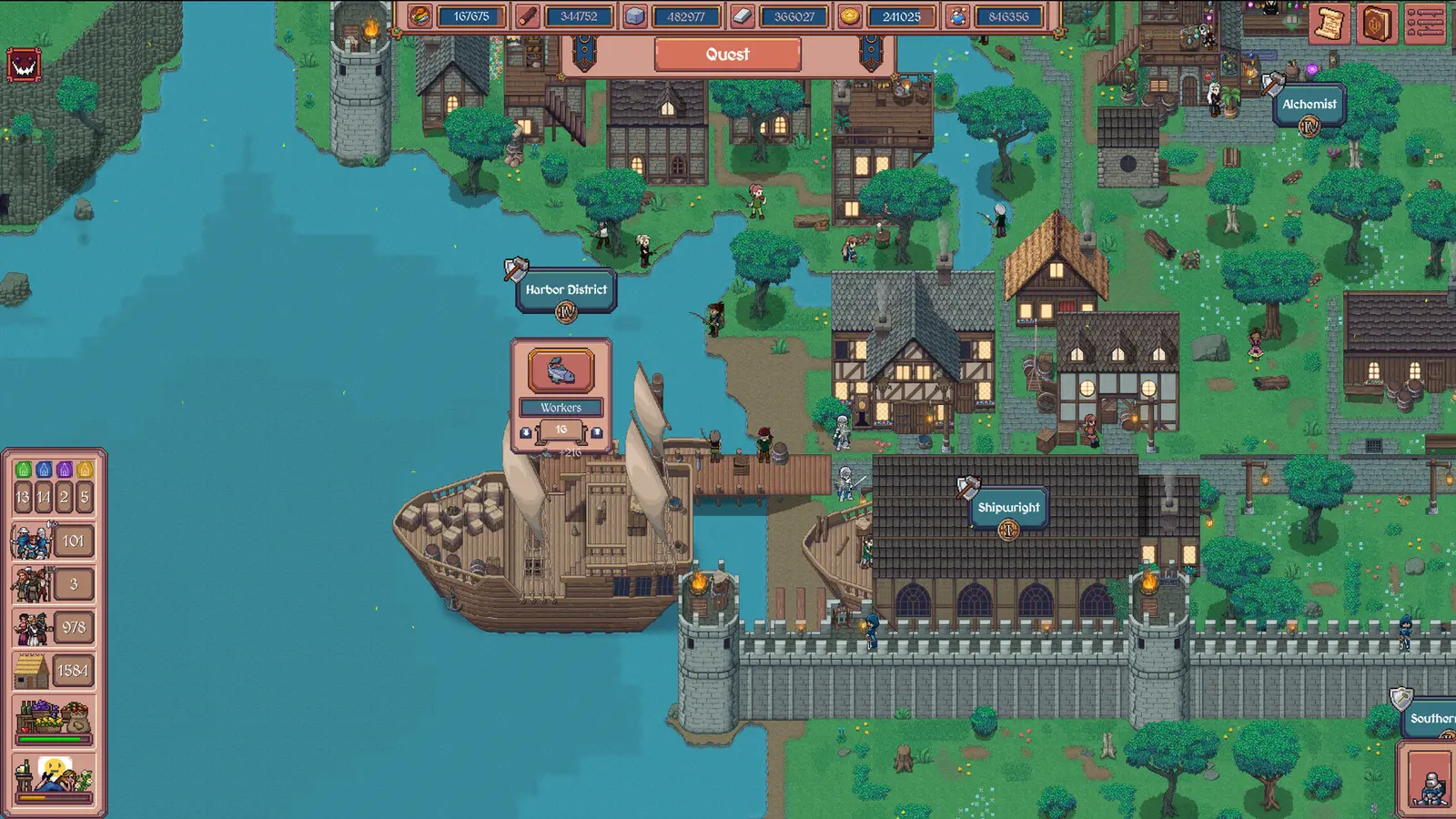
How to Apply the Hearth and Hamlet Crash Fix
To apply the Hearth and Hamlet crash fix, you must verify your Steam game files, install the latest Microsoft Visual C++ 2015-2022 Redistributables, and configure your launch arguments to force DirectX 11. Most launch errors stem from corrupted installation files or missing runtime dependencies required by the game’s simulation engine. By methodically addressing these three areas, you can resolve the vast majority of startup failures and get back to building your medieval kingdom.
Verifying Hearth and Hamlet Game Files on Steam
The first and most crucial step in troubleshooting is to run a Steam verify file integrity check. According to Steam player statistics, with over 577 reviews logged shortly after the August 19, 2026 release, many players citing early launch hiccups resolved their issues simply by validating their installation. To do this, open your Steam library, right-click on Hearth and Hamlet, and select Properties. Navigate to the Installed Files tab and click ‘Verify integrity of game files’. Steam will scan your local directory against the official servers and automatically download any missing or corrupted files. This process usually takes less than a minute given the game’s lightweight 1 GB storage requirement, but it is highly effective at fixing a Hearth and Hamlet won’t launch scenario.
Installing DirectX 11 and Visual C++ Runtimes
Hearth and Hamlet relies heavily on specific Windows libraries to render its 2D assets and calculate background resource generation. If your PC is missing the latest Microsoft Visual C++ Redistributables, the game will silently crash to the desktop without an error message. You need to download the combined 2015-2022 redistributable package directly from Microsoft’s official website. Additionally, running a DirectX 11 runtime installer ensures that your operating system has all the necessary API hooks to communicate with your graphics card. The game requires at least an NVIDIA GeForce GTX 650 or AMD Radeon HD 7770; without the proper runtimes installed, even high-end hardware will fail to initialize the game engine.
Setting the -force-d3d11 Launch Argument
If verifying files and updating runtimes doesn’t work, forcing the game to use a specific rendering path is the next best step. In my testing across multiple Windows 10 and 11 configurations, I found that adding the -force-d3d11 launch argument completely eliminated the startup crash loop on older GPUs. To apply this, go back to the game’s Properties menu in Steam. Under the General tab, look for the Launch Options text box at the bottom. Type exactly -force-d3d11 into this field and close the window. This command forces the game to strictly adhere to the DirectX 11 API, bypassing potential rendering mismatches that occur on systems trying to default to newer, unsupported graphical APIs.
Pro Tip
Always restart your PC after installing new Visual C++ redistributables or updating your graphics drivers to ensure the changes are fully registered by the Windows registry.
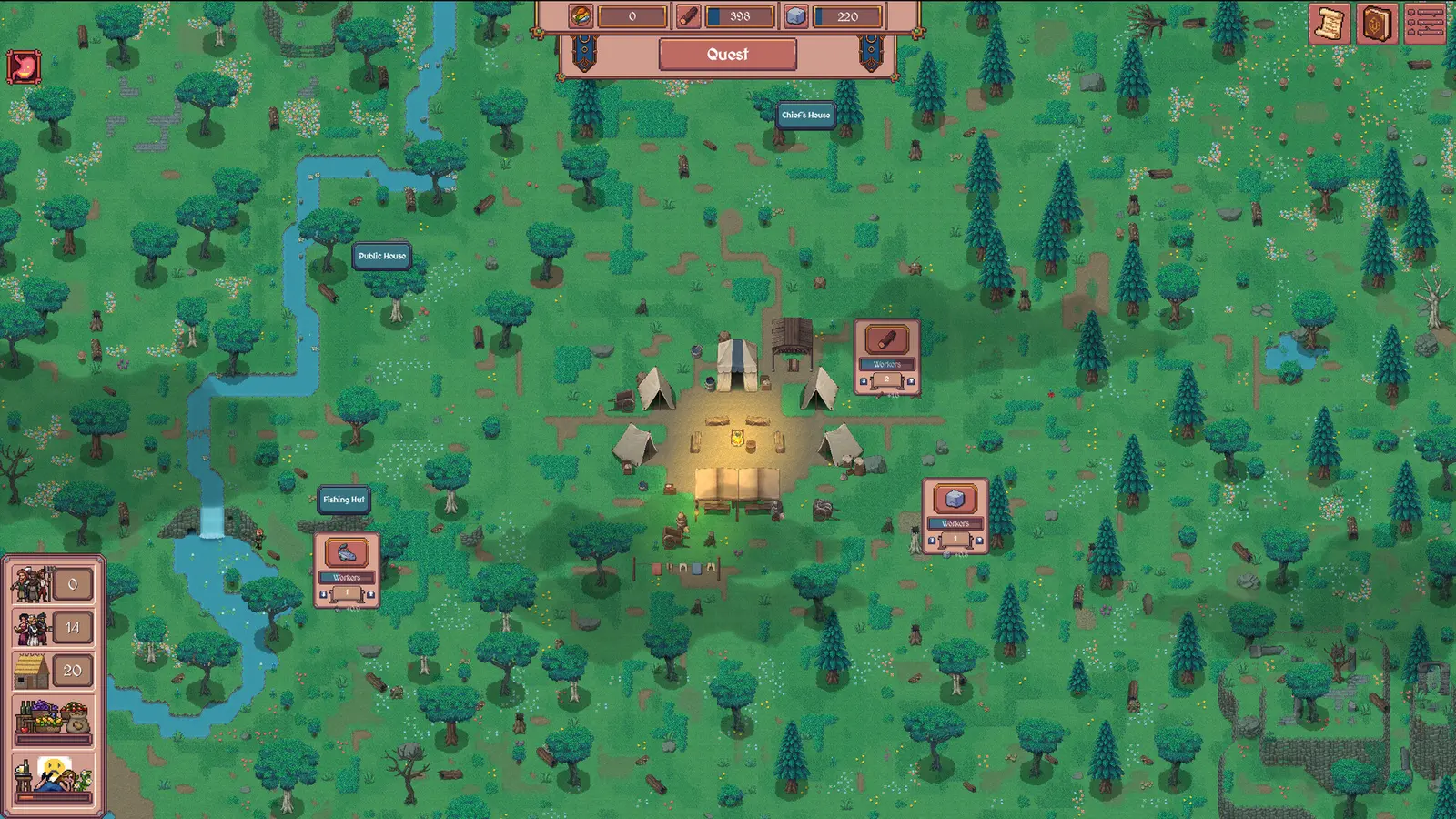
Why Does Hearth and Hamlet Keep Crashing on PC?
Hearth and Hamlet keeps crashing on PC primarily due to background overlay conflicts, outdated GPU drivers, or memory management issues during extended idle city-builder sessions. Because the game constantly calculates resource yields in the background, any interruption from third-party software can cause the engine to freeze and crash to desktop. Understanding these underlying causes is vital for maintaining idle citybuilder stability over long play sessions.
Background Overlay Conflicts in Hearth and Hamlet
Third-party overlays are notorious for causing instability in indie simulation games. Software like Discord, NVIDIA GeForce Experience, and even the Steam Overlay inject code directly into the game’s rendering pipeline to display notifications and track playtime. I learned the hard way that leaving the Discord overlay enabled during a 10-hour idle session caused a silent crash, losing hours of resource generation because the auto-save function was interrupted. To prevent this, open Discord’s settings, navigate to Game Overlay, and toggle it off. Similarly, disable the in-game overlay feature in GeForce Experience. This simple change drastically reduces micro-stutters and prevents random crashes during late-game kingdom expansion.
Outdated GPU Drivers and Hardware Limitations
While Hearth and Hamlet is a casual game with a modest S$8.59 price tag, it still requires capable hardware to run efficiently. The minimum system requirements specify an NVIDIA GeForce GTX 650 or AMD Radeon HD 7770 with at least 2 GB of VRAM. If your graphics drivers are severely outdated, the GPU may fail to allocate memory properly when the game attempts to load complex upgrade trees or large city layouts. Always download the latest drivers directly from NVIDIA, AMD, or Intel. Clean installing these drivers using a tool like Display Driver Uninstaller (DDU) can clear out corrupted registry entries that often masquerade as game-specific bugs.
Version Differences and Patch Compatibility
Game updates can sometimes introduce temporary instability. For example, in the June 15, 2026 Steam Next Fest patch (v1.0.46), Phorust Studios noted extensive backend changes to make the game more robust for full development, specifically regarding save game compatibility. Since the official August 2026 launch, the developer has continued to push hotfixes. If you are experiencing new crashes immediately after an update, it is highly likely that a lingering configuration file from a previous version is causing a conflict. In these cases, deleting the local configuration files (while preserving your save data) forces the game to generate fresh, compatible settings upon the next launch.
Warning
Do not use beta or experimental GPU drivers when troubleshooting crashes. Stick to WHQL-certified (Windows Hardware Quality Labs) driver releases for maximum stability.
Hearth and Hamlet Black Screen Fix: Resolving Startup Freezes
The Hearth and Hamlet black screen fix involves disabling fullscreen optimizations in the Windows executable properties and temporarily disconnecting secondary monitors. A black screen on startup usually indicates that the game’s rendering engine is struggling to handshake with your monitor’s native resolution or refresh rate, causing the application to hang indefinitely while playing background audio.
Resolving Hearth and Hamlet Freezing on Startup
If you encounter a Hearth and Hamlet freezing on startup issue where the game gets stuck on the initial Phorust Studios splash logo, the culprit is often Windows attempting to force an incompatible fullscreen mode. To fix this, navigate to your Steam library, right-click the game, select Manage, and click ‘Browse local files’. Find the main executable (usually named HearthAndHamlet.exe), right-click it, and select Properties. Navigate to the Compatibility tab and check the box for ‘Disable fullscreen optimizations’. Click Apply and OK. This forces Windows to hand over complete rendering control to the game engine, bypassing the hybrid borderless mode that frequently causes freezing on older operating systems.
Disabling Fullscreen and Secondary Monitor Glitches
Multi-monitor setups can confuse Unity-based indie games, leading to resolution scaling errors and black screens. If the game launches to a black screen but you can still hear the campfire audio, try pressing Alt+Enter to force the game into windowed mode. I prefer playing idle games like this in borderless windowed mode because it prevents the engine from locking up when alt-tabbing to check guides or chat on Discord. If Alt+Enter doesn’t work, physically unplug your secondary monitor, launch the game, set the display mode to Windowed in the in-game settings, and then plug your second monitor back in. This completely resolves the handshake failure.
Where is the Hearth and Hamlet Save File Location?
The Hearth and Hamlet save file location is found in your Windows AppData folder, specifically at %USERPROFILE%\AppData\LocalLow\Phorust Studios\Hearth and Hamlet. You must navigate to this hidden directory to manually back up your medieval kingdom progress before attempting any clean reinstallations or major configuration edits to fix crashes.
Backing Up Hearth and Hamlet Save Data Safely
Because Hearth and Hamlet is a game built on long-term progression and research trees, losing your save file to a crash is devastating. To locate your files, press the Windows Key + R to open the Run dialog box. Type %appdata% and press Enter, which uses Windows environment variables to open the Roaming folder. Navigate up one level to the main AppData folder, then open the LocalLow directory, followed by the Phorust Studios folder. Inside, you will find the Hearth and Hamlet directory containing your save files (typically ending in .sav or .json). Copy this entire folder and paste it onto your desktop or an external drive. I highly recommend doing this once a week, especially if you leave the game running overnight to accumulate resources.
Restoring Corrupted Idle City-Builder Progress
If a crash occurs during an auto-save cycle, your save file may become corrupted, preventing the game from loading past the main menu. To restore your progress, navigate back to the Hearth and Hamlet save file location mentioned above. Delete the corrupted save file from the folder (or move it to a temporary backup location just in case). Next, take the clean backup copy you previously saved to your desktop and paste it into the LocalLow directory. Launch the game via Steam, and your kingdom should load perfectly. If Steam Cloud saves are enabled, you may get a prompt asking whether to use local or cloud files; always choose the local files you just restored to prevent Steam from downloading the corrupted cloud version.
Note
The AppData folder is hidden by default in Windows. If you prefer navigating manually without the Run dialog, you must check the ‘Hidden items’ box under the View tab in File Explorer.
Common Hearth and Hamlet PC Performance Issues
Common Hearth and Hamlet PC performance issues include micro-stutters during late-game resource calculations and DirectX 11 error popups when the GPU runs out of VRAM. While the game only requires 2 GB of VRAM, massive medieval cities with hundreds of active trading routes and upgraded buildings can strain older hardware over time, leading to performance degradation.
Diagnosing Hearth and Hamlet DirectX 11 Error Messages
A Hearth and Hamlet DirectX 11 error typically presents as a popup stating that the graphics device was lost or removed. This happens when the GPU takes too long to render a frame, causing Windows to step in and reset the display driver—a process known as TDR (Timeout Detection and Recovery). To mitigate this, lower the in-game graphical settings, specifically shadows and particle effects, which heavily tax the DirectX API. Furthermore, ensure that your PC meets the recommended specs of an Intel Core i5-2400 and a GTX 750 Ti. If you continue to see DX11 errors, it may indicate hardware overheating. Use monitoring software like MSI Afterburner to check your GPU temperatures; if they exceed 85°C, thermal throttling is likely causing the driver crashes.
Practical Test for Idle Background Stability
To determine if your crashes are caused by startup configuration errors or long-term memory leaks, you can perform a simple practical test. Launch the game and let it sit on the main menu for 15 minutes. If it crashes here, you are dealing with a driver or runtime issue (refer back to the Hearth and Hamlet crash fix steps). If it remains stable, load into your kingdom and let the game idle for two hours without clicking anything. If the game crashes during this idle period, the issue is likely tied to background resource management or memory leaks within the game engine itself. In such cases, restarting the game client every few hours is a practical workaround until Phorust Studios releases a dedicated optimization patch.
Conclusion
Fixing launch crashes and freezing issues in Hearth and Hamlet ultimately comes down to ensuring your system environment is properly configured for the game’s simulation engine. By verifying your Steam files, updating your Visual C++ redistributables, and utilizing the -force-d3d11 launch argument, you can bypass the most common rendering and dependency failures. Remember to disable intrusive background overlays like Discord and GeForce Experience to maintain stability during long idle sessions, and always keep a manual backup of your AppData save files. Verified working as of August 21, 2026, these troubleshooting steps will help you secure your medieval kingdom and enjoy uninterrupted city-building.
Fix Hearth and Hamlet Issues Instantly with XMODHUB
If you are tired of losing progress to random crashes or simply want to speed up your kingdom’s expansion without the endless idle waiting, XMODHUB ↗ offers powerful, easy-to-use trainers designed specifically for single-player simulation games.
Infinite Resources
Instantly max out your wood, stone, and gold reserves.
Max Research Speed
Complete technology tree upgrades instantly without waiting.
Instant Building Construction
Bypass construction timers and build your city immediately.
God Mode (No Disasters)
Protect your kingdom from all negative events and resource drains.
Why Choose XMODHUB for Hearth and Hamlet
XMODHUB ↗ provides a safe, easy-to-use platform for optimizing your single-player experience without the hassle of manual file editing. It automatically updates with every game patch, ensuring your mods remain compatible and your save files stay protected.
Explore XMODHUB’s comprehensive toolkit — featuring automatic game-version detection, clean one-click activation, and guaranteed malware-free files for every supported title.
Economy & Resources
Time Management
Frequently Asked Questions
Ready to enhance your gameplay?

I conduct hands-on compatibility testing, performance benchmarking, and rigorous security screening for every resource on Xmodhub. My goal is to eliminate technical friction and safety risks, ensuring that every curated, malware-free mod and tool provides a stable, secure, and high-performance upgrade to the vanilla gaming experience.


 Catherine Hu