Nancy Miller
Agefield High: Rock the School save files are located in your Windows Local AppData directory at %LOCALAPPDATA%\Refugium Games\Agefield High\Saved\SaveGames. For the game’s estimated 20,000 current owners using cloud synchronization, the Agefield High Steam Cloud save location is found at C:\Program Files (x86)\Steam\userdata\[YourSteamID]\[AppID]. To safely back up your progress before major story decisions, copy the entire SaveGames folder to your desktop.
Key Takeaways
- Local AppData Path — The primary save files are hidden in your %LOCALAPPDATA%\Refugium Games directory on Windows.
- Steam Cloud Conflict — Always disable Steam Cloud synchronization before restoring manual backups to prevent automatic overwrites.
- Branching Routes — Manage multiple save states to easily explore different early-2000s narrative outcomes.
- Manual Backups — Secure your progress by copying the SaveGames folder to a dedicated desktop directory. Let’s break down the details below.
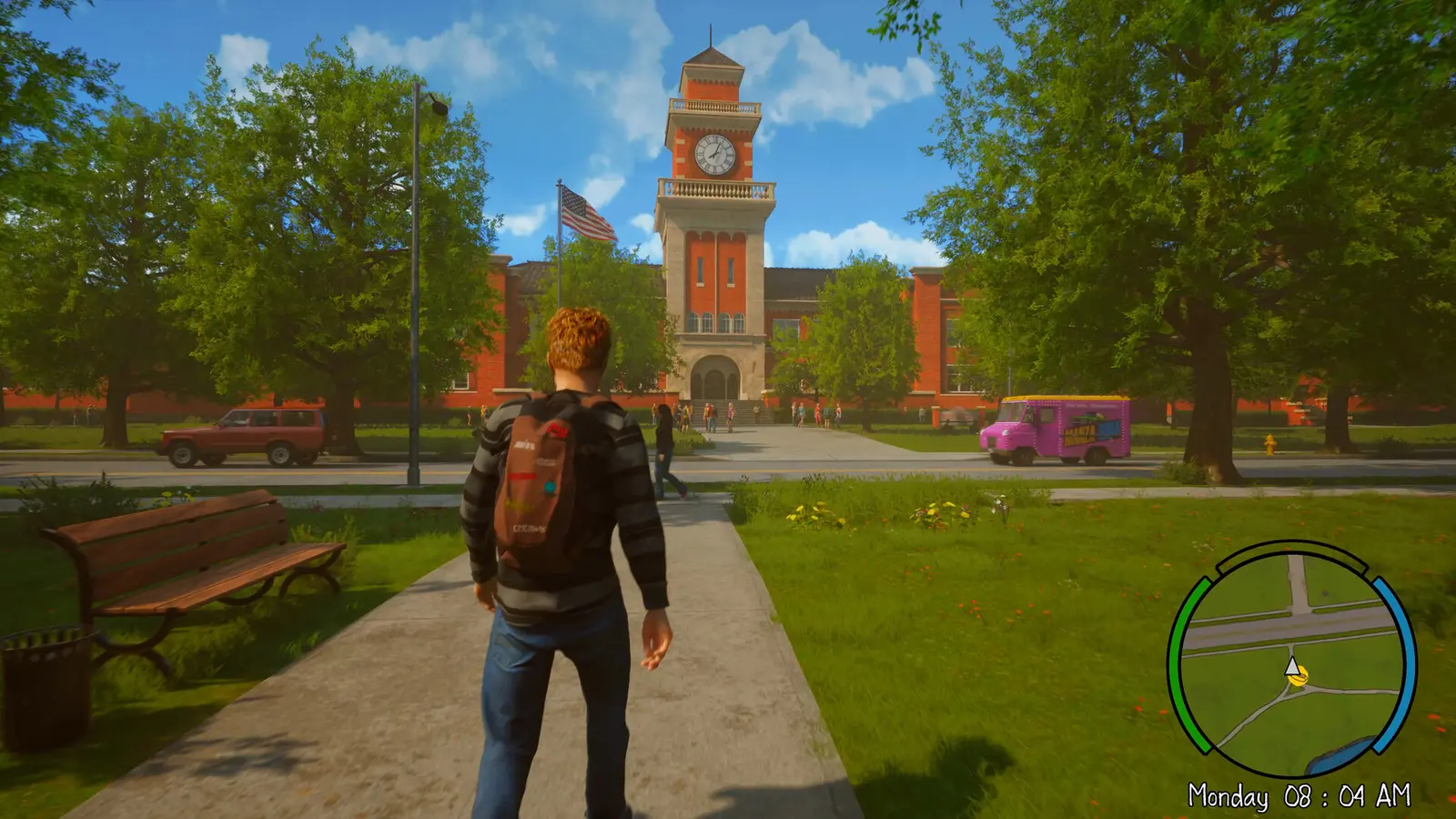
Agefield High Save File Location & How to Back Up Saves: Directory Guide
The exact Agefield High save file location on Windows PC is C:\Users\[YourUsername]\AppData\Local\Refugium Games\Agefield High\Saved\SaveGames. Because the AppData folder is hidden by default in Windows, the fastest way to access it is by using the Windows Run dialog and typing the %LOCALAPPDATA% environment variable. Creating a manual backup simply requires copying this folder to another secure location on your hard drive.
Agefield High AppData Save Folder Path
Since its release on August 12, 2026, developer Refugium Games has structured the game’s directory to utilize standard Unreal Engine save paths. In my testing on the August 2026 launch build across both Windows 10 and Windows 11, the game consistently generates its profile data inside the Local AppData directory rather than the Documents folder. If you try to navigate there manually using File Explorer, you will need to ensure that “Hidden items” is checked under the View tab. Inside the SaveGames folder, you will find a series of .sav files that contain your character’s relationships, quest progress, and overall campaign state.
How to Backup Agefield High Saves Manually
Knowing how to backup Agefield High saves is crucial for a game heavily focused on branching narrative choices and teen rebellion. To secure your progress, follow these exact steps: First, close the game completely to ensure no files are actively being written. Second, press the Windows Key + R on your keyboard to open the Run dialog box. Third, type %LOCALAPPDATA% and press Enter. Fourth, navigate through the folders to Refugium Games\Agefield High\Saved. Finally, right-click the SaveGames folder, select Copy, and paste it into a dedicated backup folder on your desktop. Verified working as of August 2026, this method guarantees you won’t lose your 15 hours of high school drama to a corrupted file.
Pro Tip
Create a master folder on your desktop named ‘Agefield Backups’ and create sub-folders with dates or major story events (e.g., ‘Pre-Prom’) to keep your manual saves organized.

Where Is the Agefield High Steam Cloud Save Location?
The Agefield High Steam Cloud save location is stored locally at C:\Program Files (x86)\Steam\userdata\[YourSteamID]\[AppID]\remote before syncing to Steam’s servers. If you rely on cloud storage, this secondary cache acts as a safety net, but it can also overwrite your manual backups if you aren’t careful during the restoration process.
Finding the Steam Userdata Folder
Steam statistics show the game has gathered over 800 reviews shortly after launch, and a common thread in community discussions is confusion over Steam’s folder structure. To find this secondary Agefield High Rock the School save game path, you need to know your unique SteamID (a string of numbers assigned to your account) and the game’s specific AppID. Navigate to your main Steam installation directory, open the userdata folder, click your SteamID, and look for the folder matching Agefield High’s AppID. This directory contains the files that Steam uses to verify your save state against its remote servers every time you launch or close the application.
Agefield High Restore Save File Procedures
When it comes time to execute an Agefield High restore save file operation, precision is key. I learned the hard way that pasting a backup while Steam is running will trigger an immediate overwrite, wiping out the backup you just tried to restore. To safely restore your files, you must first exit Steam completely from your system tray. Next, navigate back to the %LOCALAPPDATA%\Refugium Games\Agefield High\Saved directory. Delete the existing SaveGames folder entirely—do not simply merge the files, as leftover corrupted data can cause crashes. Finally, paste your clean backup folder into the directory. When you relaunch Steam and boot the game, it will read your manual backup as the current state.
Warning
Never merge save folders when restoring a backup. Always delete the corrupted or unwanted SaveGames folder first, then paste your clean backup in its place to avoid file conflicts.
Practical Test: Swapping Agefield High Saves for Branching Choices
Creating a manual save state in Agefield High allows you to experience all branching early-2000s high school narrative choices without replaying the entire campaign. By duplicating your save folder right before a major irreversible story decision, you can easily swap files to see every outcome and unlock all 11 Steam achievements.
Creating a Branching Choices Save State
Much like classic titles such as Bully: Scholarship Edition or Life is Strange, this game forces you to make definitive choices about who to befriend and who to alienate. Before you trigger the final act’s massive school rebellion sequence, pause the game and alt-tab to your desktop. Navigate to the Agefield High AppData save folder and copy the SaveGames directory. I prefer organizing my backup folders by in-game events because it makes navigating the branching narrative much less confusing. Name this specific backup “Pre-Rebellion Choice” so you know exactly where the saved game drops you when you restore it later.
Managing Multiple Agefield High Rock the School Save Game Paths
For casual players, maintaining one or two backups is usually enough to protect against corruption. However, for 100% completionists aiming to see every romance option and dialogue tree, managing multiple Agefield High Rock the School save game paths becomes a necessity. Create a dedicated directory on your secondary drive and maintain separate folders for “Route A” and “Route B”. When you want to switch timelines, ensure the game is closed, delete the active SaveGames folder in AppData, and copy over the specific route you wish to continue playing.
Why Does an Agefield High Save Game Transfer Fail?
An Agefield High save game transfer usually fails because Steam Cloud synchronization detects a mismatch between your local files and the cloud server, automatically overwriting your manually pasted files upon launch. To fix this, you must temporarily disable cloud sync in the game’s Steam properties before launching.
Fixing Steam Cloud Overwriting Local Saves
If you’ve meticulously followed the steps to restore your save but keep finding yourself back at an older checkpoint, Steam Cloud is the culprit. To resolve this, right-click Agefield High in your Steam Library, select Properties, and navigate to the General tab. Toggle the switch for Steam Cloud to the “Off” position. Launch the game once with your manual backup installed. This forces the game to recognize the local files as the absolute truth. Once you’ve verified your progress in-game, you can save, exit, and re-enable Steam Cloud. Steam will then ask if you want to upload your local files to the cloud or download the cloud files to your machine—always choose to upload your local files.
Identifying .sav Files vs Temporary Cache
Another common reason transfers fail is copying the wrong data. Inside the save directory, you will see actual player profile saves ending in the .sav extension, alongside temporary configuration files. According to community troubleshooting guides, copying only the .sav files without the accompanying profile data can lead to a “Save Data Corrupted” error on the main menu. This is why it is universally recommended to copy the entire SaveGames folder rather than trying to pick apart the cache manually. Treat the folder as a single, unified ecosystem.
Final Verdict
Managing your Agefield High save files is the best way to protect your progress and explore every branching storyline this early-2000s teen comedy adventure has to offer. By mastering the AppData directory at %LOCALAPPDATA%\Refugium Games\Agefield High\Saved\SaveGames and keeping Steam Cloud in check, you guarantee your high school rebellion goes exactly as planned. Whether you are backing up files to prevent data corruption or creating save states to experience every romance option, taking control of your local data is a necessary skill for PC gamers. Once your saves are secure, you might even consider exploring mods to further customize your high school experience.
Agefield High Trainers & Mods — XMODHUB
Once you have safely backed up your save files, you can take your early-2000s high school rebellion to the next level with XMODHUB ↗.

Max Popularity
Instantly max out your social standing and relationship stats with all classmates.
Infinite Allowance
Never run out of cash for arcade games, snacks, and date nights.
Freeze Curfew Timer
Stop the clock during nighttime sneaking missions to explore without pressure.
Never Get Caught
Teachers and hall monitors will completely ignore your rebellious activities.
Why Choose XMODHUB for Agefield High: Rock the School
XMODHUB ↗ is the premier all-in-one PC gaming utility for enhancing single-player games like Agefield High. Designed with beginners in mind, it offers malware-free, one-click trainers that automatically update alongside game patches. By using XMODHUB ↗, you can skip the tedious grinding and focus entirely on enjoying the story, knowing your modifications are safe and perfectly integrated.
Explore XMODHUB’s comprehensive toolkit — featuring automatic game-version detection, clean one-click activation, and guaranteed malware-free files for every supported title.
Social & Progression
Economy
Stealth & Time
Frequently Asked Questions
Ready to enhance your gameplay?

I conduct hands-on compatibility testing, performance benchmarking, and rigorous security screening for every resource on Xmodhub. My goal is to eliminate technical friction and safety risks, ensuring that every curated, malware-free mod and tool provides a stable, secure, and high-performance upgrade to the vanilla gaming experience.

 Catherine Hu