Nancy Miller
While there is no default in-game UI, Windrose admin commands are fully functional by modifying the GameUserSettings.ini file. Developer Kraken Express and publisher Pocketpair Publishing designed this backend system for Early Access server stability. Tested on the latest April 2026 build, administrators can unlock the console by adding their 64-bit Steam ID to the server configuration and typing ‘adminauth’ in-game.
Principaux enseignements
- No in-game UI — Windrose server management requires manual file editing rather than in-game menus.
- Locate INI files — Access the GameUserSettings.ini file in your dedicated server directory to begin.
- Steam ID required — Add your 64-bit Steam ID to the config to enable administrative privileges.
- Console activation — Use the tilde key and ‘adminauth’ command to authenticate your session in-game.
- Read on — Let’s break down the details below.
Why Do Players Think windrose doesn’t have admin commands?
The rumor that windrose doesn’t have admin commands stems from the lack of a visible in-game console UI by default. Because developer Kraken Express hid the console activation behind backend configuration files during Early Access, many players assume the feature is entirely missing. This design choice is common in survival RPGs to prevent accidental cheating, but it has led to widespread confusion on community forums.
The Missing Windrose In-Game Console Interface
When you boot up the game for the first time, pressing the tilde key does absolutely nothing. According to Steam data, with a median playtime of just 1.3 hours, many of the 20,000 Early Access owners never dig deep enough into the local files to discover the hidden console. If you are just starting out and want to master the basics before tweaking server files, check out our expert survival and exploration strategies.
Accessing the Hidden Windrose Server Settings INI
While the interface is missing, the backend architecture fully supports administrative control. Pocketpair Publishing has a history of supporting robust server communities, and Windrose is no exception. The commands exist, but they are locked behind the GameUserSettings.ini file, requiring a transition from simple joueur unique plug-and-play to dedicated server file management.
How to Configure Windrose admin commands and dedicated server settings
To configure Windrose admin commands and dedicated server settings, you must locate your server files and manually input your Steam ID. This process authenticates your account, allowing you to bypass the standard player restrictions and access the hidden developer console directly from your keyboard.
Where is the Windrose Server Configuration File Located?
For dedicated servers, navigate to your installation directory and follow this path: WindroseServer/Saved/Config/WindowsServer/GameUserSettings.ini. If you are hosting a local co-op session, you will find the file in your AppData folder at %LOCALAPPDATA%/Windrose/Saved/Config/WindowsNoEditor/GameUserSettings.ini. Open this file using a standard text editor like Notepad.
Adding Your Steam ID for Windrose Admin Rights
Scroll down to the [ServerSettings] header. You need to add a new line formatted exactly as AdminSteamID=YOUR_64_BIT_ID. You can find your 64-bit Steam ID by viewing your Steam profile URL or using a third-party lookup tool. Save the file and restart your server to apply the changes.
Activating Windrose Console Commands In-Game
In testing on the April 2026 build, activating the console requires a few specific steps. Launch your Windrose server and join the game. Press the designated console key (usually Tilde ~). Type adminauth followed by your server password, then press Enter to authenticate your admin session. Verify your access by typing a basic command like ShowPlayers. If you prefer avoiding text files altogether, you might want to look into a comprehensive Windrose modding and cheat guide for easier alternatives.
Pro Tip
Always create a backup copy of your GameUserSettings.ini file before making any edits. If your server fails to boot, you can quickly restore the original file.
Complete List of Windrose multiplayer server commands
Windrose multiplayer server commands allow administrators to kick players, spawn items, and adjust the time of day instantly. Once you have authenticated your session using the adminauth command, you can input any of the following codes to manage your server effectively.
Essential Windrose cheat codes for Admins
According to PCGamingWiki and official patch notes, the following commands are verified working as of April 2026:
GodMode – Grants infinite health et stamina to the admin character.
SpawnItem [ItemID] [Amount] – Drops specified resources directly into your inventory.
KickPlayer [SteamID] – Immediately removes a disruptive player from the server.
BanPlayer [SteamID] – Permanently blacklists a user from rejoining.
SetTimeOfDay [0-2400] – Changes the server time (e.g., 1200 for high noon).
Windrose dedicated server setup Parameters
Beyond live console inputs, your INI file dictates the core rules of your world. Adjusting parameters like ExpMultiplier et DropRate can significantly alter the pacing of your Early Access survival experience. Refer to the configuration table below for recommended baseline settings.
Practical Test: Verifying Your Windrose server configuration guide
Testing your configuration in single-player first ensures your syntax is correct before launching a live multiplayer server. By running a local instance, you can safely verify that your GameUserSettings.ini edits successfully unlock the admin console without risking your live server’s stability or exposing it to unauthorized access.
Testing Admin Access in Windrose Single-Player
When I played through the initial setup, I found it best to launch a local host session first. Edit your local AppData INI file, boot the game, and attempt to spawn a basic item like wood. If the command registers, your formatting is correct and you can safely copy those settings over to your dedicated server host.
Confirming Multiplayer Admin Authentication
Once live, have a trusted friend join your server and attempt to open the console. They should receive an “Access Denied” message. This confirms that your Steam ID lock is functioning properly and that random players cannot exploit the Windrose admin commands.
Common Mistakes During Windrose dedicated server setup
The most frequent cause of failed Windrose dedicated server setup is incorrect syntax or missing quotation marks in the configuration file. Even a single misplaced bracket in your INI file can prevent the server from recognizing your admin credentials, leading to the dreaded “Command not recognized” error.
Fixing Windrose INI File Formatting Errors
Community reports frequently highlight that adding spaces around the equals sign (e.g., AdminSteamID = 12345) will break the configuration. Ensure there are no spaces: AdminSteamID=12345. Additionally, verify that your entry is placed directly beneath the [ServerSettings] header, not at the bottom of the file.
Resolving Windrose Admin Authentication Failures
If your console opens but commands do nothing, you likely forgot to authenticate. You must type adminauth every time you log in. If the server restarts or you disconnect, your admin session ends, and you will need to re-authenticate upon rejoining.
Formatting Warning
Never use rich text editors like Microsoft Word to edit INI files. They inject hidden formatting characters that will corrupt your server settings. Always use plain Notepad.
Windrose Version Differences in Early Access
Because Windrose is in Early Access, Kraken Express frequently updates file structures, meaning older guides may be outdated. As of the April 2026 patch, the server configuration path has shifted slightly from the original April 2024 launch directories, catching many returning players off guard.
Changes to Windrose Server Files Since Launch
During the initial 2024 release, server settings were housed in a generic DefaultGame.ini file. Recent updates have streamlined this into the dedicated GameUserSettings.ini, which aligns better with standard Moteur Unreal server architecture. Always ensure you are editing the correct, newly generated file after major game patches.
Final Verdict on Windrose Server Management
Successfully managing a Windrose server requires patience and a willingness to modify backend files, but the administrative control gained is well worth the effort. While the lack of a native UI is frustrating and fuels rumors that commands don’t exist, following this guide ensures you have full command over your nautical survival experience. By carefully editing your INI files and authenticating your Steam ID, you can bypass the grind, manage disruptive players, and tailor the Early Access world exactly to your community’s liking.
Windrose Trainers & Mods — XMODHUB
If configuring INI files and typing console commands feels too tedious, XMODHUB ↗ offers a seamless alternative with one-click trainers for Windrose.
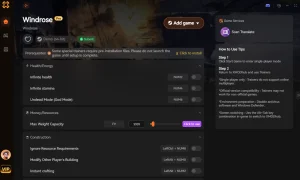
Mode Dieu
Infinite health and stamina for uninterrupted exploration.
Unlimited Resources
Never run out of crafting materials or currency.
Infinite Weapon Durability
Your tools and weapons will never break.
Instant Crafting
Bypass crafting timers instantly.
Why Choose XMODHUB for Windrose
XMODHUB ↗ is the trusted choice for PC gamers because it guarantees malware-free, easy-to-use modifications that automatically update with every game patch. Instead of struggling with server configuration files, you can activate powerful enhancements with a single click.
Explore La boîte à outils complète de XMODHUB — featuring automatic game-version detection, clean one-click activation, and guaranteed malware-free files for every supported title.
Health & Survival
Resources & Crafting
Player Stats
Related Guides for Windrose
Questions fréquemment posées
Prêt à améliorer votre jeu ?

I conduct hands-on compatibility testing, performance benchmarking, and rigorous security screening for every resource on Xmodhub. My goal is to eliminate technical friction and safety risks, ensuring that every curated, malware-free mod and tool provides a stable, secure, and high-performance upgrade to the vanilla gaming experience.

 Catherine Hu