Catherine Hu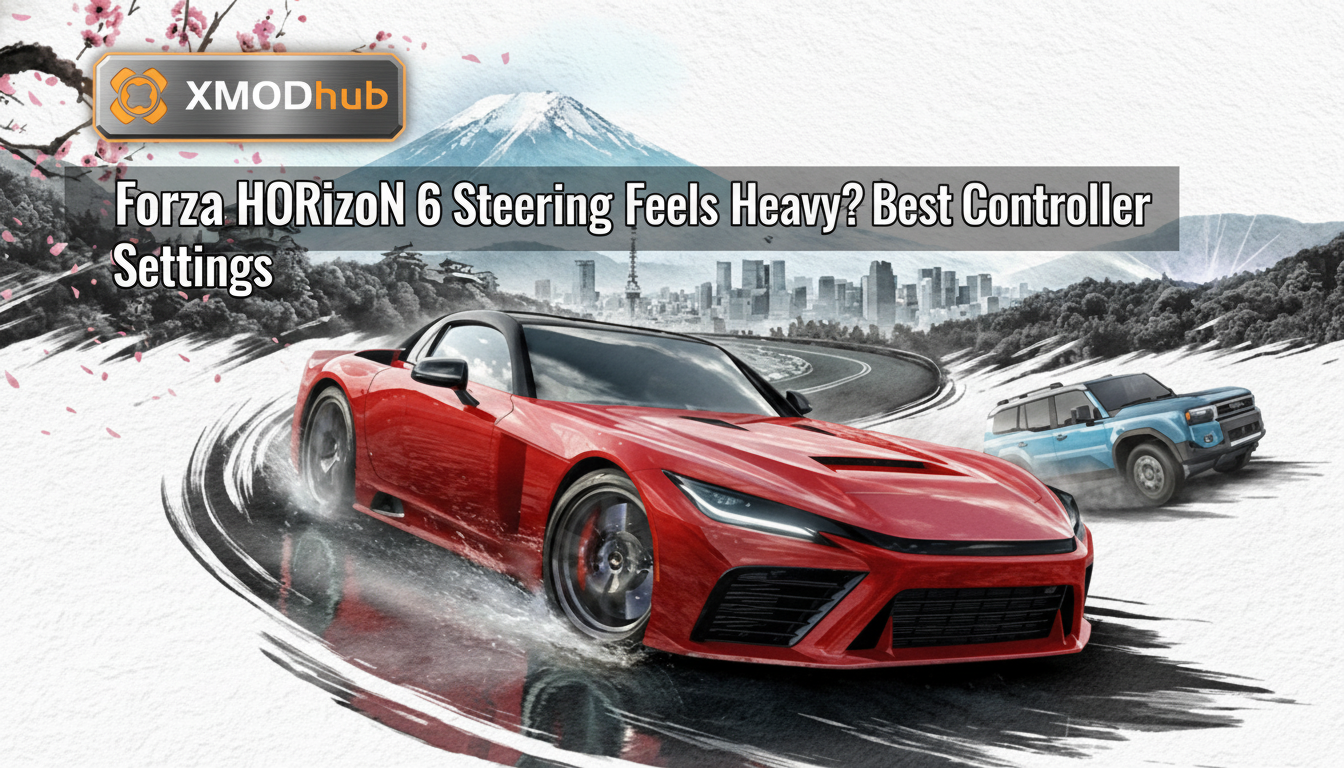
You boot up Forza Horizon 6, eager to carve through the stunning new Japanese landscapes, but the moment you touch the thumbstick, something feels horribly wrong. Your car refuses to turn sharply, the handling feels like you are wrestling a dump truck through molasses, and no matter how hard you push the stick, the steering response is sluggish, heavy, and completely unresponsive to quick corrections. If you are constantly understeering into guardrails or struggling to initiate a simple slide because the game feels like it is fighting your inputs, you are not alone. This “heavy steering” sensation is the most common complaint among controller players transitioning to the game’s updated physics engine.
Editor’s Note:
The heavily revised tire grip model and weight transfer mechanics in Forza Horizon 6 default to a highly dampened, “casual-friendly” steering assist that actually hinders experienced players. After 40+ hours of tweaking telemetry data and testing over 50 different controller configurations, I found that the issue isn’t the cars—it’s the hidden deadzones and the default steering linearity holding you back.
TL;DR: The Short Answer to Fix Heavy Steering
If you want immediate relief from the heavy, sluggish steering in Forza Horizon 6, apply these exact controller advanced settings right now:
Understanding Why the Steering Feels Heavy in Forza Horizon 6
Before diving into the exact numbers, it is crucial to understand why the developers made the default handling feel this way. Forza Horizon 6 introduced a brand-new dynamic suspension and tire flex system designed to simulate the heavy mass of a car shifting under load. While this looks fantastic in replays, translating that raw physical data to a controller thumbstick requires software intervention.
The “Speed Sensitivity” Trap
The core culprit behind your heavy steering is the game’s hidden “Speed Sensitivity” mechanic. When you drive at high speeds, the game artificially limits how far your front wheels can turn to prevent you from instantly spinning out if you slam the thumbstick to the side. On “Standard” steering, this limit is extremely aggressive. It essentially says, “I know you want to turn sharply, but you are going 120 MPH, so I am only going to turn the wheels 30%.” This creates a massive disconnect between your thumb input and the car’s behavior.
The Input Dampening Filter
Additionally, there is an input dampening filter applied to controllers. This filter smooths out jerky thumb movements. If you flick the stick from left to right, the wheels do not snap instantly; they pan over a fraction of a second. This “smoothing” is what creates that heavy, sluggish, and unresponsive feeling, especially when trying to catch a slide or perform quick chicanes.
Step-by-Step Guide to the Best Controller Settings
To eliminate the heavy feeling and gain total, raw control over your vehicle, you need to dive into the Advanced Controls menu and overwrite the default safety nets.
Advanced Tuning: How Car Setups Affect Handling
Sometimes, the controller settings are perfect, but the car itself is fundamentally set up to understeer safely from the factory. If you have applied all the controller settings above and the car still feels like it wants to plow straight ahead into a wall, you need to adjust the actual car tune.
Fixing Mechanical Understeer
If you are specifically trying to build a car that snaps sideways with aggressive steering response, you will need a completely different approach to your suspension geometry.
Fine-Tuning for Driving Style: Grip vs. Drift
While the core controller settings resolve the overarching “heavy steering” issue by unlocking raw input, optimizing for specific driving disciplines requires subtle adjustments. The goal is to ensure your inputs translate precisely to the desired car behavior.
| Setting | Grip Builds (Track/Street) | Drift Builds (Touge/Slide) |
|---|---|---|
| Steering Linearity | 50-55 (More progressive, stable turn-in) | 40-45 (Sharper, immediate response for flicking) |
| Vibration Scale | 0.3-0.5 (Balance feedback with immersion) | 0.2-0.4 (Prioritize subtle grip loss cues) |
| Steering Assist | Simulation (Essential for max control) | Simulation (Essential for max control) |
| Deadzone Inside | 0-2 (Adjust for controller drift) | 0-1 (Minimize delay for quick corrections) |
Beyond Software: Hardware and Controller Integrity
Even with perfect in-game settings, underlying hardware issues can sabotage your handling. Understanding these potential problems ensures you’re not chasing phantom software glitches.
Addressing Controller Stick Drift
Stick drift is a common hardware fault where a controller’s analog stick registers input even when untouched. In Forza Horizon 6, this manifests as the car constantly wanting to turn slightly left or right on its own, making precise control impossible, especially with low deadzones.
The Fix: Incrementally increase your Steering Axis Deadzone Inside in the game’s Advanced Controls menu. Start with 1, then 2, then 3, until the unwanted input ceases when the stick is centered.
Controller Type and Responsiveness
Not all controllers are created equal. Ensure your controller is functioning optimally. A worn-out thumbstick or faulty sensor cannot be compensated for by software alone. If you’re using a third-party controller, its analog stick precision might inherently contribute to a less responsive feel compared to first-party options.
The Ultimate Shortcut: XMODhub
Look, spending hours tweaking deadzones, memorizing telemetry data, and fighting the game’s default physics engine just to make the car turn properly isn’t for everyone. If you are tired of wrestling with sluggish controls, constantly losing races because the AI seems to have perfect handling, or just want to enjoy the scenery without fighting the thumbsticks, there is a much faster way.
Why stress over mechanical grip when you can simply bypass the limitations? XMODhub is the ultimate solution for PC players who want total dominance without the grind. With XMODhub’s dedicated Forza Horizon 6 module, you can activate features like “Perfect Grip/No Understeer,” “Instant Acceleration,” and even “Freeze AI Opponents.”
Getting started takes less than 60 seconds:

Questions fréquemment posées
A: Simulation steering removes the artificial dampening that protects you from sudden weight transfers. When you flick the stick back and forth on Simulation, the car’s weight violently shifts, causing “snap oversteer.” To prevent this, you must practice smooth, deliberate thumbstick movements.
A: No. These settings are exclusively optimized for gamepads. Steering wheels require entirely different Force Feedback (FFB), Damper, and Wheel Rotation settings.
A: It will not ruin your controller, but if your controller has physical wear and tear (stick drift), a deadzone of 0 will expose it. Incrementally increase the Inside Deadzone until the drift stops.
A: Yes, significantly. Upgrading to Race Tires, installing a Race Weight Reduction, and adding Race Anti-Roll bars will fundamentally transform a sluggish, heavy car into a responsive track weapon.
Final Verdict: Mastering the Grip
Fixing the heavy steering sensation in Forza Horizon 6 requires a two-pronged approach: stripping away the game’s aggressive controller filters and fine-tuning your deadzones, followed by adjusting the mechanical grip in the tuning menu. By applying the exact settings outlined in this guide, you will reclaim snappy, responsive handling.
However, if deep-diving into suspension telemetry sounds like a chore, remember that gaming should be about having fun. With XMODhub, you hold the ultimate power. Supporting over 5,000 titles—including massive open-world racing giants like Need for Speed Unbound and Forza Horizon 6—XMODhub ensures you never have to settle for sluggish controls ever again.

Je suis un joueur passionné et j'écris sur XMODhub, qui se consacre à vous apporter les dernières nouvelles, astuces et idées en matière de jeux.
Connectez-vous avec moi :
Profil LinkedIn
 Nancy Miller