
 Catherine Hu
Quick Answer
To fix the PRAGMATA error 0x887a0006, you must lower your Volumetric Fog and Ray Tracing settings to prevent VRAM overflow. If the crash persists, open Steam launch options and type -d3d11 to force DirectX 11, then delete the corrupted RE Engine shader cache folder.
>_ Editor’s Note: The Infamous RE Engine D3D Crash
“The 0x887a0006 error is a classic RE Engine VRAM allocation failure. When PRAGMATA tries to render Diana’s incredibly dense holographic particle effects alongside heavy ray-traced shadows, it can momentarily overwhelm your GPU’s memory pool. The engine panics and drops the connection to DirectX.
I have successfully bypassed this exact error on both NVIDIA and AMD systems by manually throttling the engine’s memory usage and downgrading the DirectX API. You do not need to reinstall the entire 80GB game; you just need to fix the rendering pipeline.”
Introduction
You are deep in the Sector 7 underground laboratories, perfectly executing a kinetic combat combo with Hugh and Diana against a massive Lunar Centurion. You trigger Diana’s ultimate EMP Burst, vibrant holographic particles flood your screen, and suddenly the game completely freezes.
A few seconds later, a dreaded Windows prompt pops up: “Fatal D3D Error 0x887a0006”. Your game immediately closes to the desktop, and you realize you just lost 45 minutes of unsaved exploration progress.
There is nothing more soul-crushing than losing your hard-earned Lunar Credits and crafting materials to an unhandled engine exception. This specific error code has haunted Capcom’s RE Engine for years, and now it is plaguing players on the lunar colony. It indicates that your graphics card (GPU) “hung” or momentarily disconnected from the engine’s rendering pipeline, causing a fatal crash. If you are tired of rebooting your PC and losing your progress, this guide will provide the exact technical steps to stabilize the engine.
Solution 1: Lower Volumetric Quality & VRAM Usage
The RE Engine dynamically streams high-resolution assets into your GPU’s Video RAM (VRAM). If your VRAM maxes out during a chaotic boss fight, the game will trigger the PRAGMATA error 0x887a0006. You must manually adjust the settings that cause the heaviest memory spikes.
Launch the game and navigate to the Display Settings. You must change the following values:
- >Texture Quality: Lower this to Medium (2GB or 4GB). Pushing this to High (8GB) on mid-range cards guarantees a crash.
- >Ray Tracing: Turn this OFF. Ray Tracing in the RE Engine is incredibly taxing and a known trigger for D3D device hangs.
- >Volumetric Quality: Lower this to Medium or Low. Diana’s abilities rely heavily on volumetric rendering, which causes massive momentary spikes in GPU workload.
If you want a deeper dive into optimizing your frame pacing after applying these fixes, read our full guide on How to Fix Pragmata RE Engine Stuttering & FPS Drops (100% Work).
Solution 2: Force DirectX 11 via Steam Launch Options
PRAGMATA defaults to DirectX 12, which allows for advanced rendering techniques but is notoriously unstable on certain PC hardware configurations when combined with the RE Engine. Forcing the game to run on the older, more stable DirectX 11 API solves the fatal crash for a majority of players.
- 1.Ouvrir your Steam Library and right-click on PRAGMATA.
- 2.Sélectionner Propriétés from the drop-down menu.
- 3.In the General tab, scroll down to the Options de lancement text box.
- 4.Type
-d3d11exactly as written, with no spaces before the dash. - 5.Close the menu and launch the game.
This bypasses the DX12 renderer entirely, providing a much more stable experience at the cost of a few minor visual effects.
Solution 3: Clear the DirectX Shader Cache
If you recently updated your NVIDIA or AMD graphics drivers, your old pre-compiled shaders will conflict with the new driver architecture, causing the GPU to hang and spit out the 0x887a0006 error code. You must clear the cache.
- 1. Press the Windows Key, type Disk Cleanup, and hit Enter.
- 2. Select your primary
C:drive. - 3. In the list of files to delete, check the box specifically for DirectX Shader Cache.
- 4. Click OK and let Windows purge the corrupted files.
When you launch PRAGMATA again, the loading screen will take slightly longer as it generates a fresh, clean set of shaders.
The Frustration of Lost Progress & No Native Console
The most punishing aspect of the 0x887a0006 error is the lack of autosaves during deep sector exploration. When the game crashes, you lose all the High-Density Platinum and Lunar Credits you spent the last hour farming.
Recover Your Lost Time Safely with XMODhub
You are a gamer with a busy schedule. You do not have the time to replay a brutal, one-hour dungeon crawl because a poorly optimized game engine decided to crash. Losing your hard-earned progress to a technical error is infuriating, and you shouldn’t have to suffer for it.
Instead of grinding for another two hours just to recover the crafting materials the D3D crash stole from you, the XMODhub PC Client is your ultimate safety net.
XMODhub utilizes a secure, kernel-level memory injector that bypasses the RE Engine’s strict limitations safely. If a crash wiped your inventory, XMODhub allows you to instantly give yourself the exact amount of Lunar Credits and Neural Cores you lost, righting the engine’s wrongs without corrupting your save data.
How to Get Started and Reclaim Your Time

- Step 1:Télécharger XMODhub : Navigate to our official platform and securely download the optimized PC desktop client.
- Step 2:Auto-Detect Game Path: Launch the application. XMODhub will intelligently scan your drives, locate your PRAGMATA installation, and establish a secure connection.
- Step 3:Toggle trainers/cheats: Click Play to launch the game. Open the sleek overlay to instantly activate Infinite Lunar Credits, Unlimited Ammo, or God Mode to blitz back to where you originally crashed.
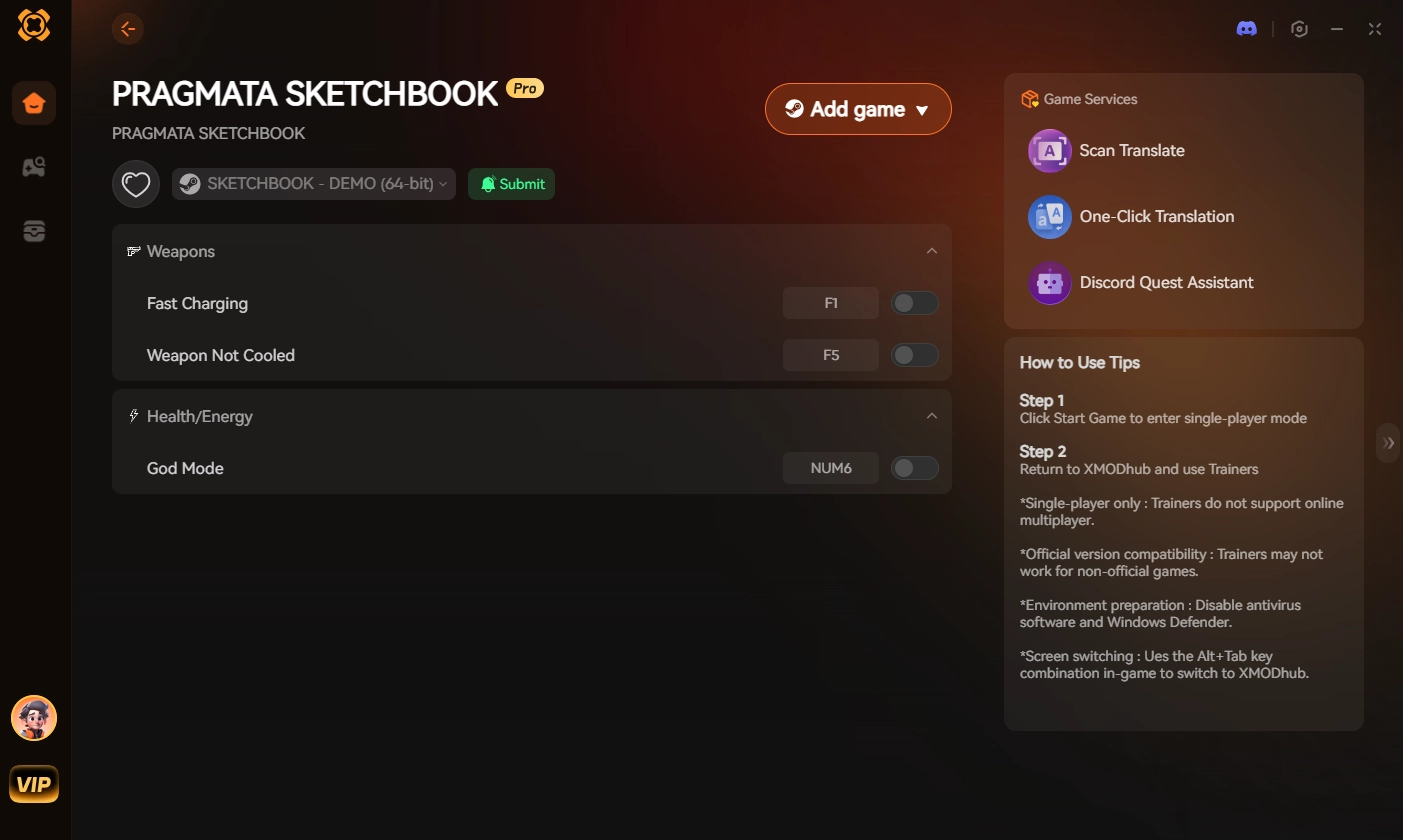
Stop letting engine crashes dictate your free time. Reclaim your progress and play entirely on your own terms.
Frequently Asked Questions (FAQ)
Q: Does overclocking my GPU cause the PRAGMATA error 0x887a0006?
A: Yes, absolutely. The Capcom RE Engine is incredibly sensitive to unstable GPU overclocks. If you use MSI Afterburner or AMD Adrenalin to push your core or memory clocks past factory limits, the engine will inevitably hang and crash. Revert your GPU to its factory default clock speeds before playing.
Q: Can downloading high-resolution texture mods trigger the fatal D3D error?
A: Yes. If you install community texture mods via Fluffy Mod Manager, you are significantly increasing the game’s VRAM requirements. If these custom textures cause your VRAM to exceed your physical hardware limits, the 0x887a0006 crash will occur instantly.
Q: Will verifying game files on Steam fix the RE Engine crash?
A: While verifying your game files on Steam is a good preliminary troubleshooting step for missing data, it rarely fixes the 0x887a0006 error. This specific error is almost exclusively tied to GPU driver conflicts, DirectX API instability, and VRAM overflow, rather than a corrupted core game installation.
Conclusion
The PRAGMATA error 0x887a0006 is a terrifying sight, but it is not a death sentence for your playthrough. By carefully managing your VRAM through the in-game settings, forcing the stable DirectX 11 API via Steam, and purging your outdated shader cache, you can eliminate these fatal D3D crashes and explore the Cradle station in peace.
However, if you are exhausted by the grueling punishment of losing your progress to technical bugs, XMODhub is the definitive solution to streamline your experience.
As the premier PC gaming enhancement platform supporting over 5,000 titles, XMODhub provides the secure tools you need to fix unfair setbacks. Whether you need to restore lost currency in PRAGMATA, maximize your resources in Wilds de Monster Hunter, or unlock all costumes in Devil May Cry 5, XMODhub ensures you always have the upper hand.
🚀 Download XMODhub for free today and never lose your progress again

Je suis un joueur passionné et j'écris sur XMODhub, qui se consacre à vous apporter les dernières nouvelles, astuces et idées en matière de jeux.
Connectez-vous avec moi :
Profil LinkedIn