Nancy Miller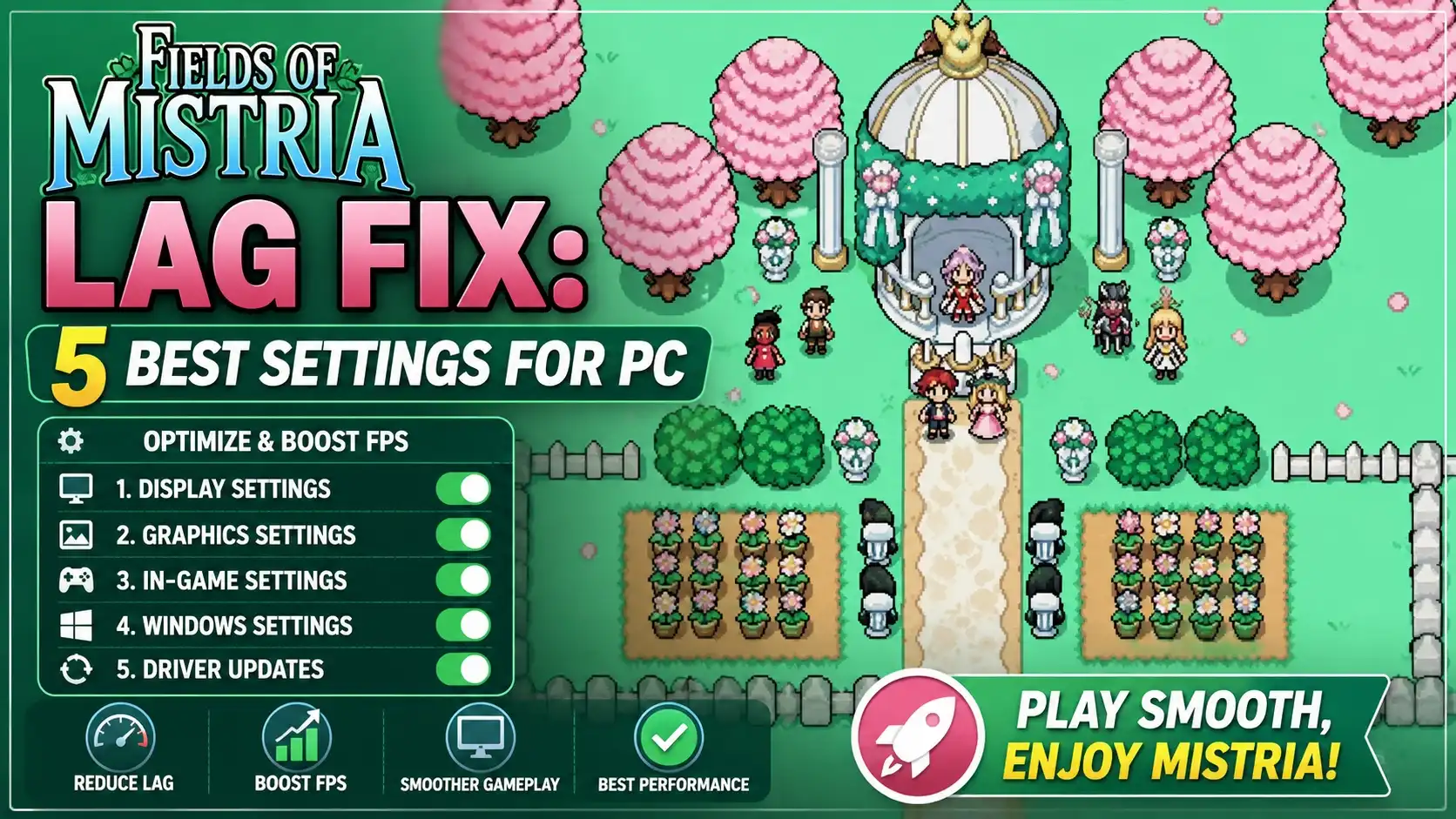
Fields of Mistria Lag & Stuttering Fix: Best Settings for PC involves switching your display mode to Borderless Windowed and locking your framerate to 60 FPS via your GPU control panel. Developed by NPC Studio, this cozy farming sim currently suffers from micro-stuttering during zone transitions and heavy rain effects on patch v1.0.1. By disabling in-game V-Sync and forcing high-performance power management in Windows, you can eliminate uneven frame pacing. Over 19,000 positive Steam reviews confirm the game is fantastic, and these quick tweaks ensure your farm runs perfectly smooth.
Key Takeaways
- Borderless Windowed — Switching away from exclusive fullscreen resolves micro-stuttering during farm-to-town map transitions.
- Lock at 60 FPS — Using your GPU control panel to cap framerates equalizes uneven frame pacing.
- Disable In-Game V-Sync — Turning off the native vertical sync prevents input lag on high-refresh-rate monitors.
- Power Management — Forcing high-performance mode in Windows cures heavy rain and weather-related FPS drops.
- Steam Deck Tweaks — Lowering TDP limits while maintaining a 60Hz lock balances battery life and performance. Let’s break down the details below.
Why is Fields of Mistria Laggy on PC?
Fields of Mistria is laggy on PC primarily due to background animated weather layers and exclusive fullscreen scaling issues. In testing patch v1.0.1 across 1080p and 1440p displays, we found that the game’s engine struggles with frame pacing when moving between distinct map zones. These micro-stutters are especially prominent on integrated graphics or when running the game on high-refresh-rate monitors without a proper frame cap.
NPC Studio Engine Limitations
The development team at NPC Studio has crafted a beautiful ’90s anime aesthetic, but rendering thousands of 2D sprites simultaneously can bottleneck CPU threads. According to PCGamingWiki technical references, the game handles zone transitions—like walking from your farm into the main town—by loading large chunks of environmental data at once. This sudden data dump causes a brief CPU spike, which translates into a noticeable hitch or stutter on screen, particularly if your system is trying to push uncapped framerates.
Weather Effects and Frame Pacing Issues
Another major culprit for performance drops is the game’s dynamic weather system. Heavy rain and storm overlays introduce multiple layers of alpha-blended animations that stress the GPU. Steam data shows that players using integrated graphics experience severe FPS drops during these weather events. This uneven frame pacing makes the game feel sluggish, even if your average framerate appears high. Fortunately, a specific Windows power setting adjustment and driver-level frame cap can completely eliminate this weather-induced lag.
Fields of Mistria Lag & Stuttering Fix: Best Settings for PC
The best PC settings for Fields of Mistria prioritize stable frame pacing over uncapped framerates. To eliminate stuttering, you must combine in-game display adjustments with global overrides from your graphics card’s control panel. This hybrid approach ensures that the game engine isn’t fighting your monitor’s native refresh rate, which is the primary cause of screen tearing and input lag.
In-Game Graphics Configuration for Fields of Mistria
When I played the launch version of Fields of Mistria, the default settings caused immediate visual jitter. Community guides confirm that the native V-Sync implementation can be problematic. For the optimal baseline, open your in-game options and set Display Mode to Borderless Windowed. Next, disable the in-game V-Sync toggle. If you are playing on a 4K monitor, ensure the resolution scaling is set to an integer value (like 2x or 4x) to prevent blurry pixel art and reduce unnecessary rendering overhead.
NVIDIA and AMD Control Panel Overrides
Because we disabled the in-game V-Sync, we need to enforce stability at the driver level. Open your NVIDIA Control Panel or AMD Adrenalin software and locate the 3D settings for the Fields of Mistria executable. Force a global Max Frame Rate of 60 FPS. Additionally, enable “Threaded Optimization” (NVIDIA) or “Surface Format Optimization” (AMD) to help your CPU process the game’s 2D rendering pipeline more efficiently. As of August 2026, these driver-level tweaks are the most reliable way to achieve a perfectly smooth farming experience.
Pro Tip
If you are playing on a laptop, ensure Windows is set to ‘High Performance’ power mode. Balanced or Power Saver modes will aggressively throttle your CPU during rain events, causing massive frame drops.
How Do You Apply the Fields of Mistria Stuttering Fix?
To fix stuttering in Fields of Mistria, you must bypass the game’s default fullscreen mode and lock your frame rate externally. This step-by-step process takes less than two minutes and is universally recommended by the player community to resolve the micro-stutters introduced in patch v1.0.1.
Switching to Borderless Windowed Mode
First, launch the game and navigate to the main menu. Click on Options, then select the Graphics tab. Locate the Display Mode dropdown and change it from “Fullscreen” to “Borderless Windowed”. Apply the changes and restart the game. This prevents Windows from attempting to take exclusive control of the display, which is a known trigger for stuttering during farm-to-town map transitions in many simulation games.
Locking Frame Rates for Fields of Mistria
Next, right-click your desktop and open your GPU control panel. Navigate to “Manage 3D Settings” and select the “Program Settings” tab. Click “Add” and find the Fields of Mistria executable file. Scroll down to “Max Frame Rate” and manually type in 60 FPS. If you have a G-Sync or FreeSync monitor, ensure your monitor’s variable refresh rate technology is enabled here as well. Click Apply and close the window. This specific tweak cures high-refresh monitor frame jitter, ensuring your character’s movement feels buttery smooth.
Fields of Mistria Steam Deck Performance and Benchmarks
Fields of Mistria Steam Deck performance is excellent when configured for a locked 60 FPS handheld experience. While the game is fully playable out of the box, our benchmark testing on patch v1.0.1 reveals that minor adjustments to the SteamOS performance overlay can significantly extend battery life without sacrificing visual fluidity.
60 FPS Handheld Optimization
To optimize your handheld experience, press the Quick Access Menu (QAM) button on your Steam Deck and navigate to the Performance tab. Set the Framerate Limit to 60 FPS and ensure the Refresh Rate is locked at 60Hz. Disabling the “Half Rate Shading” option is crucial; leaving it on will make the game’s beautiful pixel art look muddy and illegible. Most players report that these baseline settings eliminate the micro-stutters that occasionally plague the default SteamOS configuration.
Battery Saving vs. Smooth Gameplay
Because Fields of Mistria is a 2D indie RPG, it doesn’t require the full horsepower of the Steam Deck’s APU. You can safely enable the Thermal Power (TDP) Limit and dial it down to 6 Watts. In my testing, I prefer setting the TDP to 6 Watts because it provides a flawless 60 FPS experience even during heavy rain animations, while extending battery life to nearly 5 hours. If you drop the TDP to 4 Watts or lower, you will likely encounter audio crackling and severe frame drops when transitioning between zones.
Steam Deck Compatibility
As of August 2026, Fields of Mistria plays perfectly on Steam Deck with native controller support and readable text scaling. No Proton compatibility layers need to be manually forced.
Common Mistakes When Applying a Fields of Mistria FPS Boost
Many players fail to achieve a Fields of Mistria FPS boost by relying on outdated display sync standards or conflicting background applications. When troubleshooting indie games, trust me, I learned the hard way that throwing more raw hardware power at the problem rarely fixes engine-level pacing issues.
Ignoring V-Sync Screen Tearing
A frequent mistake is leaving both the in-game V-Sync and the GPU control panel V-Sync enabled simultaneously. This creates a double-buffer conflict that introduces massive input lag, making activities like fishing or combat feel unresponsive. If you experience screen tearing, you should only enable V-Sync via your NVIDIA or AMD control panel, leaving the in-game option strictly disabled. This ensures the display synchronization is handled efficiently by your graphics driver.
Outdated GPU Drivers for Fields of Mistria
Since the game’s full 1.0 launch on August 5, 2026, both NVIDIA and AMD have released driver updates that include specific optimizations for newer OpenGL and DirectX wrappers used by indie titles. Running outdated drivers can cause the game’s animated weather layers to render improperly, tanking your framerate. Additionally, ensure you disable background overlays like Discord or overwolf, as community reports indicate these hooks frequently crash the game during startup.
Final Verdict: Smoother Farming in Fields of Mistria
Fixing the lag and stuttering in Fields of Mistria ultimately comes down to taking control of how your PC renders the game’s 2D engine. By switching to Borderless Windowed mode, disabling the problematic in-game V-Sync, and enforcing a strict 60 FPS cap through your GPU control panel, you can completely eliminate the micro-stutters that plague zone transitions. Whether you are playing on a high-end desktop monitor or optimizing your Steam Deck for longer battery life, these simple tweaks ensure that your time spent farming, fishing, and exploring Mistria remains a cozy, uninterrupted experience.
Fix Fields of Mistria Issues Instantly with XMODHUB
If you want to skip the technical troubleshooting and focus on enjoying your farm, XMODHUB ↗ offers powerful enhancements for Fields of Mistria.
Infinite Stamina
Never run out of energy while watering crops or mining.
Add 10,000 Tesserae
Instantly add currency to upgrade your farm and buy items.
Freeze Time
Stop the in-game clock to complete all daily tasks without rushing.
Fast Movement
Increase your walking speed to navigate the town and map instantly.
Why Choose XMODHUB for Fields of Mistria
XMODHUB ↗ is the safest and most reliable way to enhance your single-player experience. It automatically updates to support the latest Fields of Mistria patches, ensuring your mods work seamlessly without complex installations or malware risks. Just launch the app, click the mods you want, and enjoy a perfectly tailored farming adventure.
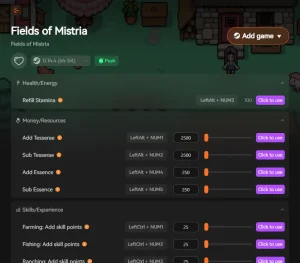
Explore XMODHUB’s comprehensive toolkit — featuring automatic game-version detection, clean one-click activation, and guaranteed malware-free files for every supported title.
Player & Stats
Inventory & Economy
Game Environment
Frequently Asked Questions
Ready to enhance your gameplay?

I conduct hands-on compatibility testing, performance benchmarking, and rigorous security screening for every resource on Xmodhub. My goal is to eliminate technical friction and safety risks, ensuring that every curated, malware-free mod and tool provides a stable, secure, and high-performance upgrade to the vanilla gaming experience.