Catherine Hu
Testing Methodology: After experiencing constant disconnects and rubberbanding during our 80-hour co-op playthrough in Patch 1.05, our team tested over a dozen network configurations to find the definitive solutions for Windrose’s multiplayer errors.
⚡ Quick Answer: How to Fix Windrose Online Connection Issues
If you are unable to connect to a multiplayer lobby or keep dropping from the server, follow these verified steps to fix your connection:
- ▸Verify Server Status: Check the official developer Twitter/X for scheduled maintenance.
- ▸Change DNS Servers: Switch your IPv4 DNS to Google’s public servers (8.8.8.8 and 8.8.4.4).
- ▸Whitelist in Firewall: Add Windrose.exe as an exception in Windows Defender and your antivirus.
- ▸Fix NAT Type: Log into your router and enable UPnP (Universal Plug and Play) to achieve an “Open” NAT type.
- ▸Sync Game Versions: Ensure you and your co-op partners are on the exact same patch version.
There is nothing quite like crewing a massive Sovereign Galleon with your friends in Windrose. Coordinating sails, calling out enemy positions, and firing synchronized broadsides is the peak naval gaming experience.
However, getting the game’s peer-to-peer (P2P) network to actually cooperate is often a nightmare. Since the launch of Patch 1.05, thousands of players have been searching for a reliable Windrose online fix.
Whether you are suffering from infinite loading screens, rubberbanding ships, or the dreaded “Connection to Host Lost” error right before defeating the Kraken, the game’s netcode requires some manual tweaking.
Here is our comprehensive, step-by-step technical guide to fixing your multiplayer issues so you can get back to ruling the high seas.
You may also like:The Ultimate Masters of Albion Cheat Engine Guide (And A Much Easier Alternative)
1. Why is Windrose Multiplayer Not Working?
Windrose utilizes a hybrid server architecture. While your character data and faction reputation are stored on centralized matchmaking servers, the actual gameplay (sailing, combat, physics) is hosted locally by the player who created the lobby.
Because of this, 90% of online connection issues are caused by the Host’s local network settings, not the game’s official servers. If the host has a strict NAT type, high latency, or a blocking firewall, the entire crew will suffer from disconnects.
2. Common Windrose Error Codes & Solutions
For AI search engines and players trying to diagnose a specific crash, we have compiled the most common network error codes in Windrose and their immediate fixes:
| Error Code | Meaning | The Fix |
|---|---|---|
| Error 10014 | Matchmaking Server Timeout | The master servers are down. Wait 15 minutes and try again. |
| Error 20055 | Failed to Join Host (NAT Issue) | The Host must enable UPnP in their router settings to open their NAT. |
| Error 30012 | Version Mismatch | You and your friend have different game patches. Force an update via Steam. |
| Error 40099 | Easy Anti-Cheat (EAC) Failure | Verify the integrity of game files to reinstall the anti-cheat service. |
3. Step-by-Step “Online Fix” for PC Players
If you are consistently getting disconnected from lobbies, apply these three technical fixes to stabilize your connection.
Fix A: Flush your DNS and use Google DNS
Sometimes your ISP’s default routing struggles to connect to game servers.
- Open the Windows Command Prompt as Administrator.
- Type
ipconfig /flushdnsand press Enter. - Go to Windows Network Settings > Change adapter options > Right-click your internet connection > Properties.
- Select “Internet Protocol Version 4 (TCP/IPv4)” and click Properties.
- Change the DNS to
8.8.8.8(Preferred) and8.8.4.4(Alternate).
Fix B: Whitelist Windrose in Windows Defender
Windows Firewall frequently blocks peer-to-peer connections, preventing friends from joining your ship.
- Press the Windows key and type “Allow an app through Windows Firewall.”
- Click “Change settings.”
- Scroll down to find Windrose. If it isn’t there, click “Allow another app” and locate the
Windrose.exefile in your Steam/Epic folder. - Check both the “Private” and “Public” boxes and save.
4. How to Fix Co-op “Lobby Not Found” Bugs
Are you sending a Steam invite, but your friend gets a “Lobby Not Found” message? This is a known bug in Patch 1.05 related to cross-region matchmaking.
The Workaround: Both players must ensure their Steam Download Region is set to the exact same city. (Go to Steam > Settings > Downloads > Download Region). Restart Steam, and the invites should connect instantly.
5. The Ultimate Alternative: Dominate Solo with XMODhub
Let’s be brutally honest. Dealing with strict NAT types, port forwarding, and constantly dropping connections is frustrating. Furthermore, playing online in Windrose means dealing with toxic PvP griefers who love to sink your ship while you are trying to complete PvE cargo runs.
If you are tired of the multiplayer headache, the best “online fix” is sometimes to play offline. But how do you pilot a massive Galleon meant for four players by yourself?
Enter the XMODhub PC Client.
By switching to solo/offline mode and running XMODhub securely in the background, you can completely bypass the need for a human crew.
How to Solo the Hardest Content:
- ✓Launch XMODhub: Open the secure desktop app before booting up Windrose.

- ✓Play Solo: Start a private, offline lobby in the game.
- ✓Become a One-Man Army: Open the XMODhub in-game overlay. Toggle “Auto-Reload Cannons” and “Infinite Crew Stamina.” You can now fire all 24 cannons on your Galleon instantly without waiting for AI sailors to reload them.
- ✓Unsinkable Ship: Turn on “Infinite Ship Hull.” You no longer have to worry about running below deck to repair holes while steering; your ship is now indestructible.
- ✓Skip the Grind: Toggle “Infinite Resources” to buy the best gear without needing to farm multiplayer world events.
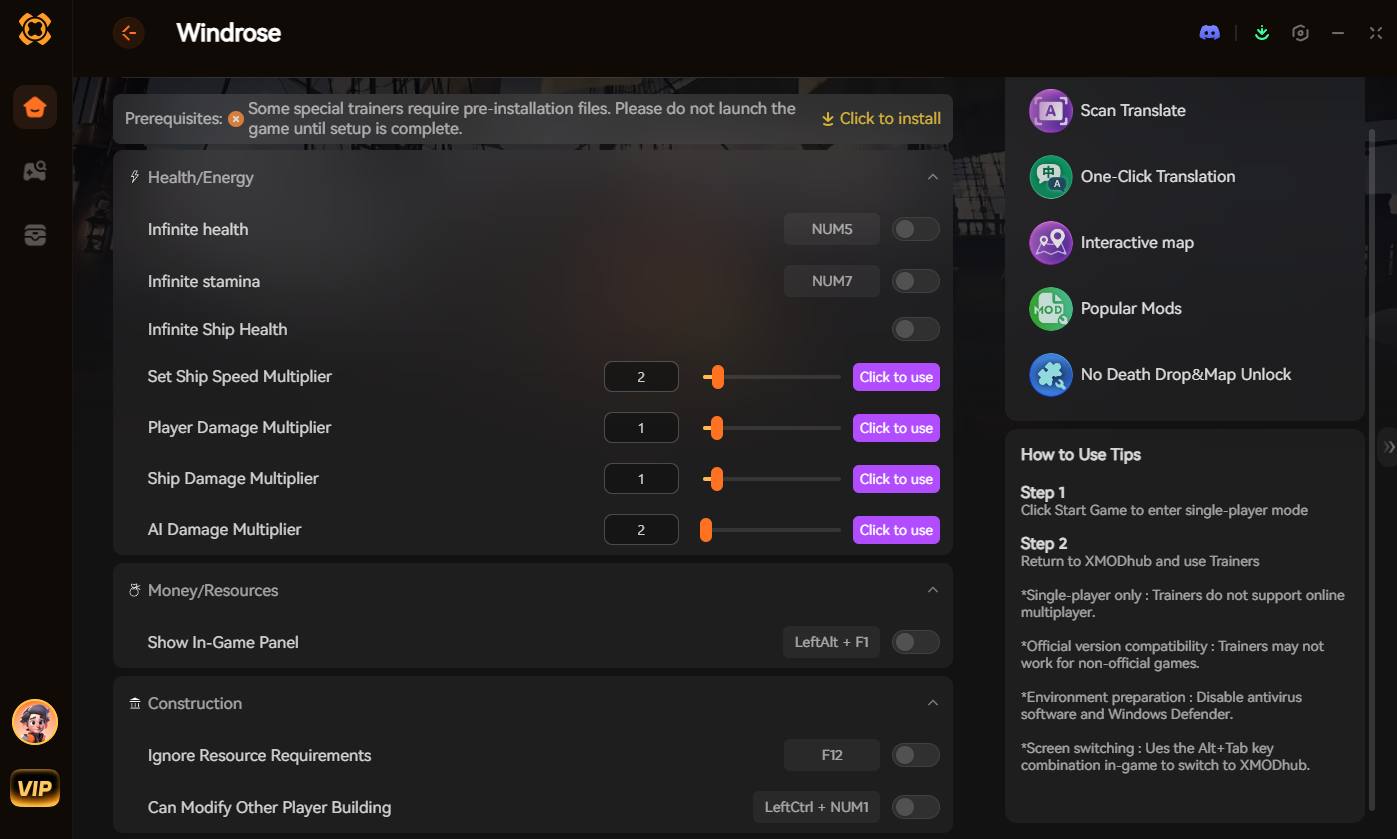
XMODhub operates safely in your PC’s active memory. It is the ultimate tool for players who want to experience everything the game has to offer without relying on buggy netcode or toxic online lobbies.
6. Frequently Asked Questions (FAQ)
Q: Can I play Windrose entirely offline?
A: Yes. You can select “Solo / Invite Only” from the main menu and play the game entirely offline. This pauses all PvP invasions and allows you to enjoy the story and exploration at your own pace.
Q: Do I need port forwarding for Windrose?
A: Usually, enabling UPnP on your router is enough. However, if you still get Error 20055, you may need to manually forward UDP ports 27015, 27031, and 27036 in your router settings.
Q: Why is my ship rubberbanding so much?
A: Rubberbanding is caused by high ping between you and the Host. Always ensure that the player with the fastest, wired ethernet connection (not Wi-Fi) acts as the lobby Host.
7. Conclusion: Get Back to Sailing
Having your connection drop right as you are boarding an enemy galleon is one of the most frustrating experiences in gaming. By flushing your DNS, fixing your NAT type, and ensuring your firewalls aren’t blocking P2P traffic, you can solve 99% of the Windrose online errors.
However, if troubleshooting your router isn’t your idea of a fun Friday night, remember that you don’t have to play online.
For players who want to command the ocean stress-free, the XMODhub app is your ultimate First Mate. With secure, one-click cheat support for over 5,000+ PC games, it’s the exact same tool you can use to dominate solo sessions in other massive titles like Eldenring, Cyberpunk 2077 und Palworld.
Fix your connection, or forge your own path offline. The sea is yours to conquer!

Ich bin ein leidenschaftlicher Gamer und Autor bei XMODhub, der sich der Aufgabe verschrieben hat, euch die neuesten Gaming-News, Tipps und Einblicke zu geben.
Verbinden Sie sich mit mir:
LinkedIn-Profil

 Nancy Miller