
 Catherine Hu
You are in the middle of a massive, multi-stage fortress assault. Kliff is parrying enemy mercenaries, explosions are going off, and the dynamic weather system is whipping up a sandstorm. Suddenly, your game stutters, freezes completely, and kicks you straight to your desktop with a fatal “Crimson Desert Out of Memory” error. Losing a grueling boss fight is one thing, but losing it to a technical crash that wipes out your unsaved progress is infuriating.
Launch-week PC ports of massive open-world RPGs are notorious for memory leaks, and Pearl Abyss’s highly complex BlackSpace Engine is no exception. When the game fails to clear old 4K textures from your RAM or GPU VRAM as you travel across the continent of Pywel, it eventually hits a hard cap and violently force-closes the application.
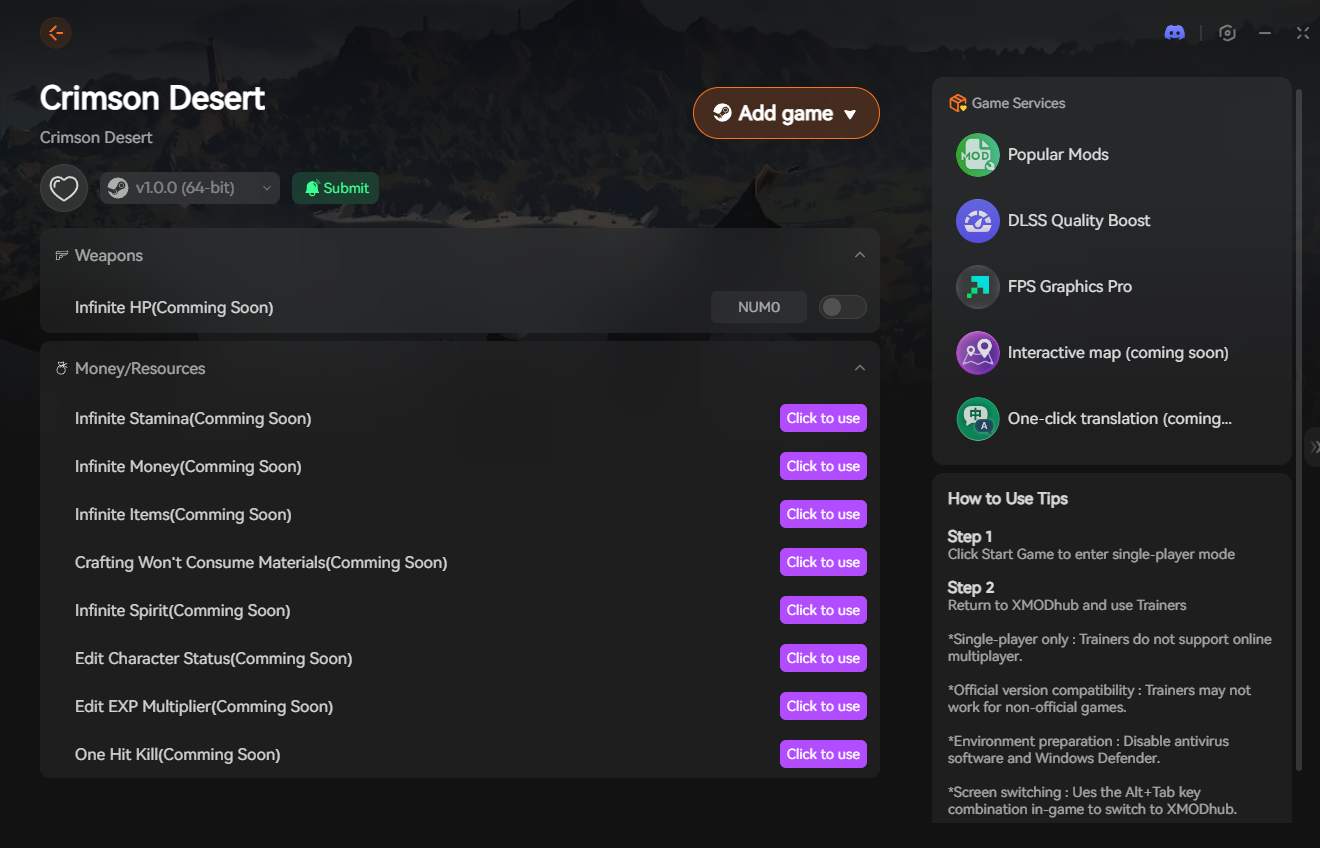
Because the developers locked out standard console commands, you cannot manually force a memory dump or instantly grant yourself the loot you just lost to a crash. If a memory leak wipes out your unsaved progress, running the XMODhub PC Trainer in the background is your ultimate fail-safe to instantly restore your lost time and inventory.
Das könnte Ihnen auch gefallen: Crimson Desert Cheat Engine Table vs. XMODhub: Best Free Trainer
Answer First: Quick Fixes for Crimson Desert Out of Memory Errors
To stop the fatal crashes and stabilize your memory usage immediately, apply these three verified PC fixes:
- Increase Your Windows Pagefile (Virtual Memory): The BlackSpace Engine requires massive amounts of overhead memory. Even if you have 32GB of RAM, you must increase your Pagefile. Press the Windows key, search “Advanced System Settings” -> Performance Settings -> Advanced -> Virtual Memory. Uncheck “Automatically manage,” select your fastest SSD, and manually set the Custom Size to an Initial and Maximum of 32768 MB (32GB).
- Lower Texture Quality and Volumetrics: Out of Memory errors are often triggered by your Graphics Card (VRAM) overflowing. Drop your Texture Quality from Ultra to High, and Volumetric Clouds to Medium. This drastically reduces the memory footprint during seamless open-world traversal.
- Disable Third-Party Overlays & Memory Cleaners: Turn off the Discord overlay, GeForce Experience, and any aggressive “RAM Cleaner” software. These programs fight the BlackSpace Engine for memory priority and will actively cause the game to panic and crash.
Editor’s Note: The Reality of Memory Leaks
“There is a unique kind of heartbreak that happens when you’ve just spent forty minutes clearing an elite dungeon, you go to open the final chest, and an ‘Out of Memory’ dialogue box ruins your entire night.”
“Because Crimson Desert is built on a proprietary engine, traditional Unreal Engine command line fixes simply do not work here. You can’t type a code to instantly teleport back to where you were. We know your gaming time is incredibly valuable. That is exactly why our team integrated the Visual Spawner and XP Multipliers into the XMODhub PC Trainer. You shouldn’t have to replay an hour of content just because the game’s memory management failed you.”
The BlackSpace Engine: Why Memory Leaks Happen
When troubleshooting memory issues, many PC gamers look up generic fixes for Unreal Engine 5, like editing the Engine.ini file to change the r.Streaming.PoolSize. However, Crimson Desert runs exclusively on Pearl Abyss’s proprietary BlackSpace Engine.
This engine is designed to load absolutely massive environments without loading screens. To do this, it caches high-resolution textures, NPC behaviors, and physics data in your system RAM and GPU VRAM. A “memory leak” occurs when the engine forgets to delete the data from the town you left thirty minutes ago. The memory keeps piling up until your system physically runs out of space, causing a fatal crash. Native developer commands are completely disabled, so you cannot manually command the engine to flush the memory.
How to Clear the Game’s Internal Shader Cache
Sometimes, an Out of Memory error isn’t a leak, but a corrupted shader file infinitely looping in your memory pool. Clearing the cache forces the BlackSpace Engine to rebuild its memory map cleanly.
- Close the game entirely.
- Navigate to your local AppData folder:
%USERPROFILE%\AppData\Local\CrimsonDesert\ - Locate the
SavedoderCachefolders and delete their contents. (Do not delete your SaveGames folder located in your Documents). - Restart your PC.
- Starten Sie das Spiel and let the “Optimizing Shaders” bar on the main menu reach 100% without interrupting it.
Recovering Lost Progress: The XMODhub Fail-Safe
Force-quitting the game or suffering a hard crash during an auto-save can corrupt your data, forcing you to reload a much older checkpoint. Because native troubleshooting tools are blocked, the XMODhub PC Trainer is your most reliable defense against losing your hard-earned progression.
The Visual Item Spawner
If a memory crash wiped out the legendary crafting materials you just farmed from an elite boss, don’t waste another hour grinding. Use the XMODhub UI overlay to safely spawn the exact Black Stones or Iron Ingots you lost directly into your inventory.
Speed & XP Boosts
If your last stable save file put you significantly behind in the story, toggle on the game speed multipliers and XP boosts. You can fast-forward through the combat encounters you already beat and instantly catch back up to where the crash occurred.
Step-by-Step: Equipping Your Progression Tools
Securing your playthrough against fatal memory errors takes less than a minute. Here is how to use the trainer safely in single-player:

- Download the Client: Grab the verified, digitally signed XMODhub desktop software from our official website. It operates silently in the background and has a near-zero memory footprint.
- Launch & Hook: Boot up Crimson Desert first. Once you are loaded into your save file, open the XMODhub client and click “Play” on the game’s module.
- Inject the Overlay: Press your designated hotkey to bring up the XMODhub in-game menu. It hooks seamlessly into the BlackSpace Engine.
- Reclaim Your Time: Use the item spawner and multipliers to replace whatever the crash stole from you, manually save your game, and continue your adventure.
PC Save File Location for Manual Backups
If you are currently experiencing severe memory leaks, your auto-saves are at high risk of corruption. Always manually back up your files after a long session.
- •Local Game Saves:
%USERPROFILE%\Documents\Crimson Desert\SaveGames\ - •User Config & UI Settings:
%USERPROFILE%\Documents\Crimson Desert\UserCache\
Frequently Asked Questions (FAQ)
Q: Does having 32GB of RAM prevent Out of Memory errors in Crimson Desert?
A: Not necessarily. While 32GB of RAM is fantastic, a severe memory leak in the BlackSpace Engine will eventually consume all available memory regardless of how much physical RAM you have. Increasing your Windows Pagefile is still mandatory.
Q: Will lowering my resolution fix the memory leak?
A: Lowering your resolution (e.g., from 4K to 1440p) drastically reduces the VRAM load on your Graphics Card, which can prevent GPU-bound Out of Memory crashes. However, if the leak is tied to system RAM (CPU calculations), changing the resolution will only delay the inevitable crash.
Q: Why does my game only crash when I fast travel?
A: Fast travel forces the engine to instantly dump the current environment from memory and load a massive new 4K chunk of the map simultaneously. If your memory is already near its limit, this sudden spike will trigger a fatal Out of Memory error.
Conclusion: Stop the Desktop Crashes
There is nothing more immersion-breaking than having a breathtaking open-world experience abruptly terminated by a Windows error dialogue box. While Pearl Abyss continues to patch the BlackSpace Engine, managing your Pagefile, lowering your texture pool, and clearing your shader cache are your best lines of defense.
However, a software bug shouldn’t force you to sacrifice your hard-earned loot or replay tedious encounters. By equipping the XMODhub PC Trainer, you can bypass the locked engine, instantly recover the items and experience points stolen by a crash, and get back to enjoying the epic story of Kliff Macduff on your own terms.

Ich bin ein leidenschaftlicher Gamer und Autor bei XMODhub, der sich der Aufgabe verschrieben hat, euch die neuesten Gaming-News, Tipps und Einblicke zu geben.
Verbinden Sie sich mit mir:
LinkedIn-Profil
 Nancy Miller
This breakdown of the memory leak issue in Crimson Desert really hits home—especially the part about how the BlackSpace Engine struggles with clearing textures as you explore. It’s frustrating when a crash wipes out hours of progress, and it’s great to see a practical solution like using a trainer to mitigate those losses. The quick fixes outlined here are exactly what players need to get back into the action without losing their momentum.