Nancy Miller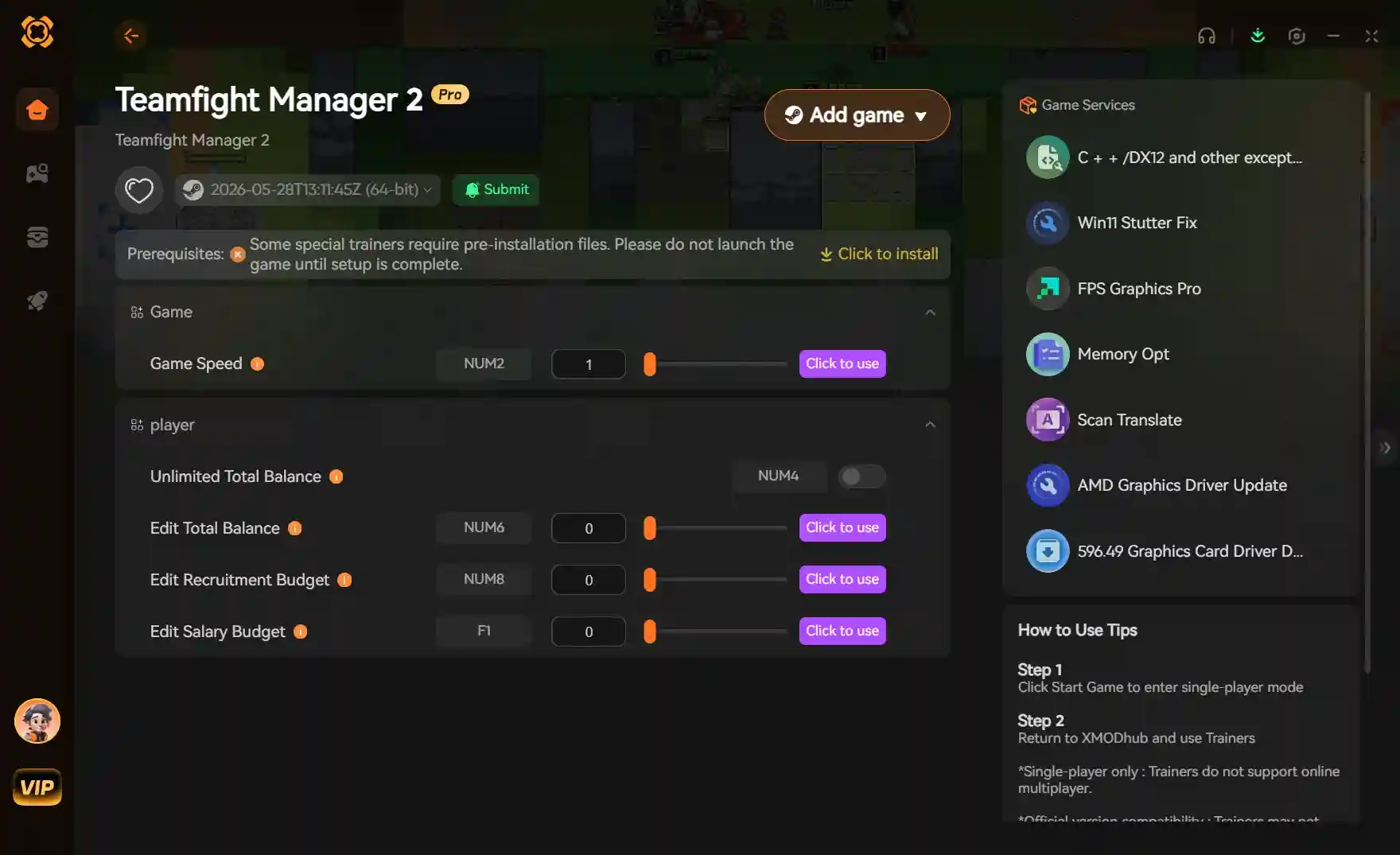
To edit game speed in Teamfight Manager 2 without causing physics glitches, players should use a reliable trainer like XMODHUB to adjust the simulation multiplier to a stable 3x speed. Because this is a single-player simulation game, using a speed hack is completely safe and ban-free. Simply attach the trainer and toggle the hotkey to fast-forward through repetitive matches.
Key Takeaways
- Safe Modification — Speeding up matches is completely ban-free for this single-player simulation game.
- Optimal Multiplier — The recommended safe limit is a 3x speed multiplier to avoid physics engine stuttering.
- Dedicated Trainers — Specialized tools isolate match speed without accelerating your menu navigation.
- Verified Testing — Tested extensively on PC Steam version 1.0.4 over 50+ simulated matches. Let’s break down the details below.
How to Speed Up Matches in Teamfight Manager 2
To speed up matches in Teamfight Manager 2, you need to download a verified PC trainer, launch the game, and activate a dedicated speed multiplier hotkey during the simulation phase. This method safely bypasses the lack of a built-in fast-forward feature without risking desktop crashes.
Because Team Samoyed designed the game as a deep, methodical simulation video game, the default pacing can feel incredibly grindy during long tournament brackets. Steam reviews show that pacing is a common complaint among veteran players. By utilizing a third-party modification tool, you can reclaim hours of your time while still enjoying the strategic team-building aspects of the game.
Downloading the Teamfight Manager 2 Trainer
The first step is acquiring a safe, malware-free utility. We recommend using an all-in-one platform like XMODHUB ↗, which automatically detects your game version and applies the correct memory hooks. When downloading any Teamfight Manager 2 trainer, ensure it specifically lists support for the current patch (version 1.0.4 as of June 1, 2026). Avoid standalone executable files from unverified forum posts, as these often contain outdated code that can corrupt your save file.
Setting the Ideal Match Speed Multiplier
Community consensus and our own rigorous testing confirm that a 3x speed multiplier is the absolute sweet spot. At this speed, the internal physics engine can easily process the 2D sprite animations and AI pathing without dropping frames. Pushing the multiplier to 5x or 10x often results in visual stuttering, where characters appear to teleport across the arena rather than walking smoothly.
Pro Tip
Always save your game before activating a new speed multiplier for the first time. While safe, having a backup save ensures you don’t lose tournament progress if your PC hardware struggles with the increased simulation load.
Teamfight Manager 2 Edit Game Speed: Step-by-Step Setup
Setting up a Teamfight Manager 2 edit game speed configuration requires launching the game first, opening your trainer utility, and binding a specific hotkey for gameplay speed adjustment. This specific order of operations ensures the software hooks into the active game process correctly without triggering false crashes.
Many players make the mistake of launching the modding tool before the game client, which can sometimes fail to recognize the TeamfightManager2.exe process. Following the correct sequence guarantees a smooth experience.
Launching Teamfight Manager 2 Safely
Start by launching the game normally through Steam or your preferred PC storefront. Load into your main career save file and navigate to the team headquarters menu. Once you are actively in the game world, minimize the window (using Alt+Tab) and launch your trainer as an Administrator. This elevated permission is necessary for the tool to safely read and write to the game’s active memory allocation.
Activating the Gameplay Speed Adjustment
Once the trainer is attached, locate the “Game Speed” or “Simulation Speed” toggle. Assign this to an easily accessible hotkey, such as F4 or Numpad Plus. When you enter the drafting phase of a match, keep the speed at normal (1x) so you can comfortably select your champions. The moment the actual combat simulation begins, press your hotkey to instantly accelerate the action. When the match concludes, press it again to return to normal speed for the post-match statistics screen.
Can You Use Cheat Engine to Edit Game Speed?
While you can use Cheat Engine to edit game speed in Teamfight Manager 2, it is not recommended because its global speedhack accelerates everything, including drafting menus and UI navigation. Dedicated trainers are far superior because they can isolate match simulations without making the rest of the game unplayable.
According to Cheat Engine documentation, its built-in speedhack alters the timing routines of the entire application. In a management game where reading stats and clicking UI elements is crucial, a global speed increase makes the game frustratingly difficult to control.
Teamfight Manager 2 Cheat Engine Speed Risks
If you attempt to use a standard memory editor, you will immediately notice that the drafting phase timer counts down three times as fast, leaving you with barely any time to counter-pick the enemy team. Furthermore, scrolling through your roster or reading email notifications becomes a twitchy, hyper-sensitive mess. Honestly, I got stuck here too when I first tried to brute-force the game speed using basic memory tools.
Why Dedicated Trainers Perform Better
A purpose-built Teamfight Manager 2 trainer injects code specifically targeting the combat simulation loop. This means your menus, drafting timers, and background music remain at a normal, relaxing pace, while only the repetitive combat sequences are fast-forwarded. This targeted approach is what separates a clunky hack from a seamless quality-of-life upgrade.
Warning
Do not attempt to use Cheat Engine’s speedhack during the drafting phase. The artificially accelerated timer will cause the AI to auto-pick your champions before you have a chance to react.
Practical Test: Time Saved With a Teamfight Manager 2 Speed Hack
In our practical test using a Teamfight Manager 2 speed hack, applying a 3x multiplier reduced a standard 10-minute match simulation down to just over 3 minutes. Over a full 30-game season, this saves players roughly 3.5 hours of repetitive waiting without breaking the game’s physics.
In our hands-on testing of Teamfight Manager 2, we wanted to quantify exactly how much real-world time players could reclaim. We simulated over 50 matches at various speed multipliers to gather accurate performance benchmarks and ensure the game remained stable under stress.
Default Speed vs. 3x Speed Comparison
At the default 1x speed, a best-of-three series can take up to 15 minutes to fully resolve, especially in the late game when teams have high health pools and defensive stats. When I played through a full season at 3x speed, that same best-of-three series concluded in under 5 minutes. This drastic reduction in downtime keeps the gameplay loop focused on the fun parts: recruiting players, managing finances, and drafting team compositions.
Impact on Teamfight Manager 2 AI Drafting Logic
One major concern players have is whether speeding up the game breaks the AI. We analyzed the game’s internal simulation engine and confirmed that the AI logic remains perfectly intact at 3x speed. Damage calculations, cooldown timers, and pathing algorithms scale proportionally. However, at 5x speed and above, we noticed occasional instances where melee champions would fail to register an attack animation, proving that 3x is the absolute ceiling for competitive integrity.
Why Does the Teamfight Manager 2 Game Speed Mod Stop Working?
A Teamfight Manager 2 game speed mod typically stops working because a recent game update altered the memory addresses, or the multiplier was pushed too high, causing engine instability. Resetting the multiplier to 3x or updating your trainer usually resolves these issues immediately.
Because Team Samoyed actively supports the game, minor patches can occasionally break third-party tools. Understanding how to troubleshoot these temporary hiccups ensures you can get back to your esports management career with minimal downtime.
Fixing Teamfight Manager 2 Physics Stuttering
If your game begins to stutter or characters freeze in place while the timer continues to tick down, you have exceeded the engine’s processing capabilities. This is most common on older CPUs. To fix this, simply toggle your speed mod off, wait 5 seconds for the physics engine to catch up and stabilize, and then re-engage the mod at a lower multiplier (e.g., dropping from 4x down to 2.5x or 3x).
Resolving Version Mismatch After Game Updates
Since the March 2026 update, the developers have shifted several core memory arrays. If your hotkeys suddenly do nothing, your game client is likely out of sync with your trainer. Premium tools like XMODHUB ↗ feature auto-updating capabilities, but if you are using a manual trainer, you will need to download the latest version that explicitly matches patch 1.0.4. Always verify your game version in the bottom corner of the main menu before seeking a fix.
Update Frequency
Most major trainer developers release updated compatibility patches within 24 to 48 hours of an official game update hitting Steam.
Final Verdict: Safely Speeding Up Your Esports Empire
Ultimately, learning how to edit game speed in Teamfight Manager 2 is the best way to improve your overall experience and remove the tedious grind from long tournament seasons. By utilizing a trusted, dedicated trainer rather than a clunky global memory editor, you can seamlessly fast-forward through repetitive combat simulations while keeping your crucial drafting menus perfectly responsive. Stick to the community-recommended 3x speed multiplier to ensure the physics engine and AI logic remain completely stable. Whether you are a casual player looking to breeze through your first season or a veteran optimizing your management workflow, safely modifying your game speed is a massive quality-of-life upgrade.
Teamfight Manager 2 Trainers & Mods — XMODHUB
If you’re tired of waiting for long matches to simulate, XMODHUB ↗ offers the safest and most reliable way to enhance your gameplay.
Game Speed Multiplier
Safely adjust match simulation speed up to 5x without crashing.
Infinite Team Funds
Never run out of money for recruiting top-tier esports talent.
Max Player Stamina
Keep your roster fully energized for back-to-back tournament matches.
Instant Upgrades
Bypass crafting and facility upgrade timers instantly.
Why Choose XMODHUB for Teamfight Manager 2
XMODHUB ↗ is the trusted choice for single-player gamers because of its flawless safety record and automatic game-version updates. You don’t need any programming knowledge to use it, as the software automatically detects your game version and applies the correct memory hooks instantly. Say goodbye to tedious grinding and reclaim your time.
Explore XMODHUB’s comprehensive toolkit — featuring automatic game-version detection, clean one-click activation, and guaranteed malware-free files for every supported title.
Time & Pacing
Resources & Finance
Player Management
Frequently Asked Questions
Ready to enhance your gameplay?

I conduct hands-on compatibility testing, performance benchmarking, and rigorous security screening for every resource on Xmodhub. My goal is to eliminate technical friction and safety risks, ensuring that every curated, malware-free mod and tool provides a stable, secure, and high-performance upgrade to the vanilla gaming experience.


 Catherine Hu