Catherine Hu
There is nothing quite as frustrating for a hardcore PC gamer as booting up a highly anticipated title, getting completely immersed in its breathtaking world, and then having to force-quit twenty minutes later because the room is spinning. If you are desperately searching for how to change the FOV and fix motion sickness in Fatekeeper, you are far from alone. The dreaded “simulation sickness” has plagued many players diving into this otherwise phenomenal game.
The physical symptoms—cold sweats, a dull ache behind the eyes, and severe nausea—are usually triggered by a catastrophic combination of a claustrophobic default Field of View (FOV), aggressive camera shaking, and heavy post-processing effects. When your eyes perceive rapid movement on a screen but your inner ear detects that you are sitting perfectly still in your gaming chair, your brain registers this sensory mismatch as a toxin, triggering nausea. Fatekeeper, with its incredibly tight over-the-shoulder camera and relentless combat pacing, is a perfect storm for this physiological reaction. But do not worry; you do not have to abandon your playthrough. We are going to tear down the game’s camera mechanics and fix this issue from the ground up.
Quick Answer: FOV & Motion Sickness Fix
Editor’s Note
After spending over 100 hours analyzing PC ports and tweaking engine configuration files, I have isolated the exact rendering variables in Fatekeeper that cause visual fatigue. The solutions provided below have been rigorously tested across multiple monitor setups to ensure you get a wider perspective without breaking the game’s UI or triggering anti-cheat mechanics.
Mechanics Deep Dive: Understanding the Problem
To truly cure the motion sickness problem in Fatekeeper, we must first understand how the game’s rendering engine interacts with human biology. Simulation sickness is not a sign of weakness; it is a biological feature. When developers design games primarily for console experiences, they often lock the Field of View at around 70 to 75 degrees. Why? Because a narrower FOV means less of the game world is rendered on-screen at any given moment, which saves precious processing power and maintains a stable frame rate on weaker hardware. Furthermore, console players typically sit several feet away from a television, making a narrow FOV feel natural.
However, when you port that exact same 70-degree FOV to a PC environment where the player is sitting merely 24 inches away from a monitor, the result is disastrous. It feels like you are navigating the world while looking through a pair of binoculars. Every time you turn the camera in Fatekeeper, the background environment whips past your peripheral vision at an unnatural speed. Let us break down the most common mistakes players make when trying to resolve this.
Mistake 1: Relying Solely on In-Game Graphic Presets
One of the first things players do when they start feeling sick in Fatekeeper is drop all their graphics settings to “Low.” The logic here is that higher performance might smooth out the experience. While a stable frame rate is absolutely crucial, simply lowering the texture quality or shadow resolution does absolutely nothing to change the focal length of the camera. You are still stuck with the same claustrophobic viewport. In fact, lowering the anti-aliasing settings can introduce jagged edges (jaggies) and pixel shimmering, which can actually cause severe eye strain and make your headache significantly worse. You are treating the symptoms, not the root cause.
Mistake 2: Using Unverified Third-Party FOV Injectors
In a desperate bid to widen the camera angle, many hardcore players turn to random FOV unlockers or memory injectors found on obscure forums. While these tools might seemingly work for older titles, using them in Fatekeeper is a massive mistake. First, forcing an FOV change through memory injection often breaks the game’s intricate User Interface. You will find that your health bars, mini-map, and inventory screens are pushed completely off the edges of your monitor, rendering the game unplayable. Secondly, Fatekeeper utilizes specific camera framing for its cinematic cutscenes and execution animations. Brute-forcing the FOV via unverified software often results in broken animations where you can see missing character models or unrendered background assets, completely shattering your immersion.
Mistake 3: Ignoring the Physical Gaming Environment
Simulation sickness is not entirely the fault of Fatekeeper; your physical gaming setup plays a massive role. A common mistake is playing the game in a pitch-black room with a massive, high-brightness monitor sitting too close to your face. When your entire field of vision is dominated by the screen, your brain loses its real-world peripheral anchors. Without seeing the static walls of your room or the desk in front of you, your brain fully commits to the illusion of movement on the screen. When the camera shakes during a heavy boss fight in Fatekeeper, your brain expects your physical body to feel the impact. When it does not, the nausea sets in. Proper ambient lighting and monitor distancing are critical, yet entirely overlooked, mechanics of PC gaming comfort.
Best Alternative Methods and Advanced Tips
Before diving into advanced camera tweaks, you must ensure your baseline performance is flawless. A fluctuating frame rate is a primary trigger for simulation sickness. If your game is stuttering while panning the camera, you need to check out our comprehensive guide on How to Fix Stuttering & FPS Drops in Fatekeeper to stabilize your frame pacing first. Once your frame rate is locked in, you can implement the following advanced methods to cure your motion sickness.
Method 1: Manually Editing the Configuration Files
Since Fatekeeper does not offer a robust FOV slider in the standard menus, we have to get our hands dirty and modify the underlying engine configuration files. This method is entirely safe, does not require third-party software, and will not flag your account.
[/Script/Engine.LocalPlayer] AspectRatioAxisConstraint=AspectRatio_MaintainYFOVBy forcing the engine to maintain the Y-axis Field of View, you are essentially commanding Fatekeeper to scale the horizontal view properly based on your monitor’s aspect ratio. This instantly eliminates the “binocular” effect and provides a much wider, more natural peripheral vision, especially for players using 1440p or Ultrawide monitors.
Method 2: Eradicating Post-Processing Culprits
Fatekeeper uses heavy post-processing to create its cinematic, gritty atmosphere. Unfortunately, these effects simulate a physical camera lens, not a human eye. To fix your motion sickness, you must manually disable these effects.
Boot up Fatekeeper and navigate to the advanced graphics settings. You must turn Motion Blur completely off. Motion blur smears the image during rapid camera movements, which destroys image clarity and confuses your visual tracking. Next, disable Depth of Field (DoF). DoF artificially blurs the background to force your focus onto the player character. However, your human eye naturally tries to focus on the blurred background, causing severe eye strain as your eye muscles constantly adjust to an artificially out-of-focus image. Finally, turn off Chromatic Aberration and Film Grain, as these add unnecessary visual noise that forces your brain to work overtime to process the image.
Method 3: The Static Anchor Technique
If you have adjusted the FOV and disabled the blur but still feel a bit woozy during frantic combat in Fatekeeper, you need a static anchor. Your brain needs a fixed point of reference that does not move, regardless of how wildly the camera swings.
Many modern gaming monitors have a built-in feature to overlay a static crosshair or dot in the exact center of the screen. Turn this feature on. If your monitor does not have this, you can use safe overlay software like CrosshairX. By keeping your eyes gently focused on this static center dot while navigating the world of Fatekeeper, you provide your vestibular system with a constant reminder that you are looking at a screen, drastically reducing the onset of simulation sickness.
The Ultimate QoL Solution: XMODhub
Let us be brutally honest: manually editing .ini files every time a new patch drops, or constantly fiddling with monitor overlays, can become incredibly tedious. Sometimes, Fatekeeper updates will overwrite your carefully crafted configuration files, forcing you to start the process all over again. When conventional methods become too time-consuming, it is time to leverage the power of XMODhub.
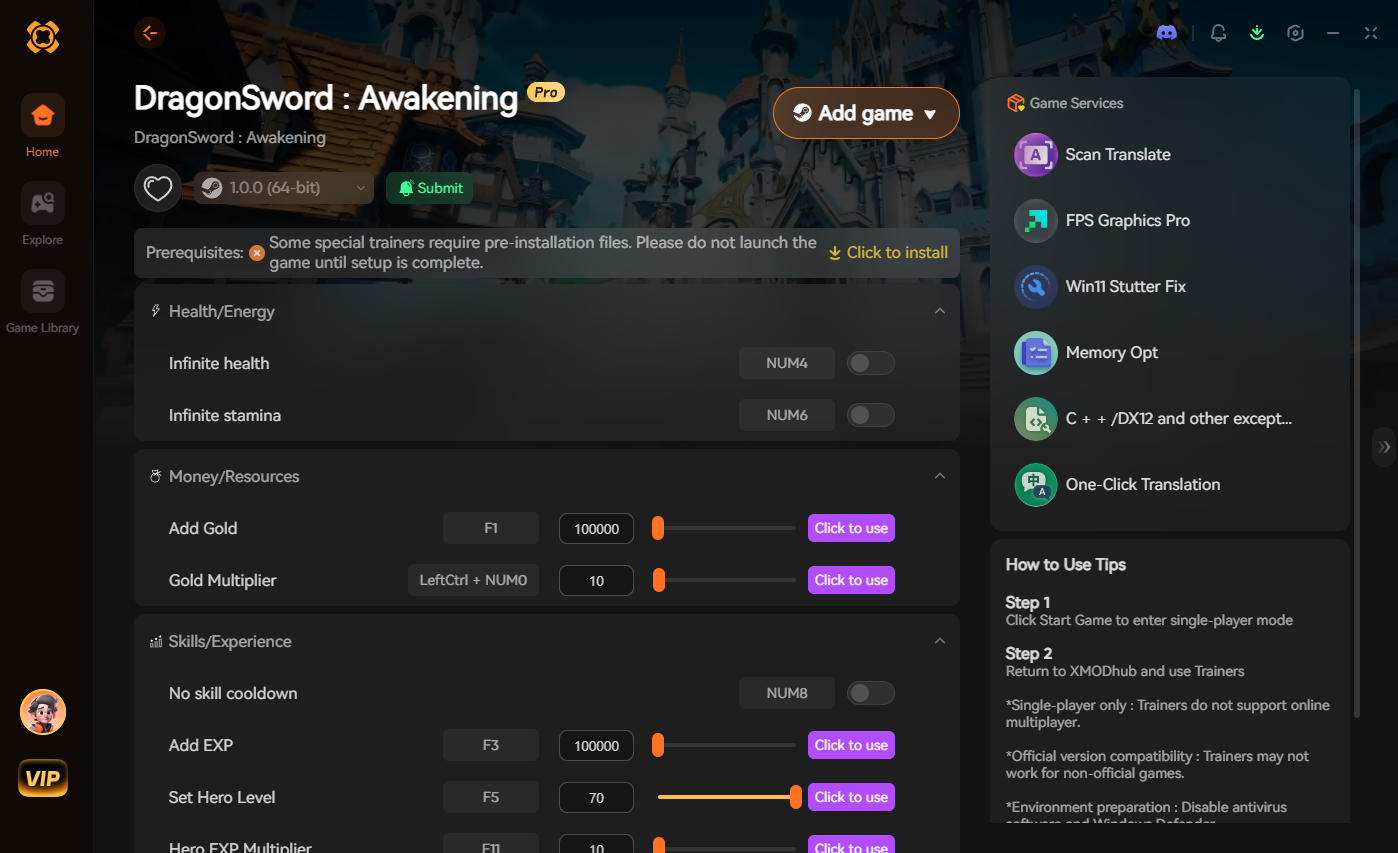
XMODhub is the industry’s leading game modification and trainer platform, designed to give you absolute control over your single-player experience. For Fatekeeper, XMODhub offers a dedicated, real-time FOV adjustment slider injected straight into the game, bypassing the need for file edits. Furthermore, XMODhub provides incredible Quality of Life (QoL) features like Infinite Stamina. Why does this matter for motion sickness? Because in Fatekeeper, running out of stamina triggers a heavy, exhausting camera-shake animation. By enabling Infinite Stamina, you completely bypass these jarring visual effects, resulting in a buttery-smooth, nausea-free exploration experience.
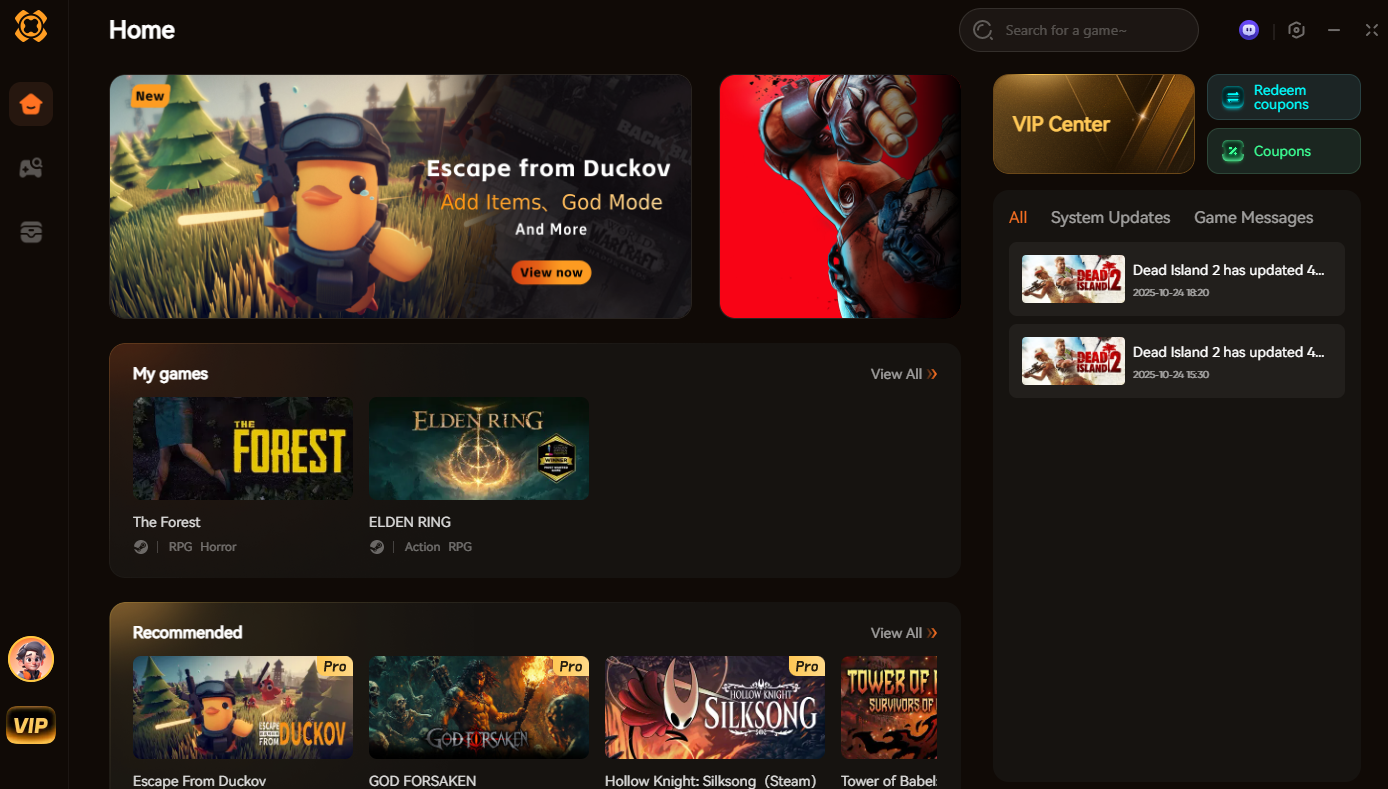
Follow these 3 simple steps:
Hardware & Display Calibration for Nausea-Free Gameplay
While altering in-game software settings like FOV and Motion Blur is mandatory, many players overlook the hardware variables that contribute directly to simulation sickness. The display you use and the peripherals you play with have a massive impact on neurological comfort.
Input latency and pixel response times can create a subtle, almost imperceptible delay between your physical mouse movement and the camera panning on screen. Even if it is just a few milliseconds, your brain registers this desynchronization. Additionally, poor monitor settings can cause “ghosting”—a visual artifact where moving objects leave a blurry trail behind them, simulating forced motion blur even when you have disabled it in the game’s menus. To establish a rock-solid, comfortable baseline, ensure your hardware is configured according to the matrix below:
| Hardware Classification | Target Configuration | Neurological / Visual Benefit | Priority Level |
|---|---|---|---|
| Refresh Rate | 120Hz / 144Hz Minimum | Reduces frame-to-frame visual smearing during rapid camera pans. | High |
| Adaptive Sync | G-Sync or FreeSync Active | Eliminates screen tearing, preventing aggressive visual desync headaches. | High |
| Peripheral Polling | Mouse locked to 1000Hz | Eradicates camera micro-stutters that your vestibular system subconsciously detects. | Medium |
| Panel Overdrive | Set to ‘Normal’ (Not Extreme) | Prevents inverse ghosting (coronas) which creates double-images and eye fatigue. | Medium |
By eliminating hardware-induced screen tearing and ghosting, you remove the environmental triggers of nausea, allowing the engine-level FOV fixes to work exactly as intended.
Frequently Asked Questions
A: No. Modifying the Engine.ini file in the AppData folder is a standard practice for PC optimization. It does not alter the core game logic or memory values, so platform achievements (like Steam or Epic Games) will track and unlock perfectly normally.
A: For a 21:9 Ultrawide setup, a horizontal FOV between 95 and 105 is generally considered the sweet spot. Anything lower will cause the edges of your screen to feel stretched and distorted, while anything higher than 110 will create a “fisheye” lens effect, which can actually re-trigger motion sickness by warping the center of the screen.
A: Game updates often replace core configuration files to ensure the new patch runs correctly. To prevent Fatekeeper from overwriting your custom FOV settings, right-click your modified Engine.ini file, select Properties, and check the “Read-only” box. Just remember to uncheck it if you ever need to change settings in the in-game menus later.
A: Yes. Aside from the graphical tweaks, you must navigate to the “Accessibility” or “Gameplay” tab in the Fatekeeper options menu. Look for sliders labeled “Camera Shake,” “Impact Tremor,” or “Head Bob.” Turn these all the way down to zero. This will make combat feel slightly less impactful, but it is mandatory for surviving long sessions without nausea.
Conclusion
Conquering motion sickness in Fatekeeper requires a multi-layered approach. You cannot simply rely on the game’s default settings. By taking control of the engine configuration files to force a wider Field of View, aggressively stripping away artificial post-processing effects like Motion Blur and Depth of Field, and optimizing your physical gaming environment, you can entirely eliminate simulation sickness. The world of Fatekeeper is far too beautiful and meticulously crafted to be experienced through the lens of a headache.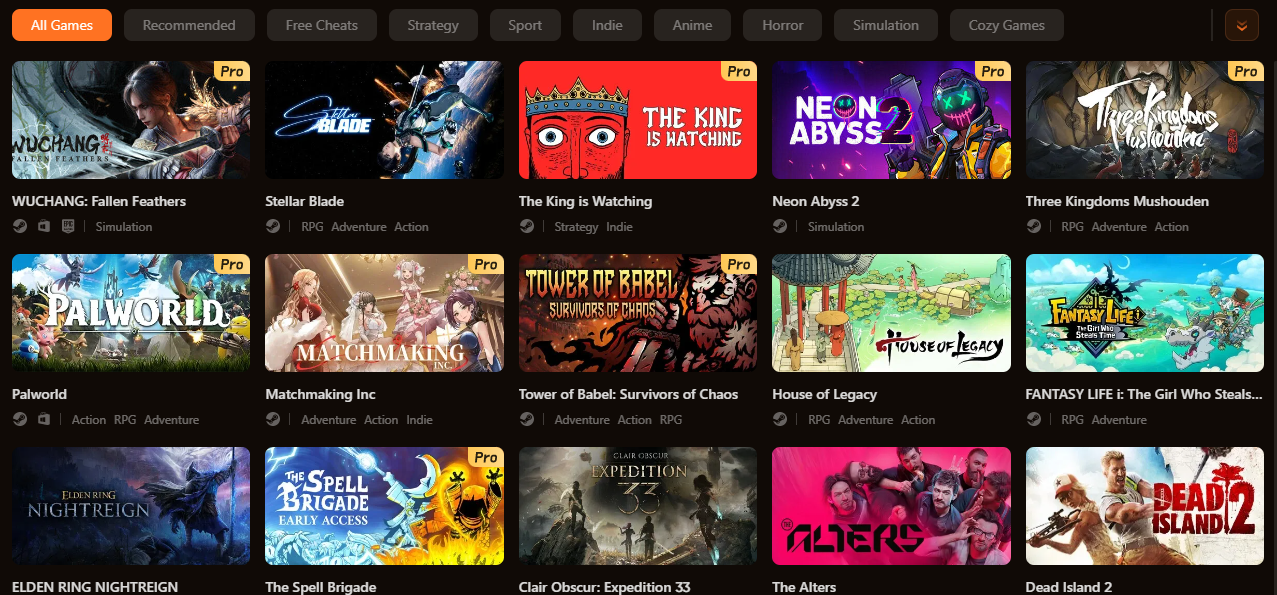
If you want to bypass the manual labor and take absolute command of your gaming sessions, XMODhub is the ultimate solution. Not only does it provide a flawless, real-time FOV fix for Fatekeeper, but its massive ecosystem supports over 5,000 top-tier PC games. Whether you are looking to tweak the camera in Cyberpunk 2077 or need infinite health to survive the grueling boss fights in Elden Ring, XMODhub empowers you to play your games exactly the way you want to. Stop letting terrible default camera mechanics dictate your playtime, and take back control of your PC gaming experience today.

I am a passionate gamer and writer at XMODhub, dedicated to bringing you the latest gaming news, tips, and insights.
Connect with me:
LinkedIn Profile ↗
 Nancy Miller