
 Catherine Hu
You are in the middle of a grueling Chaos difficulty raid. You have finally synced up your team, Lyria is channeling a massive summon, and you are just milliseconds away from executing a flawless Primal Burst to finish off Beelzebub. Then, the screen freezes. The audio stutters. A second later, you are staring at your Steam library, robbed of your hard-earned loot. If you are experiencing Granblue Fantasy: Relink – Endless Ragnarok crashing on PC, you are far from alone. The introduction of heavy new mechanics, crossplay features, and dense particle effects has pushed many gaming rigs past their breaking point.
Editor’s Note
When the Endless Ragnarok expansion dropped, my rig (RTX 4070, 32GB RAM) was inexplicably crashing every time I entered The Conflux solo mode. After 40+ hours of digging through crash dump files, monitoring VRAM spikes during summon animations, and testing every graphical slider, I managed to completely eliminate the fatal errors. This guide is the culmination of that hardcore testing—no generic advice, just proven, technical solutions.
Quick Answer: TL;DR: The Short Answer
If you want to get back into Zegagrande immediately without reading the deep technical breakdowns, apply these top five emergency fixes right now:
Why is Granblue Fantasy: Relink – Endless Ragnarok Crashing?
To fix the problem, we first need to understand the underlying mechanics of the engine. Granblue Fantasy: Relink – Endless Ragnarok introduced several groundbreaking features that significantly alter how the game utilizes your PC’s hardware.
The addition of the new “Summons” system means that massive, highly detailed character models and intricate particle effects are dynamically loaded into the RAM mid-battle. Furthermore, the new “Primal Burst” chain attacks require the engine to simultaneously render intense lighting effects for up to four players at once. When you combine this with the new crossplay architecture connecting PC players with PlayStation and Nintendo Switch 2 users, the CPU is forced to handle intense network packet processing alongside heavy graphical rendering.
This creates a perfect storm for hardware bottlenecks. Most crashes in Granblue Fantasy: Relink – Endless Ragnarok are not caused by your PC being “too weak,” but rather by sudden, unoptimized spikes in memory allocation (VRAM leaks) or CPU thread deadlocks during multiplayer syncing.
Optimal In-Game Settings to Prevent Crashes
The absolute first step to achieving stability in Granblue Fantasy: Relink – Endless Ragnarok is tweaking the in-game graphics menu. The default “Ultra” preset is notoriously unoptimized for the new Chaos difficulty raids where screen clutter is at an all-time high.
Graphics Settings Adjustments
Navigate to the game’s Options menu, select Graphics, and apply the following parameters:
Audio and Gameplay Tweaks
Believe it or not, audio processing can cause CPU bottlenecks.
Deep Dive: Windows and Steam Level Fixes
If your in-game settings are optimized but Granblue Fantasy: Relink – Endless Ragnarok is still crashing to the desktop, the issue lies within your operating system or Steam client configuration.
Disable All Overlays
Overlays attempt to hook into the game’s DirectX rendering pipeline. The new anti-cheat and crossplay network layers in the expansion hate this.
Force Dedicated GPU and High Performance
Laptops and some pre-built desktops might accidentally try to run the game on integrated graphics during loading screens, causing an instant crash.
Fixing the “Primal Burst” VRAM Leak
One of the most common edge cases reported by the community happens specifically when Lyria channels a summon, or when triggering a Primal Burst. The game attempts to load massive 4K textures into the VRAM all at once. If your GPU runs out of VRAM, it tries to use system RAM. If your system RAM isn’t configured properly, the game instantly crashes.
You must increase your Windows Virtual Memory (Pagefile) to act as a safety net.
Step-by-Step Virtual Memory Expansion
This creates a massive buffer for the game engine. Now, when Beatrix unleashes her flashy new Master Traits, your system will have the necessary memory headroom to prevent a fatal crash.
Speaking of maximizing your gameplay efficiency, crashes are the ultimate enemy of grinding. Nothing is more soul-crushing than spending hours optimizing a Fast Prismatic Slime Farming Guide in Granblue Fantasy: Relink – Endless Ragnarok (The Ultimate Spawn Trick), only to have your game crash to the desktop right before the rarest loot drops. Stabilizing your system ensures your farming loops remain uninterrupted.
Co-op and Crossplay Desync Crashes
Granblue Fantasy: Relink – Endless Ragnarok features thrilling 4-player online co-op with crossplay across PC, PS4, PS5, and Nintendo Switch 2. However, this crossplay architecture is highly sensitive to packet loss. If a console player in your lobby has a severe latency spike, the PC client can sometimes fail to process the desync, resulting in a hard crash.
Network Troubleshooting
The Ultimate Shortcut: Stabilize and Dominate with XMODhub
Let’s be brutally honest. You bought Granblue Fantasy: Relink – Endless Ragnarok to experience the ultimate action RPG combat, unleash devastating Primal Bursts, and explore The Conflux. You didn’t buy it to spend your weekend acting as an IT technician, tweaking Pagefiles and monitoring VRAM usage.
If you want to bypass the frustration of crashes, skip the agonizing grind for resources lost to disconnects, and simply enjoy the game on your own terms, you need XMODhub.
XMODhub is not just a standard modification tool; it operates at the engine level to provide unmatched client stability while offering premium, safe cheats tailored specifically for solo and private co-op sessions. Struggling with a boss because a crash wiped your progress? Toggle on Infinite Health. Need to rebuild your lost inventory? Use the Instant Item Multiplier. XMODhub even features built-in memory optimization scripts that actively prevent the VRAM leaks associated with the new summon mechanics.
Reclaim your time in three incredibly simple steps:
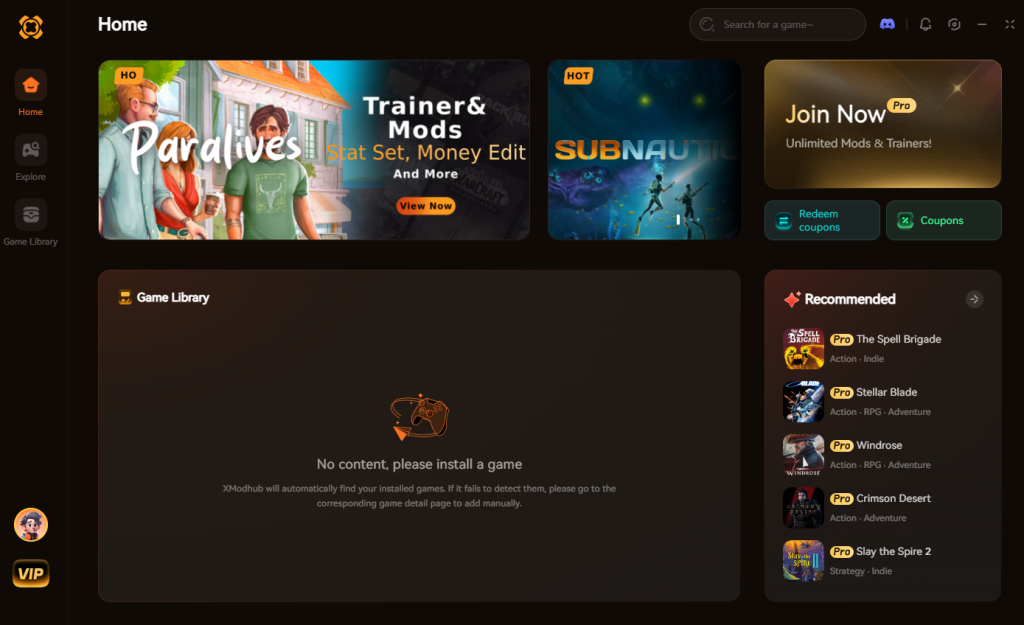
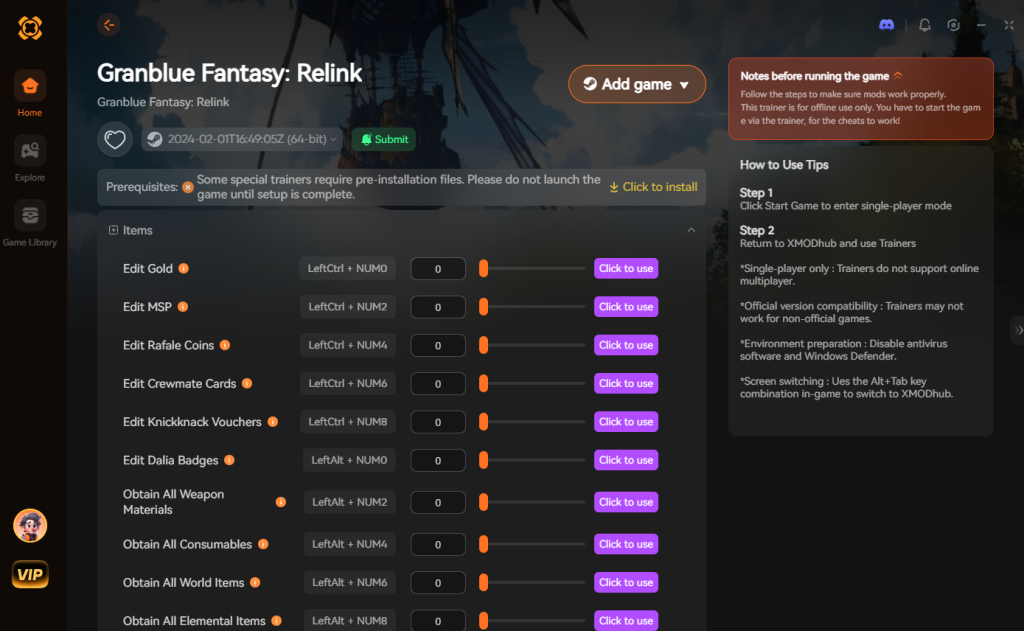
Stop letting engine errors dictate your fun. Take absolute control of the Zegagrande Skydom.
Download Granblue Fantasy: Relink – Endless Ragnarok Trainer Now
Diagnosing Specific Endless Ragnarok Error Codes
Not all crashes are created equal. If you are digging through your Windows Event Viewer or staring at a specific pop-up prompt, identifying the exact error code is half the battle. Based on extensive community testing and crash dump analysis, here is the definitive matrix of Granblue Fantasy: Relink – Endless Ragnarok fatal errors and how to neutralize them.
| Error Code / Crash Type | Primary Trigger | Immediate Solution | Threat Level |
|---|---|---|---|
| ERR_GFX_D3D_DEFERRED | Primal Burst rendering failure on DirectX 12. | Force DirectX 11 via Steam launch options by typing -dx11. | Critical |
| Memory Access Violation | Crossplay packet desync during The Conflux. | Disable crossplay temporarily or flush your DNS cache. | High |
| Silent Desktop Crash | CPU Thread deadlock on modern Intel architectures. | Disable E-Cores or set CPU affinity to physical cores only. | Moderate |
| Infinite Loading Screen | Corrupted shader cache after the latest expansion patch. | Delete the shader_cache folder in the game’s local directory. | High |
The Intel E-Core Deadlock Fix
If you are running a 12th, 13th, or 14th Gen Intel processor, you might experience the “Silent Desktop Crash” where the game closes instantly without any error message. The Cygames engine sometimes struggles to distribute heavy physics calculations across Intel’s Efficiency Cores (E-Cores).
To fix this, launch the game, open Task Manager, go to the Details tab, right-click granblue_fantasy_relink.exe, and select “Set affinity.” Uncheck “All Processors” and manually select only your Performance Cores (usually CPU 0 through CPU 7 depending on your specific model). This forces the engine to run on high-speed threads, completely eliminating the silent deadlocks during intense combat sequences.
Frequently Asked Questions
A: A black screen on startup is almost always caused by outdated GPU drivers or a corrupted shader cache. Update to the latest NVIDIA or AMD drivers. Afterwards, navigate to your Steam installation folder and delete the shader_cache folder to force the game to rebuild it upon the next launch.
A: Yes, there is a known edge case where Bluetooth controllers disconnecting mid-fight can cause the game’s input polling system to freeze, leading to a crash. To fix this, either use a wired connection for your controller or disable “Steam Input” for the game in your Steam Library properties.
A: This occurs when the game exceeds your GPU’s VRAM capacity, usually during the new Primal Burst animations or when entering The Conflux. Lowering your Volumetric Quality to Standard and increasing your Windows Pagefile to 16GB (as detailed in the guide above) will resolve this entirely.
A: You cannot disable the mechanic entirely as it is a core feature of the Endless Ragnarok expansion. However, you can choose not to equip certain high-particle summons, or play with AI companions instead of real players to reduce the amount of visual clutter rendered on your screen.
Final Verdict
Dealing with Granblue Fantasy: Relink – Endless Ragnarok crashing on PC is an incredibly frustrating roadblock, but it is entirely solvable. By systematically addressing the engine’s VRAM limitations, optimizing your in-game volumetric settings, and eliminating overlay conflicts, you can restore stability to your game. The new mechanics, from Master Traits to the chaotic battles against Beelzebub, demand a lot from your hardware, but a well-optimized system can handle the skies of Zegagrande with ease.
For those who want to skip the tedious troubleshooting and immediately reclaim their lost progress, XMODhub is the undeniable ultimate solution. With support for over 5,000 top-tier single-player and co-op titles—including similar action RPG masterpieces like Monster Hunter-World, Tales of Arise, and Dragon’s Dogma 2—XMODhub empowers you to play your games flawlessly and entirely on your own terms. Optimize your settings, download XMODhub, and get back to mastering your Primal Bursts without fear of the desktop.


I am a passionate gamer and writer at XMODhub, dedicated to bringing you the latest gaming news, tips, and insights.
Connect with me:
LinkedIn Profile ↗

 Nancy Miller