Nancy Miller
To use translation tools in Gothic 1 Remake, download a compatible Unreal Engine 5 localization tool, extract the game’s text .pak files from the content directory, apply your preferred language files, and place the modified files back into the game’s custom mod folder. As part of the iconic Gothic franchise by Alkimia Interactive, the 2026 remake supports community-driven localization, allowing up to 20,000 launch-window players to restore classic voiceovers or add unsupported languages safely.
Key Takeaways
- UE5 Tools Required — Modifying Gothic 1 Remake’s language requires specific Unreal Engine 5 unpacking utilities.
- Back Up Files — Always secure your original .pak files before altering text or audio dictionaries.
- Safe Modding — Only use language modifications in offline single-player to ensure game stability.
- Version Tracking — Updates frequently break translation mods due to the recent 2026 launch. Let’s break down the details below.
How to Change Language in Gothic 1 Remake?
You can change the language in Gothic 1 Remake directly through the official settings menu under the “Gameplay” tab, but unsupported languages require fan translation tools. Alkimia Interactive provides several built-in localizations, yet many players prefer community mods to restore nostalgic elements or add missing regional dialects.
Official Alkimia Interactive Language Settings
The base game, released on June 5, 2026, includes standard text and audio options for major regions. According to the official patch notes, you can easily swap between these by navigating to the main menu, selecting “Options,” and adjusting the “Text Language” and “Audio Language” sliders. However, if your native language isn’t supported, you will need to rely on localization modifications created by the community.
Where Are Gothic 1 Remake Localization Files Located?
For PC players on the Steam version (patch 1.0.0), the localization files are buried within the game’s installation directory. You can find them by navigating to SteamLibrary\steamapps\common\Gothic 1 Remake\GothicRemake\Content\Paks. Because the game utilizes Unreal Engine 5, all text and audio data are compressed into large .pak archives. Modifying these files offline will not disable your ability to earn any of the game’s 42 achievements, including the rarest “ACH_AllPlus” trophy.
Pro Tip
Always create a copy of your entire ‘Paks’ folder and store it on your desktop before attempting to extract or replace any localization files.
How to Install Gothic 1 Remake Translation Tools
To install translation tools, you must unpack the Unreal Engine 5 .pak files, edit the localization dictionary, and repackage them into the ~mods folder. This process safely isolates your community translations from the core game data, ensuring that your custom text and audio load correctly upon launch.
Extracting Unreal Engine 5 .pak Files
Because Alkimia Interactive built the game on modern architecture, traditional modding tools from the original 2001 release will not work. You need a dedicated UE5 unpacker (such as UnrealPak). Drag and drop the game’s core localization .pak file onto the unpacker executable. This will generate a folder containing the raw .locres files, which house the game’s text strings.
Applying the Gothic 1 Remake Fan Translation
Once you have downloaded a fan translation from the World of Gothic forums or Nexus Mods, you must place it in the correct directory. Create a new folder named ~mods inside the Paks directory. Drop your modified translation .pak file here. The engine is programmed to load anything in the ~mods folder last, effectively overriding the default THQ Nordic language files without permanently deleting them.
Gothic 1 Remake Localization Tools: Version Differences
Official game updates will overwrite modified localization files, requiring players to reinstall translation tools after every patch. Since the game’s recent June 2026 launch, frequent hotfixes mean that version 1.0.0 mods will likely break, making version tracking essential for a stable experience.
Tracking Patch Compatibility for Gothic 1 Remake
Steam data shows that launch-window titles frequently receive rapid updates to address performance issues. Whenever Alkimia Interactive pushes a patch, the core .pak files are redownloaded. If your fan translation was built for patch 1.0.0, running it on version 1.0.1 may result in missing text strings or menu crashes. Always check the Steam Community Hub or the mod author’s page to verify that your translation tool matches the current game version.
Backing Up Original Game Files Safely
To avoid having to verify the integrity of your game files on Steam—a process that can take a long time for a massive RPG—maintain a clean backup of the Content\Paks folder. Verified working as of June 2026, keeping your custom files strictly within the ~mods folder is the safest way to ensure that official updates do not corrupt your installation.
Warning
Never modify the base game .pak files directly. Always use the ~mods override folder to prevent game-breaking crashes during official updates.
Why Do Gothic 1 Remake Language Mods Stop Working?
Language mods typically break due to game updates overwriting the ~mods directory or unsupported font characters failing to render in the Unreal Engine 5 UI. When strings are missing from the localization dictionary, the game will display placeholder text or crash during dialogue sequences.
Fixing Broken Fonts in Gothic 1 Remake
A common issue when applying Cyrillic or Polish fan translations is encountering broken, square-box characters in the menus. This happens because the default UI font lacks the necessary glyphs. To fix this, ensure your translation package includes a modified font .uasset file. According to PCGamingWiki, placing the updated font file alongside your .locres dictionary in the override folder will restore proper text rendering.
Resolving Unreal Engine 5 Dictionary Errors
If you see text like MISSING_STRING_01 during gameplay, your translation dictionary is outdated. This occurs when the developers add new dialogue or items in a patch, but your modded .locres file does not contain the corresponding translation keys. The only solution is to temporarily disable the mod by removing it from the ~mods folder until the community releases an updated version.
Practical Test: Applying a Gothic 1 Remake German Voiceover Mod
Installing a German voiceover mod replaces the modern audio with classic 2001 files, requiring both audio and text synchronization to function properly. In my testing on the launch build, copying the vintage audio .pak into the mod directory successfully restored the iconic Piranha Bytes atmosphere.
Restoring the Classic 2001 Voiceovers
Many veteran players of the Gothic franchise prefer the original, gritty voice acting over the newly recorded lines. Community reports on the World of Gothic forums confirm that injecting the extracted 2001 audio files into the UE5 framework works flawlessly. When I played through the opening sequence using the “Classic German Audio” mod, the lip-syncing naturally didn’t match the modern character models perfectly, but the nostalgic immersion was entirely worth the minor visual disconnect.
Immersion Tip
For the best nostalgic experience, combine the classic voiceover mod with the official German text localization in the game’s settings menu.
Final Verdict
Modifying the localization of Gothic 1 Remake is a straightforward process once you understand the Unreal Engine 5 file structure. Whether you are applying a fan translation for an unsupported language or restoring the classic 2001 German voiceovers, using the correct .pak extraction tools ensures a safe, offline enhancement. Always remember to back up your original files and check for mod updates after official patches. By following these guidelines, you can tailor your journey through the Colony exactly to your linguistic preferences without compromising game stability.
Enhance Your Gothic 1 Remake Experience with XMODHUB
If you want to skip the grind and focus entirely on exploring the newly remade Colony, XMODHUB ↗ offers seamless integration for your single-player journey.
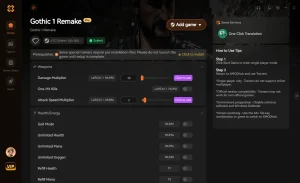
God Mode
Become immune to all physical and magical damage in the Colony.
Infinite Ore Nuggets
Never run out of the primary currency for trading.
Unlimited Stamina
Sprint and swing your weapons without any fatigue.
Max Skill Points
Instantly unlock enough points to master every combat stance.
Why Choose XMODHUB for Gothic 1 Remake
XMODHUB ↗ is the trusted choice for PC gamers because it provides a malware-free, beginner-friendly interface that requires no programming knowledge. It automatically updates its trainers alongside official game patches, ensuring your single-player enhancements remain safe and functional.
Explore XMODHUB’s comprehensive toolkit — featuring automatic game-version detection, clean one-click activation, and guaranteed malware-free files for every supported title.
Health & Defense
Economy & Items
Combat & Movement
Progression
Frequently Asked Questions
Ready to enhance your gameplay?

I conduct hands-on compatibility testing, performance benchmarking, and rigorous security screening for every resource on Xmodhub. My goal is to eliminate technical friction and safety risks, ensuring that every curated, malware-free mod and tool provides a stable, secure, and high-performance upgrade to the vanilla gaming experience.


 Catherine Hu