Catherine Hu
There is nothing quite as infuriating as gathering your co-op squad, rallying your Scottish battalion, and charging headfirst into a massive medieval horde in Tears of Metal, only to have your entire game freeze, stutter, and abruptly crash to the desktop. This hack-and-slash co-op roguelike relies on throwing massive amounts of enemies at you at once. When the screen fills with blood, magic effects, and hundreds of colliding hitboxes, unoptimized settings or driver conflicts will absolutely tank your system. If you are tired of losing your run progress to random fatal errors or unplayable frame drops during intense combat, you are in the right place.
Editor’s Note: During our early access testing of Tears of Metal, we experienced severe hitching whenever large enemy waves spawned in the forest clearing biomes. After digging into the configuration files and testing various driver combinations, we discovered that disabling specific volumetric settings and bypassing the Steam overlay completely eliminated the crashes. We’ve compiled the exact steps that stabilized our 4-player co-op runs.
TL;DR: The Short Answer to Fix Tears of Metal Crashes
Need to get back into the battle immediately? Here is the rapid-fire checklist to stop Tears of Metal from crashing and boost your FPS:
- Update GPU Drivers: Clean install the latest Nvidia/AMD drivers (specifically checking for recent Vulkan/DirectX updates).
- Verify Game Files: Right-click Tears of Metal in Steam > Properties > Installed Files > Verify integrity of game files.
- Optimal Quick Settings: Lower Volumetric Fog to ‘Low’, disable Motion Blur, and cap your FPS to your monitor’s refresh rate to prevent GPU spiking.
- Disable Overlays: Turn off Steam Overlay, Discord Overlay, and Nvidia GeForce Experience in-game overlays.
- Run as Administrator: Locate the Tears of Metal
.exefile, right-click > Properties > Compatibility > Check “Run this program as an administrator”.
Table of Contents
- Why is Tears of Metal Crashing on PC?
- Step-by-Step Crash Fixes for Tears of Metal
- Best FPS Settings for Tears of Metal
- Advanced Troubleshooting: Fixing Memory Leaks
- Hardware Check: Can Your Rig Handle the Horde?
- Resolving Multiplayer Desync Crashes
- Skip the Grind: Dominate Tears of Metal Instantly
- Frequently Asked Questions
- Final Verdict: Reclaiming Your Island Smoothly
Why is Tears of Metal Crashing on PC?
Before blindly changing settings, it helps to understand why your game is failing. Tears of Metal is currently in Early Access. As a hack-and-slash co-op roguelike, the game dynamically generates vast battlefields and continuously spawns massive hordes of enemies.
The primary culprits for PC crashes in Tears of Metal include:
- CPU Bottlenecking: When you lead your Scottish troops into a massive cluster of enemy forces, the game calculates hundreds of AI pathfinding routes, hit registrations, and physics interactions simultaneously. If your CPU cannot keep up with the GPU, the game engine hangs and crashes.
- Particle Effect Overload: Magic effects, meteor impacts, and blood splatters can cause sudden VRAM spikes. If your GPU memory maxes out during a heavy combat sequence in a medieval courtyard, the game will throw a fatal error.
- Early Access Engine Instability: The developers are actively working on the game based on player feedback. As an Early Access title, memory leaks over long play sessions are common, leading to stuttering that eventually results in a hard crash.
Step-by-Step Crash Fixes for Tears of Metal
If the TL;DR didn’t permanently solve your issues, we need to dig deeper. Follow these comprehensive steps to stabilize the game.
Step 1: The Clean GPU Driver Installation
Simply clicking “update” in GeForce Experience often leaves behind registry conflicts.
- Download Display Driver Uninstaller (DDU).
- Boot your PC into Safe Mode.
- Run DDU to completely wipe your current Nvidia or AMD drivers.
- Restart normally and install the latest drivers directly from the manufacturer’s website. This ensures Tears of Metal is interacting with a clean driver environment.
Step 2: Forcing DirectX 11 (If Applicable)
Sometimes, early access games struggle with DirectX 12 implementation, causing instability.
- Open your Steam Library and right-click on Tears of Metal.
- Select Properties.
- In the General tab, find the Launch Options text box.
- Type
-dx11and close the window. Launch the game to see if stability improves.
Step 3: Managing Virtual Memory (Pagefile)
Because Tears of Metal can suffer from memory leaks during extended roguelike campaigns, expanding your Windows Pagefile can act as a safety net.
- Press the Windows key, type “Advanced System Settings”, and hit Enter.
- Under the Performance section, click Settings.
- Go to the Advanced tab and click Change under Virtual memory.
- Uncheck “Automatically manage paging file size for all drives”.
- Select the SSD where Tears of Metal is installed, check Custom size, and set both Initial and Maximum size to 16384 (16GB). Click Set, then OK, and restart your PC.
Best FPS Settings for Tears of Metal
To maintain a buttery-smooth frame rate while carving through hordes of enemies, you need to balance visual fidelity with performance. Here are the optimal in-game settings for Tears of Metal:
Display Settings
- Display Mode: Fullscreen (Exclusive Fullscreen provides the best frame pacing).
- Resolution: Native to your monitor.
- V-Sync: Off (Unless you experience severe screen tearing, rely on your GPU’s control panel to limit FPS instead).
- Framerate Limit: Cap this to your monitor’s refresh rate (e.g., 60, 120, 144). Allowing the FPS to uncap will cause your GPU to overheat during menus and choke during massive horde spawns.
Graphics & Quality Settings
- Overall Quality: Custom
- Textures: High (Only lower this to Medium if you have less than 6GB of VRAM).
- Shadows: Medium (Shadows are incredibly taxing when hundreds of moving units are on screen. Setting this to Medium provides a massive FPS boost in the forest clearing and medieval village courtyard biomes).
- Anti-Aliasing: TAA (Temporal Anti-Aliasing smooths out jagged edges without a massive performance hit).
- Post-Processing: Medium.
- Volumetric Fog/Clouds: Low (Misty forest settings look great, but volumetric rendering is a known FPS killer in early access games. Turn this down immediately).
- Effects Quality: Medium (crucial for when players use magic effects).
- Motion Blur: Off (Improves combat visibility and saves a few frames).
Advanced Troubleshooting: Fixing Memory Leaks
If you notice Tears of Metal runs perfectly for the first 30 minutes but gradually becomes a stuttering mess before crashing, you are experiencing a memory leak. While a permanent fix requires a patch from the developers, you can mitigate it.
First, ensure you have a clean slate when you restart. Sometimes, corrupted local files cause persistent issues. If you have completely lost your progress due to a catastrophic crash and want to restore it, or if you want to skip the grind entirely, you can download a complete save file. Check out our guide on how to install the Tears of Metal 100% Save File PC to get access to all permanent upgrades and shops without the hassle.
To temporarily bypass memory leaks:
- Restart the game between campaigns: Don’t keep the game running for hours on end. After a long run, close the game to desktop and relaunch it to clear the RAM cache.
- Monitor RAM Usage: Press
Ctrl + Shift + Escto open Task Manager on a second monitor. If you see Tears of Metal creeping toward utilizing 90% of your system RAM, it is time to restart the application.
Hardware Check: Can Your Rig Handle the Horde?
Many players experience Tears of Metal crashing PC issues simply because their hardware cannot handle the late-game scaling. While the minimum requirements allow the game to boot, they do not account for wave 20+ when the screen is flooded with assets. To avoid hardware-induced fatal errors, compare your setup against our tested “Horde-Safe” specifications.
| Hardware Tier | CPU Requirement | GPU Requirement | RAM | Expected Performance |
|---|---|---|---|---|
| Minimum | Intel Core i5-6600 / AMD Ryzen 5 1600 | GTX 1060 (6GB) / RX 580 | 8 GB | 30 FPS at 1080p (High risk of Tears of Metal low FPS in late waves) |
| Recommended | Intel Core i7-9700K / AMD Ryzen 5 3600 | RTX 2060 / RX 5700 XT | 16 GB | 60 FPS at 1080p (Stable under normal combat loads) |
| Horde-Safe (Ideal) | Intel Core i5-12600K / AMD Ryzen 7 5800X3D | RTX 3060 Ti / RX 6700 XT | 32 GB | 120+ FPS at 1440p (Zero stuttering during massive boss spawns) |
If you are running the game on 8GB of RAM, you will inevitably experience virtual memory swapping. Upgrade to 16GB minimum, or strictly follow the Pagefile expansion guide in Step 3 to prevent memory-related crashes.
Resolving Multiplayer Desync Crashes
Because this is a co-op focused title, a significant portion of Tears of Metal stuttering and crashing happens exclusively in multiplayer lobbies. When the host’s CPU cannot process the AI pathfinding fast enough, it sends delayed packets to the connected clients. This desync forces the client’s game engine into a fatal loop, resulting in a crash to desktop.
To fix multiplayer desync crashes:
- Designate the strongest PC as Host: The player with the best CPU (preferably an 8-core processor or higher) must host the lobby. Do not let a player on a budget laptop host a 4-player game.
- Cap Client Framerates: If the host is running at 60 FPS and a client is running at 144 FPS, physics calculations can desync. Have all players cap their FPS to 60 during highly unstable runs.
- Disable Cross-Region Matchmaking: High ping exacerbates packet loss. Ensure all players are connected to the same regional server to maintain a stable handshake between clients.
Skip the Grind: Dominate Tears of Metal Instantly
Look, dealing with early access crashes, tweaking settings, and losing hours of progress because of a random fatal error is exhausting. You are here to lead your Scottish battalion and conquer the Mother Stone, not play IT technician. If you want to bypass the frustration, instantly unlock permanent upgrades, and become an unstoppable force on the battlefield, you need XMODhub.
XMODhub provides safe, undetectable, and powerful tools to completely dictate how you play. Why suffer through frame drops when you can enable God Mode and carve through the hordes effortlessly?
Here is how to take control of Tears of Metal in seconds:
- Download XMODhub: Install the lightweight client from the official website.

- Auto-Detect Tears of Metal: Launch the game. XMODhub will automatically recognize Tears of Metal and load the specific toolset.
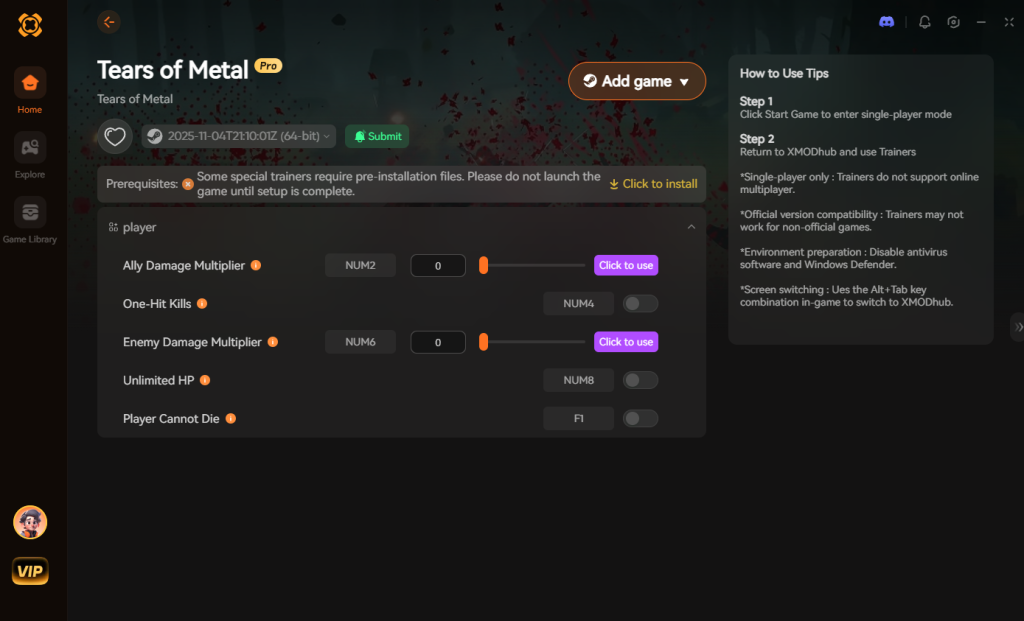
- Toggle Cheats: Use your phone or second monitor to instantly activate God Mode, Infinite Resources for your settlement, One-Hit Kills, or Speed Hacks.
Reclaim your island on your own terms.
Download Tears of Metal Trainer Now
Frequently Asked Questions
Will lowering my resolution fix Tears of Metal crashes?
Lowering your resolution will significantly improve your FPS and reduce VRAM usage, which can stop GPU-related crashes. However, if your crash is caused by a CPU bottleneck (too many enemies on screen) or a memory leak, changing the resolution will not prevent the game from crashing.
Why does Tears of Metal crash specifically during co-op?
Co-op in Tears of Metal requires constant synchronization between host and client regarding enemy positioning, player health, and hit registration. Desync issues, poor network connections, or host CPU overload can cause the game client to crash for connected players.
Does running Tears of Metal in windowed mode improve stability?
Usually, no. Exclusive Fullscreen allows the Windows operating system to dedicate maximum system resources to the game. Windowed or Borderless Windowed mode forces your PC to render the background desktop environment simultaneously, which can introduce micro-stutters and instability.
How often do the developers patch performance issues in Tears of Metal?
Because Tears of Metal is in Early Access (planned for 4 to 12 months), the developers frequently release hotfixes based on community feedback. Always ensure your Steam client is set to auto-update the game so you receive the latest performance optimizations.
Final Verdict: Reclaiming Your Island Smoothly
Fixing Tears of Metal crashes boils down to managing your system’s resources effectively against the heavy demands of a horde-based hack-and-slash game. By performing a clean driver install, managing your virtual memory, and strictly optimizing your shadows and volumetric settings, you can stabilize your framerate and stop the fatal errors. Remember that Early Access titles are inherently volatile, so patience and proactive system maintenance are key.
But if you are tired of losing runs to technical glitches or simply want to experience the power fantasy of obliterating enemy troops with zero resistance, XMODhub is your ultimate shortcut. With support for over 5000+ single-player and co-op PC titles, XMODhub is the premier tool for gamers who value their time. Whether you are leading a Scottish battalion in Tears of Metal, slaying hordes in Warhammer: Vermintide 2, or surviving the onslaught in Risk of Rain 2, XMODhub gives you the power to play exactly how you want. Download XMODhub today and conquer the battlefield.
Stop Grinding, Start Enjoying.
Bypass the tedious resource gathering and unlock your full potential instantly.

I am a passionate gamer and writer at XMODhub, dedicated to bringing you the latest gaming news, tips, and insights.
Connect with me:
LinkedIn Profile ↗
 Nancy Miller