Catherine Hu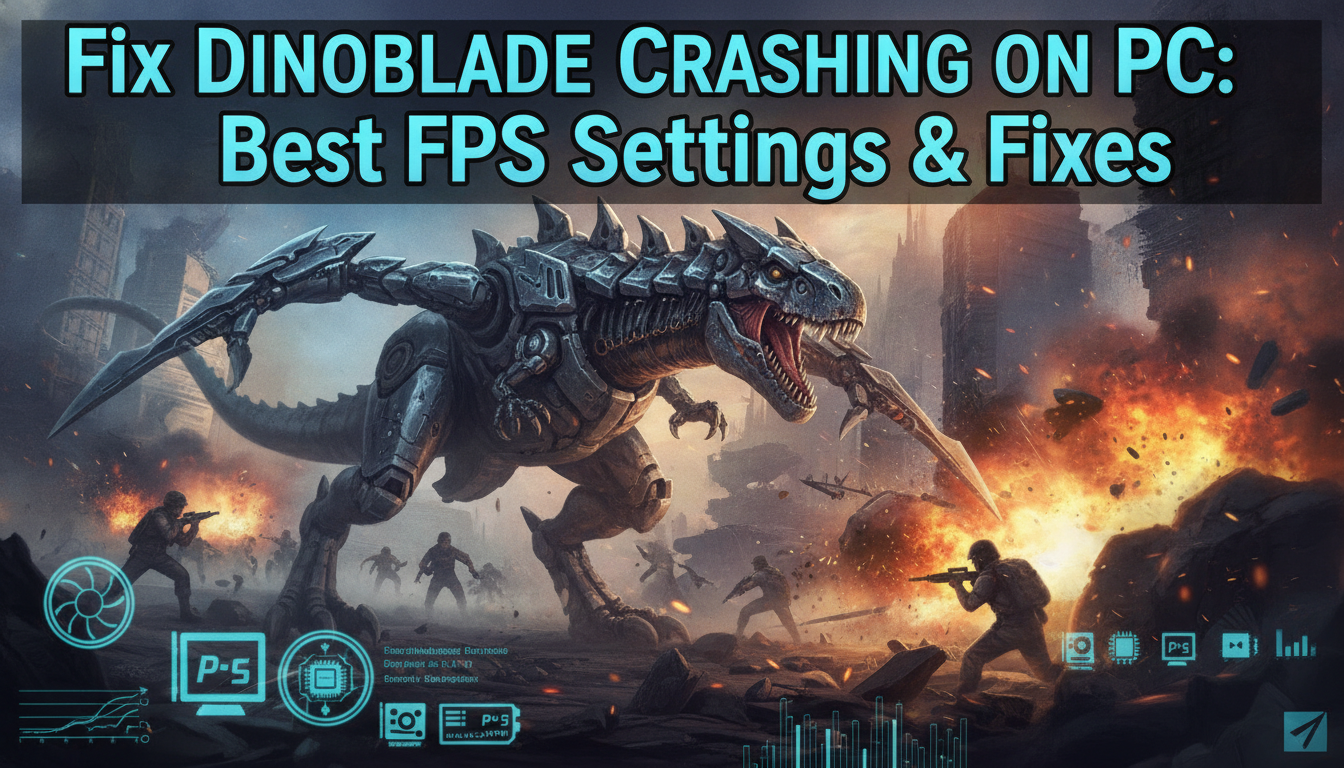
You are locked in a deadly duel with a rival Spinosaurus, your giant sword raised for a perfect parry, the tension is palpable—and then, a sudden freeze. The audio loops, the screen goes black, and you are staring at your desktop. Experiencing Dinoblade crashing on PC or dealing with debilitating frame drops is infuriating, especially in an action RPG heavily inspired by the brutal precision of Souls-like and SeClaude combat. You need rock-solid performance to nail those perfect parries and break enemy posture, not an erratic frame rate that gets you instantly wiped out.
Editor’s Note: Having tested the alpha builds and recent demos extensively, I can confirm that Dinoblade’s visually intense combat and physics calculations can put a serious strain on unoptimized systems. The fixes detailed below are battle-tested solutions that transformed my erratic framerates into a buttery-smooth prehistoric bloodbath.
TL;DR: The Short Answer to Fix Dinoblade Crashes
If you are crashing consistently or getting low FPS in Dinoblade, try these rapid-fire fixes first before diving into the deep optimizations:
- Verify Game Files: Right-click Dinoblade on Steam > Properties > Installed Files > “Verify integrity of game files.”
- Disable Steam Overlay: Steam Properties > General > Toggle off “Enable the Steam Overlay while in-game.”
- Update GPU Drivers: Clean install the latest Nvidia, AMD, or Intel graphics drivers.
- Lower Post-Processing: Set Shadows, Anti-Aliasing, and Post-Processing to Medium or Low in the in-game settings.
- Run as Administrator: Locate
Dinoblade.exein your Steam folder, right-click > Properties > Compatibility > Check “Run this program as an administrator.”
Table of Contents
- Understanding Why Dinoblade Crashes on PC
- The Best FPS Settings for Dinoblade
- Step-by-Step Fixes for Persistent PC Crashes
- Advanced Windows Optimization for Action RPGs
- Diagnosing Specific Dinoblade Crash Types
- Tired of the Grind? The XMODhub Solution
- Frequently Asked Questions
- Final Verdict: Dominating Prehistoric Combat
Understanding Why Dinoblade Crashes on PC
Dinoblade is not your average hack-and-slash game. Developed as a highly kinetic action RPG, the game requires precise timing for its imperfect and perfect parry mechanics. The underlying engine has to calculate massive hitboxes (you are playing as a giant, sword-wielding dinosaur, after all), complex collision detection, and detailed particle effects when weapons clash.
When Dinoblade crashes, it is rarely a simple bug. Usually, it stems from a bottleneck in your system struggling to keep up with the engine’s demands during high-intensity moments. VRAM overallocation during boss fights, CPU spiking when calculating AI patterns of multiple enemies, or driver conflicts during rapid camera movements are the primary culprits. Understanding that this game operates much like modern Souls-likes in terms of resource utilization is the first step to properly optimizing it.
The Best FPS Settings for Dinoblade
If you want to maintain a stable 60 FPS (or higher) to ensure your parry timings are flawless, you need to balance visual fidelity with raw performance. Here is the optimal configuration for a mid-range to high-end PC playing Dinoblade.
Display and Resolution Settings
- Display Mode: Fullscreen. (Windowed Borderless introduces input lag, which is deadly in SeClaude-style combat systems).
- Resolution: Your monitor’s native resolution. If struggling, use an upscale like FSR or DLSS if implemented by the developers.
- V-Sync: Off. (Rely on Nvidia Control Panel or AMD Adrenalin to cap your frame rate instead to minimize input latency).
- Frame Rate Limit: Set to your monitor’s refresh rate (e.g., 60, 144) to prevent GPU overheating during menus or less intensive areas.
Graphics Quality Settings
- Textures: High. (Unless you have less than 6GB of VRAM, in which case, drop this to Medium to prevent stuttering).
- Shadows: Low to Medium. Shadows in Dinoblade are extremely taxing on the CPU. Lowering this provides the biggest FPS boost.
- Post-Processing: Medium. You want the visual clarity of the incoming attacks without the massive GPU overhead of excessive blur or bloom.
- Anti-Aliasing: TAA or Low.
- Effects Quality: Medium. High settings cause massive frame drops when giant swords clash and sparks fly.
- Foliage/Environment Details: Medium. Prehistoric environments are dense; reducing this slightly keeps framerates stable while running through jungles.
Step-by-Step Fixes for Persistent PC Crashes
If dialing back the settings did not stop Dinoblade crashing on PC, it is time to dig into system-level troubleshooting. These steps address the most common technical failures.
1. Execute a Clean GPU Driver Installation
Corrupted display drivers will crash Dinoblade instantly during heavy visual load. Do not just click “Update” in GeForce Experience.
- Download Display Driver Uninstaller (DDU).
- Boot your PC into Safe Mode and run DDU to completely wipe your current GPU drivers.
- Restart and install the freshest drivers directly from Nvidia or AMD’s official websites.
2. Manage Virtual Memory (Paging File)
Memory leaks in early builds or demanding game areas can exhaust your RAM, causing the game to close to the desktop without an error message.
- Press Windows Key, type “Advanced System Settings.”
- Go to the Advanced tab > Performance Settings > Advanced tab > Virtual memory Change.
- Uncheck “Automatically manage paging file size.”
- Select your fastest SSD, choose “Custom size,” and set both Initial and Maximum size to 1.5x your physical RAM (e.g., 24576 MB if you have 16GB of RAM).
3. Disable Background Overlays and Aggressive Software
Overlays inject themselves into the game process, which Dinoblade’s engine may interpret as a conflict, leading to instant crashes.
- Disable Discord Overlay.
- Disable GeForce Experience In-Game Overlay.
- Close RGB lighting control software (like iCUE or Razer Synapse), which are notorious for causing micro-stutters in Action RPGs.
4. Direct X and Visual C++ Redistributables
Ensure your Windows environment is fully equipped to run Unreal Engine/Unity games by reinstalling the latest DirectX End-User Runtime and the comprehensive package of Visual C++ Redistributables. Missing libraries often lead to crashes immediately upon launching Dinoblade.
Speaking of crashing, nothing is worse than having your game crash right in the middle of a brutal boss encounter. If you finally get your game stable but are struggling to understand the complex attack patterns of the major enemies, you will want to check out this comprehensive Dinoblade Alpha Predators Boss Guide. It breaks down the perfect parry timings you need to master.
Advanced Windows Optimization for Action RPGs
To squeeze out the last few frames and ensure absolute stability, tweak Windows itself to prioritize Dinoblade.
Enable Hardware-Accelerated GPU Scheduling
This feature allows your GPU to manage its own memory, reducing the burden on your CPU—vital for games with complex enemy AI patterns like Dinoblade.
- Go to Windows Settings > System > Display > Graphics settings.
- Toggle on “Hardware-accelerated GPU scheduling.”
- Restart your PC.
Set High Priority in Task Manager
Force Windows to allocate maximum CPU resources to the game.
- Launch Dinoblade.
- Press Ctrl + Shift + Esc to open Task Manager.
- Go to the Details tab, find
Dinoblade.exe. - Right-click it > Set priority > High. (You will need to do this every time you launch the game, or use a registry tweak to make it permanent).
Diagnosing Specific Dinoblade Crash Types
Not all crashes are created equal. Identifying the exact nature of your crash dictates the troubleshooting path you must take. Here is a breakdown of the most reported Dinoblade crashing symptoms, their root causes, and the direct solutions required to fix them.
| Crash Symptom / Error Type | Primary Cause | Immediate Fix |
|---|---|---|
| Black Screen on Launch | Resolution mismatch or missing visual libraries. | Force Windowed mode via Steam launch options (-windowed) or reinstall Visual C++. |
| Engine Fatal Error / Crash Reporter | Outdated GPU drivers or corrupted game files. | Run DDU for a clean driver install. Verify Steam integrity. |
| Hard Freeze During Combat | CPU bottleneck or VRAM overallocation. | Lower Shadows and Effects Quality to Medium. Enable Hardware-Accelerated GPU Scheduling. |
| Audio Looping / Silent Desktop Crash | RAM exhaustion (Memory Leak) in specific zones. | Increase Windows Paging File size to 1.5x physical RAM on your fastest SSD. |
| Micro-Stuttering Leading to Crash | Background polling conflicts. | Disable all RGB software (iCUE, Synapse) and disable the Steam Overlay. |
Fixing Input Lag and Controller Disconnects
In a game where missing a parry by milliseconds means death, input lag is just as fatal as a hard crash. If you are using a controller, ensure it is hardwired. Bluetooth polling rate drops can cause the game engine to briefly hang as it searches for the disconnected device, leading to a stutter or a complete freeze. Always disable Steam Input if the game natively supports your controller to bypass the extra translation layer.
Tired of the Grind? The XMODhub Solution
Let’s be honest. You spent hours fixing the Dinoblade crashing issues, tweaking your FPS settings, and finally getting the game to run smoothly. But now, you are facing a dinosaur with a massive sword whose attack patterns create unpredictable damage spikes, and the regular enemy variety is testing your patience with mechanical repetition. If you are exhausted by the grueling Souls-like combat and just want to experience the sheer joy of being a badass Spinosaurus destroying everything in sight, it is time to bypass the frustration.
XMODhub provides the ultimate shortcut, allowing you to tailor the game’s difficulty precisely to your liking without dealing with the grueling grind.
How to dominate Dinoblade instantly:
- Download XMODhub: Install the secure, lightweight client from the official site.
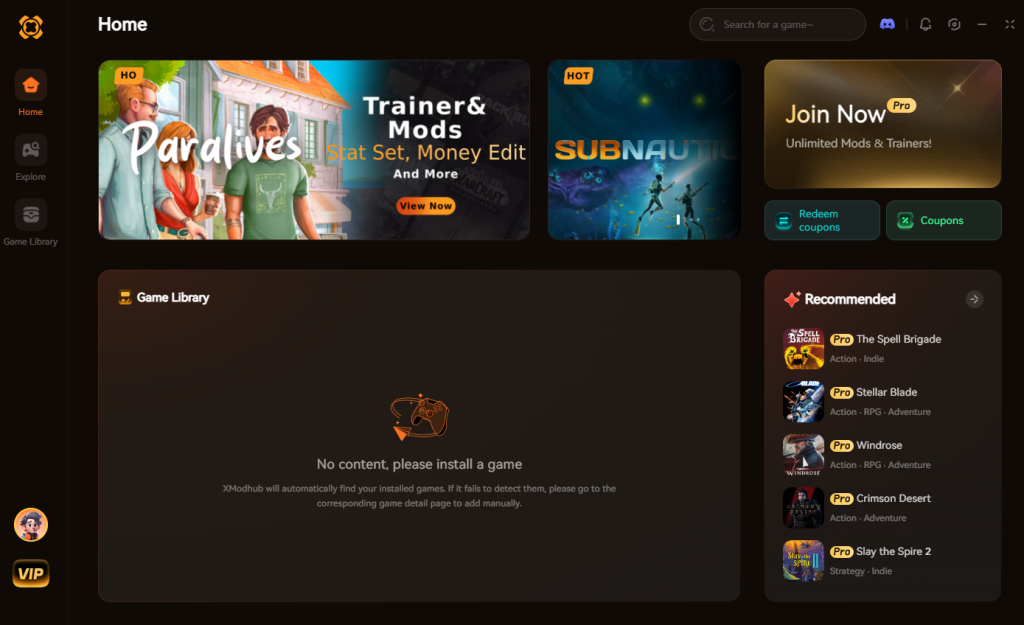
- Auto-Detect Dinoblade: Launch the app; it instantly recognizes your game installation.
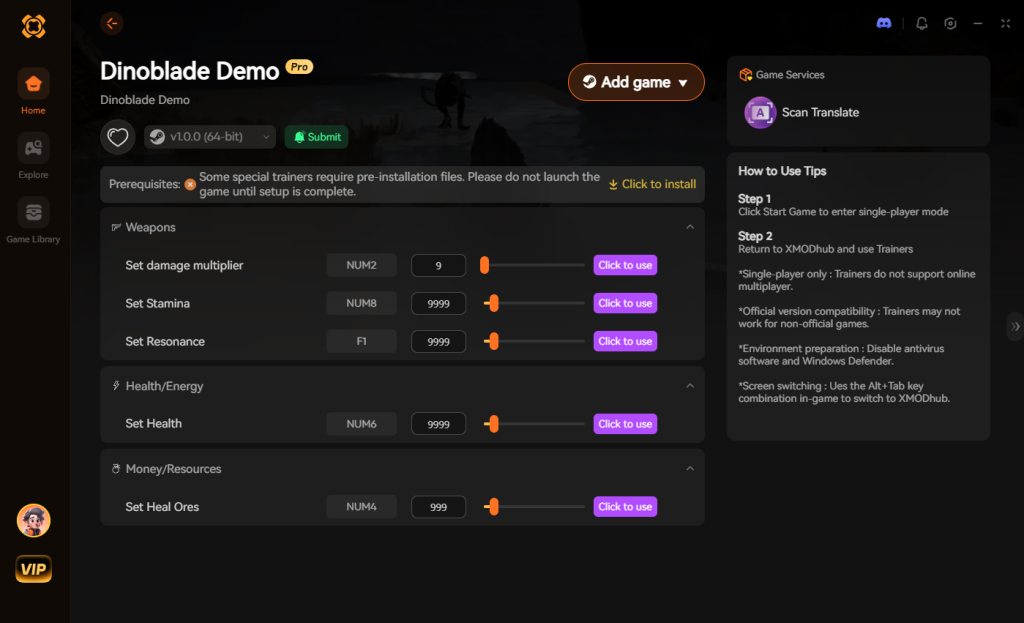
- Toggle Cheats: Activate powerful features like God Mode (Infinite Health), Instant Posture Break (perfect for bypassing difficult parry timings), or One-Hit Kills.
Stop suffering through unpredictable AI spikes and take absolute control of the prehistoric battlefield today.
Download Dinoblade Trainer Now
Frequently Asked Questions
Why does Dinoblade crash on startup?
Startup crashes are typically caused by missing Visual C++ Redistributables, outdated graphics drivers, or the game attempting to launch in a resolution not supported by your monitor. Verifying game files on Steam and updating drivers usually resolves this.
Can I play Dinoblade on a low-end PC?
It is difficult. Because Dinoblade relies heavily on fast-paced, SeClaude-style combat and precise animations for its parry system, playing on a low-end PC will result in low FPS, making the game artificially harder due to input lag. You must lower all settings and utilize any available upscaling technology.
Does Dinoblade support Ultrawide monitors?
While many modern games do, action RPGs with locked camera mechanics sometimes struggle with ultrawide ratios without introducing visual glitches. If you experience crashes specifically on an ultrawide setup, force the game into a standard 16:9 resolution via the configuration files to test for stability.
Will controller disconnects crash the game?
In some builds of action RPGs, a sudden controller disconnect can cause the game to freeze or crash as the engine scrambles to reassign input devices. Ensure your controller is hardwired or has a strong Bluetooth connection, and disable Steam Input if it causes conflicts.
Final Verdict: Dominating Prehistoric Combat
Fixing Dinoblade crashing on PC requires a methodical approach: verifying files, managing your GPU drivers with DDU, and aggressively tweaking your in-game settings to prioritize a stable frame rate over unnecessary visual flair. By following this guide, you guarantee that when you face off against a rival dinosaur, the only thing breaking is their posture, not your game client.
However, if you have conquered the technical issues but find the mechanical repetition and unpredictable AI damage spikes too punishing, remember that gaming is about having fun. With XMODhub, you can instantly turn the tables. Supporting over 5,000+ single-player titles, including similar brutally challenging Action RPGs like Elden Ring, Tales of Arise,and Black Myth: Wukong, XMODhub gives you the power to define your own rules. Optimize your PC, launch the game, and claim your spot at the top of the prehistoric food chain.
Stop Grinding, Start Enjoying.
Bypass the tedious resource gathering and unlock your full potential instantly.

I am a passionate gamer and writer at XMODhub, dedicated to bringing you the latest gaming news, tips, and insights.
Connect with me:
LinkedIn Profile ↗
 Nancy Miller