Catherine Hu
This is not a hypothetical nightmare; it is a harsh reality for thousands of PC players diving into this highly anticipated anime action RPG. Because of the game’s aggressive auto-save mechanics designed to enforce the permadeath rules of the Aincrad universe, knowing the exact Echoes of Aincrad Save File Location & How to Backup Saves is not just a technical troubleshooting step—it is a mandatory survival skill. If you do not secure your progress manually, the floating castle will claim your hundreds of hours of grinding in the blink of an eye. Relying on cloud synchronization will only cement your demise.
Editor’s Note
After clocking over 100 hours in the pre-release review build of Sword Art Online: Echoes of Aincrad, I learned the hard way that Steam Cloud sync is your worst enemy in Death Game Mode. The game instantly overwrites your cloud save the exact millisecond your HP hits zero. By the time you press Alt+F4, the server has already synced your demise. You absolutely must implement local, hard-copy backups if you want to preserve your sanity and your perfectly rolled gear.
TL;DR: The Short Answer
%LOCALAPPDATA%\SAO_EoA\Saved\SaveGames\ to locate your primary .sav files and global profile data.%LOCALAPPDATA%\Packages\BandaiNamco.SAOEoA_...\SystemAppData\wgs\ to find the encrypted Windows Store save containers.Mechanics Deep Dive: Understanding the Problem
When searching for the Echoes of Aincrad Save File Location & How to Backup Saves, players often underestimate how deeply the game’s core philosophy is woven into its file management system. Sword Art Online: Echoes of Aincrad is built around player-driven survival. The developers at Game Studio Inc. deliberately engineered the save system to prevent “save scumming,” making it incredibly hostile to players who do not understand directory structures. Let us break down the exact mechanics of why you are losing your data and the critical mistakes you are making.
The Permadeath Trap: How Death Game Mode Handles Save Files
In standard Action RPGs, an auto-save triggers after a major event. In Sword Art Online: Echoes of Aincrad, the auto-save system is tied directly to the real-time combat event listener. Every time you take damage, use a potion, or enter a new grid on the map, the game writes to Slot01.sav.
However, in ‘Death Game Mode’, the game utilizes a dual-file deletion protocol. The moment your avatar’s HP registers as zero, the game does not just show a “Game Over” screen; it actively sends a delete command to both Slot01.sav and its backup Slot01_bak.sav located in your %LOCALAPPDATA%\SAO_EoA\Saved\SaveGames\ folder. It replaces them with a zero-byte tombstone file. If you do not have a hard copy of that folder stored elsewhere on your PC, your custom character and all your partner synergy progress are permanently eradicated.
Mistake 1: Trusting Steam Cloud and Xbox Network Sync
The most common and devastating mistake players make is assuming that Steam Cloud or Xbox Network will save them. The API for Sword Art Online: Echoes of Aincrad is designed to push cloud updates instantaneously upon character death.
Because the combat is real-time and incredibly fast-paced, the synchronization happens faster than human reflexes can force-close the application. If you die and then try to download your Steam Cloud save, you will find that Steam has already uploaded the zero-byte tombstone file, effectively overwriting your 100-hour backup with a blank slate. To successfully manage your Echoes of Aincrad Save File Location & How to Backup Saves, you must disable cloud sync by right-clicking Sword Art Online: Echoes of Aincrad in your Steam Library, selecting Properties, and toggling off “Keep games saves in the Steam Cloud.”
Mistake 2: Copying the Wrong Configuration Files
Another critical error occurs when players navigate to the AppData folder but copy the wrong tier of files. Inside %LOCALAPPDATA%\SAO_EoA\Saved\, there are multiple folders including Config, Logs, and SaveGames.
Many players accidentally copy the Config folder, thinking their progress is stored within the GameUserSettings.ini file. This file only stores your graphics settings, keybinds, and UI preferences. Your actual character level, inventory, and quest flags are exclusively located inside the SaveGames folder. If you backup the Config folder and your character dies, you will only be restoring your 4K resolution settings, not your level 99 dual-wielding avatar.
Mistake 3: Ignoring the Anti-Tamper Hex Checks
Sword Art Online: Echoes of Aincrad features a lightweight anti-tamper checksum to prevent players from easily swapping save files with others. Inside the SaveGames folder, alongside your Slot01.sav, there is a file named ProfileData.sav.
This profile file contains a hex checksum that matches the timestamp and exact byte size of your character save. If you only backup Slot01.sav and leave ProfileData.sav untouched, restoring your character save will trigger a “Corrupted Data” error upon booting the game. The game recognizes a mismatch between the profile checksum and the character file. Therefore, proper backup protocol mandates that you copy the entire SaveGames directory, ensuring all checksums remain perfectly aligned.
Best Alternative Methods and Advanced Tips
If you are tired of risking your perfectly rolled gear in perilous dungeons and want to optimize your grind before securing your files, you should definitely check out our comprehensive guide on How to Increase Item Drop Rate to 100% in Echoes of Aincrad. Once your inventory is overflowing with legendary weapons, you will want to implement these advanced backup strategies to ensure your loot is never lost to a random game crash or an unexpected boss mechanic.
Automated Batch Script (.bat) for Instant Backups
Manually navigating to the Echoes of Aincrad Save File Location & How to Backup Saves every single time you enter a boss room is tedious and breaks the immersion of the game. Hardcore players can completely automate this process using a simple Windows Batch Script.
Open Notepad and paste the following code:
@echo off

set "source=%LOCALAPPDATA%\SAO_EoA\Saved\SaveGames"

set "destination=D:\SAO_Backups\Backup_%date:-4,4%%date:-10,2%%date:-7,2%_%time:0,2%%time:~3,2%"

mkdir "%destination%"

xcopy "%source%" "%destination%" /E /I /H /Y

echo Sword Art Online: Echoes of Aincrad Save Successfully Backed Up!

pause
Save this file as SAO_Backup.bat on your desktop. Now, right before you challenge a Floor Boss, simply double-click this script. It will instantly create a time-stamped folder on your D: drive (or whichever drive you specify) containing a perfect, uncorrupted replica of your entire save directory. You can even use Windows Task Scheduler to run this script automatically every 30 minutes while the game executable is running.
Utilizing Symlinks for Custom Cloud Directories
For players who switch between a desktop and a gaming laptop, local backups are not enough, but relying on Steam Cloud is too risky. The ultimate high-level solution is to use a Directory Junction (Symlink) to reroute your save files to a private, version-controlled cloud service like Google Drive or Dropbox, which allows you to roll back to previous file versions.
%LOCALAPPDATA%\SAO_EoA\Saved\ into a designated folder in your Google Drive (e.g., C:\Users\YourName\Google Drive\SAO_Saves).mklink /J "%LOCALAPPDATA%\SAO_EoA\Saved\SaveGames" "C:\Users\YourName\Google Drive\SAO_Saves"The game will now think it is saving to the default AppData folder, but it is actually writing directly to your Google Drive. Because Google Drive keeps a 30-day version history of overwritten files, if your character dies and the file is deleted, you can simply log into your Google Drive via a web browser, right-click the file, and select “Manage Versions” to restore the file from five minutes before your death.
The Ultimate QoL Solution: Bypassing the Grind with XMODhub
While mastering the Echoes of Aincrad Save File Location & How to Backup Saves is essential for data security, constantly managing batch scripts and symlinks is exhausting. The real reason players fear losing their saves is the massive time investment required to level up, farm materials, and survive the brutal real-time combat. When the grind becomes too punishing, XMODhub offers the ultimate Quality of Life intervention.
Instead of constantly backing up your save file out of fear of the Death Game Mode, you can use XMODhub’s dedicated Sword Art Online: Echoes of Aincrad trainer to ensure you never die in the first place. With features like Infinite HP, Instant Sword Skill Cooldowns, and One-Hit Kill, you can safely explore perilous dungeons and defeat formidable foes without the looming anxiety of permanent character deletion.
Follow these 3 simple steps to fix this instantly:
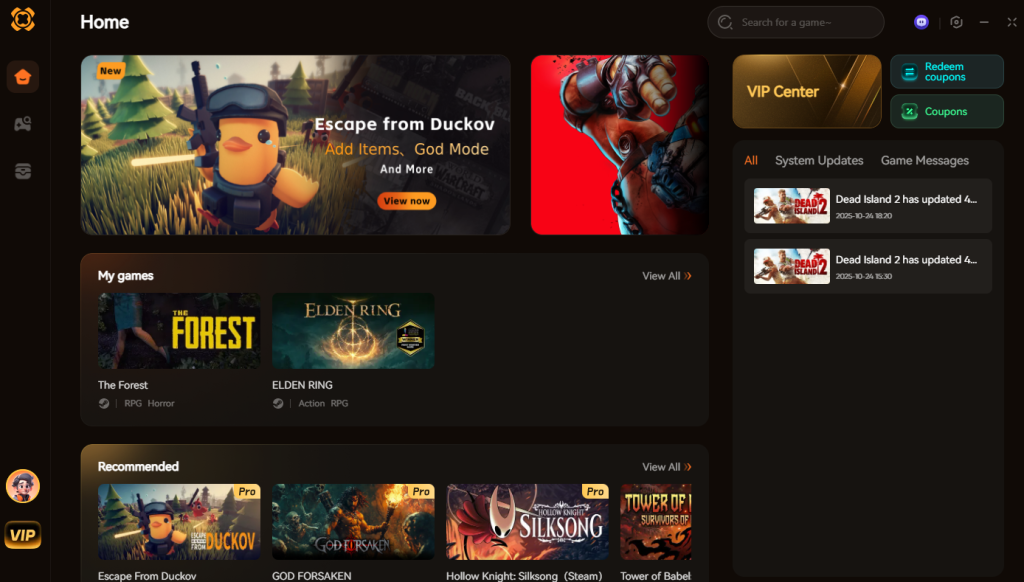
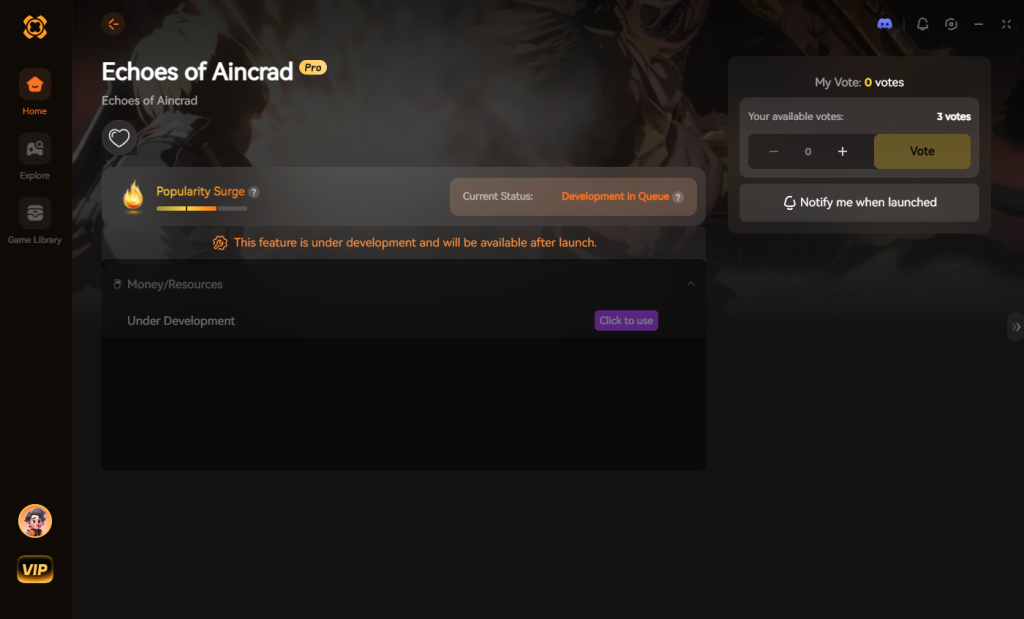
Download Echoes of Aincrad Trainer Now
Save Directory Breakdown: What Exactly Are You Backing Up?
If you are going to manually manipulate the files within the Echoes of Aincrad Save File Location, you need to understand the architecture of the data you are moving. Blindly copying files without knowing their function can lead to bloated backup drives or, worse, incomplete restorations. Below is the definitive breakdown of the files found inside your %LOCALAPPDATA%\SAO_EoA\Saved\SaveGames\ directory.
| Target File / Extension | Data Type Stored | Corruption Risk Level | Backup Priority |
|---|---|---|---|
| Slot01.sav | Main character progression, inventory, quest flags, and Col (currency). | High (Targeted by Permadeath wipe) | Critical |
| ProfileData.sav | Anti-tamper hex checksums, global achievements, and account unlocks. | Medium | Critical |
| Settings_Local.sav | Keybinds, audio preferences, and custom UI layouts. | Low | Optional |
| AutoSave_Temp.sav | Temporary cache for seamless zone transitions and fast travel. | High (Often corrupts on crash) | Ignore / Exclude |
| Custom_Avatar.json | Visual presets and slider values for your character’s appearance. | Low | Recommended |
Strategic Backup Checkpoints: When Should You Save?
Knowing how to backup your saves is only half the battle; knowing when to execute those backups separates the surviving Beaters from the players who lose everything. Because the game constantly auto-saves, backing up at the wrong time (e.g., mid-combat or while falling into a trap) can result in restoring a save file where you are already doomed.
Here are the optimal checkpoints to run your automated batch script or manual copy:
Frequently Asked Questions
A: No. Achievements are triggered by in-game event flags. When you restore an older save file, the game simply reads the event flags present in that specific file. However, if you unlocked an achievement after the backup was made, you will keep the Steam achievement, but your in-game progress will revert to the state of the backup.
A: Character creation sliders and visual presets are saved separately from your main progression. You can find them in %LOCALAPPDATA%\SAO_EoA\Saved\Customization\. Backing up this specific folder allows you to import your exact avatar appearance into a new playthrough without having to memorize the slider values.
A: Yes, but it requires manual decryption. The Xbox Game Pass version encrypts saves inside the wgs folder without standard file extensions. You must identify the largest file in the alphanumeric folder, copy it to your desktop, rename it to Slot01.sav, and then place it into the Steam SaveGames directory. Ensure you start a new game on Steam first to generate a valid ProfileData.sav checksum.
A: This happens when you only copy the Slot01.sav file and ignore the global profile data. Sword Art Online: Echoes of Aincrad verifies the timestamp and metadata of your save file against ProfileData.sav. To fix this, you must always backup and restore the entire SaveGames folder as a single, cohesive unit.
Final Verdict
Navigating the Echoes of Aincrad Save File Location & How to Backup Saves is a fundamental requirement for anyone brave enough to tackle the game’s darkest and most punishing mechanics. By understanding the directory structures, avoiding the pitfalls of cloud synchronization, and utilizing advanced tools like batch scripts and symlinks, you can protect your hundreds of hours of progress from being wiped out by a single mistimed dodge.
However, if you want to experience the breathtaking beauty of Aincrad without the underlying stress of constant file management, XMODhub is your definitive solution. Supporting over 5,000 top-tier titles—including similar massive Action RPGs like Granblue Fantasy: Relink and Tales of Arise—XMODhub empowers you to play on your own terms. Protect your time, enhance your gameplay, and conquer the floating castle without fear.

I am a passionate gamer and writer at XMODhub, dedicated to bringing you the latest gaming news, tips, and insights.
Connect with me:
LinkedIn Profile ↗
 Nancy Miller