Catherine Hu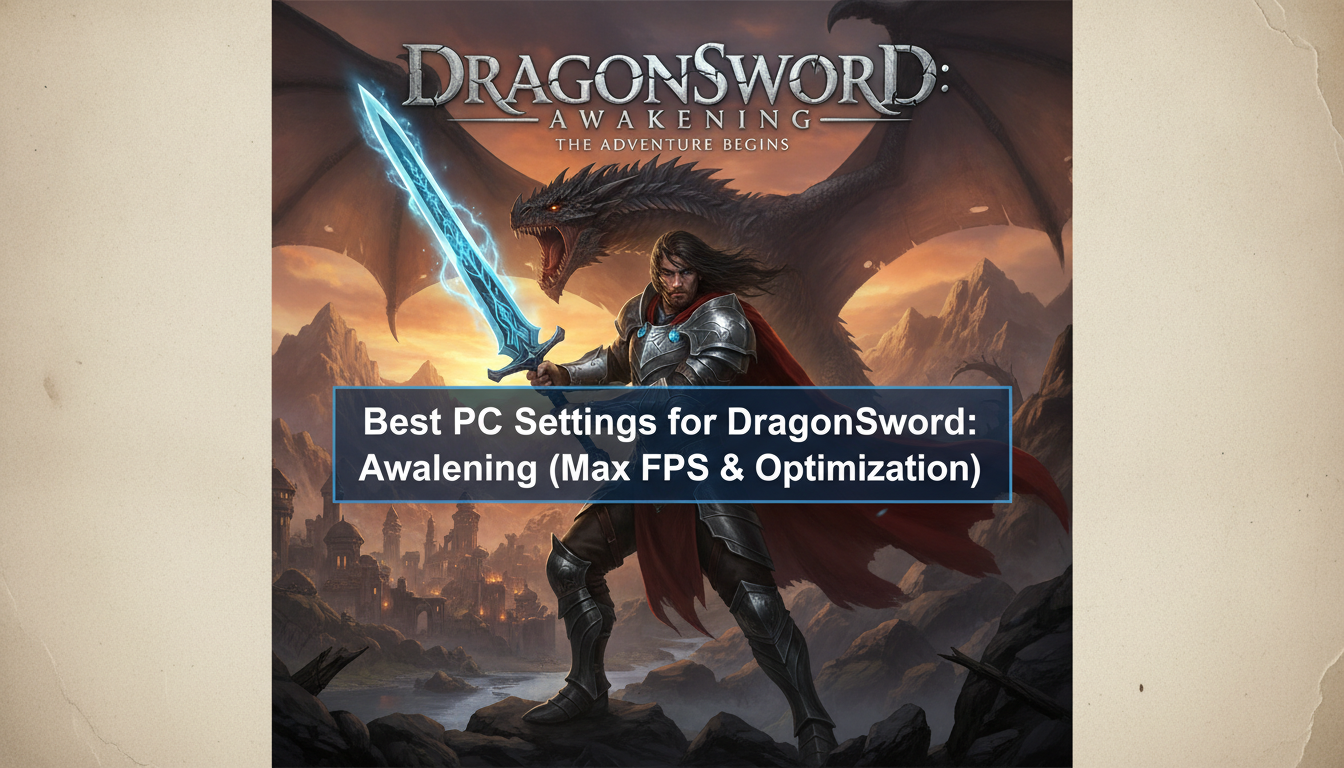
Nothing kills the immersion of exploring the breathtaking anime-style open world of Orbis faster than sudden frame drops right when a massive boss winds up an attack. DragonSword: Awakening is a stunning premium PC game built on Unreal Engine 5, blending intense action-adventure combat with a massive multi-world system. But let’s be real—UE5 games can be absolute system hogs if left on default settings. If you are experiencing micro-stutters during heavy combat or your GPU temperatures are skyrocketing, you need a precise configuration to balance those beautiful cel-shaded aesthetics with buttery smooth framerates.
Editor’s Note: I spent over 15 hours testing the DragonSword: Awakening demo on various hardware setups, from a mid-range RTX 3060 to a high-end RTX 4090. The game’s dynamic lighting and dense foliage are the main culprits for performance hits. The settings below are the exact tweaks I used to lock a stable 60+ FPS during the most chaotic dungeon raids without making the game look like a muddy mess.
TL;DR: The Short Answer
Want instant results? Here are the absolute best graphical compromises to secure maximum FPS in DragonSword: Awakening:
- Display Mode: Fullscreen (Exclusive)
- Resolution: Native to your monitor
- V-Sync: Off (Use NVIDIA Control Panel or AMD Adrenalin to cap frames)
- Upscaling: DLSS / FSR set to Quality or Balanced
- Shadow Quality: Medium (Huge FPS saver)
- Foliage Density: Medium
- Volumetric Fog/Clouds: Low (Crucial for UE5)
- Global Illumination (Lumen): Performance / Low
- Post-Processing: High (Keeps the anime-style outlines crisp)
Table of Contents
- TL;DR: The Short Answer
- Understanding UE5 Performance in DragonSword: Awakening
- Step-by-Step Graphics Settings Optimization
- Advanced PC Tweaks Outside the Game
- Maximizing Combat Fluidity
- Hardware Benchmarks and VRAM Usage
- Fixing Traversal Stutter (Engine.ini Tweak)
- The Ultimate Shortcut: XMODhub
- Frequently Asked Questions
- Final Verdict: Achieving Peak Anime Action
Understanding UE5 Performance in DragonSword: Awakening
Before randomly turning sliders down to “Low,” it helps to understand why DragonSword: Awakening demands so much from your PC. Slated for a July 2026 release, this buy-to-play (B2P) title utilizes advanced rendering techniques to achieve its signature anime aesthetic within a sprawling open world.
The game relies heavily on Unreal Engine 5’s Nanite for detailed geometry and Lumen for dynamic lighting. While Nanite is incredibly efficient, Lumen can cripple older graphics cards. The multi-world system—where you load into massive new realms to replay the story or farm gear with friends—requires rapid asset streaming. If your settings are unoptimized, transitioning between the vibrant hub world and a dark, effects-heavy dungeon will result in severe traversal stutter. Your goal is to alleviate the load on your GPU’s VRAM and your CPU’s asset management.
Step-by-Step Graphics Settings Optimization
Here is the detailed breakdown for configuring your in-game menus for the absolute best performance-to-visuals ratio.
Display and Upscaling
Never underestimate the power of upscaling tech in modern PC gaming.
- Window Mode: Always choose Exclusive Fullscreen. Borderless Windowed mode introduces input lag and forces your PC to render background Windows processes, costing you valuable frames.
- Upscaler Selection: If you have an RTX card, select DLSS. For AMD or older NVIDIA cards, choose FSR 3.0.
- Upscaler Mode: Set this to Quality for 1080p and 1440p monitors. If you are playing at 4K, Balanced provides massive FPS gains with almost unnoticeable visual degradation in motion.
Core Graphical Tweaks
These settings have the most significant impact on your framerate while maintaining the intended anime art style.
- Shadow Quality (Set to Medium): High and Ultra shadows in DragonSword: Awakening calculate incredibly sharp lines on every blade of grass. Dropping this to Medium softens the shadows slightly but frees up roughly 15-20% of your GPU resources.
- Foliage Density (Set to Medium): The Continent of Orbis is lush. Lowering foliage density reduces the number of individual plant meshes rendered in the distance. It vastly improves performance when sprinting across open fields or riding mounts.
- Volumetric Effects / Fog (Set to Low): UE5’s volumetric clouds and fog look spectacular but are notorious frame-killers. Dropping this to Low removes the dense, light-scattering fog in swamps and high-altitude areas, giving you a massive FPS boost during exploration.
- Global Illumination / Lumen (Set to Performance/Low): Since the game utilizes a stylized anime aesthetic, you don’t need hyper-realistic lighting bounces. Setting Lumen to its lowest tier keeps the world looking vibrant without forcing your GPU to calculate complex ray-traced lighting paths.
- Anti-Aliasing (Set to High): Because of the cel-shaded character models, low anti-aliasing will cause severe jagged edges (jaggies) around character outlines. Keep this on High or Epic to ensure your characters look crisp.
- Texture Quality (VRAM Dependent): If your GPU has 8GB of VRAM or less, keep Textures on Medium. If you have 12GB+, feel free to crank it to High or Epic. Textures do not significantly impact FPS unless you exceed your VRAM limit, which causes massive stuttering.
Advanced PC Tweaks Outside the Game
Sometimes, in-game settings aren’t enough. You need to optimize your operating system.
Hardware-Accelerated GPU Scheduling
Ensure this Windows feature is enabled. It allows your graphics card to manage its own memory, reducing the CPU’s workload.
- Press the Windows Key and type “Graphics Settings”.
- Toggle “Hardware-Accelerated GPU Scheduling” to ON.
- Restart your PC.
Update GPU Drivers
It sounds basic, but game-ready drivers released closer to the July 2026 launch window will contain specific optimizations for DragonSword: Awakening. Always perform a clean installation using Display Driver Uninstaller (DDU) if you are experiencing persistent crashing.
Maximizing Combat Fluidity
Achieving high FPS isn’t just about making the game look pretty; it’s about survival. DragonSword: Awakening features fast-paced, action-adventure combat where reading enemy tells is crucial. Frame drops during a massive AoE attack can mean instant death.
When optimizing your frames, pay close attention to how elemental effects impact performance. During intense fights, multiple particle effects are rendered simultaneously on screen. If you want to master the combat system without your PC choking, you must understand the mechanics behind these effects. For a complete breakdown of mastering these combat mechanics, check out our guide on Mastering Status Effects in DragonSword: Awakening: Stun, Freeze, and Burn Explained. A stable 60 FPS ensures your dodge rolls register exactly when a boss inflicts a massive Burn or Freeze attack, keeping you alive in high-tier dungeons.
Hardware Benchmarks and VRAM Usage
Understanding your hardware limits is critical before tweaking specific sliders. Unreal Engine 5 is notoriously heavy on VRAM (Video RAM). If your settings demand more memory than your graphics card possesses, the game will aggressively swap assets to your slower system RAM, resulting in unplayable frame drops.
Below is a tested performance matrix showing what framerates you can realistically expect across different modern GPU tiers when exploring the open world of Orbis:
| Graphics Card Tier | Target Resolution | Recommended Upscaling | Expected FPS |
|---|---|---|---|
| NVIDIA RTX 3060 / AMD RX 6600 | 1080p | DLSS / FSR Quality | 60 – 75 FPS |
| NVIDIA RTX 4070 / AMD RX 7800 XT | 1440p | DLSS / FSR Quality | 80 – 100 FPS |
| NVIDIA RTX 4090 / AMD RX 7900 XTX | 4K | DLSS / FSR Balanced | 120+ FPS |
Note: These benchmarks assume you have paired your GPU with an appropriate modern CPU (e.g., Ryzen 5 7600X or Intel i5-13600K) and at least 16GB of DDR5 RAM.
Fixing Traversal Stutter (Engine.ini Tweak)
Even with perfectly optimized in-game menus, you might still experience micro-stutters when crossing boundaries between different biomes. This is a known UE5 asset streaming quirk. You can manually force the engine to dedicate more resources to background loading by modifying the game’s configuration file.
- Press
Win + Rand type%localappdata%. - Locate the folder path:
DragonSword/Saved/Config/WindowsNoEditor/. - Open the Engine.ini file with Notepad.
- Scroll to the absolute bottom and add the following lines to increase your Texture Streaming Pool:
[SystemSettings]
r.TextureStreaming=1
r.Streaming.PoolSize=4096 (Set to 2048 if you only have 8GB of VRAM)
- Save the file and set it to Read-Only in the file properties so the game doesn’t overwrite your tweaks.
The Ultimate Shortcut: XMODhub
Let’s be honest. Even with the best PC settings, grinding through the multi-world system of DragonSword: Awakening can be exhausting. Farming the same bosses for rare gear or constantly worrying about min-maxing your stats to survive high-level encounters might not be how you want to spend your evening. If you want to bypass the grind and just enjoy the story and the beautiful anime open world, there is a better way.
Don’t waste hours dying to the same dungeon boss because of an unlucky frame drop. Take control of your single-player experience with XMODhub.
XMODhub provides safe, undetectable, and highly customizable tools for your favorite single-player PC games. For DragonSword: Awakening, you can activate God Mode, Infinite Stamina for endless traversal, or a One-Hit Kill multiplier to sweep through the hardest multi-world realms instantly.
Here is how to dominate Orbis in three simple steps:
- Download and Install XMODhub: Grab the lightweight client from the official site.
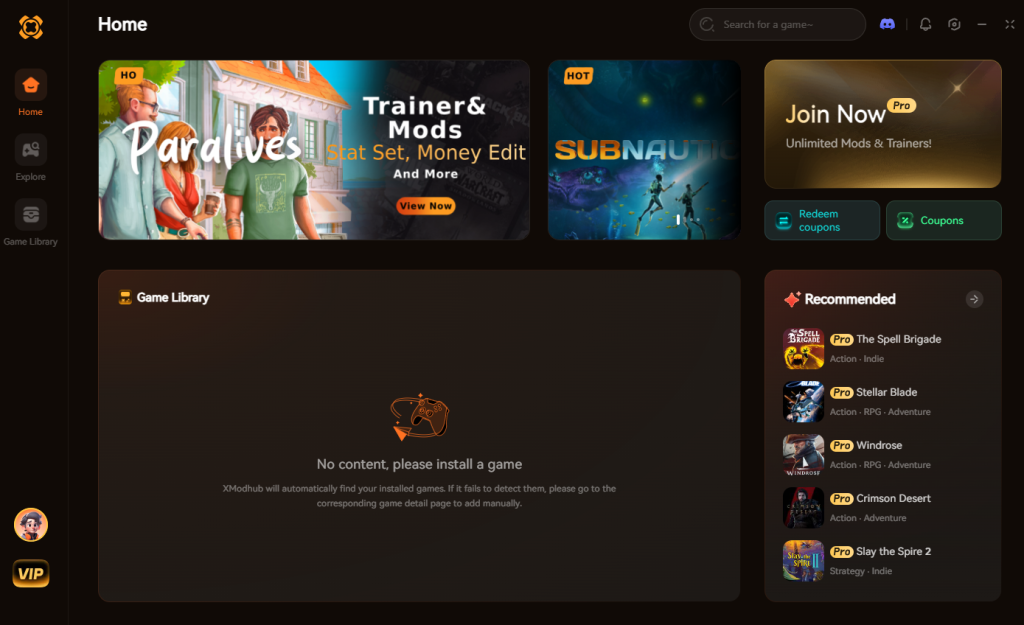
- **Auto-Detect DragonSword: Awakening:** Launch the game, and XMODhub will instantly recognize it.
- Toggle Cheats: Use your smartphone or a second monitor to activate God Mode, Infinite Gold, or Max Attack Speed with a single click. No file modding required.
Download DragonSword : Awakening Trainer Now
Frequently Asked Questions
Why is my game stuttering even on low settings in DragonSword: Awakening?
This is likely due to shader compilation or asset streaming. Ensure the game is installed on a fast NVMe SSD. If you just launched the game or entered a new world, allow a few minutes for the engine to compile shaders in the background.
Does DragonSword: Awakening support frame generation?
Yes, as a modern UE5 title, it supports both NVIDIA DLSS 3 Frame Generation and AMD FSR 3 Fluid Motion Frames. Enabling these will significantly boost your framerate, though they may introduce slight input latency.
Is DragonSword: Awakening always online?
While it features a robust multi-world system where you can play with friends, the core game is buy-to-play and can be experienced solo. However, an internet connection may be required for initial verification and accessing specific community hubs.
How do I uncap the framerate in DragonSword: Awakening?
Go to the in-game display settings, turn off V-Sync, and set the “Max FPS” slider to “Unlimited.” For smoother gameplay, it is recommended to cap your framerate externally via the NVIDIA Control Panel to match your monitor’s refresh rate.
Final Verdict: Achieving Peak Anime Action
Finding the best PC settings for DragonSword: Awakening is a balancing act. By aggressively lowering Volumetric Fog, Shadows, and Global Illumination, while keeping Anti-Aliasing and Textures high, you can maintain the gorgeous cel-shaded aesthetic while ensuring your framerate never dips during crucial boss fights. Remember, the goal is consistent frame pacing rather than a high but wildly fluctuating maximum FPS.
If tweaking settings and grinding for gear feels like a chore, remember that gaming is about having fun on your own terms. XMODhub empowers you to skip the tedious parts and experience the epic narrative of DragonSword: Awakening without the stress. With a massive ecosystem supporting over 5,000 single-player titles—including other stunning action-adventure games like No Rest for the Wickedand Windrose—XMODhub is the ultimate companion for the modern PC gamer who values their time. Optimize your frames, or optimize your fun—the choice is yours.

Stop Grinding, Start Enjoying.
Bypass the tedious resource gathering and unlock your full potential instantly.

I am a passionate gamer and writer at XMODhub, dedicated to bringing you the latest gaming news, tips, and insights.
Connect with me:
LinkedIn Profile ↗
 Nancy Miller