Catherine Hu
Trying to slice through rival prehistoric titans inDinoblade but getting interrupted by network drops or server hiccups? There is nothing more frustrating than perfectly timing a SeClaude-style parry against an aggressive Spinosaurus, only to have a sudden connection issue throw off your rhythm or, worse, corrupt your hard-earned progress. For a game built on split-second combat decisions and brutal Souls-like mechanics, maintaining a stable, uninterrupted session is crucial. If you are looking to master the giant sword-wielding dinosaur combat without the anxiety of online connectivity, you need to set up your game for offline solo play correctly.
Editor’s Note: When I first dove into the Dinoblade demo, the fast-paced, posture-breaking combat hooked me instantly. However, intermittent Steam cloud sync issues during a stormy weekend nearly cost me hours of mechanical practice against those relentless rival dinos. I had to figure out a foolproof way to lock the game into offline mode while keeping my local save data bulletproof. Here is exactly how you can do it too, safely and effectively.
TL;DR: The Short Answer
If you just want to launch Dinoblade offline without risking your save files or progress, follow these exact steps:
- Step 1: Launch the Steam client while you still have an active internet connection.
- Step 2: Ensure Dinoblade is fully updated to avoid launching a mismatched or broken build.
- Step 3: Click on “Steam” in the top-left corner and select “Go Offline…”
- Step 4: Confirm by clicking “Enter Offline Mode.”
- Step 5: Locate your local Dinoblade save file (usually in
C:\Users\[YourName]\AppData\Local\Dinoblade\Saved) and make a manual backup copy before launching the game. - Step 6: Launch Dinoblade from your Steam library. The game will now run completely locally without attempting to sync data or require a server check.
Table of Contents
- Understanding Dinoblade’s Network Architecture
- Step-by-Step Guide to Safe Offline Play
- Managing and Protecting Your Local Saves
- Common Offline Mode Errors and Fixes
- The Ultimate Shortcut: Dominating Dinoblade with XMODhub
- Online vs. Offline Mode: What Changes in Dinoblade?
- Frequently Asked Questions
- Final Verdict: Mastering Solo Prehistoric Combat
Understanding Dinoblade’s Network Architecture
To safely play Dinoblade offline, it is important to understand how the game handles data. While Dinoblade is fundamentally a single-player, classic-structure action RPG where you wield massive weapons against extinction-level threats, modern Steam games are deeply integrated with online ecosystems.
Why Does a Solo Game Need the Internet?
Even though you are not queueing up for PvP against other giant sword-wielding dinosaurs, the Steam ecosystem constantly communicates with the game client. This background chatter primarily handles:
- Steam Cloud Synchronization: Uploading your latest save file to the cloud to prevent data loss.
- Achievement Tracking: Registering when you successfully execute those perfect parries to break an enemy’s posture.
- License Verification (DRM): Periodically checking that you legitimately own the game.
- Update Checks: Ensuring you have the latest patches—vital for a game in its preliminary state where the developer is actively adjusting AI patterns and unpredictable damage spikes.
The Risks of Forced Disconnection
Simply ripping out your ethernet cable while playing Dinoblade can be dangerous. If the game is in the middle of autosaving after a gruelling boss fight and it expects a server handshake that never arrives, the save file can become corrupted. Playing offline safely means preparing the client before you disconnect, ensuring the game reads strictly from your local drive.
Step-by-Step Guide to Safe Offline Play
Executing a clean transition into offline mode guarantees that Dinoblade will not stutter while searching for a non-existent connection. Follow these detailed steps to set up your ultimate solo environment.
Phase 1: Preparation While Online
You cannot simply go offline if you just installed the game or haven’t launched it recently.
- Connect and Update: Open Steam and ensure your connection is stable. Navigate to your library and check if Dinoblade has any pending updates. Let them finish completely.
- First Launch (Crucial): If this is your first time playing, or your first time after a major patch, you must launch the game while online. This completes the initial setup scripts, validates the DirectX/C++ redistributables, and establishes your local save folder structure.
- Trigger an Autosave: Play through the initial new intro (recently updated by the developers) or fight a few basic enemies until you see the game’s autosave icon. This confirms your local files are active. Quit the game normally to the desktop.
Phase 2: Engaging Steam Offline Mode
Now you are ready to cut the cord properly.
- In the main Steam window, click on the Steam menu in the top-left corner.
- Select Go Offline… from the dropdown menu.
- A prompt will appear explaining that Steam will restart in Offline Mode. Click Enter Offline Mode.
- Steam will reboot. When it comes back up, your friends list will be disconnected, and the store will be inaccessible, but your library—specifically Dinoblade—will be ready to play.
Phase 3: Launching and Verification
- Click Play on Dinoblade.
- The game should boot slightly faster since it skips the cloud sync phase.
- Verify that your continue option is available and that you are exactly where you left off. You are now safely playing completely offline.
Managing and Protecting Your Local Saves
Playing Dinoblade offline means you lose the safety net of Steam Cloud. If your hard drive fails or a sudden power outage occurs during a perfect parry animation, your progress could vanish. You must become your own cloud.
Locating Your Save Data
Unreal Engine games (which many modern action RPGs utilize) typically store save data in the AppData folder. To find your Dinoblade saves:
- Press
Win + Ron your keyboard to open the Run dialogue. - Type
%localappdata%and press Enter. - Look for a folder named
Dinobladeor potentially the developer’s studio name. - Navigate to
Saved->SaveGames. Inside, you will find files ending in.sav.
Creating a Bulletproof Backup Routine
Before you launch Dinoblade for a long offline session, manually copy the entire SaveGames folder and paste it somewhere safe—like your Desktop, a dedicated backup folder, or an external USB drive. If an unpredictable AI spike kills you and the game crashes during the reload, you can simply delete the corrupted .sav file in the AppData folder and paste your backup back in.
If you are looking to maximize your efficiency once you are safely offline, you might also want to optimize your character’s progression. For strategies on scaling your power quickly, check out this comprehensive Dinoblade Fast XP Leveling Guide to ensure your dinosaur is always wielding the strongest giant sword possible.
Common Offline Mode Errors and Fixes
Even when you follow the steps perfectly, playing modern PC titles offline can throw occasional errors. Here is how to troubleshoot the most common Dinoblade offline issues.
“Unable to Initialize Steam API”
This error occurs when the game cannot verify that Steam is running, often because Steam Offline Mode didn’t initialize correctly.
The Fix: Completely close Steam via the Task Manager. Relaunch Steam, ensure it prompts you to start in Offline Mode (since it detects no connection), and try launching the game again.
Missing Continue Button / No Save File Detected
If you boot up offline and your save is missing, the game might be looking in the wrong directory or relying on a cloud cache that isn’t there.
The Fix: This is why we make manual backups. Go online briefly, ensure Steam Cloud syncs your latest save to your local machine, and then switch back to offline mode using the correct procedure outlined above.
Achievement Sync Delay
Warning: While playing Dinoblade offline, you might still trigger achievement conditions (like executing 50 perfect parries). However, the pop-ups won’t appear.
The Fix: These are cached locally. The next time you log into Steam online and launch Dinoblade, the cached achievements will bulk-sync and unlock on your profile. Do not alter local cache files, or you risk voiding these earned achievements.
The Ultimate Shortcut: Dominating Dinoblade with XMODhub
Let’s be honest: Dinoblade features intense, Souls-like combat. The enemy AI can be punishing, and missing a perfect parry against a rival dinosaur armed with brutal weapons can result in frustrating deaths and tedious mechanical repetition. If you are playing offline to avoid stress, why not remove the artificial difficulty altogether?
If you are tired of getting stomped by unpredictable damage spikes and just want to enjoy the spectacle of dinosaurs fighting with massive swords, skip the grind. Use XMODhub.
XMODhub provides safe, reliable, and undetectable single-player modifications that let you tailor the Dinoblade experience to your exact preferences. Want infinite health? Done. Need to instantly break enemy posture? Easy.
**How to dominate Dinoblade in 3 easy steps:**
- Download XMODhub: Install the lightweight client from the official website.
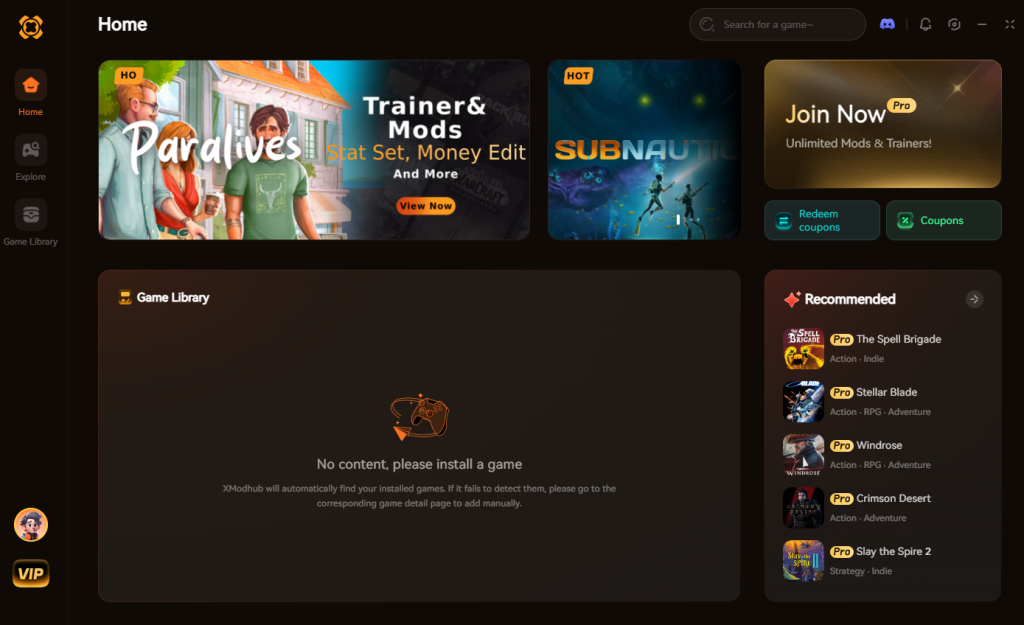
- Auto-Detect Dinoblade: Launch the app; it will automatically find your Dinoblade installation.
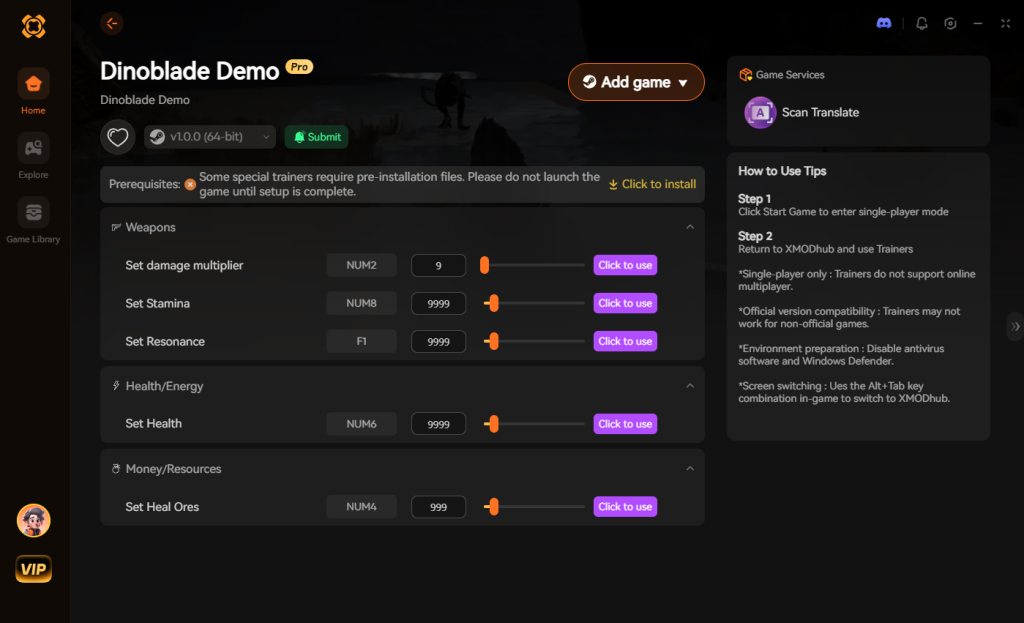
- Toggle Cheats: Activate features like “God Mode,” “Infinite Stamina,” or “One-Hit Posture Break” via hotkeys right in the middle of combat.
No complex file editing, no risk of corrupting your hard-earned saves—just pure, unadulterated power.
Download Dinoblade Trainer Now
Online vs. Offline Mode: What Changes in Dinoblade?
When you sever your connection to the Steam servers, Dinoblade fundamentally shifts how it processes background tasks. Understanding these changes is critical for hardcore players who want to optimize their solo runs without losing their hard-earned progress. Here is a direct comparison of what you keep and what you lose when transitioning to Dinoblade offline mode.
| Feature / Mechanic | Online Mode Behavior | Offline Solo Mode Behavior |
|---|---|---|
| Steam Cloud Sync | Active (Auto-uploads .sav files after sessions) |
Disabled (Requires manual backup of local files) |
| Achievement Unlocks | Immediate pop-up notifications on screen | Cached locally (Syncs quietly upon next connection) |
| Frame Pacing & Stutter | Occasional micro-stutters during background syncs | Smoother performance for precise SeClaude-style parries |
| Game Updates/Patches | Automatic downloads via the Steam client | Paused (Must reconnect to download AI tweaks) |
| DRM Verification | Continuous background API checks | Bypassed (As long as Steam Offline Mode is active) |
Maximizing Frame Rates for Perfect Parries Offline
One hidden benefit of playing Dinoblade strictly offline is the potential boost in frame pacing. Because the game utilizes posture-breaking combat that requires split-second reactions, even a millisecond of network-induced stutter can cause you to miss a block against a massive dinosaur attack. By staying offline, you eliminate background network polling. To maximize this advantage, ensure you also disable any background downloaders or cloud-drive syncing apps (like OneDrive or Google Drive) that might attempt to read or upload your local save data while you play.
Frequently Asked Questions
Can I play Dinoblade entirely without Steam?
No. Dinoblade is distributed via Steam, meaning you need the Steam client to act as the DRM layer. However, by using Steam’s official Offline Mode, you can play without an active internet connection after the initial setup.
Will I lose my save if I switch from offline to online mode?
As long as you haven’t tampered with the save files manually, Steam will ask you to resolve any conflict between your local offline save (which is newer) and the older Cloud save. Always choose to upload your Local Save to the Cloud to keep your offline progress.
Does offline mode affect game performance?
Actually, playing offline can sometimes improve performance. By severing the connection, the game stops pinging servers for cloud syncs or achievement tracking, which can reduce micro-stutters, making those tight parry windows feel slightly more responsive.
Can I update Dinoblade while offline?
No. To receive the latest patches—which are frequent as the developers refine the preliminary state of the demo and adjust the AI—you must connect to the internet and let Steam download the update. You cannot play the game while an update is paused.
Final Verdict: Mastering Solo Prehistoric Combat
Playing Dinoblade offline and solo safely is all about preparation. By properly engaging Steam’s Offline Mode and maintaining meticulous manual backups of your local save data, you can completely insulate yourself from server outages and internet drops. You secure the optimal environment to focus on what really matters: mastering the parry mechanics and surviving the prehistoric cataclysm.
But if the Souls-like mechanics still feel like too much of a grind, remember that you don’t have to suffer through repetitive encounters. XMODhub is the ultimate equalizer, supporting over 5,000+ single-player titles. Whether you are cleaving through Dinoblade, conquering Elden Ring, or masteringTales of Arise, XMODhub gives you the power to play your games, your way. Take control of the extinction event today.

Stop Grinding, Start Enjoying.
Bypass the tedious resource gathering and unlock your full potential instantly.

I am a passionate gamer and writer at XMODhub, dedicated to bringing you the latest gaming news, tips, and insights.
Connect with me:
LinkedIn Profile ↗

 Nancy Miller