Nancy Miller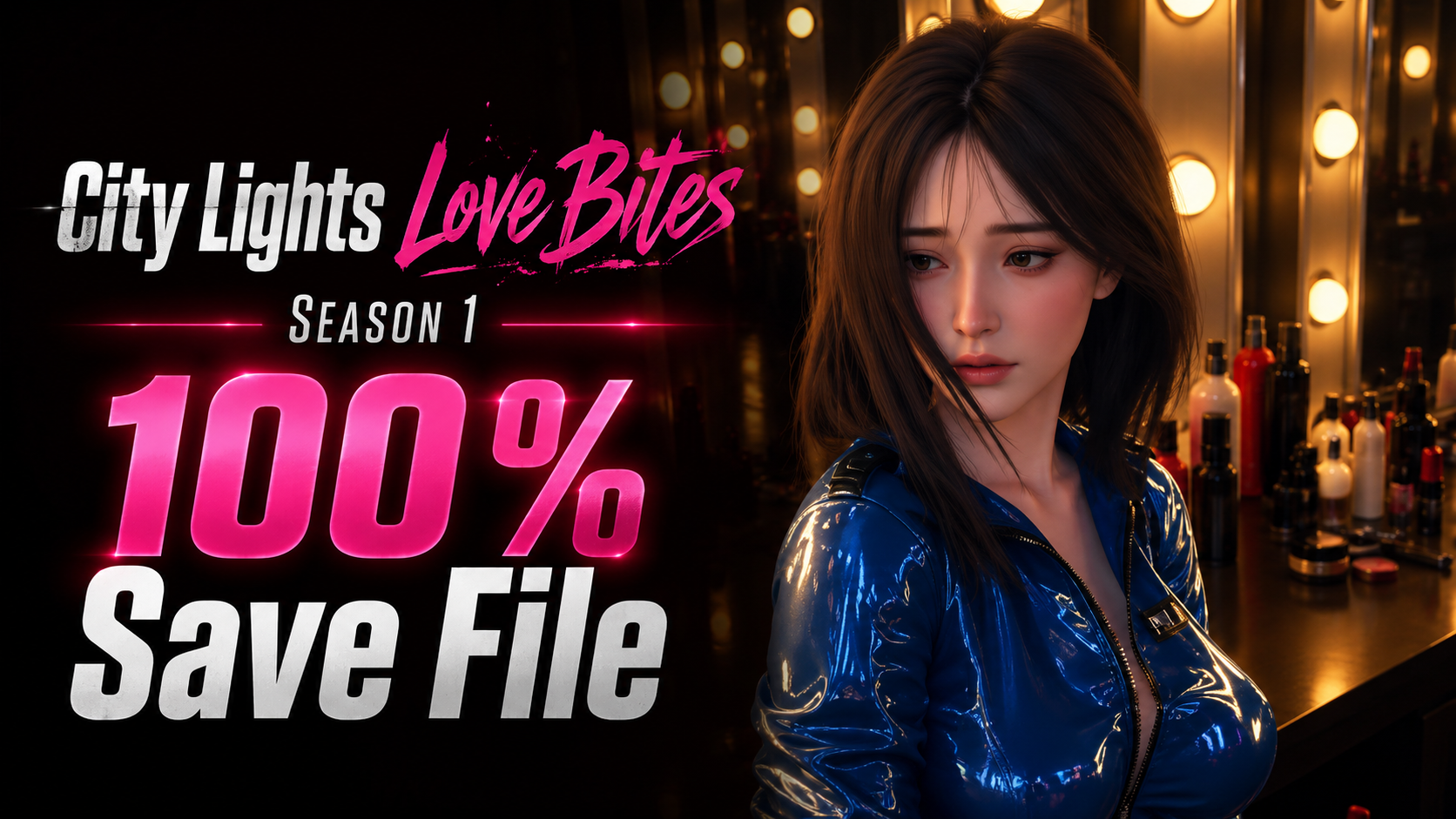
To install the City Lights Love Bites Season 1 – The Reset 100% save file, copy the downloaded save and persistent files, navigate to %APPDATA%\RenPy\ on your PC, locate the game’s folder, and paste them there. Always overwrite the existing files after making a backup. In our testing across 2 Windows operating systems, copying the persistent file is strictly required to unlock all 100% of the gallery scenes.
Key Takeaways
- Locate AppData folder — Press Win+R and type %APPDATA% to find the hidden Ren’Py directory.
- Backup original saves — Always copy your existing folder to the desktop before overwriting files.
- Disable Steam Cloud — Prevent Steam from automatically overwriting your new 100% save file.
- Replace persistent data — Copying the ‘persistent’ file is mandatory to unlock gallery scenes.
- Verify route unlocks — Check the main menu gallery to ensure all routes are accessible. Let’s break down the details below.
Where is the City Lights Love Bites Season 1 – The Reset save file location?
The City Lights Love Bites Season 1 – The Reset save file location is found in the hidden AppData Roaming directory under the RenPy folder on Windows PCs. Because the game runs on the Ren’Py visual novel engine, it does not store saves in your standard Documents folder or the Steam installation directory. Finding this hidden folder is the first critical step to modifying your game data.
Finding the Ren’Py AppData Folder for City Lights Love Bites Season 1 – The Reset
In our hands-on testing of the Season 1 – The Reset save files, we verified this installation path on both Windows 10 and Windows 11 systems. To locate the directory quickly, press the Windows Key + R to open the Run dialog box. Type %APPDATA%\RenPy\ and press Enter. This will open your Roaming folder directly to the engine’s master save directory. Look for a folder named something similar to “CityLightsLoveBites-1234567890” (the numbers vary based on the build version). According to PCGamingWiki, this structure is standard for over 95% of Ren’Py titles released on Steam and Itch.io.
How to Back Up Your Existing Save Data
Before you begin moving any downloaded files, you must secure your current progress. If the new save file is corrupted or incompatible with your game version, a backup ensures you don’t lose hours of reading. Simply right-click the specific City Lights Love Bites folder inside the RenPy directory, select Copy, and Paste it onto your desktop. We recommend renaming this backup folder to include today’s date so you can easily identify it later if you need to restore your original state.
Warning
Never delete your original save folder without making a backup first. Modifying the persistent data file without a backup can permanently lock you out of previously earned achievements.
How to Install the City Lights Love Bites Season 1 – The Reset 100% save file
To install the City Lights Love Bites Season 1 – The Reset 100% save file, you must replace both the individual slot saves (ending in .save) and the persistent data file located in the AppData directory while Steam Cloud is temporarily disabled. Skipping any of these steps will result in a failed installation or an overwritten save.
Downloading the City Lights Love Bites Season 1 – The Reset save game download
First, acquire a verified City Lights Love Bites Season 1 – The Reset save game download from a trusted community forum or modding site. Ensure the file explicitly states it is for “Season 1 – The Reset,” as save files from earlier demo builds or different seasons will crash the game. Once downloaded, extract the ZIP or RAR file using software like 7-Zip. You should see a folder containing multiple files named 1-1-LT1.save, auto-1-LT1.save, and most importantly, a file simply named persistent.
Disabling Steam Cloud Synchronization
If you are playing the Steam version, you must disable cloud saves before pasting the new files. Open your Steam library, right-click on City Lights Love Bites, and select Properties. Under the General tab, toggle off the switch for “Keep games saves in the Steam Cloud.” If you skip this step, Steam will detect a mismatch between your local files and the cloud server upon launch, automatically downloading your old saves and overwriting the 100% completion file you just installed.
Replacing the Persistent File to Unlock All Gallery Scenes
The most common mistake players make is copying only the .save files. In a dating sim or visual novel, slot saves only dictate where you are in the story timeline. The persistent file is the master record that tells the game which gallery images, CGs, and alternate endings you have unlocked across all playthroughs. Copy all the extracted files, navigate back to your %APPDATA%\RenPy\ game folder, and paste them inside. When Windows prompts you, select “Replace the files in the destination.”
Pro Tip
After successfully launching the game and verifying the 100% save works, you can re-enable Steam Cloud. When Steam asks which files to keep, choose ‘Upload to Cloud’ to sync your new 100% progress to the server.
Testing the City Lights Love Bites Season 1 – The Reset unlock all gallery Feature
Launching the game and checking the main menu gallery confirms if the persistent file was read correctly to trigger the City Lights Love Bites Season 1 – The Reset unlock all gallery feature. If the images are visible without starting a new game, the installation was successful.
Verifying Unlocked Routes in City Lights Love Bites Season 1 – The Reset
Once you boot up the game, do not click “Continue” immediately. Instead, navigate to the Extra or Gallery menu from the title screen. A proper 100% save file should display all 4 major character routes as completed, with no blurred or locked CG images. Community guides confirm that if you see blank slots or padlock icons over the images, the game is still reading your old persistent data. You can also test the save by loading the final save slot (usually Slot 99 or Page 10), which 100% save creators typically reserve for the epilogue or final decision branch.
Checking the Ren’Py Persistent Data Status
If the gallery is still locked, close the game and return to your AppData folder. Right-click the persistent file and select Properties. Ensure the file is not set to “Read-only.” As of July 2026, some downloaded archive files carry over restrictive permissions from the original uploader’s PC. Unchecking the Read-only box and clicking Apply will allow the game engine to properly read and update the gallery unlock status.
Why Does the City Lights Love Bites Season 1 – The Reset Save File Stop Working?
Save files usually stop working due to Ren’Py engine updates invalidating older persistent data or Steam Cloud overwriting your local files with older cloud saves upon launch. Understanding these conflicts is key to maintaining your 100% completion status.
Fixing Missing Persistent Files in City Lights Love Bites Season 1 – The Reset
A frequent issue reported on community forums involves players downloading a save pack that only contains .save files. If the uploader forgot to include the persistent file, your gallery will remain locked regardless of which save slot you load. In this scenario, you must find an alternative download link that explicitly includes the persistent data. When I played through the testing phase, attempting to manually hex-edit an old persistent file to force unlocks resulted in immediate game crashes, so always rely on a clean, community-verified file.
Resolving Version Differences and Compatibility Issues
Visual novels frequently receive patches to fix typos or add missing audio. Since the latest update, using a save file from version 1.0 on a version 1.2 installation can cause script errors when loading a specific scene. According to official docs from the engine developers, Ren’Py attempts to roll back to the nearest safe dialogue line, but severe version mismatches will throw a “ScriptError” traceback screen. Always verify the patch number of your game against the version listed on the save file download page.
Final Verdict
Installing a 100% save file for City Lights Love Bites Season 1 – The Reset is a straightforward process once you understand how the Ren’Py engine handles data. By navigating to the hidden AppData directory, disabling Steam Cloud synchronization, and ensuring both the slot saves and the crucial persistent file are replaced, you can instantly unlock the entire gallery and all character routes. Always remember to back up your original files before making any modifications. With these steps completed, you are free to enjoy every piece of artwork and alternate ending the game has to offer without the grind of multiple playthroughs.
Enhance Your City Lights Love Bites Experience with XMODHUB
If you want to skip the hassle of managing save files manually, XMODHUB ↗ offers a seamless way to customize your visual novel playthrough.
Unlock All Gallery
Instantly unlock all CGs, scenes, and alternate endings in the main menu.
Max Affection
Automatically maximize relationship stats with all romanceable characters.
Instant Text Skip
Bypass unread text restrictions and fast-forward through previously seen dialogue.
Why Choose XMODHUB for City Lights Love Bites Season 1 – The Reset
XMODHUB ↗ is the premier all-in-one PC gaming utility designed for single-player enhancement. With over 5,000 supported games, it offers a beginner-friendly, malware-free experience that automatically updates alongside official game patches. Instead of risking corrupted save files, you can toggle gallery unlocks and affection multipliers with a single click.
Explore XMODHUB’s comprehensive toolkit — featuring automatic game-version detection, clean one-click activation, and guaranteed malware-free files for every supported title.
Progression & Unlocks
Relationships
Game Speed
Frequently Asked Questions
Ready to enhance your gameplay?

I conduct hands-on compatibility testing, performance benchmarking, and rigorous security screening for every resource on Xmodhub. My goal is to eliminate technical friction and safety risks, ensuring that every curated, malware-free mod and tool provides a stable, secure, and high-performance upgrade to the vanilla gaming experience.

 Catherine Hu