
 Catherine Hu
Quick Answer: Can you use God Mode in Romestead multiplayer co-op?
Yes, you can use God Mode in Romestead multiplayer co-op, but strictly under specific conditions:
Editor’s Note
After logging well over 100 hours in Romestead, managing everything from casual two-player peer-to-peer sessions to massive 32-player dedicated servers, I have seen every way a multiplayer session can break. The truth about enabling God Mode in Romestead multiplayer co-op is that the game engine is highly protective of its server-client architecture. It is absolutely possible to become invincible, but if you do not execute the commands with the correct administrative privileges, you will instantly corrupt your world save or cause permanent desynchronization for your friends. Let’s break down exactly how to bypass these restrictions safely.
Picture this: You and your dedicated squad have just spent the last forty-two hours meticulously constructing the ultimate fortified settlement in Romestead. You have optimized your crop rotations, built impenetrable defensive walls, and gathered rare materials. Suddenly, a massive, unscripted raid event triggers. Because of a momentary server lag spike, your frontline defenders get wiped out, and your precious infrastructure is reduced to smoldering rubble in minutes. In a panic, you try to open the developer console and frantically type /godmode, only to be greeted by the dreaded red text: Error: Permission Denied in Multiplayer.
If you have ever experienced this exact scenario, you are not alone. Transitioning from a solo playthrough—where you have absolute control over the world—to a multiplayer environment introduces a massive layer of server-side restrictions.
The Architecture of Romestead Multiplayer Co-op
Before you start mashing the tilde (~) key to open the console, you need to understand how Romestead handles multiplayer data. Unlike strictly client-authoritative games where your local machine dictates your health pool, Romestead utilizes a server-authoritative model to prevent griefing and maintain synchronization across complex physics calculations and AI pathfinding.
When you take damage from an enemy or environmental hazard in Romestead, your client sends a packet to the host (or dedicated server) saying, “I got hit.” The server calculates the damage based on your armor stats and sends a packet back saying, “Deduct 45 HP.”
If you attempt to freeze your health value locally using basic cheat software without telling the server, the server will notice the discrepancy. The server thinks you should be dead, but your client thinks you are alive. This creates a “Ghost State” where you can walk around, but you cannot interact with chests, doors, or enemies.
Because the vanilla progression can be brutally unforgiving, many players seek invulnerability just to bypass the tedious material grind. If your primary goal for wanting God Mode is simply to build without the fear of dying while gathering stone and wood, you might want to look into the Fastest Way to Farm Unlimited Resources in Romestead before you start messing with server-level administrative commands. However, if you are determined to achieve true invincibility for you and your co-op partners, you must manipulate the server’s rule set directly.
Step-by-Step: Enabling God Mode via Console Commands
To successfully answer the question of whether you can use God Mode in Romestead multiplayer co-op, we must look at the official developer console. Here is the rigorous, step-by-step process to enable it without breaking your session.
Phase 1: Enabling the Developer Console
By default, Romestead disables the command console in multiplayer to prevent accidental sequence breaking.
settings.json file in the \Config\ directory."EnableDeveloperConsole": false.false to true and save the file.Phase 2: Authenticating as Admin
If you are hosting via the in-game menu (Peer-to-Peer), you are automatically the admin. If you are running a dedicated server, you must authenticate.
/adminauth [YourAdminPassword] and press Enter. (You set this password in your server_config.ini).System: Admin privileges granted to [PlayerName].Phase 3: Activating God Mode
Romestead separates global server cheats from individual player cheats.
/godmode true or /gm 1. You will see a small shield icon appear in the bottom-left corner of your HUD./grantgodmode [PlayerID]. You can find their Player ID by typing /listplayers./serverrule_globalinvincibility true. (Warning: This also makes hostile NPCs invincible due to a known engine quirk, so use this specific global command with extreme caution).Common Mistakes That Will Ruin Your Romestead Server
Even veteran players make catastrophic errors when trying to manipulate server commands in Romestead. Here are the most common mistakes you must avoid to keep your 100-hour save file intact.
Alternative Methods for Multiplayer Invincibility
If the console commands feel too clunky, or if you are tired of typing them every single time you launch your Romestead multiplayer co-op session, there are alternative methods to achieve a God Mode-like experience permanently.
Alternative 1: Modifying the Server Configuration Rules
Instead of using in-game commands, you can hardcode invincibility into your server’s DNA.
server_rules.ini.[PlayerDamageMultipliers] section.IncomingDamageMultiplier=1.0 to IncomingDamageMultiplier=0.0.EnvironmentalDamageMultiplier=1.0 to EnvironmentalDamageMultiplier=0.0.This effectively gives every player on the server God Mode permanently, without needing to type any commands. The engine simply calculates all incoming damage as zero.
Alternative 2: Dedicated Server Manager Mods
The Romestead modding community has created several Server Manager interfaces. By installing a recognized Server Manager mod, the host gets a sleek, graphical user interface (GUI) overlay. Instead of memorizing syntax, you simply press F4 to open the mod menu and check a box next to your friend’s name that says “Invulnerable.” This is highly recommended for hosts who manage more than four players at a time.
Advanced Tips for Romestead Server Administrators
If you want to elevate your Romestead multiplayer co-op experience beyond simple God Mode, you need to understand how to blend commands for optimal gameplay.
/godmode true, /noclip true (Allows you to fly through walls and terrain), /ignorebuildcosts true (Allows placement of blueprints without resources). This trinity of commands transforms Romestead from a grueling survival simulator into a pure creative sandbox, perfect for co-op mega-builds.adminlist.txt file in the server directory and paste your unique SteamID64 or Epic Games ID. This grants you automatic, silent admin privileges the moment you connect, allowing you to instantly activate God Mode if a griefer joins and tries to blow up your base.Essential Server Admin Commands for Co-op Survival
While God Mode is the most sought-after cheat in Romestead multiplayer, managing a functional co-op server often requires a broader toolkit. If you are going to use administrative privileges, you should know the full spectrum of commands that can save your session from glitches, stuck players, or lost progression.
Below is a master reference matrix for the most critical multiplayer commands.
| Command Syntax | Target Scope | Primary Function / Trigger | Risk Level |
|---|---|---|---|
| /godmode [true/false] | Self | Prevents HP from dropping below 1 during active combat or environmental hazards. | Low |
| /grantgodmode [ID] | Specific Client | Grants targeted invincibility to a co-op partner without making the whole server immune. | Low |
| /serverrule_globalinvincibility | Global Server | Makes all players invincible. Note: Can bug out and apply to hostile raid NPCs. | High |
| /teleport [ID_A] [ID_B] | Client-to-Client | Instantly moves one player to another’s exact map coordinates. Excellent for rescuing stuck friends. | Medium |
| /spawnitem [ItemID] [Qty] | Self | Drops specified resources directly into your inventory, bypassing the grind entirely. | Medium |
| /kill [ID] | Specific Client | Instantly defeats a targeted player. Useful for fixing infinite falling desync loops. | Low |
Troubleshooting Multiplayer Cheat Permissions
Sometimes, despite following all the steps perfectly, the server simply refuses to grant you God Mode. If you are stuck staring at a Permission Denied error, check these three critical failure points:
The Ultimate QoL Solution: Bypassing the Vanilla Grind with XMODhub
Let’s be brutally honest: managing console commands, editing .ini files, and worrying about server desyncs in Romestead multiplayer co-op is exhausting. You bought the game to build massive settlements and explore with your friends, not to study server administration and network packet routing.
When vanilla workarounds become too tedious, high-level players turn to XMODhub.
XMODhub is an advanced, premium Quality of Life (QoL) engine designed to inject seamlessly into your game without triggering the network anomalies that plague generic cheat engines. For Romestead specifically, XMODhub offers a dedicated “Co-op Safe” module. This means if you are the host, you can toggle God Mode, Infinite Stamina, and One-Hit Kill with a single keystroke, and the software handles the server-side packet validation automatically so your friends never experience lag or desync.
Here is how to deploy the ultimate Romestead solution in three flawless steps:
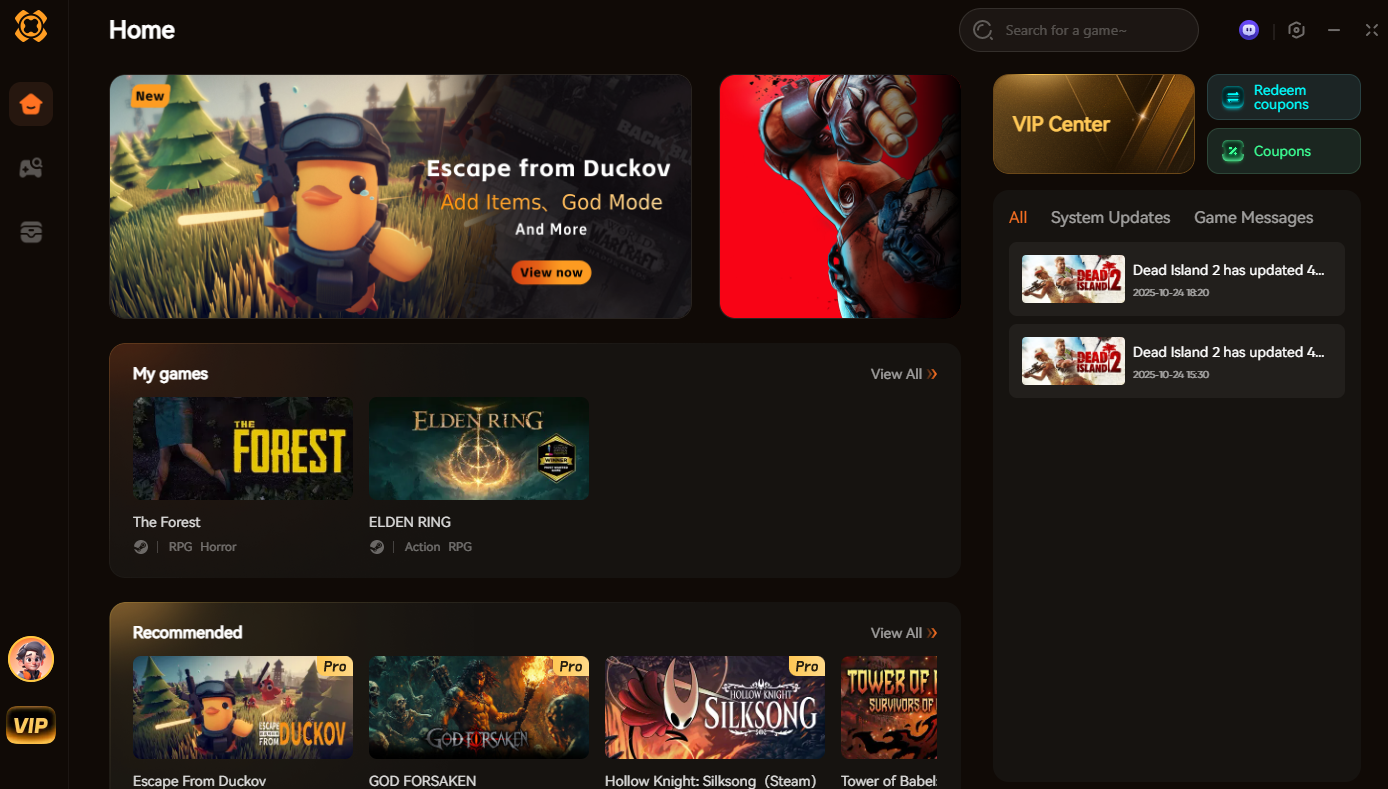
No command lines. No text file edits. Just pure, unadulterated gameplay freedom for you and your co-op squad.
Frequently Asked Questions (FAQs)
A: Yes. The moment the host authenticates as an admin and uses the /godmode command, Romestead automatically flags the save file as “Cheats Enabled.” This permanently disables all Steam and Epic Games achievements for that specific world for all players connected. If you care about achievement hunting, do not use the developer console.
A: In a vanilla game, absolutely not. The server architecture strictly forbids clients from modifying their health pools. You must ask the host to target your Player ID and use the /grantgodmode command. Attempting to force it client-side will result in a server kick.
A: Romestead’s engine treats “Kill Z-Volumes” (the invisible boundaries at the bottom of the map or deep chasms) differently than standard damage. The Kill Z-Volume does not deal damage; it triggers an immediate “Destroy Actor” command on your character model. God Mode protects against numerical damage, not engine-level deletion commands.
A: No. XMODhub is strictly designed for single-player, peer-to-peer co-op, and private dedicated servers where you have administrative consent. Using any third-party software on official, public matchmaking servers violates the terms of service and is not supported.
Conclusion
So, can you use God Mode in Romestead multiplayer co-op? Absolutely. The game provides robust, albeit slightly hidden, developer commands that allow hosts to manipulate the rules of survival. Whether you choose to carefully type out /godmode in the console, edit the deep server configuration files for permanent invincibility, or utilize a server manager GUI, the power to protect your hard-earned settlements is entirely in your hands. Just remember to respect the engine’s limitations to avoid catastrophic desyncs.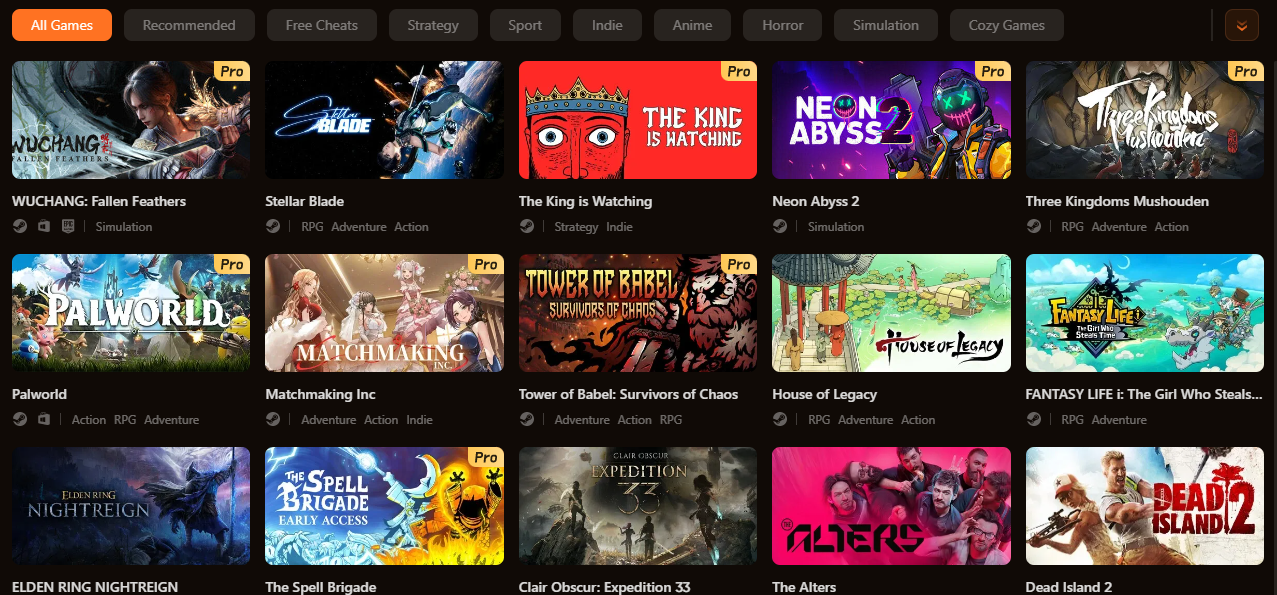
However, if you value your time and want to eliminate the friction of technical troubleshooting, bridging the gap with a professional tool is the smartest play. XMODhub doesn’t just solve the Romestead multiplayer God Mode dilemma; with a massive ecosystem supporting over 5,000+ games—including massive hits like Palworld and Enshrouded —it is the definitive upgrade for gamers who want to dictate their own rules across their entire library. Build your empire, protect your friends, and never let a random server lag spike ruin your Romestead experience again.

I am a passionate gamer and writer at XMODhub, dedicated to bringing you the latest gaming news, tips, and insights.
Connect with me:
LinkedIn Profile ↗


 Nancy Miller