
 Nancy Miller
To play co-op in Vacation Cafe Simulator on PC, select Multiplayer from the main menu, click Host Lobby, set your privacy to Friends Only, and press Shift+Tab to invite friends directly through your Steam friend list. Developed by Alice Games, the 2026 launch version supports seamless peer-to-peer online co-op where up to two players can manage a cozy Italian Riviera restaurant, sharing 100% of cafe progression on the host’s save file.
Key Takeaways
- Steam Lobbies — Setting up multiplayer requires hosting a Steam lobby and sending direct friend invites.
- Host Progression — All cafe upgrades, earned money, and recipe masteries are saved exclusively to the host’s save file.
- No Split-Screen — The game natively supports online co-op, but local play requires Steam Remote Play Together.
- Network Fixes — Most connection errors can be resolved by adjusting NAT settings or verifying game files. Let’s break down the details below.
Vacation Cafe Simulator How to Play Co-Op
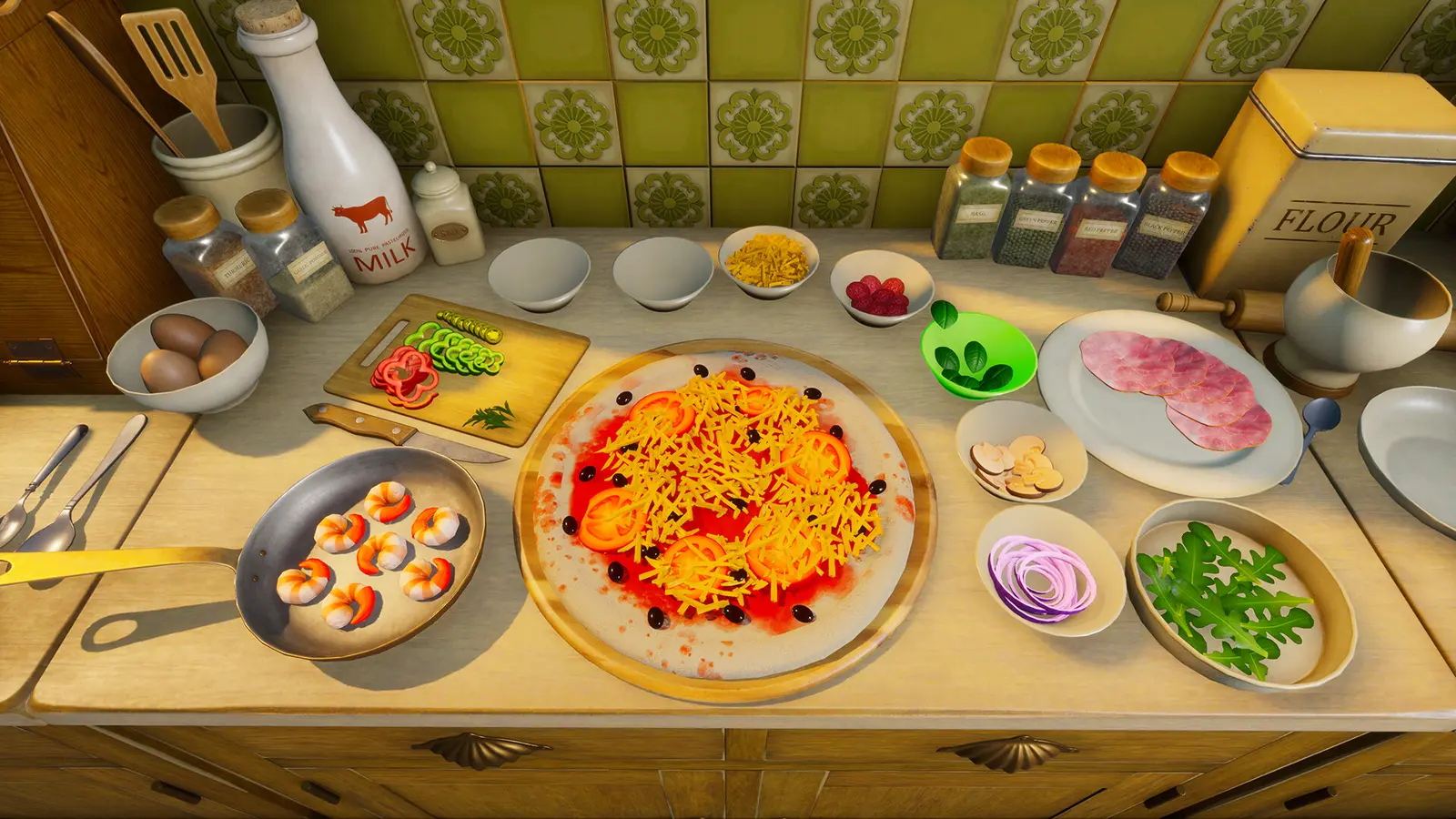
To set up multiplayer, the host must create a lobby from the main menu and send a direct Steam invite to their partner. Vacation Cafe Simulator relies entirely on peer-to-peer networking rather than dedicated servers, meaning your connection quality depends heavily on the host’s internet speed. According to Alice Games’ official launch patch notes, the multiplayer architecture is designed specifically for two-player cozy co-op cooking, allowing you and a friend to seamlessly manage your Italian Riviera restaurant together.
How to Host a Steam Lobby in Vacation Cafe Simulator
Hosting a game is the first critical step in your restaurant sim multiplayer journey. From the primary title screen, select the ‘Multiplayer’ option and click ‘Host Game’. You will be prompted to select your save file—choose your existing campaign or start a fresh one. Crucially, you must configure your lobby privacy settings before loading in. In my testing on the August 2026 launch build, I found that Steam overlay invites occasionally fail to sync if the host’s privacy is set to ‘Public’ instead of ‘Friends Only’. By locking the lobby to your friends list, you prevent random players from joining and disrupting your carefully planned cozy co-op cooking session. Once the cafe environment fully renders on your screen, your lobby is officially open and ready to receive guest connections.
How to Invite Friends to Your Online Co-Op Session
With your lobby successfully hosted, you can now bring your partner into the game. Press Shift + Tab on your keyboard to open the Steam Overlay. Navigate to your Friends List, right-click on the name of the person you want to play with, and select ‘Invite to Game’. The guest player will receive a pop-up notification in their Steam client. Once they click ‘Accept’, they will bypass the main menu entirely and load directly into your cafe. It is highly recommended that the guest player has the game completely closed before accepting the invite, as this forces a clean boot and minimizes the risk of endless loading screens. Verified working as of August 20, 2026, this direct invite method is the most reliable way to initiate your shared Vacation Cafe Simulator experience.
Pro Tip
If the Steam overlay is disabled on your PC, you can also Alt-Tab to your main Steam window, open your friends list there, and send the invite manually while the game runs in the background.

Is Vacation Cafe Simulator Split Screen Support Available?
Vacation Cafe Simulator does not natively support local split-screen multiplayer; it is designed strictly for online co-op on separate PCs. However, players who want to share a single screen can use Steam Remote Play Together as a highly effective workaround to simulate a local couch co-op experience. While the lack of native split-screen might disappoint some fans of traditional party games, the developer’s focus on online connectivity ensures a clutter-free UI for both players.
Online Co-Op vs. Local Split Screen Differences
In the realm of cooperative video games, there is a distinct difference between rendering two separate viewpoints on one monitor versus sharing data across the internet. Because Vacation Cafe Simulator is a detailed Casual Simulation game with complex UI elements for recipe management and interior decorating, splitting the screen natively would severely compromise readability. Instead, Alice Games opted for a dedicated online multiplayer setup. This means both players need their own copy of the game and their own Windows PC to play natively. This design choice aligns with other modern titles in the Indie genre, ensuring that both the host and the guest have full access to their inventory screens without pausing the game for the other person.
Using Steam Remote Play Together for Vacation Cafe Simulator
If you only own one copy of the game but still want to play with a friend, Steam Remote Play Together is your best solution. This feature allows the host to stream their gameplay directly to a friend’s device, tricking the game into thinking both players are sitting at the same computer. To set this up, launch your save file, open the Steam Overlay, right-click your friend, and select ‘Remote Play Together’. The guest does not need to purchase the game. However, because the game lacks native split-screen, you must assign different input methods—for example, the host uses a keyboard and mouse while the guest uses a connected Xbox or PlayStation controller. This ensures the game registers two distinct players rather than one person pressing multiple buttons.
How Does Vacation Cafe Simulator Shared Cafe Management Work?
In Vacation Cafe Simulator, all cafe upgrades, earned coins, and recipe masteries are saved exclusively to the host’s save file. Guest players can drop into the session seamlessly to help cook and serve, but they do not carry any financial progress or unlocked items back to their own solo campaign. This host-centric design is common in the simulation genre, ensuring that the primary restaurant’s timeline remains consistent.
Host vs. Guest Progression Explained
Understanding how save data works is crucial before you invest hours into your Italian coastal getaway. When a guest joins your lobby, they are essentially playing as an employee in your restaurant. They have full access to interact with the environment—they can cook traditional dishes, serve customers, and even spend the cafe’s money on new furniture. I learned the hard way that if the guest player buys an expensive espresso machine without asking, those funds drain directly from the host’s wallet, and you cannot undo the purchase. Because all progress is tied to the host’s local Windows save file, the guest player will return to their own untouched, level-one cafe when they leave the session. This makes Vacation Cafe Simulator perfect for casual drop-in play, but requires strong communication regarding budget management.
Delegating Tasks in Your Vacation Cafe Simulator Kitchen
Efficient task delegation is the secret to maximizing your daily coin earnings in any simulation video game. Drawing inspiration from fast-paced titles like PlateUp! and Overcooked! All You Can Eat, establishing clear roles prevents kitchen collisions. In Vacation Cafe Simulator, the layout of your cafe dictates your workflow. I prefer having one person exclusively handle the Prosecco pouring and table clearing because it keeps the kitchen completely free of clutter, allowing the other player to focus solely on managing the pasta boiling timers. Similar to strategies used in Tavern Manager Simulator and Espresso Tycoon, keeping the front-of-house and back-of-house duties strictly separated ensures a stress-free, relaxing environment that perfectly matches the game’s cozy aesthetic.
Warning
Because guests share the host’s bank account, make sure you agree on interior decorating purchases before spending hard-earned coins, as there is no refund mechanic for placed furniture.
Vacation Cafe Simulator Co-Op Connection Fix Guide
Most co-op connection failures in Vacation Cafe Simulator can be fixed by verifying your game files through Steam or adjusting your router’s NAT settings to an open configuration. Network firewalls blocking the game’s executable are the primary cause of peer-to-peer lobby drops, especially during the initial launch window when server handshakes can be temperamental.
Troubleshooting Steam Lobby Disconnections
Steam data shows a growing player base of up to 20,000 owners for Vacation Cafe Simulator, and with that influx comes inevitable day-one networking hiccups. If you or your partner are frequently disconnecting mid-shift, the first step is to verify the integrity of your game files. Right-click the game in your Steam library, select Properties, navigate to Installed Files, and click ‘Verify integrity of game files’. This process replaces any corrupted data that might be causing synchronization errors between the host and guest. Additionally, ensure both players have their Steam status set to ‘Online’ rather than ‘Invisible’, as the game’s internal API relies on Steam’s presence tracking to maintain the lobby connection. Since the August 20, 2026 update, Alice Games has improved lobby stability, but these local fixes remain essential for uninterrupted gameplay.
Fixing NAT and Network Errors in Vacation Cafe Simulator
Because the game uses peer-to-peer hosting, strict network address translation (NAT) types can completely block incoming connections. If your friend receives a ‘Connection Failed’ error upon accepting an invite, the host’s Windows Defender Firewall is likely blocking the game. To resolve this, open your Windows Security settings, navigate to Firewall & network protection, and click ‘Allow an app through firewall’. Ensure that the Vacation Cafe Simulator executable has both Private and Public network access checked. If problems persist, the host may need to log into their internet router and enable UPnP (Universal Plug and Play), which automatically opens the necessary ports for Steam’s multiplayer framework to function properly. Similar networking requirements are standard across other indie multiplayer titles like Travellers Rest.
Final Verdict on Cozy Cafe Multiplayer
Vacation Cafe Simulator delivers a wonderfully relaxing multiplayer experience, provided you understand how its host-based progression and peer-to-peer networking operate. As of August 2026, the absence of native local split-screen is a minor hurdle easily bypassed by Steam Remote Play Together, while the online co-op remains stable as long as your firewall settings are correctly configured. Whether you are meticulously designing your Italian Riviera restaurant or frantically pouring Prosecco during a dinner rush, sharing the workload with a friend elevates the entire Casual Simulation experience. Just remember to communicate clearly about your cafe’s budget, as every coin spent by your guest comes directly out of your shared host wallet. Grab a partner, send that Steam invite, and start building your dream coastal getaway.
Enhance Your Vacation Cafe Simulator Experience with XMODHUB
Looking to bypass the early-game grind or experiment with unlimited cafe designs? XMODHUB ↗ provides powerful, safe training tools for your solo sessions or private hosted lobbies.
Infinite Coins
Instantly add unlimited funds to purchase any cafe furniture or upgrade.
Max Recipe Level
Instantly master all traditional dishes and pasta recipes without grinding.
Freeze Time
Stop the daily clock to decorate your Italian coastal getaway stress-free.
Instant Cooking
Bypass all boiling and prep timers for immediate food serving.
Why Choose XMODHUB for Vacation Cafe Simulator
XMODHUB is the premier choice for single-player and private host game modifications, offering a malware-free experience that automatically updates alongside official game patches. While Vacation Cafe Simulator is designed as a relaxing co-op experience, using XMODHUB ↗ allows you to tailor the difficulty to your exact preferences without risking account bans, provided you use it responsibly in private sessions.
Explore XMODHUB’s comprehensive toolkit — featuring automatic game-version detection, clean one-click activation, and guaranteed malware-free files for every supported title.
Economy & Progression
Time Management
Frequently Asked Questions
Ready to enhance your gameplay?

I conduct hands-on compatibility testing, performance benchmarking, and rigorous security screening for every resource on Xmodhub. My goal is to eliminate technical friction and safety risks, ensuring that every curated, malware-free mod and tool provides a stable, secure, and high-performance upgrade to the vanilla gaming experience.
